
Your shop's address
Every shop lives under your account's address, on its own path: cafe-lumen.kenjtec.ai/shop. The default is shop; further shops get shop-2, shop-3. You can name the path in your customers' language — /loja, /laden, /tienda. It is the same on all your addresses, including a domain of your own.
You set the path and addresses in DomainStudio's address plan. Under “Settings” → “General” you find your shop's address ready to copy and the link “Path and addresses in DomainStudio”. There you can also put the shop in front of a subdomain of your own, such as shop.your-company.com.
If your shop has already been active or has orders, the old path redirects after renaming — links in order emails and shared product links do not lead nowhere.
In front, your account's address always shows your website, never the shop. Only a domain or subdomain of your own carries the shop in front.
Draft, active, paused
A shop has three states. “Draft”: you are setting up, nobody sees anything. “Active”: the shop can be reached at its address. “Paused”: it is temporarily gone; whoever opens the address reads that there is nothing to see here right now.
You change the state under “Settings” → “General” in the “Status” field. Switching to active only works once your BrandStudio says under “Company” who is behind the shop: company or operator, address, and an email address or phone number. If anything is missing, the message names exactly that. If you run several brands, assign the shop to one of them in BrandStudio first — the message says that too.
A shop accepts orders only when it is active and your payment account may accept payments.
If you have several brands and the shop doesn’t belong to one yet, ShopBuilder asks “Which brand?” when you save it as “Active” — see Which brand each project uses.
- Open “Settings” → “General”.
- Choose “Active” under “Status”.
- Click “Save”.
While the shop is paused, your buyers' order pages cannot be reached either. So pause it only as long as necessary.
Name, currency and prices with tax
Under “Settings” → “General” you also change your shop's name, its “Main language” (more under Twelve languages and the main language) and its “Currency”. The currency applies to all the shop's prices, and amounts appear in its style — two decimal places for the euro, none for the yen.
Here, too, is “Prices include tax”: ticked, the price you type is the final price with the tax inside it. Unticked, tax is added at checkout. New shops start ticked; more under Tax included or added.
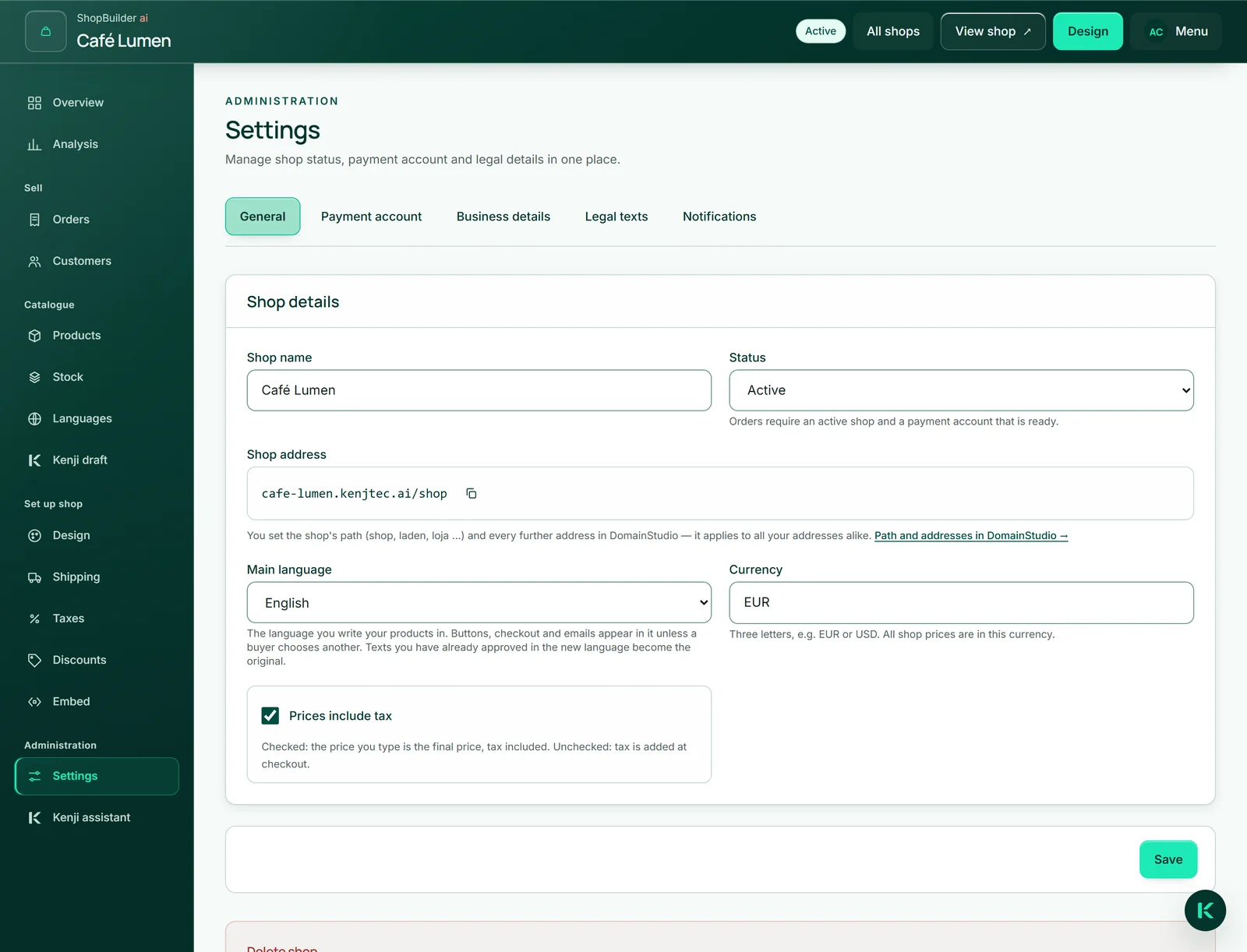
- Open “Settings” → “General”.
- Change the name, the main language, the currency or the “Prices include tax” tick.
- Click “Save”.
Once an order has been paid, the currency can no longer be changed — its amounts are in the previous one. For a second currency you create a second shop.
Deleting a shop
“Delete shop” is at the very bottom of “Settings” → “General”. It only works as long as no order has come in — orders are your records towards your customers. If the shop has orders, you pause it instead.
Deleting removes the shop's products, variants, stock, tax rates, shipping methods, discounts, customers and drafts. The images stay in your MediaStudio, and your payment account is left untouched.
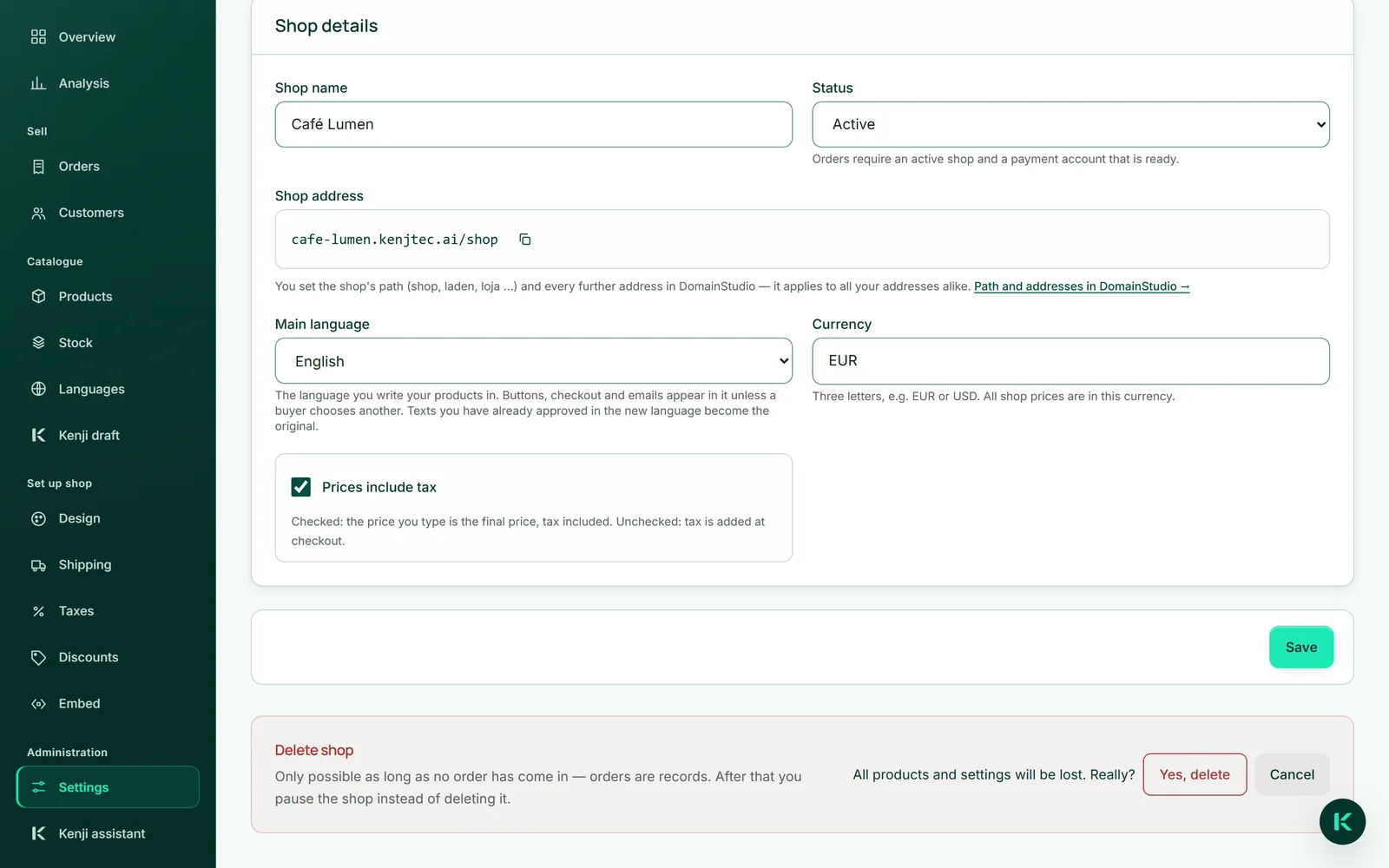
- Click “Delete shop”.
- Confirm the question with “Yes, delete”.