The design comes from your BrandStudio
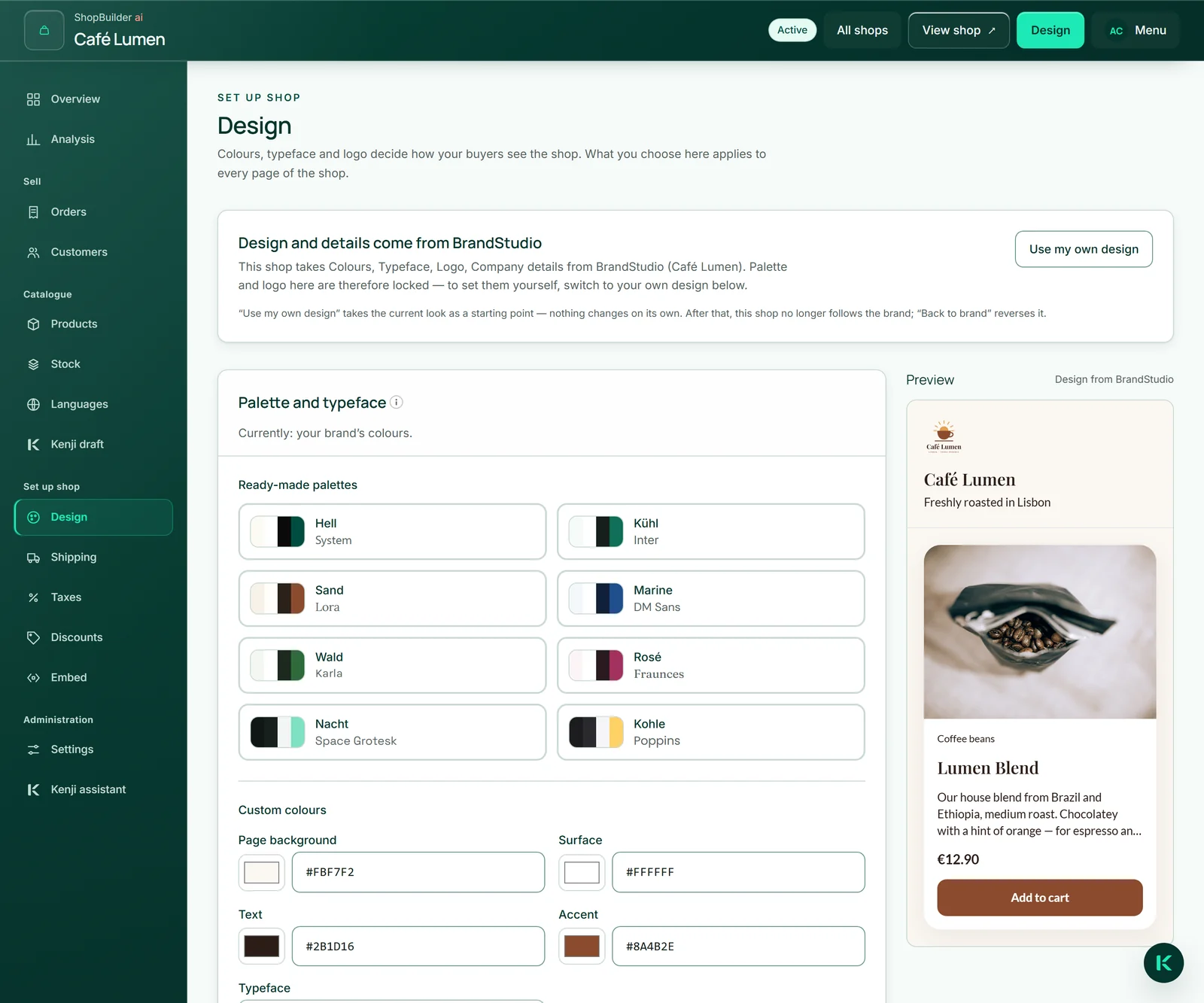
If you have set up a brand in BrandStudio ai, your shop takes it over on its own: colours, typeface, logo, company details, legal notice and the icons of your social networks for the page footer. Change the brand, and the shop follows shortly afterwards by itself; the workbench shows it as soon as you return to it.
At the top of “Design” it then says “Design and details come from BrandStudio” and exactly what is taken over. Palette and logo are locked in this state. If a brand colour would be hard to read in the shop, the shop uses its default or black or white in its place, and the box names the colour concerned.
If your brand sets no colours, typeface or logo, the area says so too — with the way into BrandStudio.
Using your own design — and going back
If the shop should look different from your brand, click “Use my own design”. The current look becomes your starting point — nothing jumps — and the fields unlock. From then on the shop no longer follows the brand.
The way back is “Back to the brand”: the shop wears the brand again and follows it even when you change it later. Your own palette is set aside; “Undo: own design from …” brings it back. There is exactly one level — the next “Back to the brand” replaces it.
- Open “Design”.
- Click “Use my own design”.
- To go back, click “Back to the brand”.
Palettes, custom colours, typeface
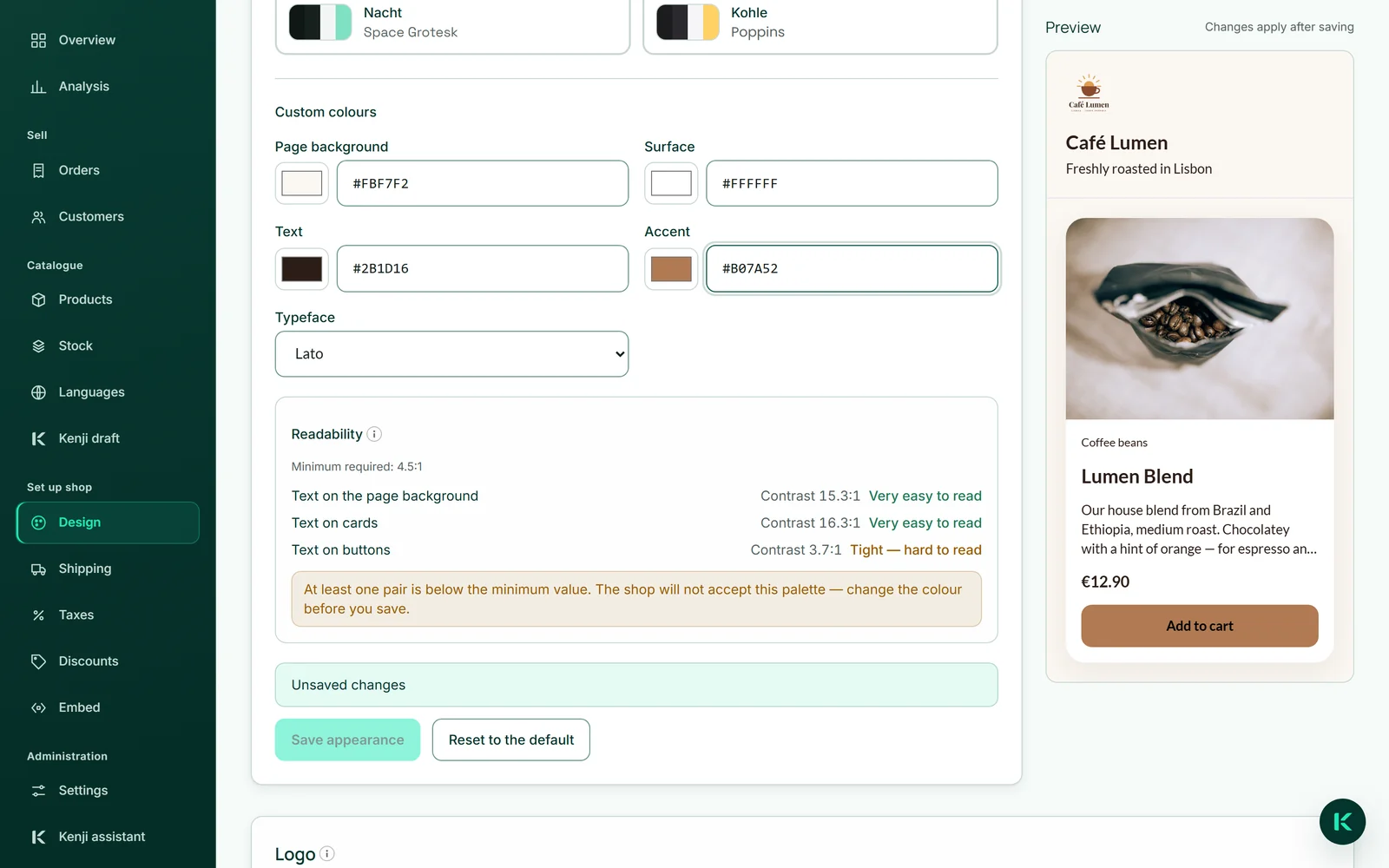
Under “Palette and typeface” there are eight “Ready-made palettes”, each with a matching typeface and checked for readability. A palette fills four roles: “Page background”, the “Surface” of the cards, “Text” and “Accent” for buttons and links.
Under “Custom colours” you type each role as a six-character hex value — #004D40 — or pick it with the colour picker beside it; below that you choose the “Typeface”. Clicking a palette does not save anything yet: the form says “Unsaved changes” until you click “Save appearance”.
“Reset to the default” removes your own colours. The shop then wears your brand's colours or, without a brand, the first of the ready-made palettes.
- Choose a ready-made palette or type your own colours.
- Check the three pairs under “Readability”.
- Click “Save appearance”.
Readability is calculated
Under “Readability” the workbench calculates the contrast of three pairs: “Text on the page background”, “Text on cards” and “Text on buttons”. Each pair gets a number and a word, from “Very easy to read” to “Not readable”.
Each pair must reach at least 4.5:1, otherwise the palette cannot be saved, and the workbench says which pair is too weak. That keeps your shop readable for everyone, including people with poor eyesight.
Logo and tagline
You choose the logo under “Logo” with “Choose from MediaStudio” from your images; it then appears at the top of every page of your shop. Without a logo, the name stands there. Like product images, it is not copied: replace it in MediaStudio and it changes in the shop too, and as long as it is in the shop it cannot be deleted there. “Remove logo” takes it out of the shop.
The “Tagline” is one sentence under your shop's name — “Freshly roasted in Lisbon”. It is yours and is not translated; leaving it empty is fine.
- Under “Logo”, click “Choose from MediaStudio” and tap your logo.
- Enter your sentence under “Tagline” and click “Save”.
The preview
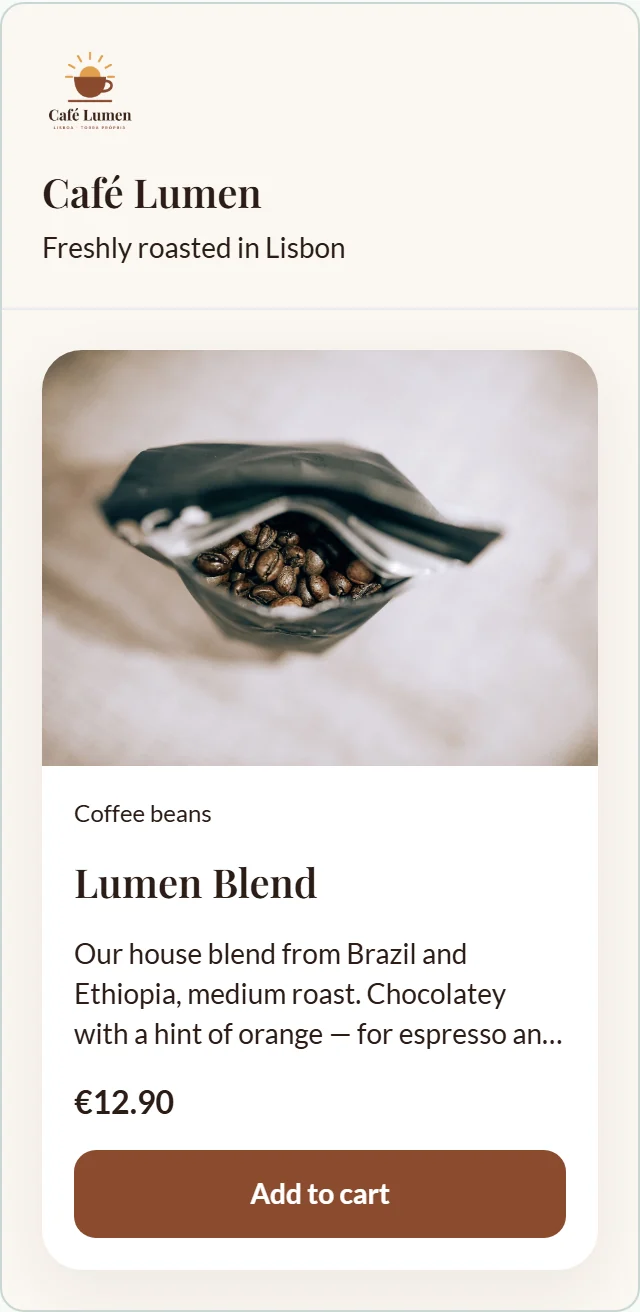
Beside the fields, a preview shows your shop as your buyers see it: logo, name, tagline and one of your products with image, price and button, in the chosen typeface. On narrow screens you open it with “Preview”.
It is for display only — nothing can be bought in it and nothing is published. Your buyers see new colours only after you save.