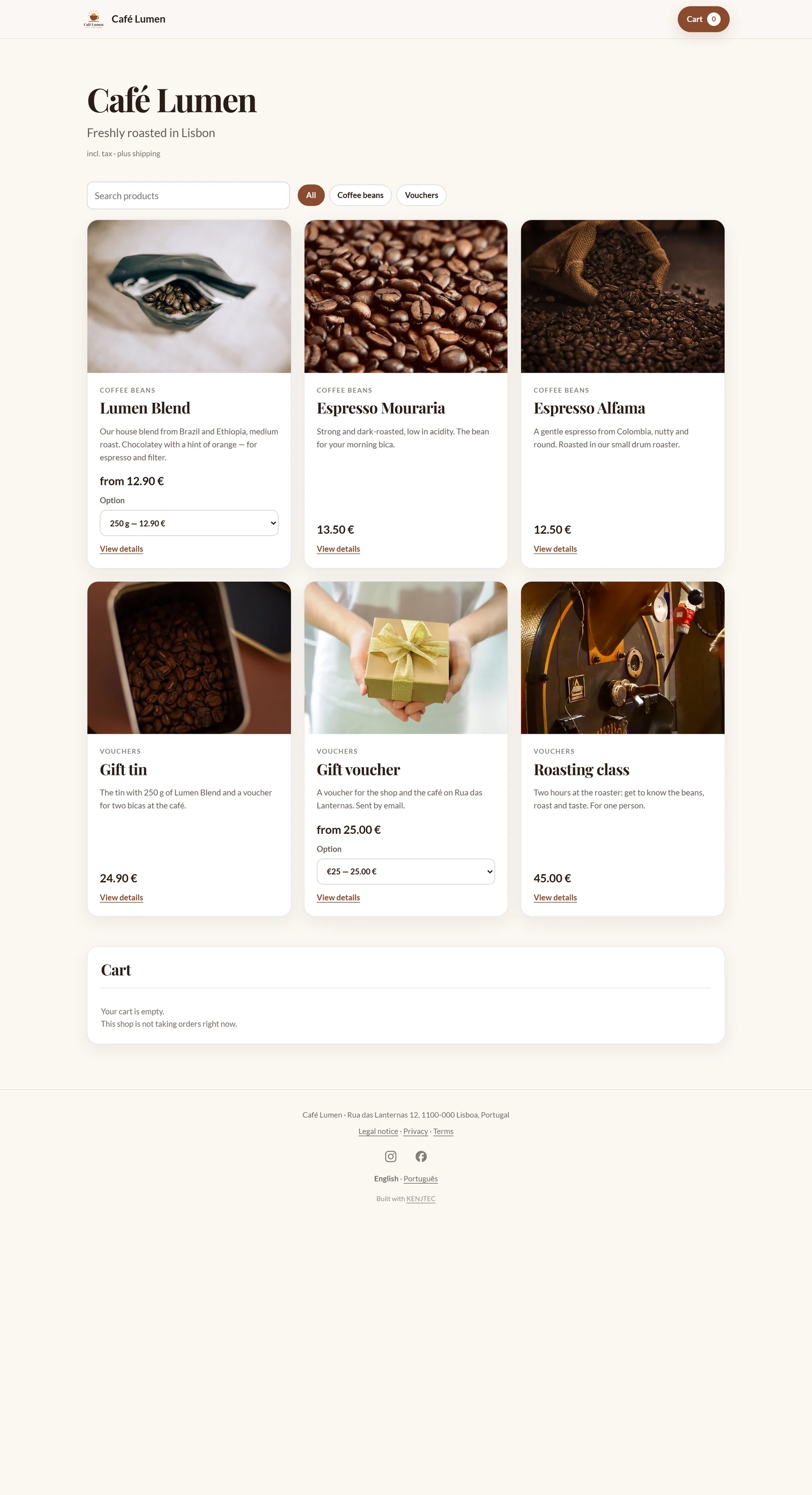
The shop page
At your shop's address, your buyers see the logo or name and the cart at the top, then the name, the tagline and the note on tax and shipping, then the range: each card with image, category, name, the beginning of the description, price and the add-to-cart button. They need no customer account.
The footer holds company name and address, the links to your legal texts, the icons of your social networks and the language switcher.
The page is built for phones and can be used with a keyboard, and it switches movement off when the device asks for that.
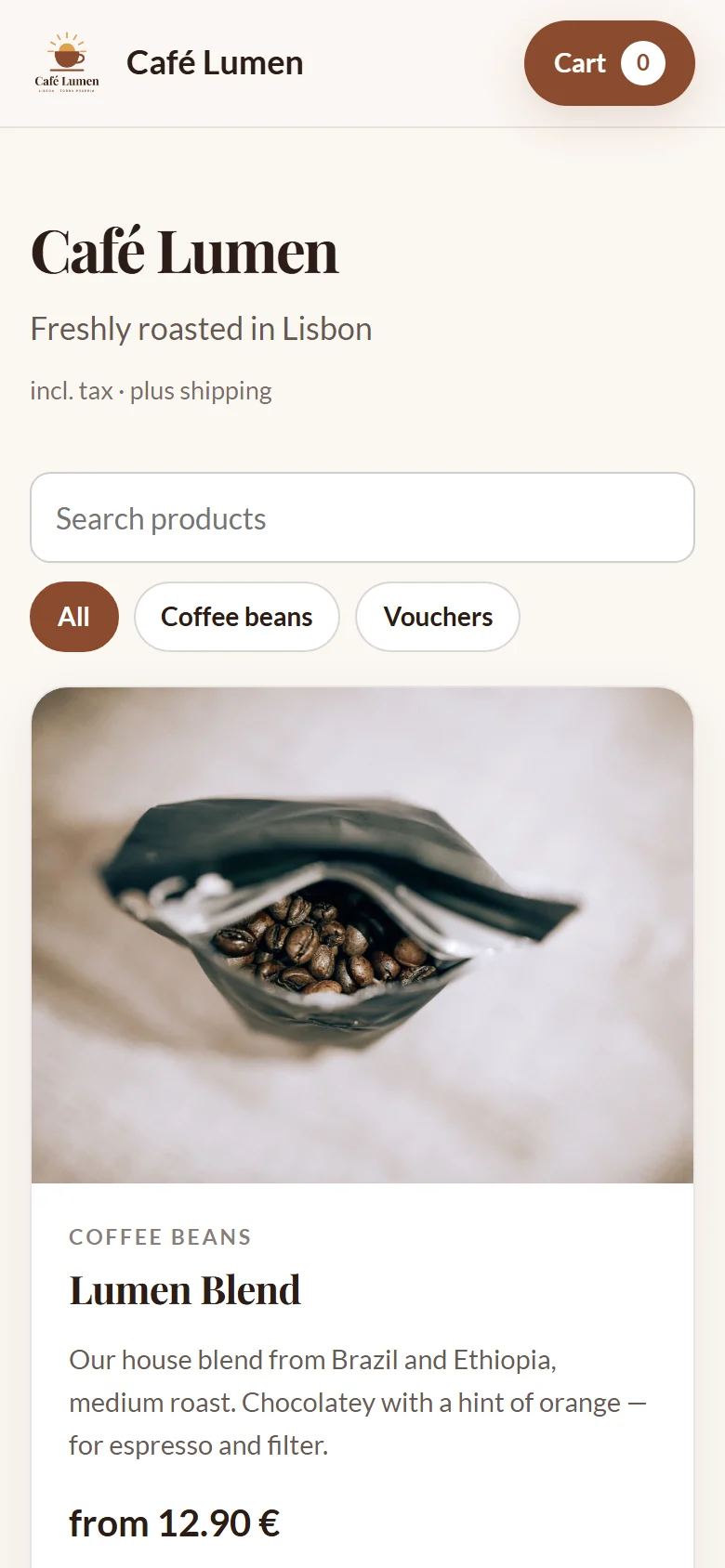
Every product has its own page
A click on a product opens its page: all images as a gallery, the full description, the choice of variant and the add-to-cart button. The address — …/shop/p/lumen-blend — can be shared; the share button opens the share menu on a phone and otherwise copies the link.
In messages the first product image appears as a preview, and search engines receive name, price and availability in machine-readable form. Drafts and archived products have no page: whoever guesses their address reads that the page does not exist.
The cart
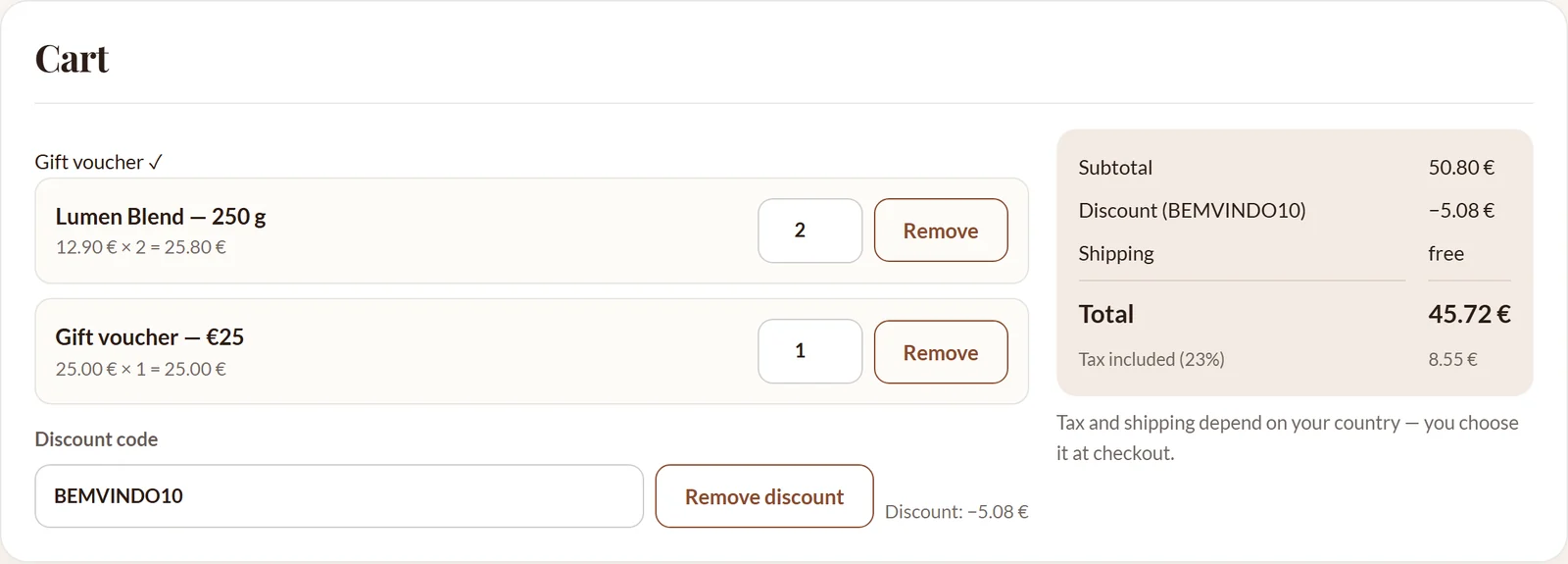
The cart lives in your buyer's browser: if they close the page and come back later, everything is still in it. They change quantities or remove items, and the total shows subtotal, discount, shipping, tax and total as a preview — calculated by the shop with the same rules as at checkout. If tax or shipping depend on the country and none is chosen yet, the cart says so.
If your shop has discount codes switched on, the field for them is here. Checkout calculates the binding amount from your saved prices — what is in the browser is for display only.
Checkout and payment
At checkout the buyer enters an email address and name — both required — and chooses their country from a list. If the order contains goods, they choose a shipping method and, for delivery, enter their delivery address: street and city are required, the postal code is not, because some countries have none; in the United States, Canada, Australia, India, Brazil and Mexico the state or province is required too. With pickup, your pickup place appears instead of delivery, and if nothing needs shipping, checkout asks for no address. The country decides which shipping methods are offered and which tax rate applies; the buyer can add a note if they like.
“Continue to payment” creates the order, holds the goods and shows the order number and the binding breakdown with the tax per rate and country. Then Stripe's payment field appears and the buyer pays with “Pay now” — on your shop's page; the money goes to your Stripe account. Which payment methods appear depends on your Stripe account; methods that redirect to another site are not offered.
- The buyer adds items with “Add to cart”.
- At checkout they enter email and name, choose their country and — for goods — the shipping method and delivery address.
- They click “Continue to payment” and see the binding total.
- They enter their payment details and click “Pay now”.
The order is created with “Continue to payment”, before payment. If someone abandons checkout, the order appears in your list with the payment “Payment pending” — only ship what is “Paid”.
After the purchase
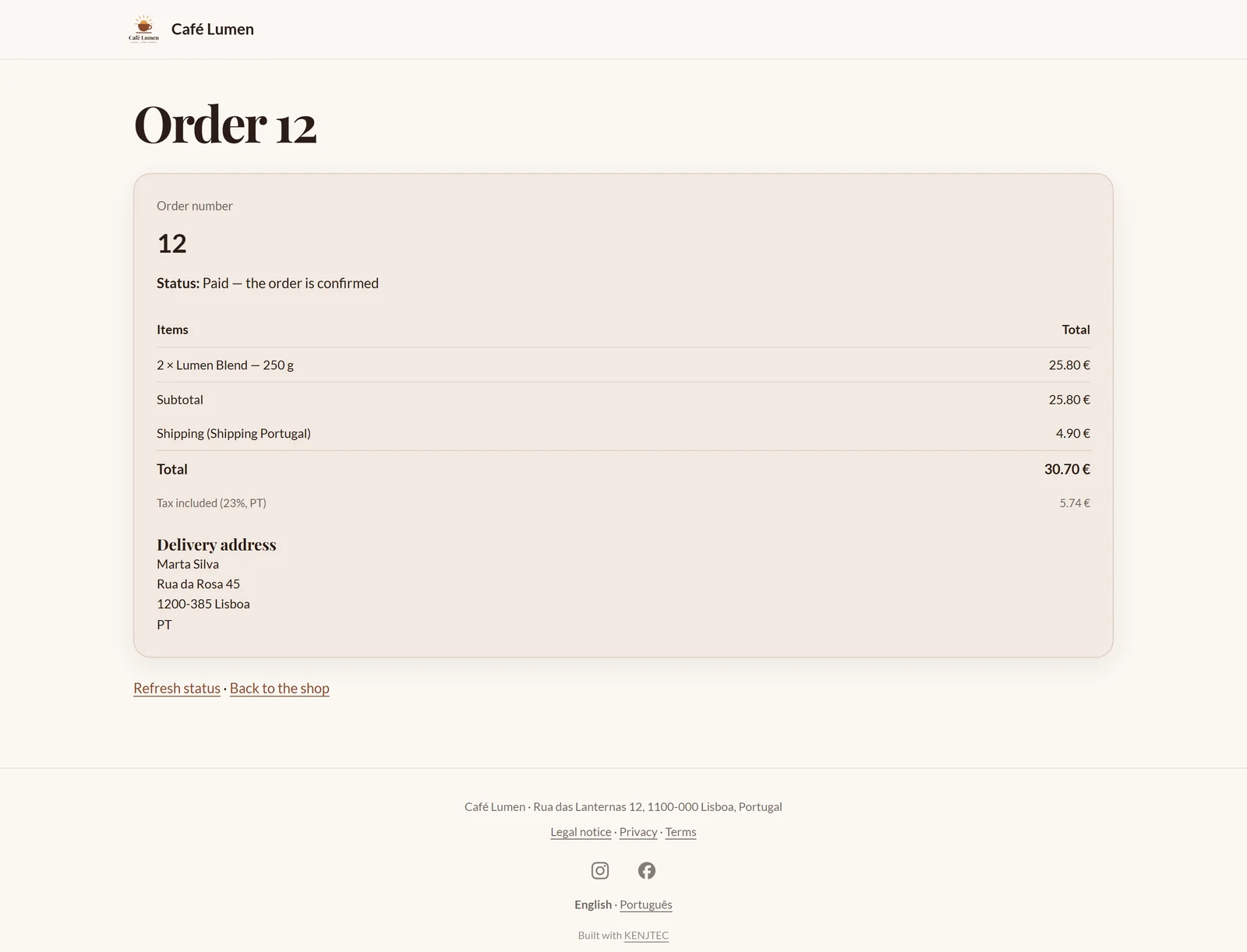
After payment the shop thanks the buyer and shows their order number. Until Stripe has reported the payment, it says the payment is being confirmed; shortly after, that it has been received and the order is confirmed. At the same time the confirmation goes to their email address.
The email contains a private link to their order page. With it they see items, amounts, delivery address and — once you have shipped — the carrier and tracking number. Without the key in the link, the page shows only number and status: order numbers are consecutive, and nobody should read other people's orders by guessing.
You find the link to every order in the workbench under “What your customer sees”.
When the shop does not sell
If your payment account is not connected or may not yet accept payments, your active shop shows the goods without add-to-cart buttons, and the cart says the shop is not taking orders right now — instead of a checkout that leads nowhere. If the shop is in draft or paused, visitors only read that there is nothing to see here right now.
Simple scripts that fill in the checkout form automatically are turned away silently; your buyers notice nothing of it. As an emergency brake, a shop accepts at most 10,000 orders, and an order holds at most 40 different items.