Creating a code
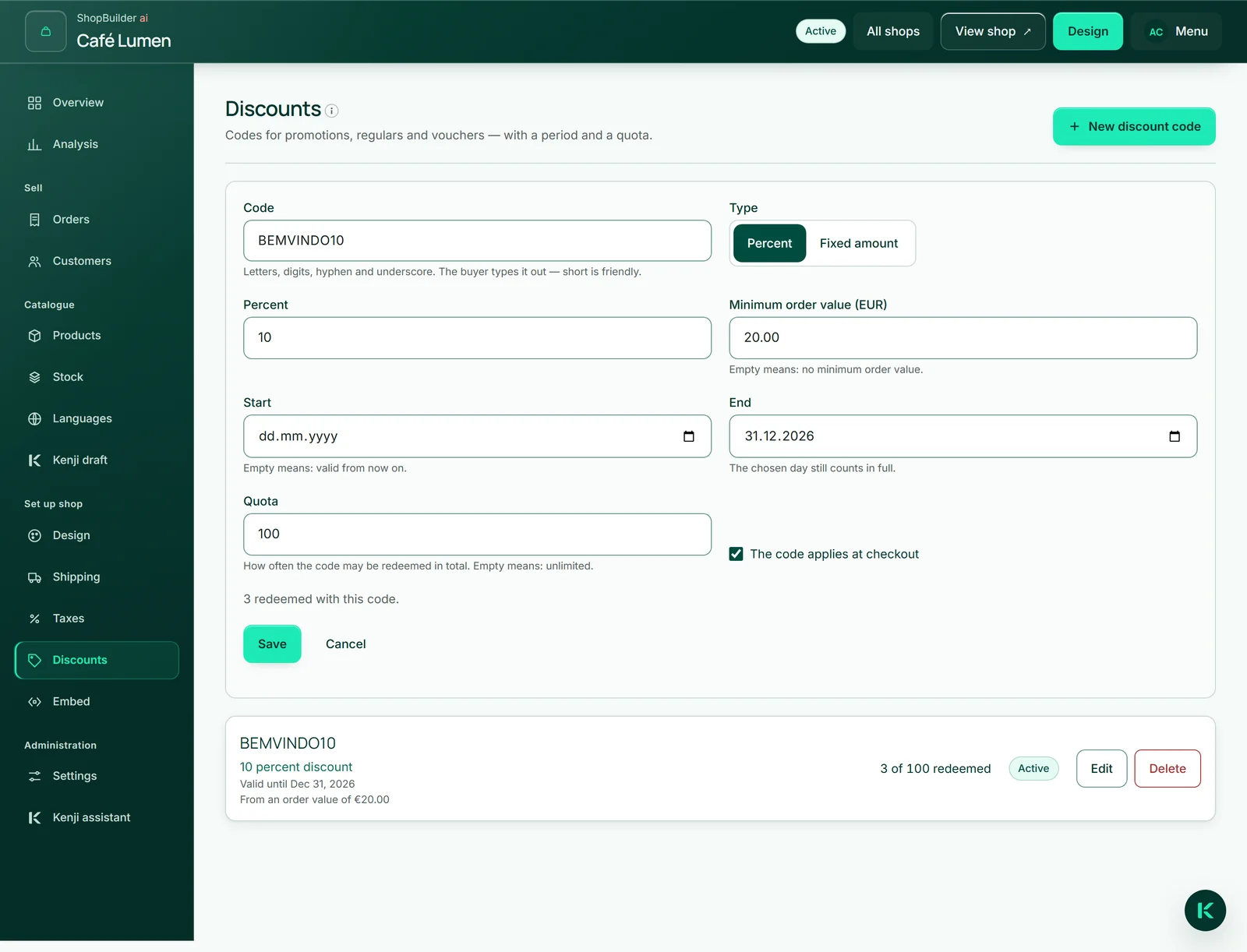
Under “Discounts” click “New discount code”. A code consists of letters, digits, hyphens and underscores — BEMVINDO10, SUMMER-5. It is stored in capitals; your buyers may type it in lower case.
As the “Type” you choose “Percent” or “Fixed amount”. A percentage takes a share of the goods total, a fixed amount is deducted — never more than the goods cost.
- Open “Discounts” and click “New discount code”.
- Enter the “Code” and choose the “Type”.
- Enter the percentage or the amount.
- Click “Save”.
Period, minimum order value, quota
Three settings limit a code. “Start” and “End”: empty means from now on and without an end; the end day still counts in full. “Minimum order value”: the code only applies from this goods total. “Quota”: how often it may be redeemed in total; empty means unlimited.
The tick box “The code applies at checkout” switches a code off without deleting it. In the list, each code says in one word where it stands — “Active”, “Paused”, “Starts later”, “Expired” or “Used up” — and how often it has been redeemed.
What the buyer sees
If your shop has at least one code switched on, the cart has a field for the discount code. The cart shows the deduction straight away as a preview; checkout then checks it again bindingly — period, quota and minimum order value.
If a code does not apply, the buyer reads in their own language why: that it does not exist or no longer applies, or from which amount it applies. The shop calculates tax on the amount after discount.
A redemption counts as soon as the buyer continues to payment. If the payment fails or you cancel the order, the place in the quota is freed at once; if the buyer abandons checkout, after four hours.
Editing and deleting
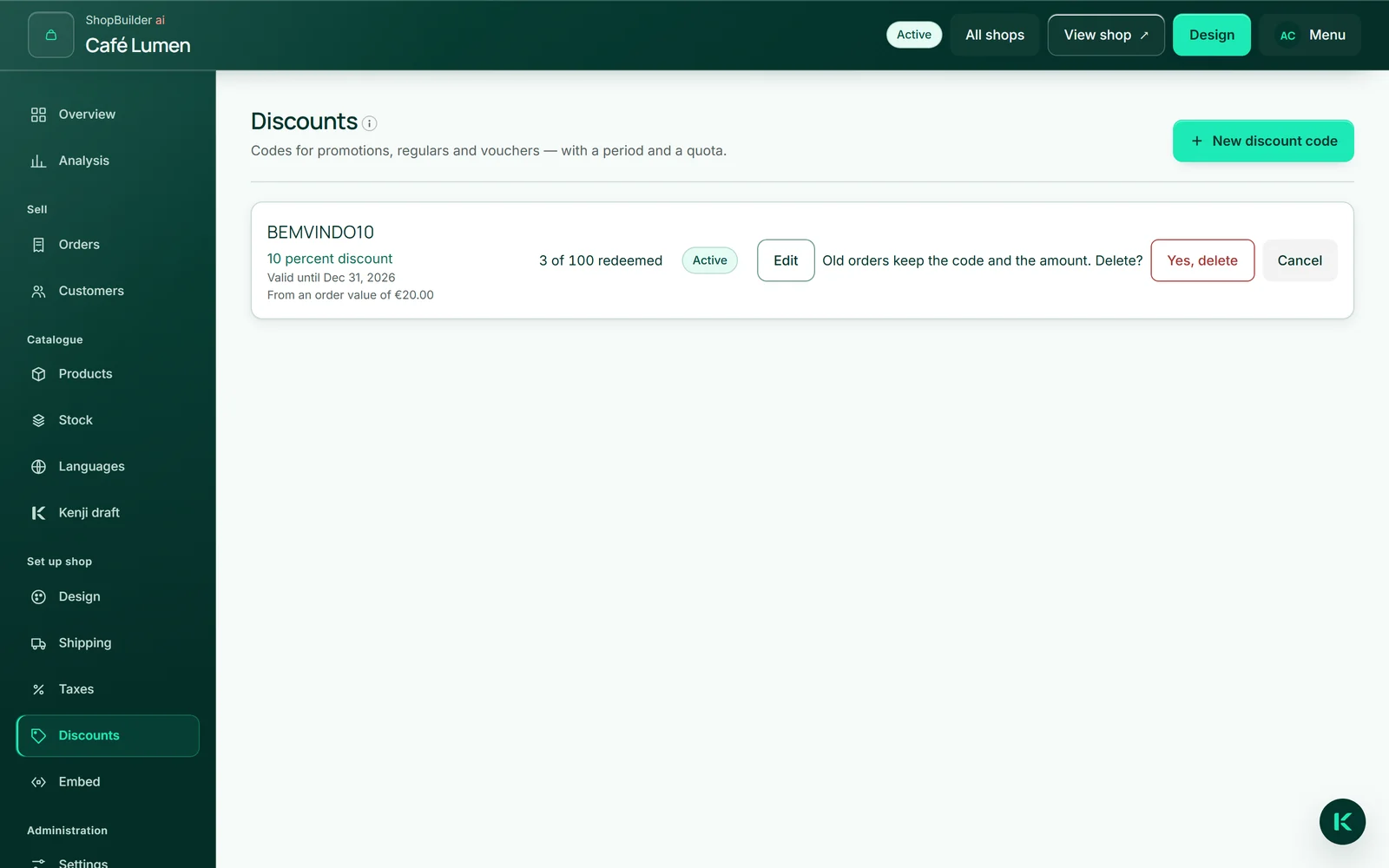
“Edit” opens a code with all its fields. “Delete” asks first, with the important sentence: old orders keep the code and the amount — a deleted code makes no order unreadable.
The Kenji assistant can also create a discount code; you see the step beforehand and approve it.