
A draft from one sentence
Under “Kenji draft” you describe your business in one sentence: “Small roastery in Lisbon, three kinds of beans, subscription and gift boxes”. Kenji drafts categories and products from it, with descriptions and variants, in the language of your sentence. You also get there via “Draft products with Kenji” in the products and “Draft with Kenji” in the getting-started plan.
Kenji does not invent prices. Instead, each product notes what to consider when pricing — “per bag”, “tiered price makes sense”. Whatever your sentence does not mention — opening hours, brands, certificates — Kenji is not meant to add; read the draft anyway before you apply it.
- Open “Kenji draft” and choose “From one sentence”.
- Describe what you sell and to whom.
- Click “Make a draft”.
A draft uses AI credit. If Kenji delivers no usable draft, nothing is used.
Products from photos
If your range lives on your phone rather than in sentences, choose “From photos”. Tap up to six images from your MediaStudio — JPEG, PNG, WebP or GIF, each at most 5 MB — and add a word if you like, such as “All roasted in-house”. “Recognise products” turns them into suggestions.
Kenji describes what can be seen in the images — material, shape, colour — and is not meant to add anything: no dimensions, no origin, no care instructions. It never enters a price; if a price tag is visible, it mentions it as a note for you to check. The texts come in your shop's base language.
When you apply the draft, each photo is attached to its product straight away. The suggested image description is shown in the preview; it is not taken over.
- Open “Kenji draft” and choose “From photos”.
- Tap up to six images.
- Add a sentence if you like and click “Recognise products”.
Recognising uses AI credit per image. If there is nothing for sale in the photos, Kenji says so and nothing is used.
Apply or discard
Each draft is a card under “Drafts” and waits for your decision. “Preview” shows categories, products, variants and the notes on pricing.
“Apply draft” creates the products — as “Draft”, without a price, with category and variants, and from photos with their image. Nothing appears in the shop until you enter prices and set the products to “Active”. The name and tagline Kenji suggests for the shop you enter yourself if you like them. “Discard” sets the draft aside without creating anything.
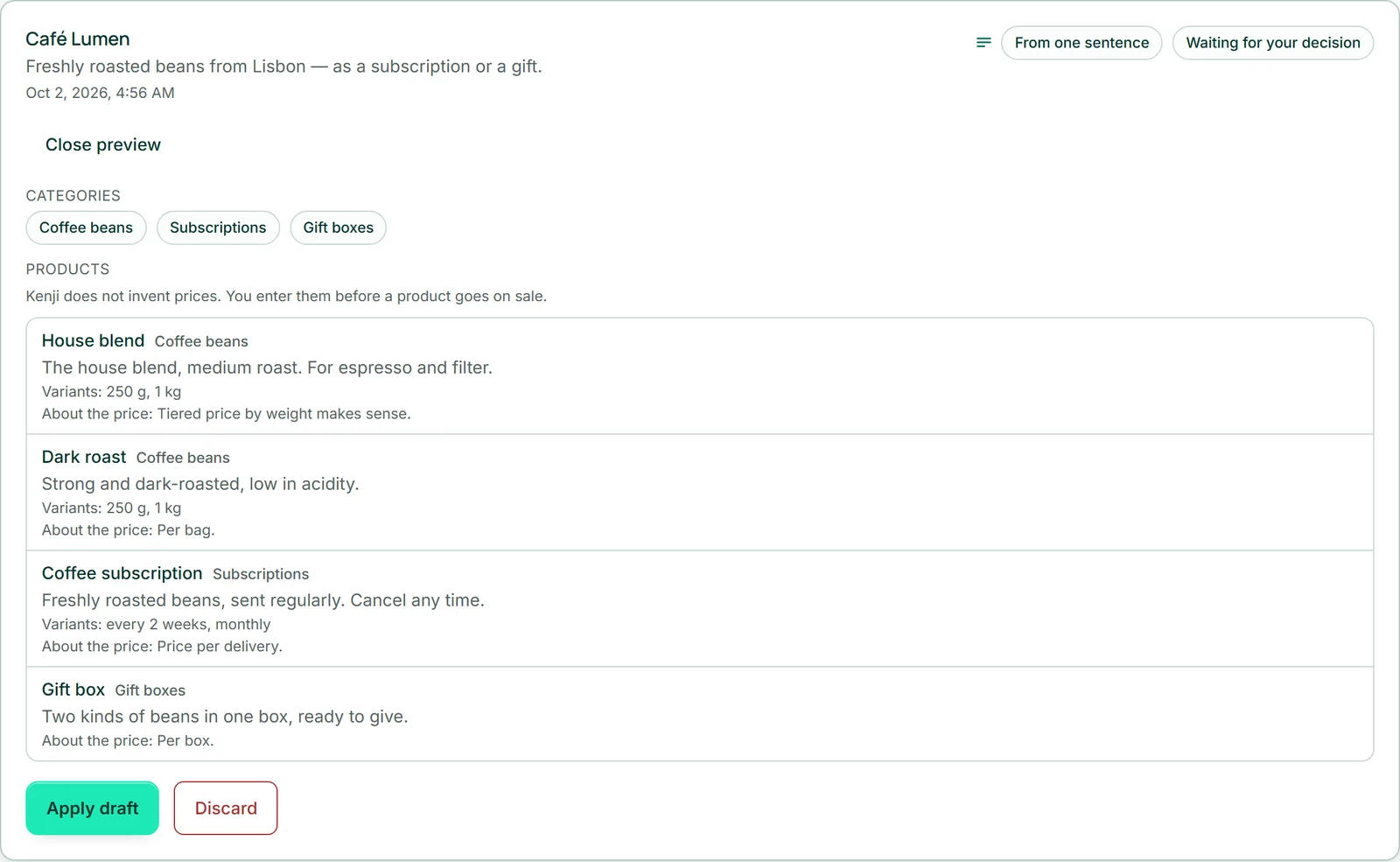
- Open the draft's “Preview”.
- Click “Apply draft” — or “Discard” and confirm.
- Enter the prices under “Products” and set the products to “Active”.
Applying and discarding use no AI credit.
The Kenji assistant: everyday work in one sentence
You tell Kenji what should happen in the shop — “Lower the price of all coffee beans by 10 percent”. Under “Kenji assistant”, “Edit with Kenji” opens the Kenji window at the bottom right; it knows your shop and the area you are in. Kenji hands the job to the shop’s Kenji assistant, which translates it into individual steps. Its suggestion appears in the window below Kenji’s answer and at the same time under “Kenji assistant”, in plain words with names and amounts. Nothing has happened yet.
Kenji can set prices or change them by a percentage, set products to draft, active or archived, set categories, book stock, create discount codes and add a tracking number to an order. Name products the way they are named in your range — then Kenji finds them. If it is unsure which ones you mean, a “Note from Kenji” appears above the steps.
Nothing changes until “Run” and “Yes, run it” — in the window or under “Kenji assistant”, it is the same suggestion; “Discard” leaves everything as it was (Running the steps — and what happens then). A price change stays until you undo it; for a promotion with an end, a discount code with an end date is the better route.
- Open “Kenji assistant” and click “Edit with Kenji”.
- Write in the Kenji window what should happen and press Enter.
- Read the suggestion below Kenji’s answer.
Every suggestion uses AI credit — including one in which Kenji finds no matching steps. Everything the assistant does can also be done by hand.
Running the steps — and what happens then
Below the list it says: none of this has happened, only “Run” changes anything. “Run” and its confirmation carry out the steps; “Discard” sets the suggestion aside and nothing changes.
While running, the shop checks every step again against the real state. Whatever no longer fits — a deleted product, a code that already exists, too little stock — is skipped and reported with a reason; the remaining steps still run. The result appears under “Changed” and “Skipped — with a reason”.
“Earlier suggestions” lists all previous ones with their state. Only the most recent open suggestion waits at any time; older ones come up as soon as you have run or discarded it.
- Check each step in the list.
- Click “Run” and confirm with “Yes, run it”.
- Read the result under “Changed” and “Skipped — with a reason”.
Running and discarding use no AI credit.