
Opening BrandStudio
BrandStudio ai is the place for everything that makes up your presence: company details, logo, colours and fonts. You set them once and your tools take them over — website, forms, shop, WordPress, invoices and print matter.
You don’t need to create a brand: every account has one from the start. You’ll find BrandStudio ai in the tool menu or directly via Open BrandStudio. In DomainStudio, every domain you manage there also has the item “Brand”, which opens the same studio.
The sections are listed on the left: “Overview”, “Company”, “Logo” and “Design”, then “Legal Notice”, “Print”, “Use your brand” and “Trademark protection”. On a phone, you pick the section in the “Section” field.

- Sign in and open BrandStudio ai from the tool menu.
- Choose a section on the left — on a phone, in the “Section” field.
- Start with “Company” and enter your brand’s name there.
The overview
The “Overview” shows your brand at a glance: the logo, the name in your heading font and, below it, the website address from your company details. Next to it are your colours and both fonts, each with an “Aa” set in the font itself. Where you haven’t chosen anything yet, it says “Template decides” — for colours, there’s a “Choose colours” button instead.
Below, three cards lead to “Company”, “Logo” and “Design”. Each shows how far you’ve got: “Add details” or your company name, “Add logo” or “Logo added”. Further down, “Open PrintStudio” takes you to your print matter. “Channels in SocialStudio” leads to your social profiles — the link sits on the left below the sections, and at the end of the overview on a phone.

Several brands
If your subscription allows more than one brand, a selector and the “Another brand” button appear on the left, under your brand. That way you can run a separate brand for each client, for example — each with its own company details, logo, design and print matter. How many brands you can have depends on your subscription; once they’re all in use, a sentence tells you so as soon as you click “Another brand”.
When you create your second brand, everything that already exists stays with the first: your websites, forms, shops and WordPress sites keep the brand they had. Which brand each project uses is shown under “Projects”.
You change the name under “Company” in the “Brand name” field; it’s saved as soon as you leave the field. If two brands share a name, the selector shows their number next to it.
Once you have more than one brand, you can delete one: “Delete brand” under “Company”, then “Delete”. Its company details, design, channels and print drafts go with it. An uploaded logo stays in MediaStudio with all its formats. Projects that belonged to it are then listed under “Projects” in “No brand yet”.
- Click “Another brand” on the left, under your brand.
- Open “Company” and give the new brand its name in the “Brand name” field.
- Switch between your brands using the selector.
Which brand each project uses
“Projects” shows which websites, forms, shops and WordPress sites use the selected brand — each marked “Online” or “Not online”, with an “Open” button. What a project takes from its brand is explained under The rule: whatever is empty follows the brand.
If you have several brands, every project has “Change brand …”: choose the brand and click “Assign”. Projects that don’t belong to a brand yet are listed below under “No brand yet”; “Assign to this brand” gives them to the brand you’re working on.
If you publish a project that doesn’t belong to a brand yet, the tool asks “Which brand?”. The brand you edited last is preselected; the button next to it — “Assign and publish”, for example — does both in one step. “Cancel” leaves everything as it was.
A website you start with “Build website” under “Use your brand” belongs to that brand straight away.
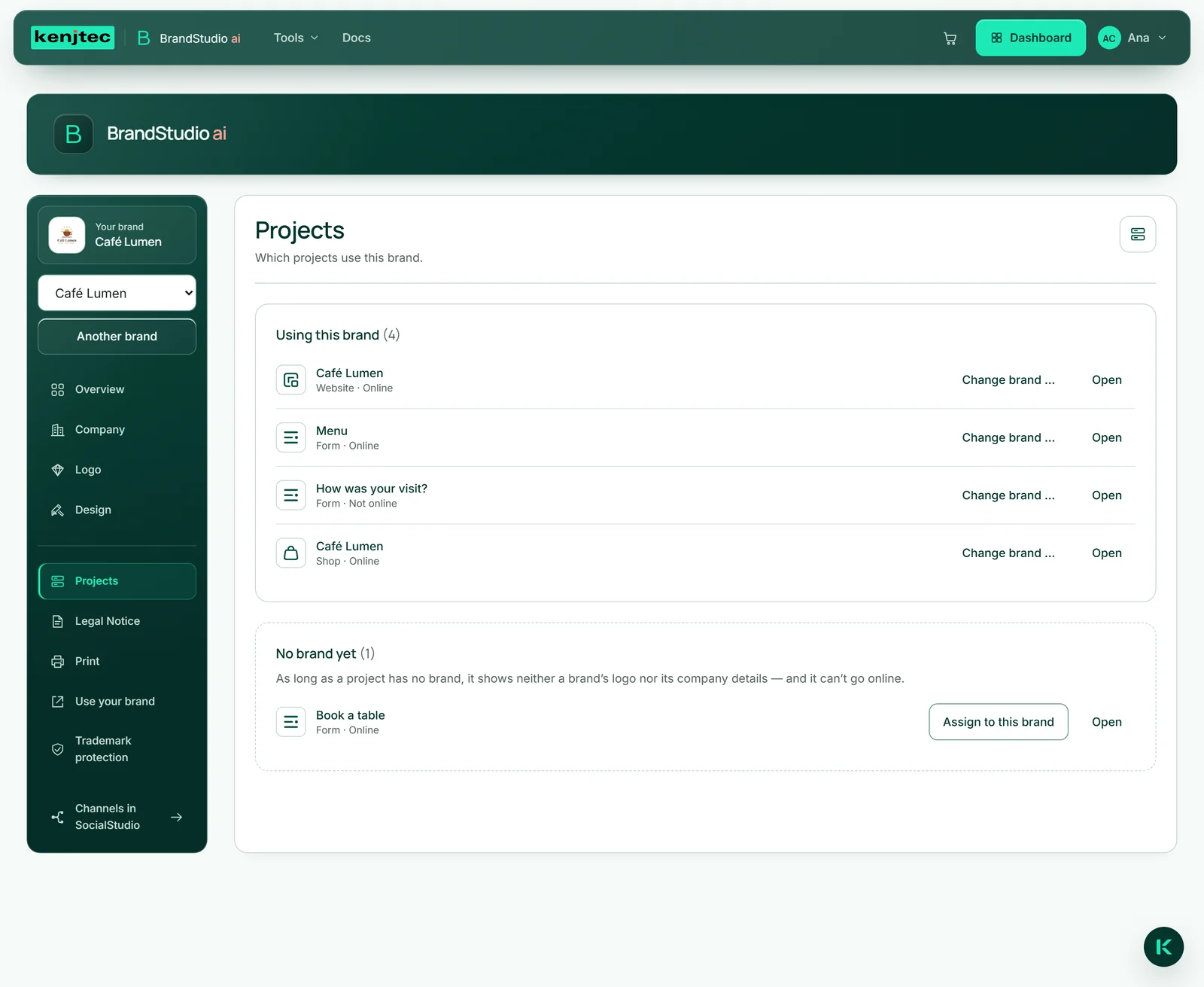
- Open the “Projects” area in BrandStudio.
- Choose the brand whose projects you want to see in the selector.
- Click “Assign to this brand” under “No brand yet” — or “Change brand …” next to a project, choose the brand and click “Assign”.
If you have several brands, a project only goes online once it belongs to one.
The brand sheet
The brand sheet is one A4 page with your design: every colour role with its hex and RGB value, the heading and text font, the shape of buttons and cards and — once you’ve set an accent colour — a drawn button. Anything you haven’t set is marked as not set — nothing is made up.
It’s meant for everyone who works in your design outside KENJTEC: the print shop, the sign maker, an agency. The sheet always shows the state at the moment you download it, and costs nothing.
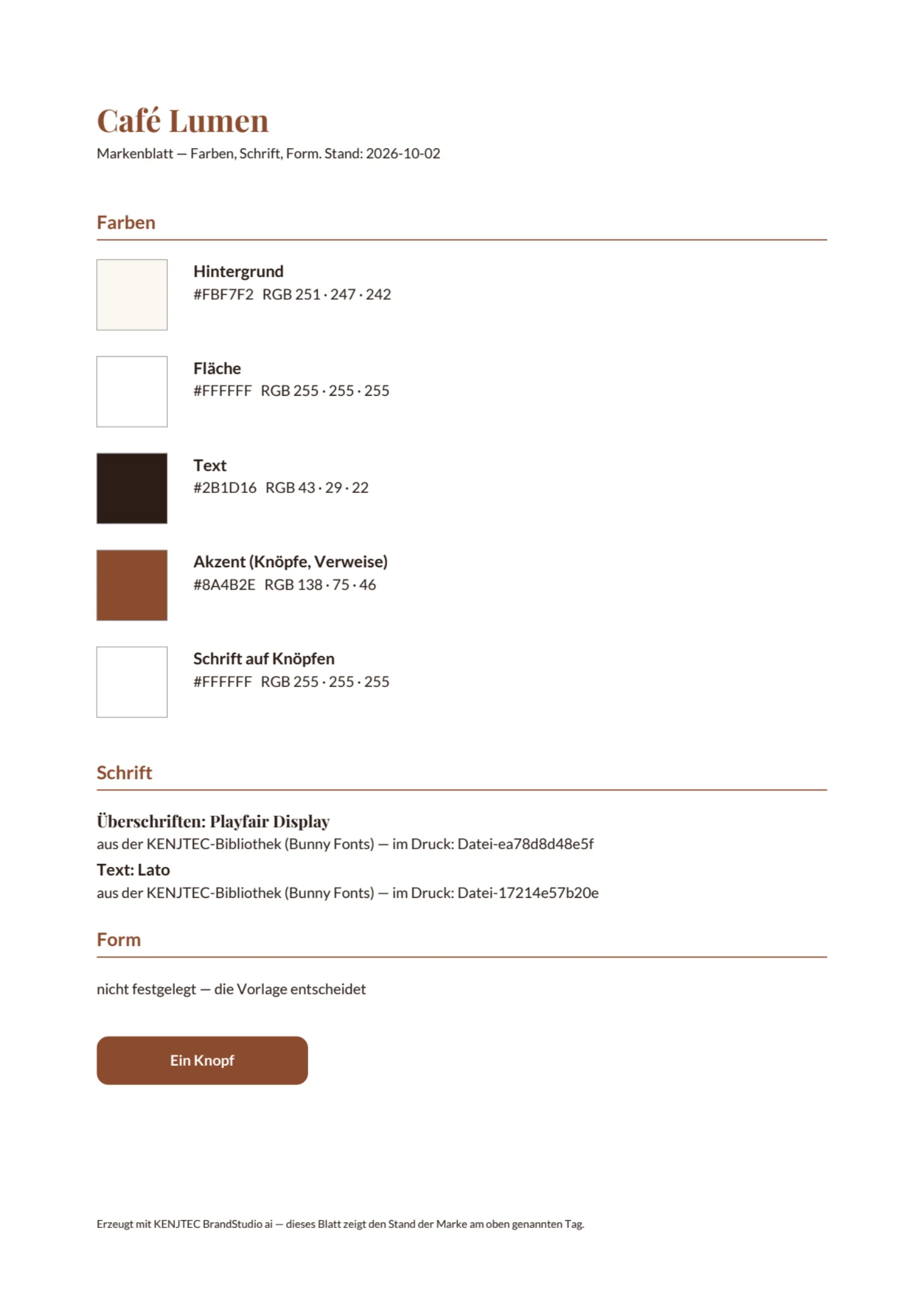
- Open the “Overview”.
- Click “Download brand sheet” below your brand identity.
- Pass the PDF on to whoever needs it.
The brand sheet is also available in PrintStudio: below the preview, under “Print format and brand sheet”.