
Creating your first shop
You create your shop in ShopBuilder. To begin with it needs three things: a name, the currency you sell in — three letters such as EUR, USD or BRL — and the “Main language” you write your products in. Your account's currency and the language you are using KENJTEC in are suggested.
The workbench of your shop then opens. You set up products, shipping, the payment account and everything else there, and every detail can be changed later. A new shop starts in the “Draft” state: nobody can see it yet.
- Open ShopBuilder.
- Enter the name under “Shop name” and check the “Currency” and “Main language”.
- Click “Create shop”.
Several shops
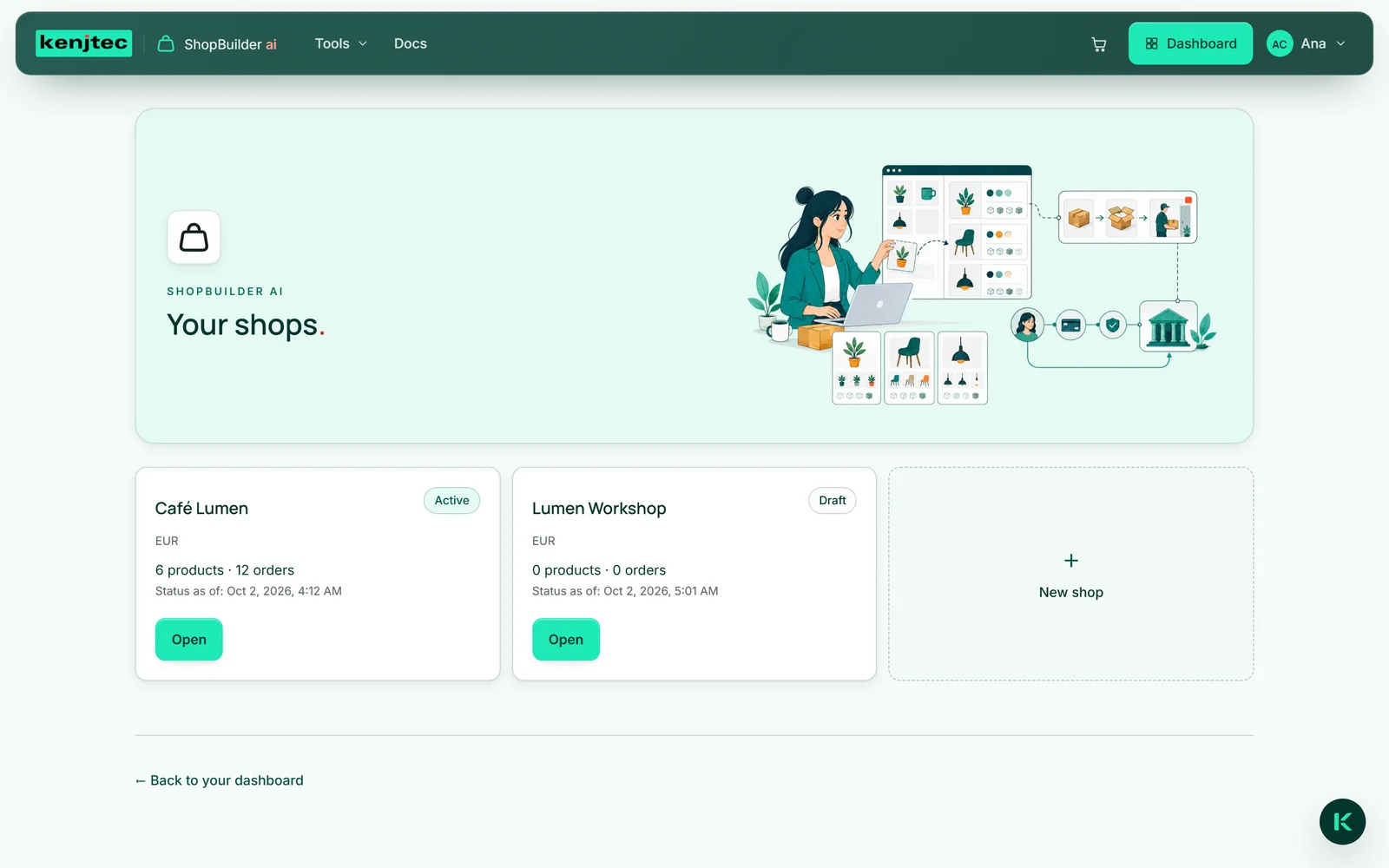
You can run several shops side by side, say one for coffee beans and one for crockery. If you already have a shop, opening ShopBuilder first shows “Your shops”: one card per shop with its status, currency and number of products and orders. Only “Open” takes you into the workbench — so you never work in the wrong shop by accident.
You create another shop with the “New shop” card. Each shop has its own products, orders and settings; all the shops in your account share one payment account.
The chosen shop and its area are part of the page address, so a bookmark takes you straight back there.
How many shops you can create depends on your plan — see Pricing.
The workbench
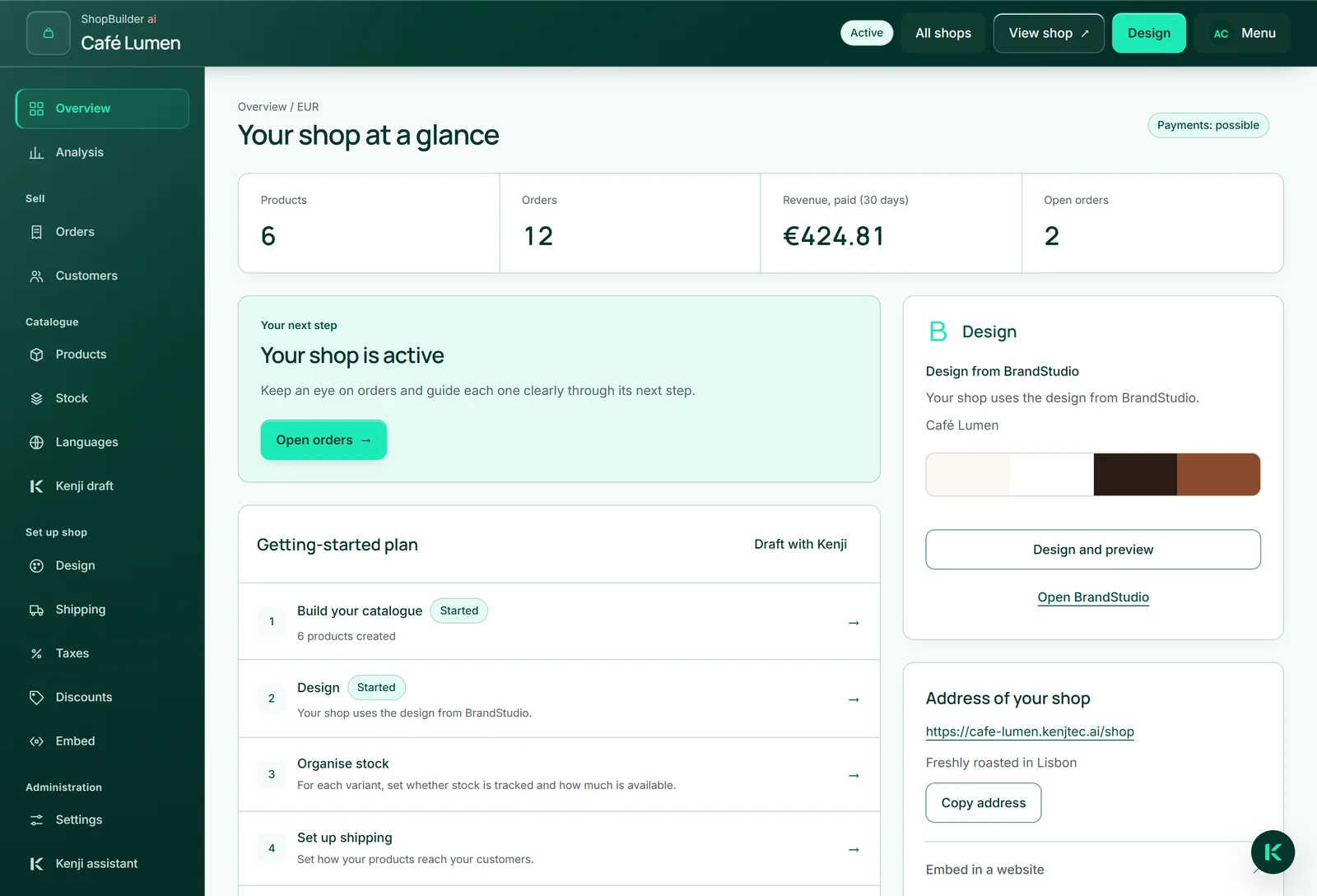
On the left is the navigation, ordered by the questions a merchant asks: at the top “Overview” and “Analysis”; under “Sell” the orders and customers; under “Catalogue” products, stock, languages and the “Kenji draft” — Kenji, KENJTEC's AI, drafts products for you there; under “Set up shop” design, shipping, taxes, discounts and embedding; under “Administration” the settings and the “Kenji assistant”. On a phone you pick the area from the “Workspace” list.
At the top you see your shop's name and status, and next to them “All shops”, “Design” and — once the shop is active — “View shop”, which opens the page your buyers see.
The overview: your next step
The “Overview” is the start page of the workbench. At the top are the number of your products and orders; once there are orders, also the paid revenue of the last 30 days and the open orders.
Below it there is exactly one next step: with no products, your first product; if the shop is not active yet or your payment account not ready, the settings; if everything is ready but nothing has been ordered, sharing the address; after that, the orders. The “Getting-started plan” shows the whole way in seven stages — from the catalogue through design, stock, shipping, taxes and languages to payment and shop status. Whatever you have begun is marked “Started”.
On the right you see where your shop's design comes from, and its address with “Copy address”.
