
Creating a product
Under “Products” click “New product”. On the left are “Name” and “Description”, on the right the settings: “Status”, “Base price” in your shop's currency, “Tax rate” and “Category”. You type the price as an amount, with a comma or a full stop.
Under “Needs shipping” you say whether the product travels as goods. Ticked — every new product starts that way — checkout asks for a shipping method and a delivery address, and tax follows the delivery country. Unticked (digital goods, a service), checkout asks for no address, only for the buyer's country, because it decides the tax.
A product has three states. Only “Active” appears in the shop; nobody sees “Draft” or “Archived”. An active product without a price shows “Price on request” and cannot be added to the cart.
When you create it, the product's address is formed from its name, for example …/shop/p/lumen-blend. It stays the same even if you rename the product later.
- Open “Products” and click “New product”.
- Enter name, description and base price; choose the tax rate and category.
- Set the “Status” to “Active” if the product should appear in the shop straight away.
- Click “Save”.
You add variants and images once the product has been saved.
The product list: search and filter
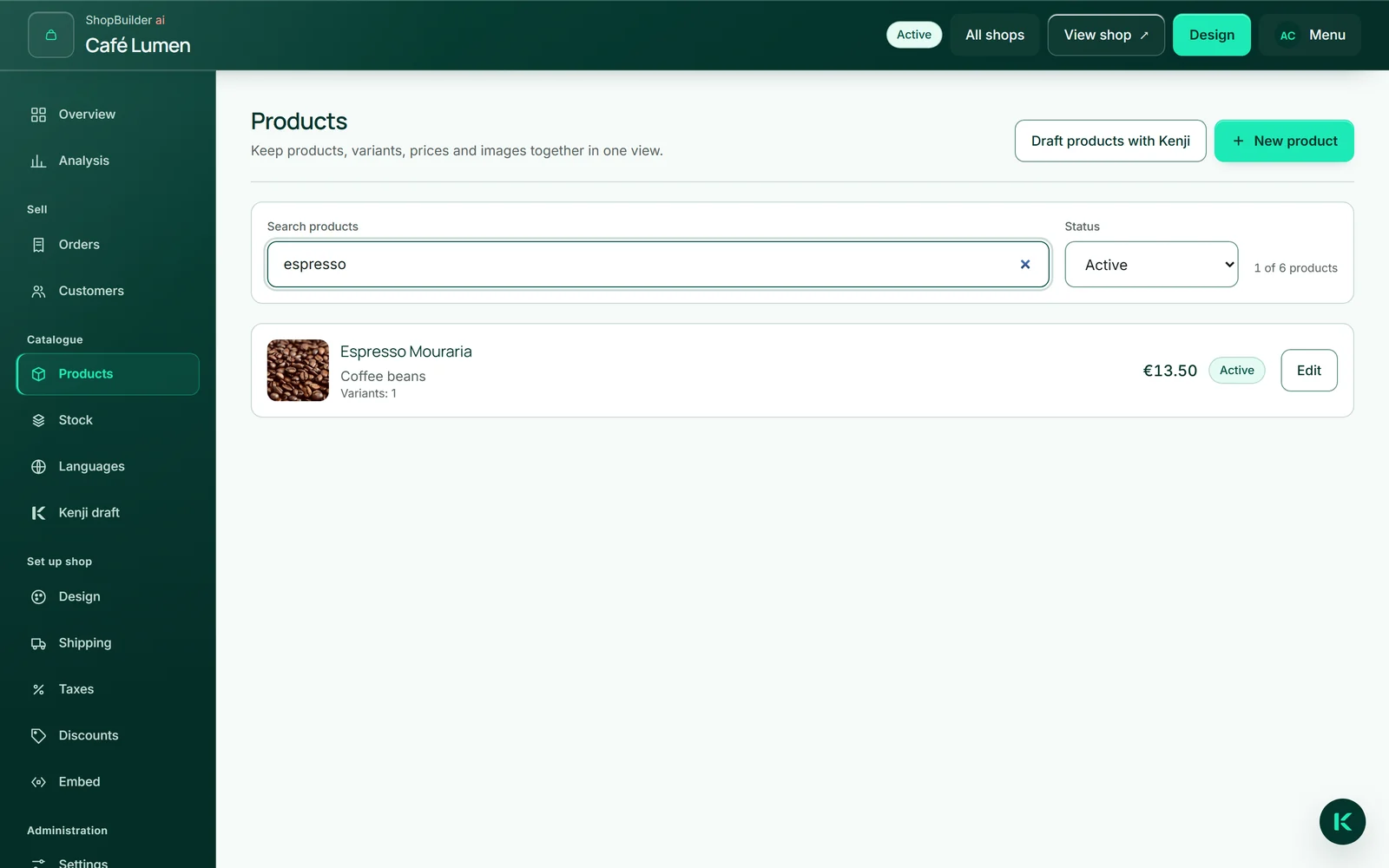
The list shows each product's cover image, name, category, number of variants, base price and status. “Search products” finds a product by name, category, variant or article number; “Status” shows only active, draft or archived products. A line below says how many of them are showing.
“Edit” opens a product and “To the product list” takes you back — your search stays in place. If nothing matches, “Reset filters” clears both.
Variants: sizes, quantities, kinds
What gets bought is always a variant, so every product has at least one: “Standard” is created with it. If you sell a product in only one form, leave it that way — the name “Standard” does not appear in the shop.
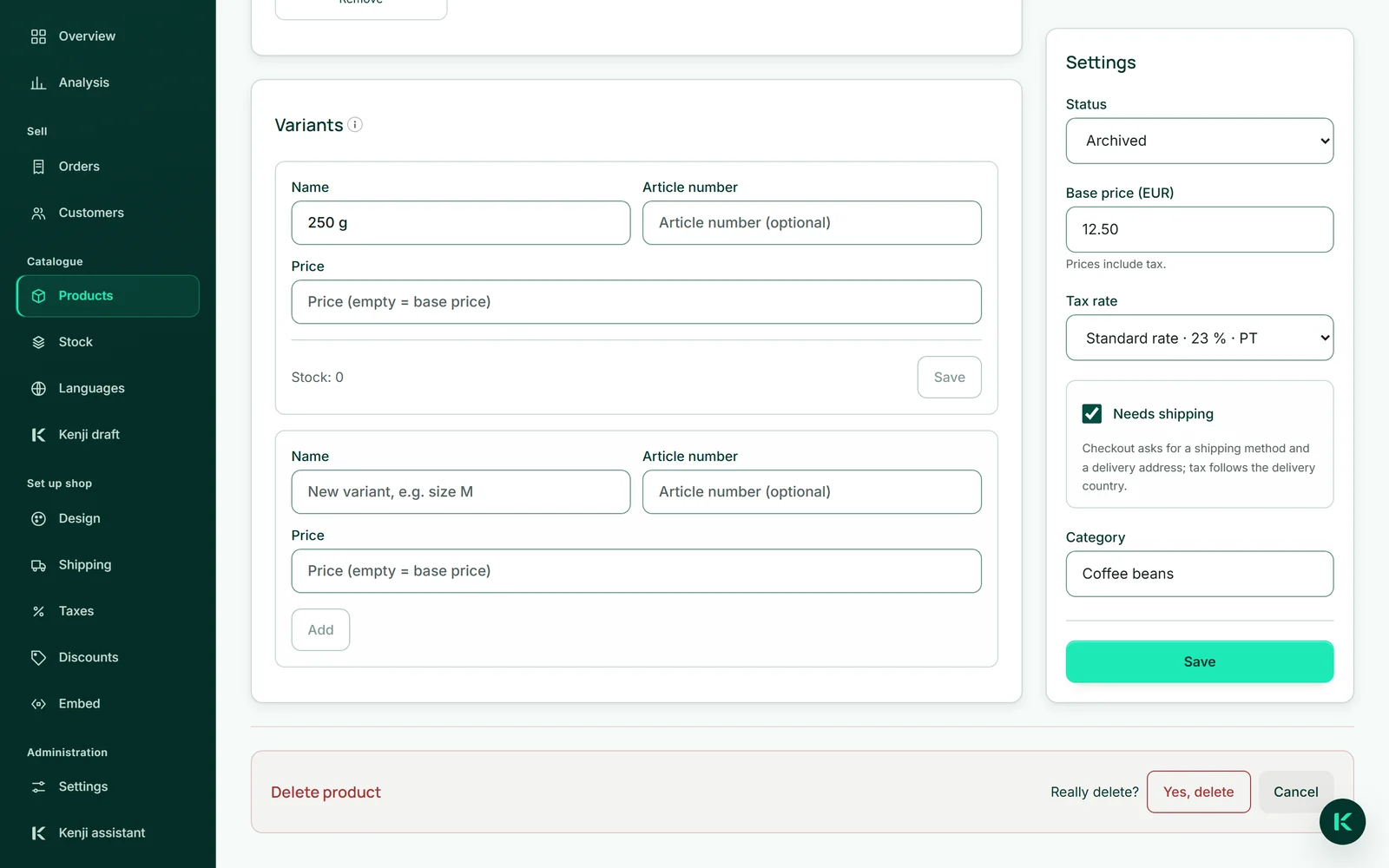
For several forms, rename “Standard” and add the others: “Standard” becomes “250 g”, and “1 kg” is added. Each variant can have its own article number and its own price; without one, the base price applies. In the shop the buyer picks the variant from a list, and if the variants cost different amounts, the card shows “from …” with the lowest price.
The last variant of a product cannot be removed.
- Open the product with “Edit”.
- Under “Variants”, change the name of “Standard” and click “Save” next to it.
- Below, enter the name, article number and price of the next variant and click “Add”.
Product images from MediaStudio
Images come from your MediaStudio ai — there is no second way of uploading. “Choose from MediaStudio” opens the selection; you tap the images and take them over. A product holds up to 20 images. The first is the cover image on the card, and together they form the gallery on the product page. The order is the order in which you choose them; for a different cover image, remove the images and choose them again.
The image is used, not copied. Replace it in MediaStudio and it changes in the shop too. As long as it sits in your shop, it cannot be deleted in MediaStudio — so no click tears a hole in a sales page. “Remove” under an image only takes it off the product.
In the shop, every product image carries the product's name as its description for screen readers.
- Open the product and click “Choose from MediaStudio” under “Images”.
- Tap the images — each then shows “Selected”.
- Click the button that states how many you chose, for example “Use 2 images”.
Categories and order
You type the category on the product itself — “Coffee beans”, “Vouchers”. There is no separate category manager: products with the same category belong together, so keep the spelling identical, otherwise you end up with two categories.
From two categories upwards your shop shows buttons for filtering above the range, and from four products a search field. The order in the shop is the order in which you created the products; the shop has no sorting of its own.

Archiving or deleting
A product you no longer sell goes to “Archived”: it disappears from the shop and stays in your list. “Delete product” removes it completely — with its variants, stock and translations.
Orders that include the product keep its name and price as they were at the time of purchase. The images stay in your MediaStudio.
- Open the product with “Edit”.
- Click “Delete product” at the bottom and confirm with “Yes, delete”.