
What managing means
A domain is just a name. What happens under that name — which website appears, where email goes, which subdomains exist — lives in its DNS records. Who manages those records is decided by the nameservers.
When you take a domain into management, we create an area of its own for it and give you two nameservers. As soon as your domain points at those two, you set up everything else here. A domain bought from us is set up like this from the start.
A domain you bring stays with the provider you bought it from. It keeps being renewed and paid for there; we only take over the records. You can end this at any time (Ending the management).

Until the nameservers are switched, nothing about your domain changes. Website and email keep running as before — so you can prepare everything in peace and switch afterwards.
Bringing a domain
Under “Bring your domain” — or from the search with “I already have a domain” — you enter your domain, for example deine-firma.com, and click “Take over management”. Only the main domain works; a leading www. is dropped, and a subdomain such as shop.deine-firma.com you create here afterwards.
Straight after that, the domain’s settings open on the “Nameservers” tab: it shows the two names you enter at your provider. If something goes wrong, a sentence tells you what — for example that the domain isn’t registered at all or is already managed elsewhere; then you remove it there. If the cause is on our side, it says so, and we already know. How many domains you can manage is shown under “Your domains”.
- Open DomainStudio ai and choose “Bring your domain”.
- Enter your domain, for example deine-firma.com.
- Click “Take over management”.
- Switch the nameservers at your provider as described in the next section.
What we find at your current provider — the common records such as website, www and email — we take over without overwriting anything, plus every address you have already connected to KENJTEC. The search does not find rare subdomains: check under “DNS records” and add anything missing before you switch the nameservers.
Switching the nameservers
This is the one step that happens outside KENJTEC. On the “Nameservers” tab, “The KENJTEC nameservers for this domain” lists two names, each with “Copy”. Enter exactly these two at your provider — no others.
How long it takes until the network knows about the change is up to your previous provider — sometimes minutes, sometimes considerably longer. “What the network currently reports” shows which nameservers the public network reports right now, “Last checked” when we looked. “Check now” looks straight away: if the network still reports the old ones, it says “Not yet”; if it already knows the new ones, our confirmation follows shortly. Once everything is switched, the tab shows “Switched” and the domain is “Active”.
- Sign in with the provider you bought the domain from.
- Look for the “Nameservers” option on the domain (sometimes “DNS servers” or “NS”) and choose custom nameservers.
- Replace the previous entries with the two from the “Nameservers” tab — both of them, and no others.
- Save there and click “Check now” here.
From the moment of the switch, only the records held here apply. Check under “DNS records” beforehand that everything was taken over — email above all — and add anything missing under “Email” or “DNS records”.
Your address plan
What your domain shows is set in the address plan. It shows every address of your account — your kenjtec.ai address, every managed domain, every subdomain and every connected domain — and beneath each one your projects, laid out the way they sit on that address. You find it under “Addresses & sitemap”; from a domain, “Address plan” and “View in address plan” take you straight to it.
Shop paths and form aliases are the same on every address; a website sits at the front where it is the start, otherwise under /site/<name>. What sits at the front is chosen per domain. How to add addresses, change paths, see what search engines see, set up addresses with Kenji and place a domain in front of WordPress is covered in Using the address plan.
If you point an address at a project that doesn’t belong to a brand yet and you have several brands, the address plan asks “Which brand?” first — see Which brand each project uses.
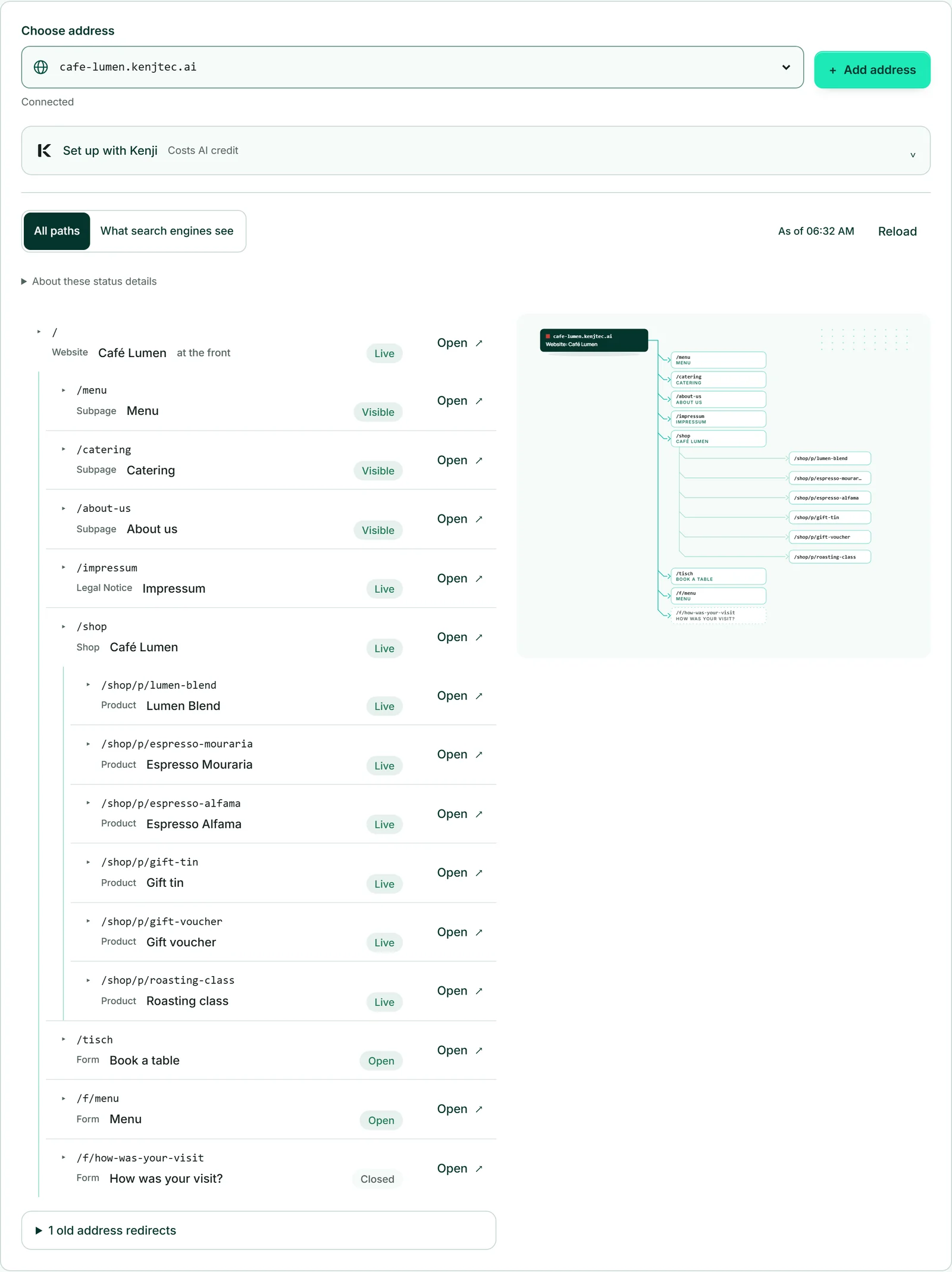
Start: what sits in front
On the “Website & tools” tab you choose what the domain shows when someone types just its name: a website, a form or a shop from your account. It is the same sheet as in the address plan: under “What does deine-firma.com show?” you pick the project and click “Save”. We connect the domain and www together and obtain the security certificate; you enter nothing. Because this is a publication, your brand needs a company or operator, an address and an email or phone number for it.
If your choice differs from what is there now, a sentence tells you before saving where the displaced project moves to. If the domain or www already has records of its own, the response asks first; ticking “Yes, the existing records on the domain may be replaced.” lets you go on. If one part fails, we take back the other as well — nothing is left half done.
While it says “Certificate on its way”, all is well: the certificate is created by itself as soon as the nameservers point at us, usually within minutes. A managed domain always points at a chosen project; if it should point at nothing, use “Detach address” — the domain stays under your management.
If you have several brands and the chosen project doesn’t belong to one yet, DomainStudio asks “Which brand?” before connecting — see Which brand each project uses.
- Open the domain’s settings and the “Website & tools” tab.
- Under “What does … show?”, choose the website, the form or the shop.
- Click “Save”.
A domain can carry a project at the front or redirect, not both — if it is redirecting right now, “To the redirect” takes you to where you remove that.
Creating subdomains
A subdomain is a name in front of your domain: shop.deine-firma.com, bookings.deine-firma.com. The “Subdomains” tab has two ways. “Create a subdomain for a project” opens the form from the address plan with this domain and the “as a subdomain” way already chosen: enter a name, pick the project, “Create address” — the certificate follows by itself. The new subdomain appears in the address plan as an address of its own.
Below that, under “Subdomain to an external server”, you create names that point elsewhere: “Other provider” for the name of an outside service, for instance your booking service, or “IP address” for a server of your own. “Create subdomain” sets the record; “Delete” next to a subdomain removes it again.
The domain itself and www belong to the “Website & tools” tab. How many subdomains of a domain can point at projects is shown in the form before you create one (“… of … subdomains on …”).
- On the “Subdomains” tab, click “Create a subdomain for a project”.
- Enter the name, for example “shop”, and choose the project under “What should be at the front there?”.
- Click “Create address”.
Setting up email
For email to reach your domain, two things must be in its records: which server accepts the mail (MX) and who may send in your name (SPF). Without the second, your mail often ends up in spam. Under “Current”, the “Email” tab shows which provider is accepting the mail right now — recognised from the MX records — or that mail to this domain arrives nowhere.
Under “Choose provider” you find Google Workspace, Microsoft 365, iCloud Mail and Zoho Mail. Pick yours, enter the “Verification string (optional)” your provider uses to check that the domain is yours — the form tells you where to find it — and click “Set records”. For Microsoft 365, add the “MX host” from your Microsoft 365 admin center. The Zoho template sets the records of Zoho’s European data centre; if your Zoho account is elsewhere, enter the values Zoho gives you yourself under “DNS records”.
The new MX records are created first and the old ones removed afterwards — so no mail is lost during the switch. An SPF record you wrote yourself is left alone; the message tells you so, and you check whether it allows the new provider. “Remove mail records” deletes only what we set. You can’t currently order mailboxes directly from KENJTEC (Email on your own domain).
- Open the domain’s settings and the “Email” tab.
- Choose your provider under “Choose provider” and enter the verification string — for Microsoft 365 also the MX host.
- Click “Set records”.
There is no such thing as two mail providers at once: setting one up replaces the existing MX records.
Redirecting
A redirect sends every visitor of your domain — with and without www — to another address, typically an old domain that should point at the new one. On the “Redirect” tab you enter the “Target address” in full, with https://.
“Permanent (301)” tells search engines that the new address applies from now on; “Temporary (302)” keeps the old address as the known one. With “Keep path”, deine-firma.com/contact becomes /contact at the target; without it, everyone lands on the target’s home page. “Keep parameters” passes on whatever follows the question mark — important for advertising links. “Remove redirect” takes it back again.
A domain that shows a website cannot redirect at the same time; “To the website” takes you to where you detach it. If the domain or www has records of its own, the response names them — delete them first under “DNS records”. A target address containing ? or # only works without “Keep path”.
- Open the “Redirect” tab and enter the target address.
- Choose “Permanent (301)” or “Temporary (302)” and set “Keep path” and “Keep parameters”.
- Click “Set up redirect”.
Setting DNS records yourself
Under “DNS records” you see every record of the domain, read fresh each time you open it. What website, email and redirect created carries the mark “set by KENJTEC”; you can still change it, and it then loses the mark. “Add record” adds your own, such as the proof requested by an advertising service; “Edit” and “Delete” sit in every row.
The types A, AAAA, CNAME, MX, TXT and NS are available; an info icon explains each in one sentence. Under “Name”, “@” stands for the domain itself; any other name becomes a subdomain. For TTL, “Automatic” is almost always right. An MX needs a “Priority” — if you leave it empty, we use 10. If something doesn’t fit, such as an A record without an IPv4 address, a sentence says what is missing.
For A, AAAA and CNAME the form has a switch that routes visitors through a protection and caching layer in front; the “Proxy” column shows whether it is on. For email, outside services and anything that isn’t a website it stays off. If a CNAME points at one of your projects, we switch it off ourselves, and if you change or delete such a record, we detach the connection to the project at the same time.
- Open the “DNS records” tab and click “Add record”.
- Choose the “Type” and enter “Name” and target, text or content.
- Click “Save”.
If the domain sits in front of a WordPress installation, its records are locked here — you detach it in the address plan.
Ending the management
At the very bottom of the “Nameservers” tab is “End management”. It deletes every record and connection held with us — website, subdomains, email, redirect. As a safeguard you type the domain name once more; only then can the button be clicked.
The order matters: if the nameservers already point at us, first set up the records you need at your other provider and switch the nameservers there — otherwise website and email go down. A domain you brought stays registered with its provider. For a domain bought through KENJTEC, no other nameservers can be entered here; so don’t end its management while it should stay reachable.
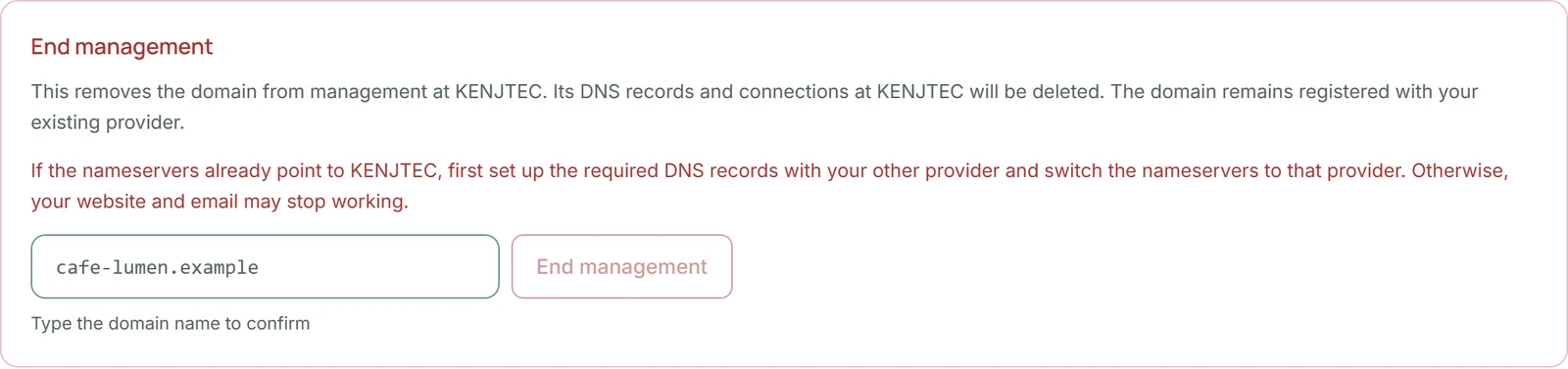
- Open the “Nameservers” tab and go to the “End management” section.
- Type the domain name.
- Click “End management”.
If the domain sits in front of a WordPress installation, detach it in the address plan first.