Twelve languages and the main language
Buttons, checkout, messages and emails to your buyers exist in twelve languages: German, English, Spanish, French, Italian, Portuguese, Dutch, Danish, Swedish, Arabic, Japanese and Hindi. Arabic runs right to left.
You choose the main language when you create the shop and change it under “Settings” → “General” → “Main language”. Buttons, checkout and emails appear in it as long as the buyer chooses no other language, and your texts on the product count as the original.
If you have already approved texts in the new language, they become the original when you switch, and the previous original stays as the approved version in the old language. If there are still unapproved suggestions in the new language, approve or discard them first.

The main language is the language you write in — not your buyers' language. You add further languages under “Languages”; they then appear in your shop's language switcher, and whoever chooses one reads the buttons, checkout and emails in it too.
Status per language
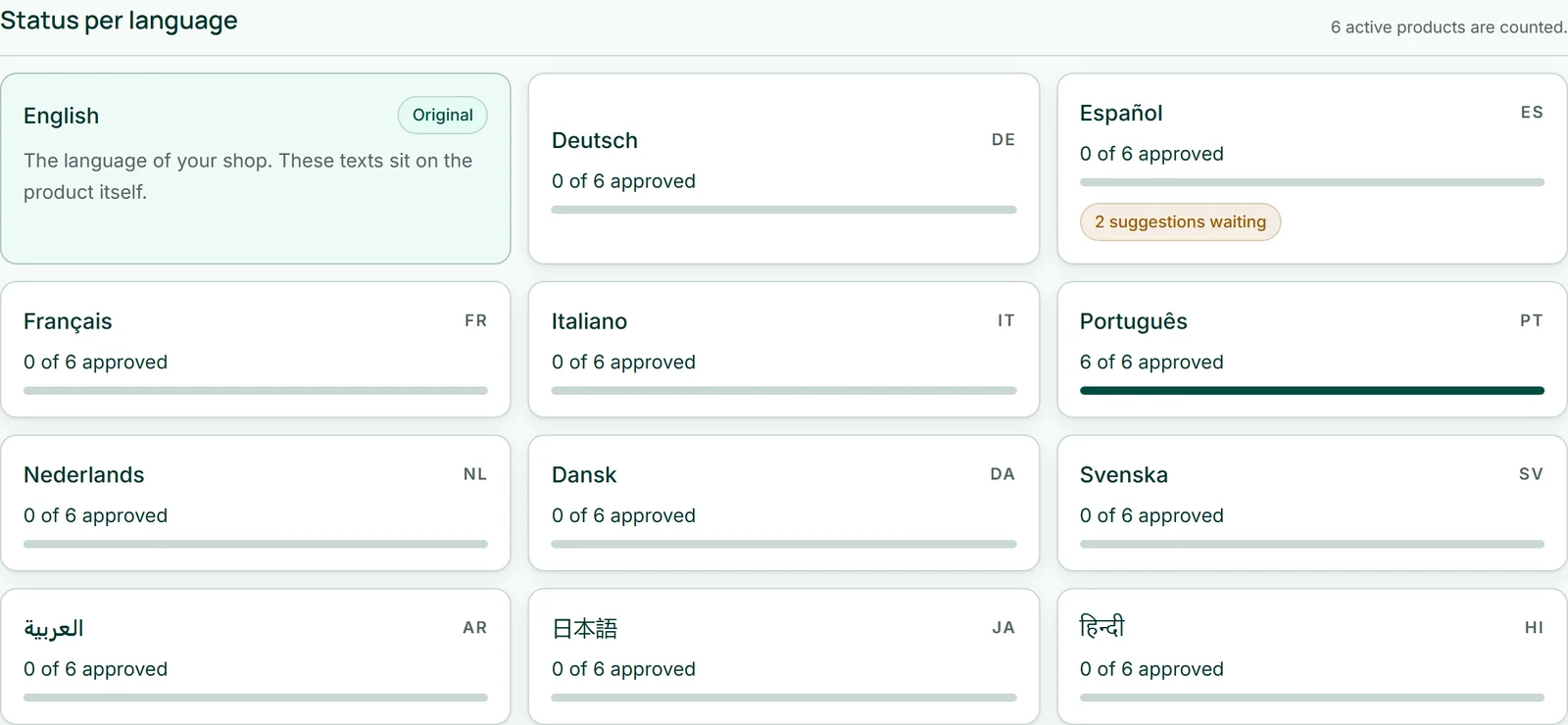
Under “Languages”, first comes the tile labelled “Original”, then one tile per further language: how many of your active products are approved there and how many suggestions are waiting.
Only active products count — what is in the shop gets translated. If you have no active product yet, the area says so and sends you to the products.
Let Kenji translate
In the box “Let Kenji translate” you tick the “Target languages” — or “Select all” — and click the button stating their number, for example “Translate into 2 languages”. Kenji translates the name and description of your active products and sticks to your text: no extra sales arguments, no converted measurements, proper names unchanged.
The result waits as a suggestion and stays invisible to your buyers until you approve it. A text you have already approved is left untouched.
One run takes at most the 40 earliest-created active products of your shop; for the rest you write the texts yourself in the language view.
- Open “Languages”.
- Tick one or more languages under “Target languages”.
- Click “Translate into … languages”.
Translating uses AI credit, per target language. Approving uses none.
Checking, writing and approving texts
Clicking a language tile opens the working view: your original on the left, the text in this language on the right. Every row says in words and with a symbol where it stands — “Suggestion” or “From you”, approved or “Not approved yet” — and in one sentence what your buyers see.
“Approve” makes a suggestion visible, including any edits you made to it; “Approve all suggestions for this language” does them all at once. “Withdraw approval” hides a text again, and “Remove” deletes it — your buyers then see the original.
You can also write yourself: enter a name and description, then “Save”. Whatever you write new applies straight away.
- Open a language under “Languages”.
- Read the suggestion and correct it if needed.
- Click “Approve”.
What your buyers see
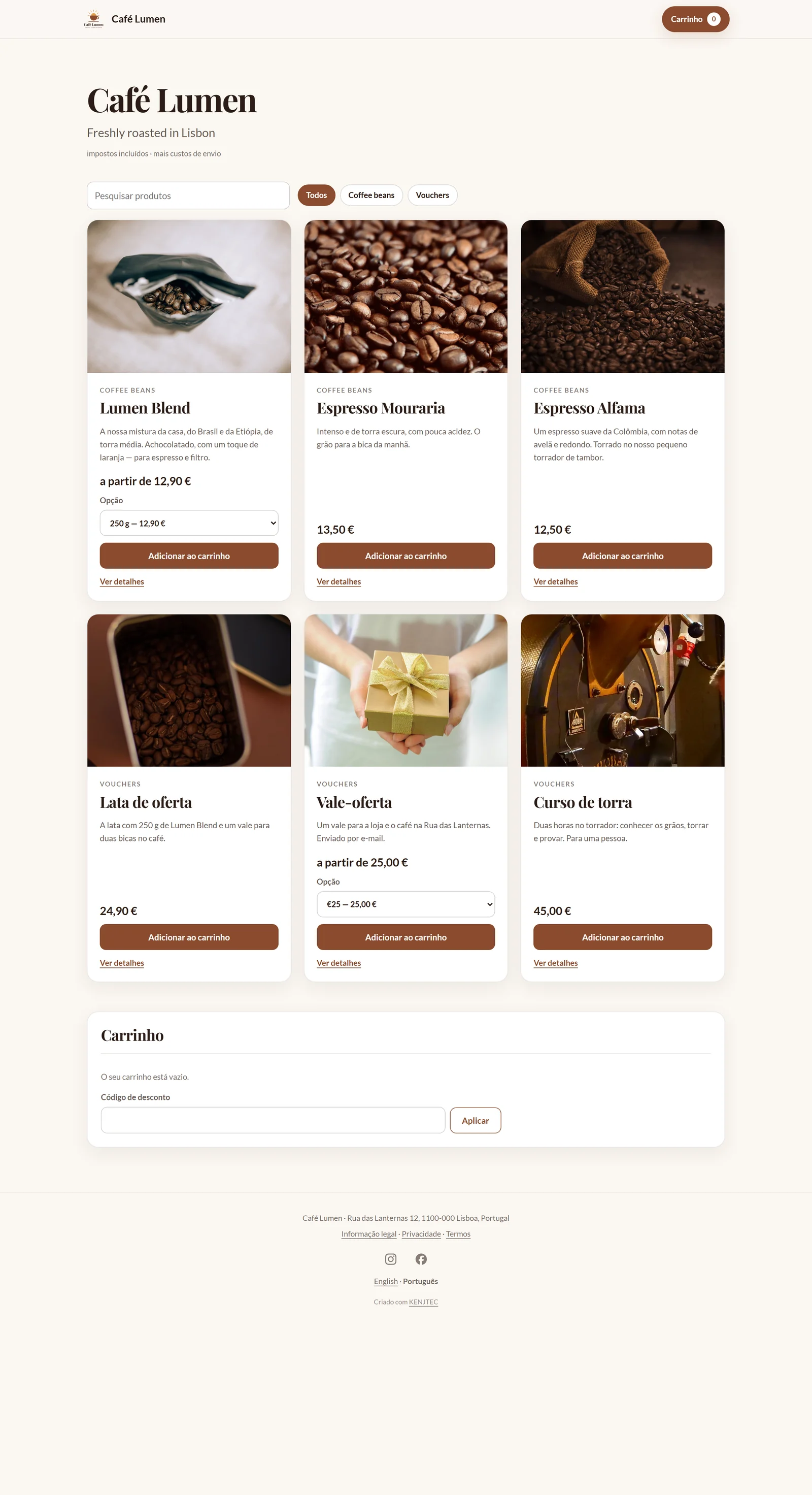
Your shop's footer shows a language switcher as soon as there is at least one language with approved texts besides the original; it lists only such languages. Whoever picks a language stays in it while browsing and orders in it — the confirmation, the shipping email and all further emails come in it too.
Where a product has no approved text in the chosen language, the original appears. The shop does not translate category and tagline.