
The order list
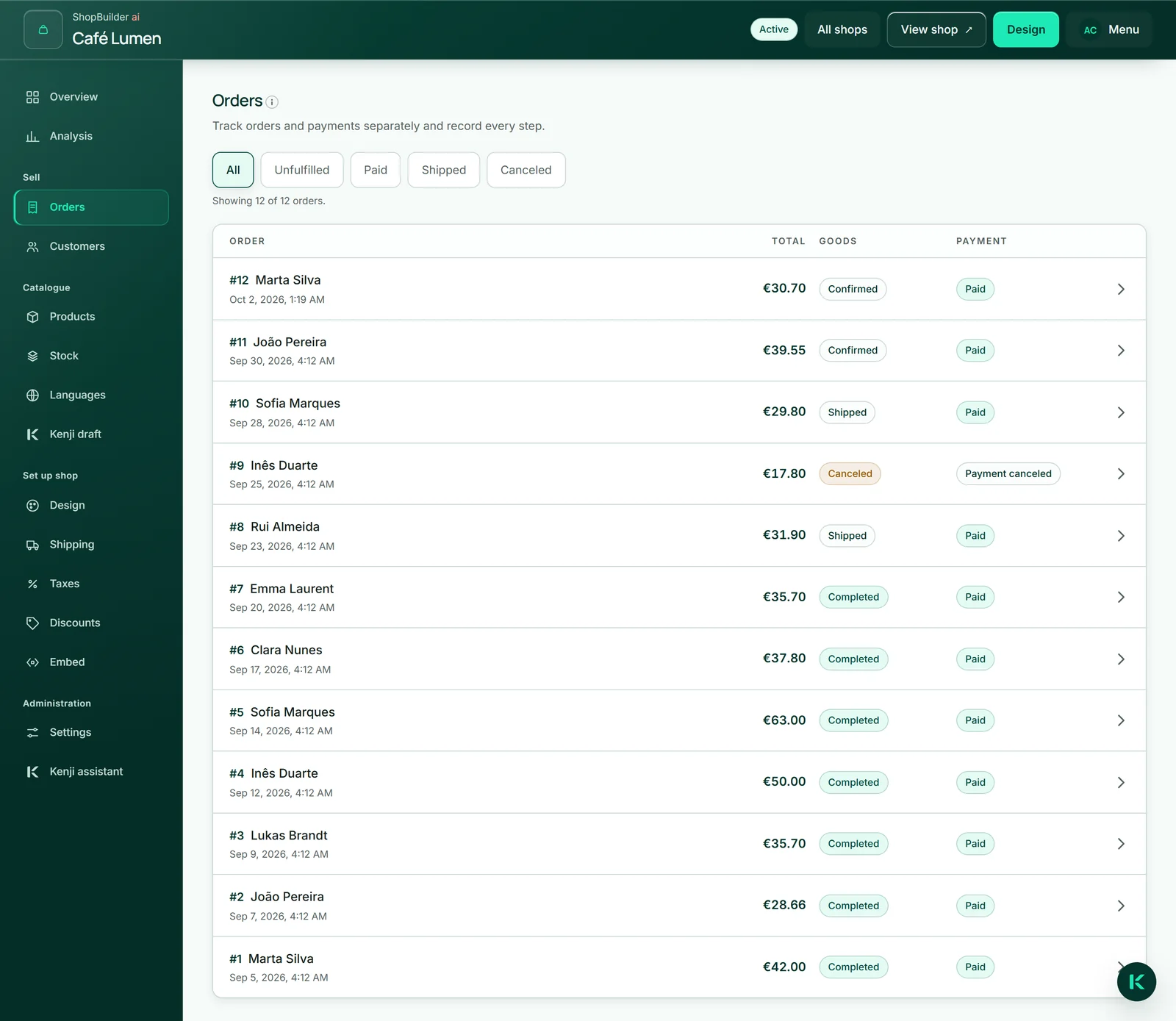
Under “Orders” you find your orders, newest first: number, buyer, date, amount and two states. “Goods” is the path of the goods — “Received”, “Confirmed”, “Shipped”, “Completed”, “Canceled” or “Refunded”. “Payment” is the path of the money — “Payment pending”, “Paid”, “Partially refunded”, “Refunded”, “Payment failed”, “Payment disputed” or “Payment canceled”. You move the goods; Stripe reports the money.
“All”, “Unfulfilled”, “Paid”, “Shipped” and “Canceled” narrow the list. The groups overlap: “Paid” asks about the money, the others about the goods — a line says how many are showing.
The list loads the latest 500 orders. The table under “Analysis” contains all of them, older ones included.
Viewing an order
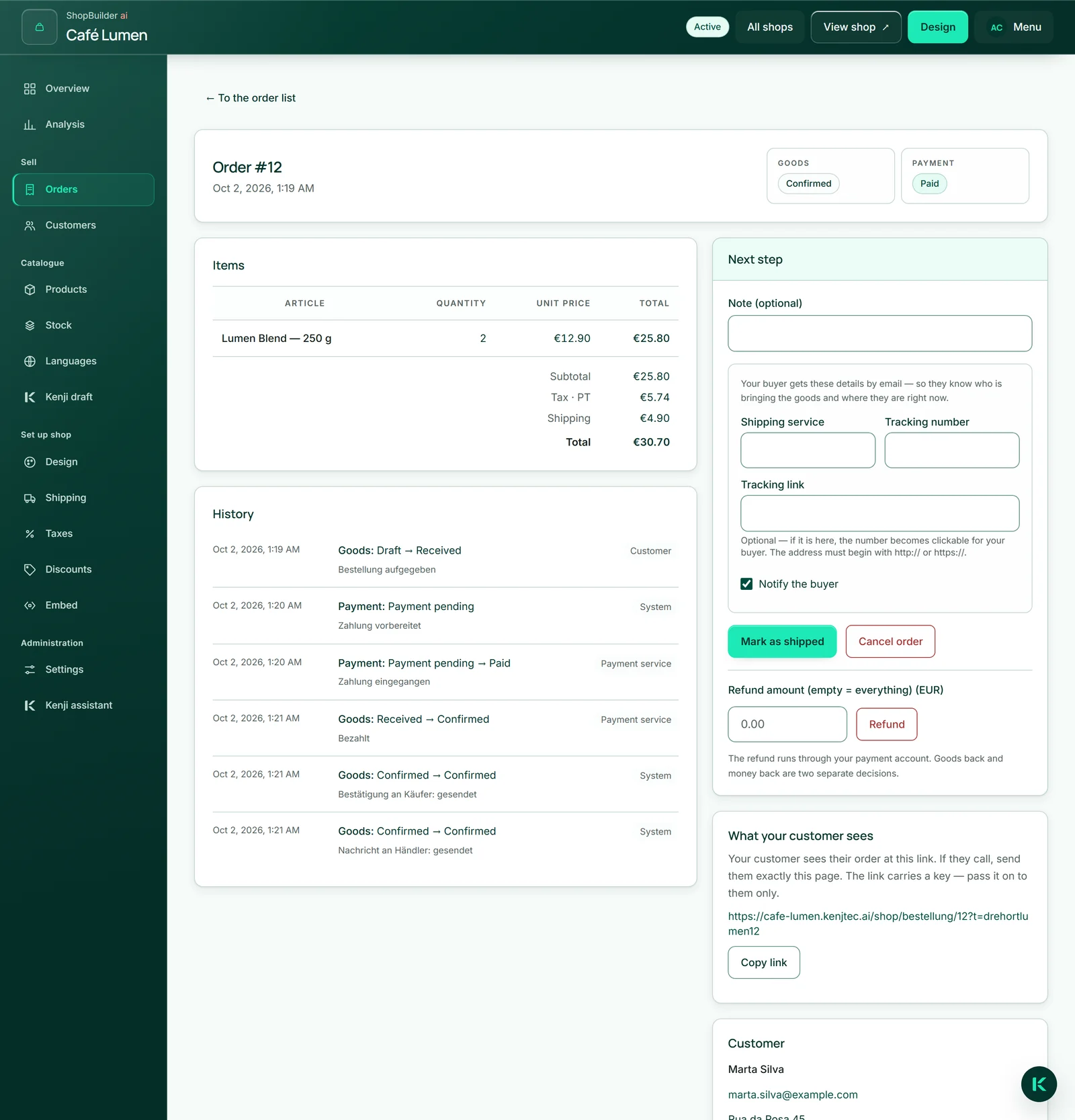
A click opens the order: the items with quantity and unit price, below them subtotal, discount, tax, shipping and total. On the right are the next step, the customer with email and address, the chosen shipping method and their note. If the buyer ordered in a language other than your shop's, a label at the top says so — your emails to them go out in their language.
“History” lists every movement with its time and sender — you, the customer, the payment service or the system — including whether an email went out.
“What your customer sees” shows the private link to your buyer's order page. If they call, send them exactly this page; “Copy link” puts it on the clipboard. The link carries a key — give it only to them.
Confirming, shipping, completing
Paid orders are set to “Confirmed” automatically. You take the next step in the “Next step” box: “Mark as shipped”, later “Complete”. An order that is not yet paid can be confirmed with “Confirm”.
When moving to “Shipped” you enter the “Shipping service”, the “Tracking number” and, if you like, the “Tracking link”; it must start with http:// or https://. If “Notify the buyer” is ticked, your buyer receives the shipping email with exactly these details — if they have already called, untick it. Pickup orders have no tracking number; the buyer gets the email saying the order is ready.
“Complete” finishes the order. Once an order has been shipped it can no longer be cancelled, only refunded.
- Open the paid order.
- Enter the shipping service and the tracking number.
- Leave “Notify the buyer” ticked and click “Mark as shipped”.
- When the goods have arrived, click “Complete”.
Cancelling
“Cancel order” is available as long as the goods have not been shipped. After the question “Return goods to stock and abort the open payment?”, the stock goes back, a redeemed discount code can be used again, and a payment still open is aborted so that nobody pays afterwards. The buyer gets an email saying their order has been cancelled.
A paid order can be cancelled too. The money does not go back by itself — goods back and money back are two decisions. You then start the refund with “Refund”.
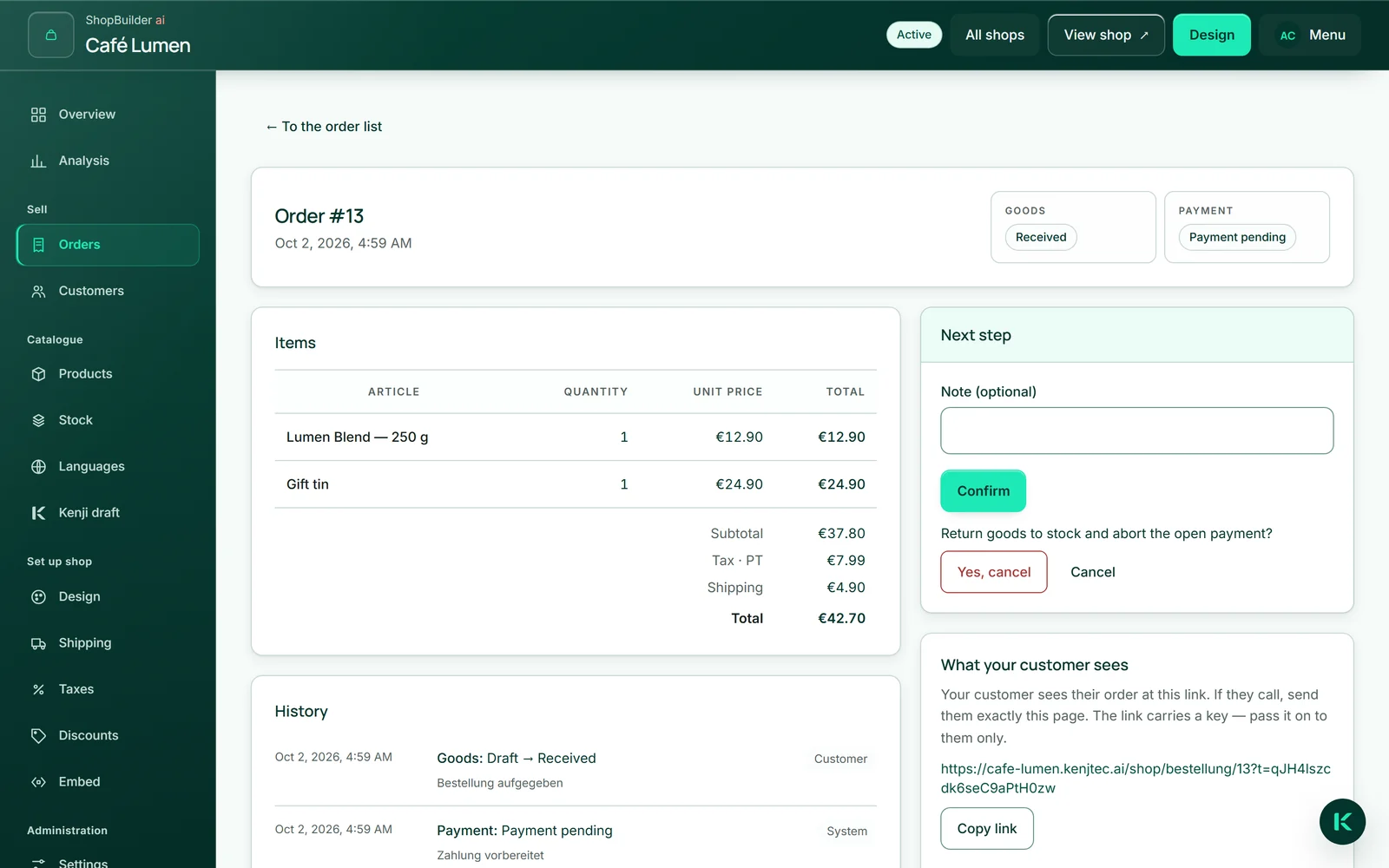
- In the “Next step” box, click “Cancel order”.
- Confirm with “Yes, cancel”.
Refunding in full or in part
A paid order has the field “Refund amount (empty = everything)” below the next step. Empty refunds the full amount, a number only that part — write just the number, without a currency symbol. After the question naming the amount, the refund runs through your Stripe account, not through KENJTEC.
Several partial refunds add up: the payment shows “Partially refunded” until everything is back, then “Refunded”. Your buyer receives an email for each refund with the amount now on its way to them.
If you refund directly in your Stripe account, Stripe reports it; the order changes the same way, and your buyer receives the same email.
- Open the paid order.
- Enter the amount or leave the field empty.
- Click “Refund” and confirm with “Yes, refund”.
Unpaid orders
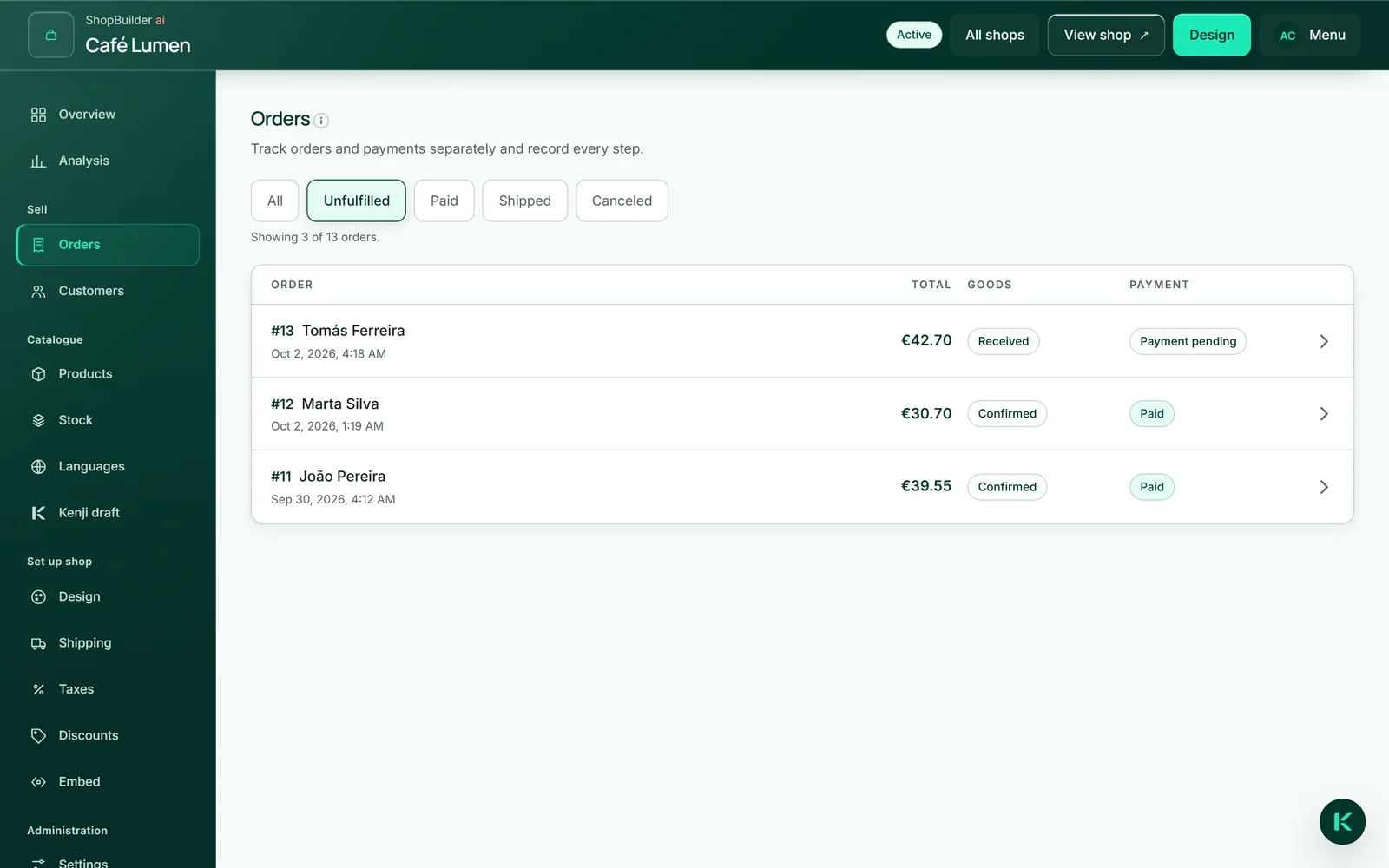
An order is created as soon as the buyer clicks “Continue to payment” at checkout — before paying. If they abandon checkout, it sits in your list with goods “Received” and payment “Payment pending” and counts among the open orders. Only ship what is “Paid”.
If an unpaid order holds goods or a discount code, the shop releases both after four hours and cancels it; the history names the reason. Other unpaid orders stay until you cancel them.
Customers
Under “Customers” is everyone who has ordered from you — one entry per email address, with the number of orders and a date. Customers arise at checkout, never by hand, which is why there is no button to create one. Even someone who only got as far as “Continue to payment” appears here.
“Search customers” finds someone by name or email. A click opens the entry: if a buyer made a typo, you correct name and address and click “Save”. If they order again, the address they then enter applies; the order page of an earlier order keeps showing the delivery address they gave at the time.
- Open “Customers” and search for the buyer.
- Open the entry and correct the address.
- Click “Save”.