Adding channels
At the top of SocialStudio, the “Your channels” button opens the list of your profiles; next to it you see how many you have saved. There you enter where people can find you: Instagram, Facebook, TikTok, YouTube, LinkedIn, X, Threads, Pinterest, WhatsApp, Telegram, Bluesky and Mastodon — one channel per network.
The channels are saved to your brand, not to the post. That is why you first need a brand in BrandStudio; if there is none, “Create brand” takes you there. Links in BrandStudio and in the WebSiteBuilder’s Console lead straight here.
SocialStudio asks for no password and no permission to post. It only knows your public address.
- Click “Your channels” at the top.
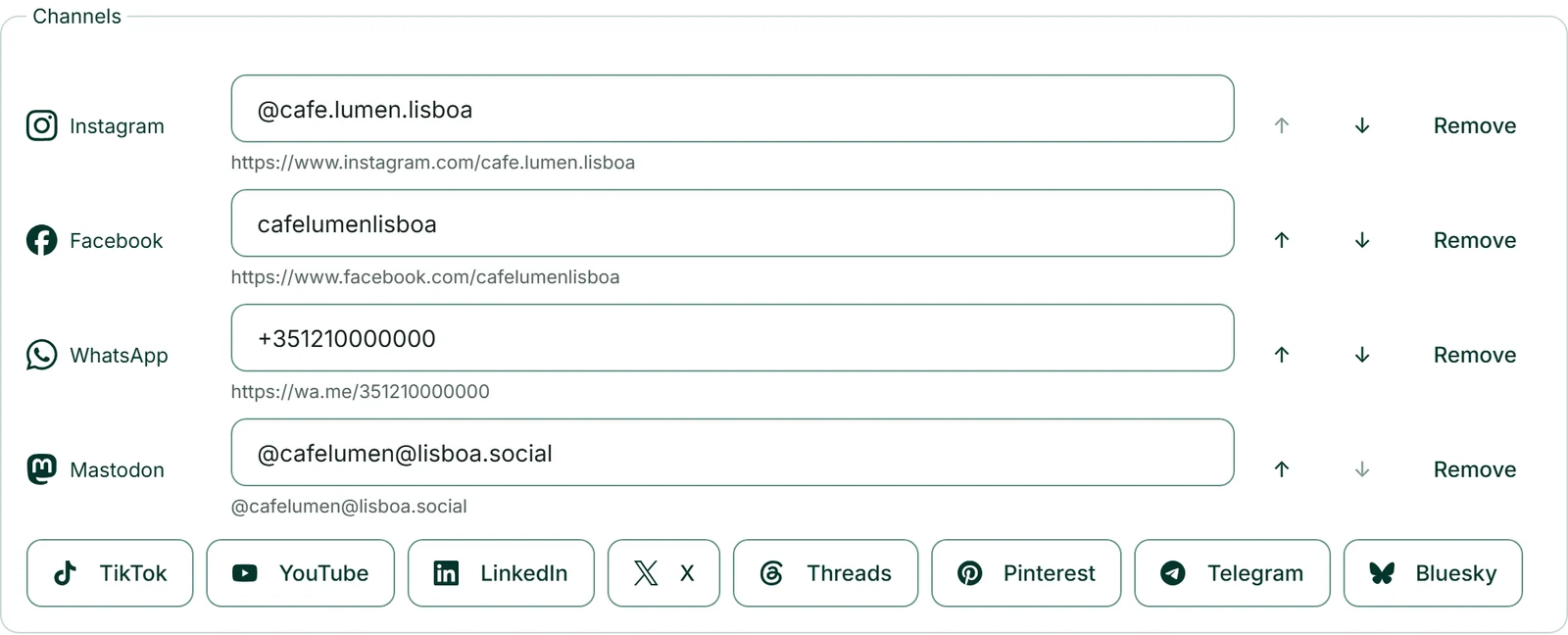
- Under “Channels”, click the network, for example “Instagram”. A new row appears with the cursor already in the field.
- Type your handle or paste the address of your profile.
- Click “Save”. “Saved.” appears.
Handle or address
Each field takes either: the handle, such as @cafe.lumen, or the full address of your profile. Under the field you see straight away which address it becomes. When saving, we remove add-ons after the address such as ?igsh=…; afterwards the list shows what is actually saved.
Three networks need a particular form. WhatsApp needs your phone number with the country code. Mastodon needs the full form “@name@instance.tld” or the address of your profile, because every server has its own address. For a LinkedIn company page, paste the full address — a plain name is read as a personal profile.
We don’t accept an address that doesn’t belong to the network: an Instagram channel with a link to another site gets the message “This address doesn’t belong to Instagram.” That way your footer never has a wrong link behind a familiar icon.
Order and several brands
With “↑” and “↓” (Move up, Move down) you put your channels in order, and “Remove” takes one out. The order applies everywhere: in the footers and in the preview’s list, where your channels come first.
Below, “This is how it appears in the footer” shows the icons of your channels in your brand’s colours before you even save.
If your account has several brands — for example because you work for clients as an agency — choose at the top under “Brand” whose channels you are editing. Each brand has its own list.

Your channels on your website, shop and forms
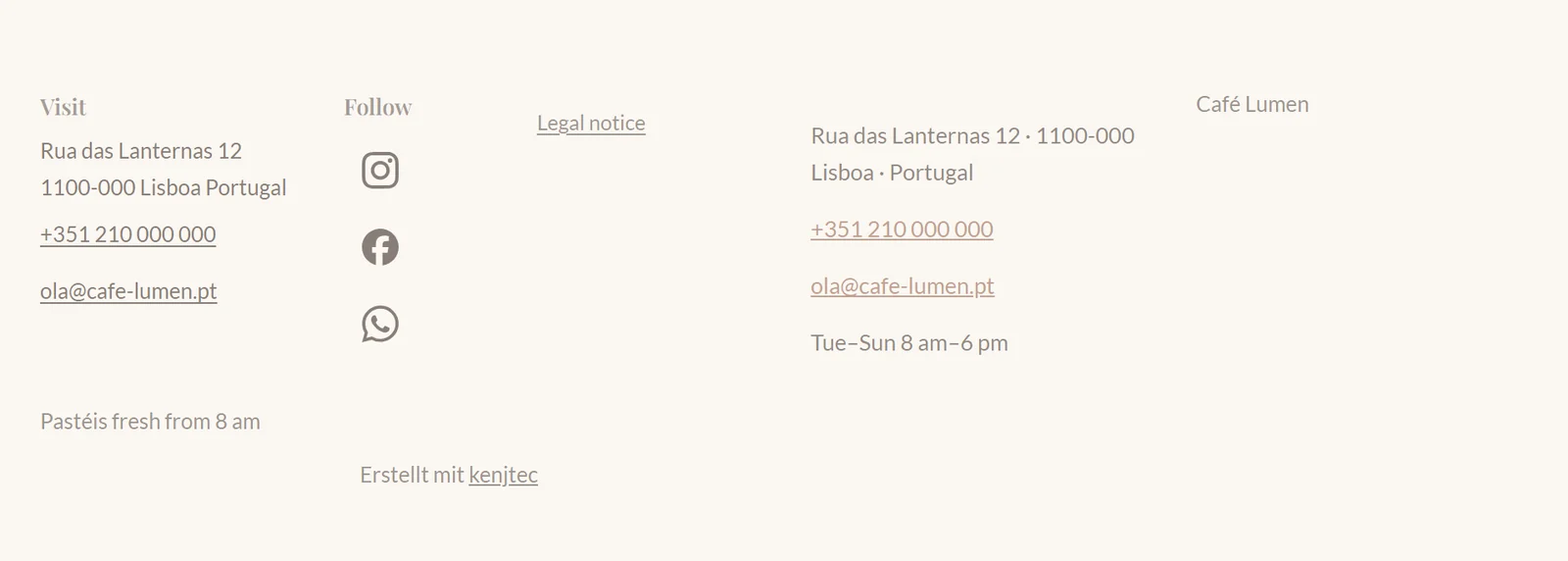
The footers of your website, your shop and your forms show your channels as network icons, each a link to your profile. They are the official icons, in a single colour matching your footer; for screen readers, each link carries the network’s name.
A website shows your channels as long as it has no social list of its own. If you enter your own social addresses in the WebSiteBuilder, those apply there; in the Console under “Company” it says that an empty list shows the channels from SocialStudio. Shops and forms have no list of their own and always show your channels.
Empty means empty: without saved channels no icons appear, and nothing is added. More about your website’s footer under Working in the editor.