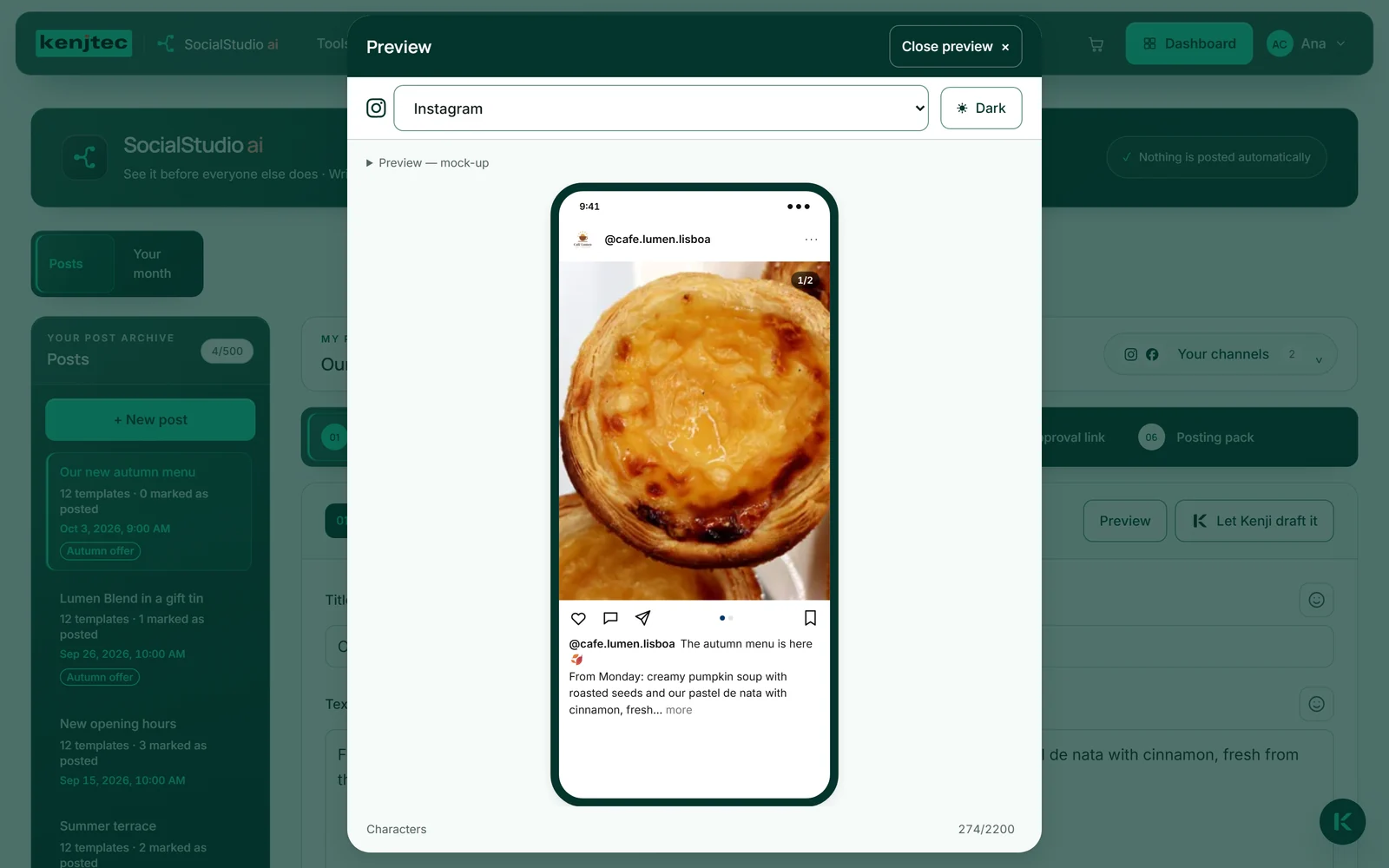
Opening the preview
As soon as a post is open, there is a “Preview” button at the bottom centre and a second one at the top of the “My post” area. It opens a window with a phone showing a mock-up of the chosen network with your text and images. The phone adapts to the height of your window; if the post is long, you scroll inside the phone.
At the top you choose the network. The preview starts with the first network from your channels that has a version, and with Instagram if you have no channels. If you are working on a version in “Your templates”, the preview opens with that network.
The preview shows what is in the field right now, unsaved changes included. If a network has no version yet, it shows your source text with a note underneath that “Tailor for all networks” delivers the version. “Close preview” or the Escape key closes the window, and you are back where you were.
- Click “Preview”.
- Choose the network at the top of the window.
- Click “Close preview” when you are done.
Light and dark
The “Dark” button at the top of the preview window switches the mock-up between light and dark display — the way many people have set up their apps. An image that looks good on white sometimes looks different on black; here you see both before anyone else does.
Your browser remembers the choice for next time. Inside the phone, the colours of the imitated network apply, not KENJTEC’s.

What the mock-up shows
Each mock-up shows what matters on that network. Instagram: the first image in the feed’s portrait format, with several images the count “1/…” and the carousel dots, below it the caption, which disappears behind “more” after about 125 characters. LinkedIn folds after three lines behind “more”, Facebook after about 480 characters behind “See more” — so you see what stays visible first. A click on it unfolds the text.
X, Threads, Bluesky and Mastodon show the full text and up to four images in a grid; without an image, the link card for your address appears. WhatsApp and Telegram show the post as a message in a chat, Pinterest as a pin with title and description. TikTok and YouTube show your reel in portrait with your handle — TikTok with the first two lines of the caption, YouTube with the title of your Short. Hashtags and mentions are highlighted in colour, and the images carry their descriptions.
Below the phone, “Characters” keeps count and turns red once the limit is exceeded. If the images already exist in the network’s size, the preview shows those; otherwise your original images in the matching aspect ratio.
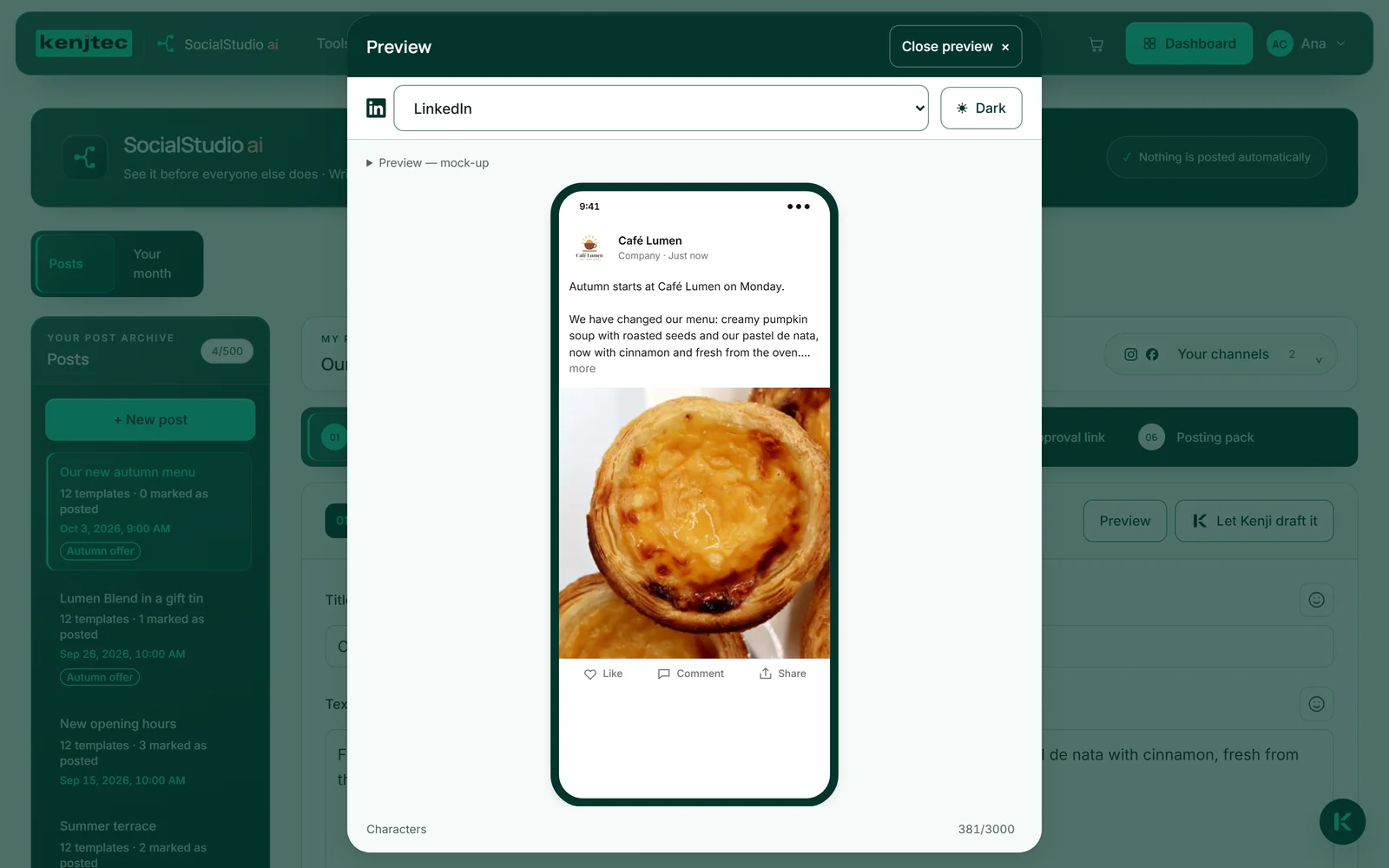
The preview is a mock-up, not a promise: the networks change their look, and what counts is what you see there. That is also why it contains no made-up numbers such as likes or views.
The reel in the preview
Under “Reel” your short video plays in the phone, muted and on a loop, the way it starts in the feeds. Three buttons above it switch the view: “Reel”, “TikTok” and “Shorts”. The video stays the same; what changes is what lies on top — for Reel your handle and the first two lines of your Instagram version, for TikTok the first two lines of your TikTok version, for Shorts the title from your YouTube version. If those versions don’t exist yet, it shows the text of the Instagram version or the post’s title.
TikTok and YouTube also appear as networks of their own in the list at the top as soon as their versions exist. If you have saved a channel for TikTok or YouTube, your handle from there appears there. If there is no reel yet, the preview shows your cover image and the sentence “Create a Reel — then it plays here.”
If your device is set to reduce motion, the video doesn’t start by itself. You start it with “Play”.
Name, logo and handle
The head of every post shows your brand’s name and logo from BrandStudio. The profile picture is your uploaded logo, otherwise the one designed in BrandStudio, otherwise the first letter of your name.
The preview takes the handle — such as @cafe.lumen — from your channels. The networks you have saved a channel for come first in the list, in your order; the rest are under “More networks”. Without a saved channel, the head shows your name but no made-up handle.
If your account has no brand, the head says, neutrally, “Your account”. If it has several, you choose on the post under “Which brand?” in whose name it appears; until then it also says “Your account”.