
The six sizes
Every network has its own sizes. The “Network formats” area knows six: Square 1080×1080 for the feed everywhere, Portrait 1080×1350 for the Instagram and Threads feed, Story 1080×1920 for stories, status, photos on TikTok and a reel’s cover, Link preview 1200×630 for Facebook and LinkedIn with a link, Wide 1600×900 for X and Pin 1000×1500 for Pinterest.
Every file is created as a JPEG under one megabyte. That is the strictest limit among the networks — a file that arrives everywhere is worth more than one that is turned away somewhere.
The images get no KENJTEC mark and no KENJTEC colours. They remain your images.
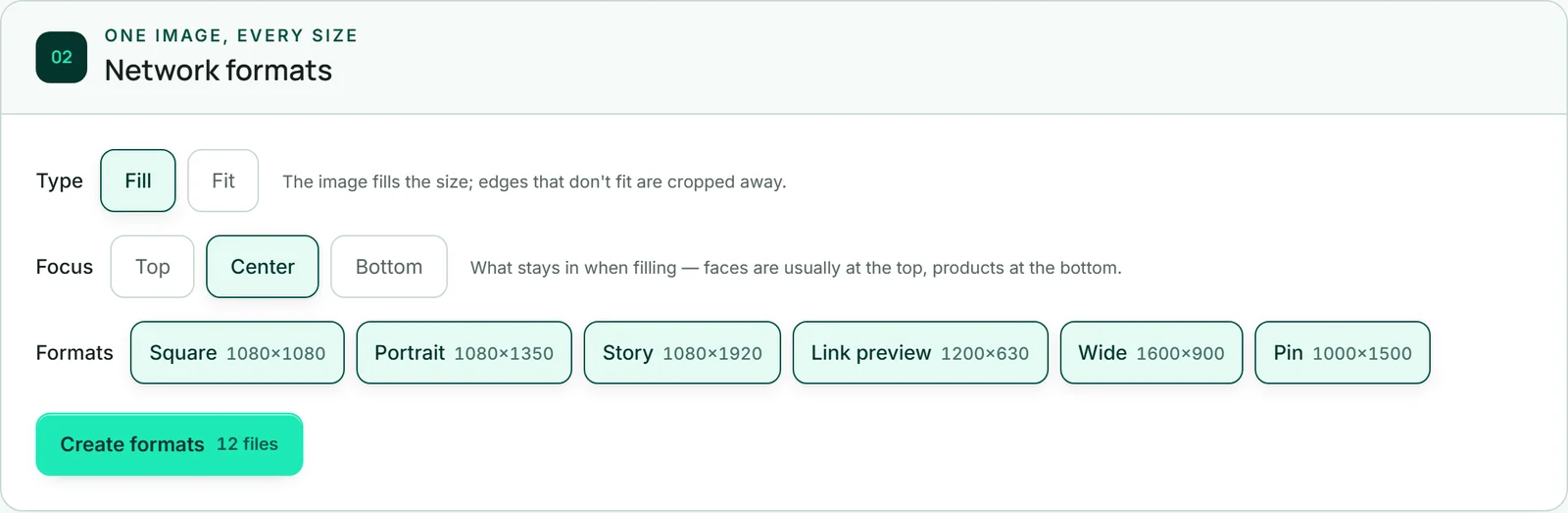
Fill or Fit
Under “Type” you decide how an image gets into a different aspect ratio. “Fill” lets the image fill the whole size; whatever sticks out is cropped. “Fit” shows the whole image and places it behind itself once more — softened and a little darker, instead of bars.
With Fill, you choose under “Focus” what stays in: “Top”, “Centre” or “Bottom”. Faces are usually at the top, products on a table at the bottom. With Fit there is no focus; the buttons are then disabled.
Phone photos are turned the right way round first, even if they were stored sideways. Type and focus also apply to the posting pack.
- Open the “Network formats” area.
- Under “Type”, choose “Fill” or “Fit”.
- With Fill, choose “Top”, “Centre” or “Bottom” under “Focus”.
Creating formats
Under “Formats”, all six are selected at first; a click takes one out or puts it back. The “Create formats” button shows how many files will be created: images times formats, so twelve for two images and six formats.
Rendering takes a few seconds depending on the amount, and the button shows “Rendering …” meanwhile. Afterwards the files appear below, sorted by format, each with size, aspect ratio and what the format is for. No AI is at work here; it costs no AI credit.
If you render a format again, the new file replaces the old one; formats you didn’t select stay. So if you only want a new Story, you don’t lose the Pin. If a run breaks off halfway, whatever was already rendered is removed again, and you start it once more.
- Open the “Network formats” area.
- Choose type, focus and formats.
- Click “Create formats”. At the top it says, for example, “12 files are ready.”
Downloading or sharing on your phone
Under each file it says “Image 1”, “Image 2” and so on, with “↓” next to it for downloading. The file name carries your post’s title, the format and the number, such as our-new-autumn-menu-story-1.jpg.
If your device can share files — usually a phone — there is also “↗”. It opens your phone’s share menu, and you pass the image straight to Instagram, WhatsApp or another app. Where that isn’t possible, the button doesn’t appear. If you close the share menu without choosing, nothing else happens; if the image can’t be loaded, SocialStudio tells you.
If you need the images for several networks at once, the posting pack is the shorter way.