
Uploading a logo
If you already have a logo, upload it under “Logo” in the “Already have a logo?” box: a PNG, JPEG or WebP file, at least 400 pixels on the longer side and no larger than 8 MB. The bigger, the sharper: we scale up at most twofold — where that isn’t enough, your logo gets more margin instead of blur. Nothing is cut out: a logo on a white box stays a logo on a white box.
Afterwards it says “Your logo is attached to the brand.” with its size and the number of formats; all files are also in your MediaStudio. “Upload a different logo” replaces it — the old files stay in MediaStudio until you delete them there.
This uses no AI credit: it’s calculated, not invented. The files take up space in your MediaStudio like any other image.
- Open “Logo”.
- Click the file field under “Logo file” and choose your logo.
- Wait until “Done — the formats are in your MediaStudio.” appears.
The nine formats
Your one logo becomes nine files, each for its purpose: two for the browser tab (16 and 32 pixels), one for the iPhone home screen (180 pixels), a web app icon for Android (512 pixels), a square profile picture for Instagram, LinkedIn and Facebook (1,024 pixels), a preview image for shared links (1,200 × 630), a version for invoice and letterhead (600 pixels wide), one for the header of website, shop and WordPress (64 pixels high) and a small mark for tiles and folders.
The logo is fitted, never cropped. Where a format needs a solid background — home screen, profile picture, preview image — we calculate it: a light logo gets a dark background, everything else a white one. Every line has “Take a look”, which opens the file.
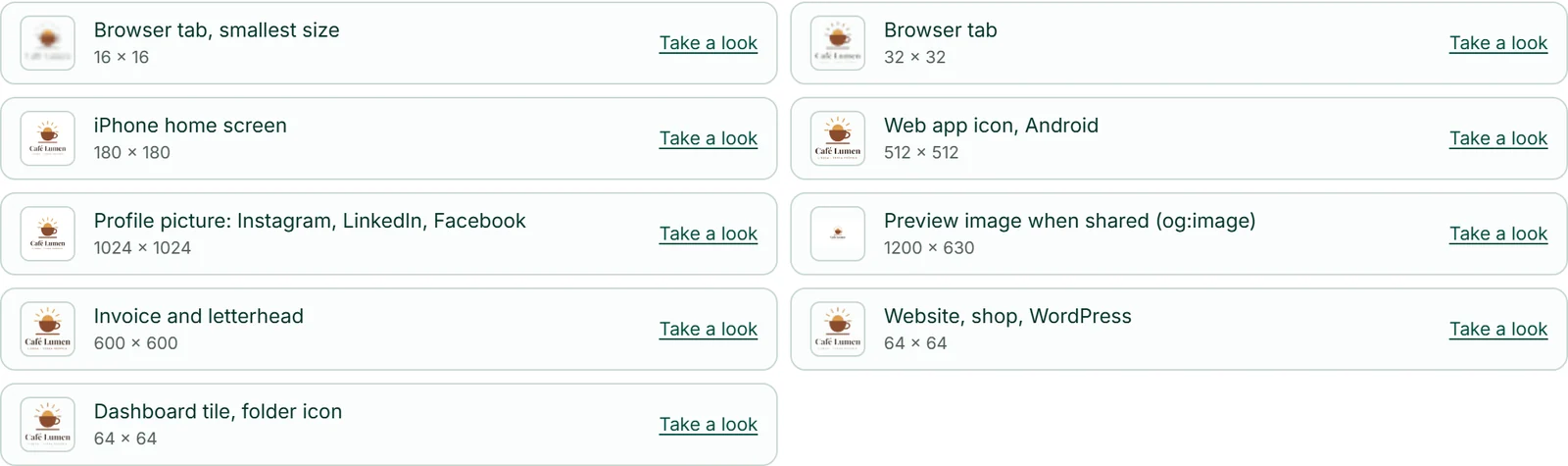
Where the logo appears
Your website carries the logo within a few minutes, without you inserting anything: always in the browser tab, in the header as long as you haven’t set your own logo there, and as the preview image when shared, on pages without their own cover image.
The same logo appears on your forms when “Show the brand's logo and company details” is on there, at the top of your shop, on WordPress sites that follow your brand, on all print matter in PrintStudio, and on invoices as long as you haven’t uploaded a logo of your own in Invoice.
If you’ve uploaded a logo and also adopted a drawn draft, the uploaded one applies everywhere.
In BusinessCloud, the uploaded logo becomes your profile picture the next time you sign in — only if you don’t have a profile picture of your own there and your account has exactly one brand. Your own profile picture always stays; if you delete it, the logo comes back.

Detaching the logo from the brand
“Remove logo” below the original detaches the uploaded logo from the brand. The original and its formats stay in your MediaStudio until you delete them there. Afterwards your tools show the logo you adopted under “Design a new logo” — if there isn’t one, they show no brand logo.
As long as the brand carries a logo, its files are protected in MediaStudio: they can’t be deleted, renamed or moved there, and “In use” names the brand. After “Remove logo” or a new upload, the old files are released.

Having a logo drawn
If you don’t have a logo yet, open “Design a new logo” below the upload box. In “What does your company do?”, describe what you do in one sentence. With “Draw four drafts”, Kenji, KENJTEC’s AI, turns it into four deliberately different drafts, each with a name and a sentence. While Kenji works, it says “Kenji is drawing four drafts …”.
If you’ve already chosen an accent and text colour under “Design”, Kenji draws in those colours. With long company names, the result is usually a mark without lettering.
“Use this one” makes a draft your brand’s logo. It’s a vector graphic and stays sharp at any size.
- Open “Logo” and expand “Design a new logo”.
- Describe your company in the “What does your company do?” field.
- Click “Draw four drafts”.
- Click “Use this one” on the draft that fits.
Drawing uses AI credit — once for all four drafts, however long you compare them. If Kenji doesn’t deliver a usable draft, nothing is charged.
Revising a draft
As soon as your brand carries a drawn logo, the field “What should be different about the logo?” appears below the drafts. Write what should change — say, “Make the cup smaller and the circle thicker” — and click “Revise”. Kenji changes the adopted logo and shows the result as a new draft. An uploaded logo can’t be revised this way.
Your logo stays as it is until you take the new draft with “Use this one”. That way you get to the right mark in small steps instead of starting over each time.
- Adopt a draft first.
- Write what should change in the “What should be different about the logo?” field.
- Click “Revise” and adopt the new draft with “Use this one”.
Every revision uses AI credit. Your AI bar shows how much you have left.