
Copying a version
“Copy” puts the version’s text on your clipboard — exactly as it is in the field, including a change you haven’t saved yet. “Text copied.” appears at the top. Then you open the network’s app or site and paste it.
If your browser doesn’t allow access to the clipboard, it says “Copying wasn't allowed — select the text in the field.” Then you select the text in the field and copy it as usual.
- Open “Your templates” and choose the network at the top.
- Click “Copy”.
- Paste the text into the network.
What the share button can do on each network
Most networks have a second button next to “Copy”. It always copies the text first, then opens the route the network offers in the browser. What that route can do is up to the network; the card tells you in one sentence.
X, WhatsApp, Threads and Bluesky: “Share directly” opens a new window with your text already in it. So does Telegram, if there is an address for the link. Pinterest opens a new pin with your cover image and the text; without a cover image there is no button.
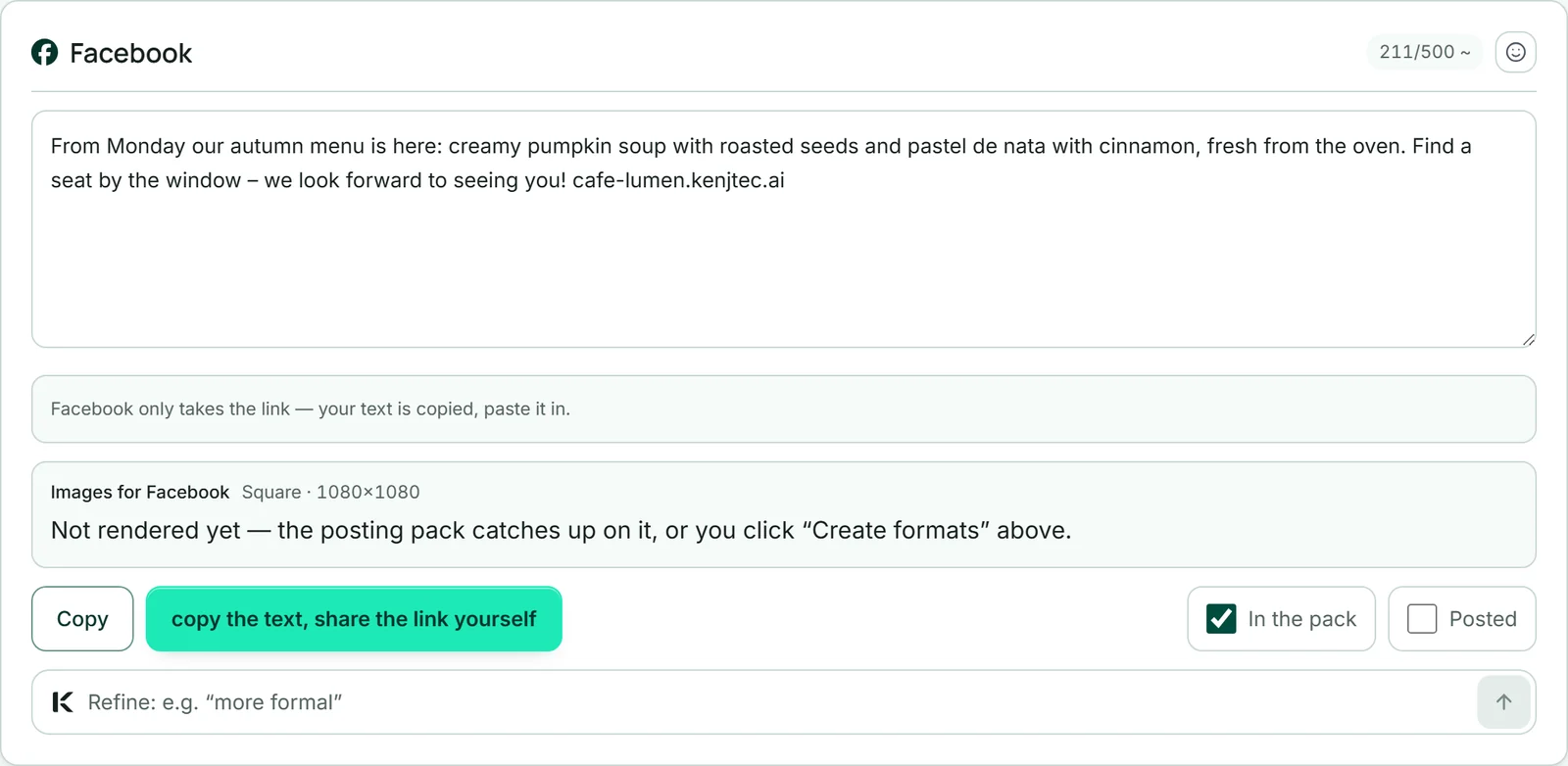
Facebook and LinkedIn only take a link when sharing. There the button is called “copy the text, share the link yourself”: it opens the sharing window with your address, and you paste the copied text. Without an address, only “Copy” remains. Mastodon has its own address on every server; there, too, you copy.
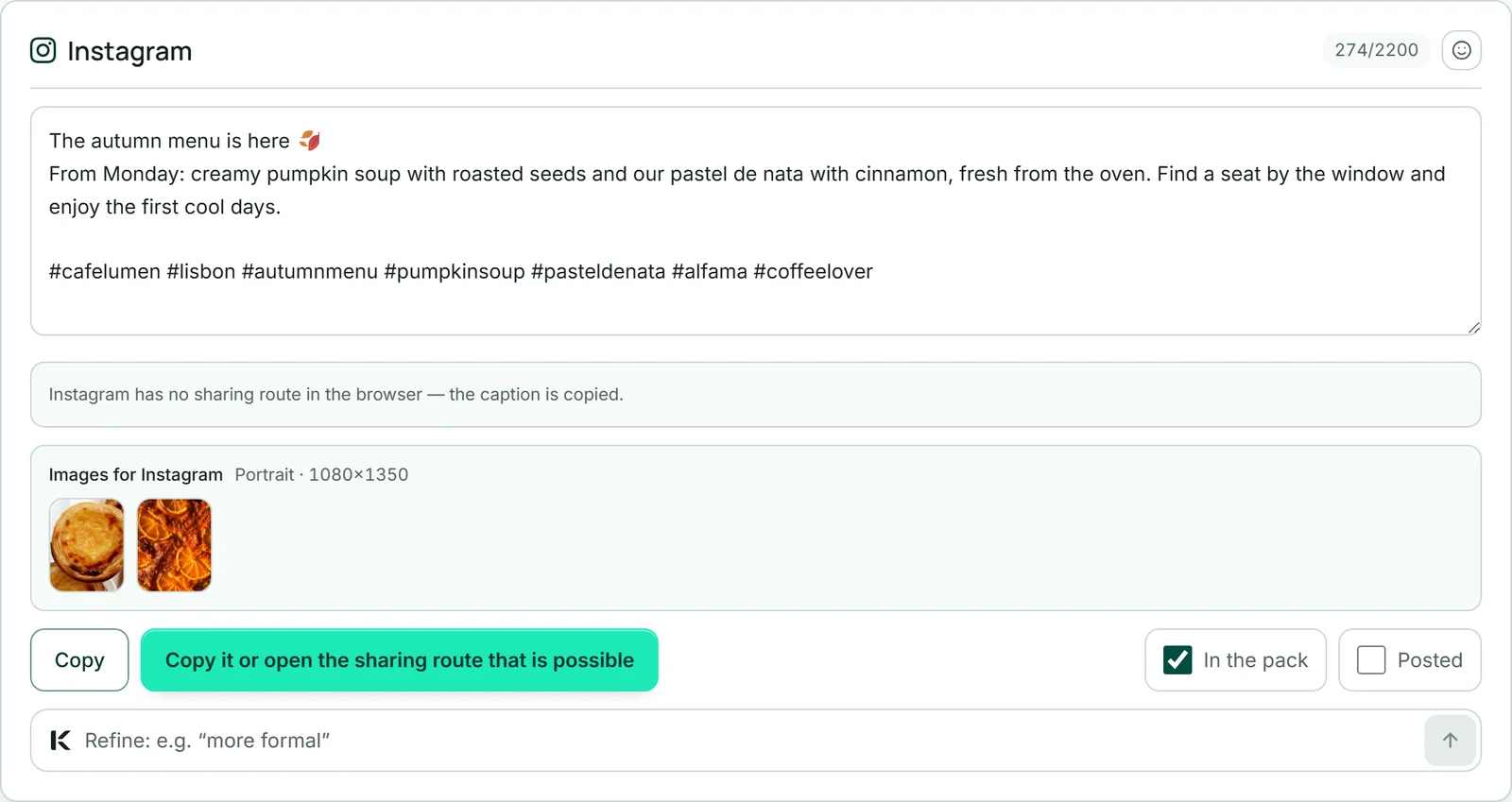
Instagram has no sharing route in the browser. On devices that can share files — usually a phone — “Copy it or open the sharing route that is possible” opens the share menu with your cover image, and the caption is copied. Otherwise you are left with the copied text.
TikTok and YouTube have no sharing route in the browser either. On devices that can share files, their cards show “Share directly” as soon as there is a Reel: the button copies the caption or the title and opens the share menu with the Reel. Otherwise “Copy” remains, and you take the video from “Reel — your short video” or from the posting pack.
For the best image quality, upload the images from “Network formats” or from the posting pack — there they are in the network’s size.
The images for this network
If your post has images, each version shows the line “Images for …” with the size this network needs first: portrait for Instagram and Threads, wide for X, the Story for TikTok, the pin for Pinterest, otherwise the square. You see the images in that size, just as they go into the posting pack. YouTube has no such line: a Short is a video.
If a network takes fewer images than your post has, it says so: X, Bluesky and Mastodon take up to four, Pinterest only one — then the first ones in your order are included. A click on an image downloads it.
If the images haven’t been rendered in that size yet, the line says so. “Create formats” in the “Network formats” area catches up on it, and so does the posting pack.
Marking as posted
Once you have published a version, tick “Posted” on its card. The card then carries the label “Posted”, its tab a green dot, and your post list shows how many versions are marked as posted.
The mark is your note, not a measurement: SocialStudio doesn’t see what happens in your accounts. It stays when you tailor again later; you remove it by unticking the box.
As soon as one version is marked as posted, the post appears in your dashboard with the status “Posted” instead of “Draft”. In “Your month” the network’s icon turns pale, and a mark on Instagram puts the post into the feed grid.
- Open the version in “Your templates”.
- Tick “Posted”.