Putting the pack together
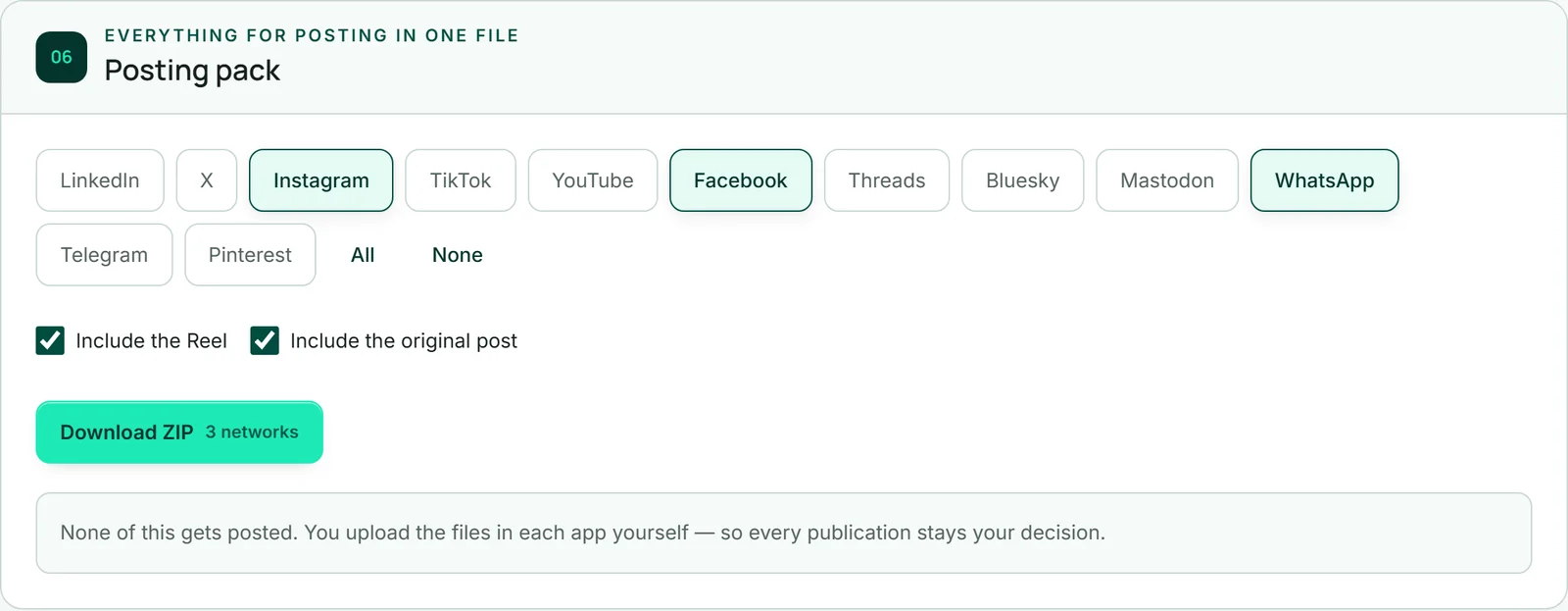
The “Posting pack” area lists the networks that have a version. At first all are selected; a click takes one out or puts it back, and “All” and “None” select everything or nothing at once. You make the same choice with the “In the pack” box on each version in “Your templates”.
Below that, “Include the original post” adds your original title and text as a separate file. If you have created a reel, “Include the Reel” appears as well. Both are ticked at first.
The images in the pack follow the type and focus currently set in the “Network formats” area — without a choice of your own, that is “Fill” with the focus “Centre”.
Downloading the pack
“Download ZIP” shows how many networks go in. Your post is saved first, and any images still missing in the size of a chosen network are rendered along the way — including those that so far exist in the other type. So a pack never mixes filled and fitted images.
That takes a few seconds depending on the amount, and the button shows “Packing …” meanwhile. Then your browser saves the file, such as socialstudio-our-new-autumn-menu.zip, and at the top it says “Your posting pack has been downloaded.” It costs no AI credit.
None of this is posted. You upload the files to each network yourself.
- Open the “Posting pack” area.
- Choose the networks and what to include.
- Click “Download ZIP”.
Putting the pack in your BusinessCloud
If you post from your phone, a ZIP file is awkward. “Put in BusinessCloud” therefore puts the same pack unzipped into your BusinessCloud — with the same networks and extras, in the same type and with the same focus as the ZIP. The button appears as soon as your BusinessCloud can be reached; if you have never opened it, open it once.
The folder sits under “SocialStudio” and is named after the date and the title of your post, such as “2026-10-03 Our new autumn menu” — the date is the one your post is planned for, or today’s if it has no date. If the folder already exists, “(2)” is added: SocialStudio never writes into a folder that already has something in it. Afterwards it says “In your BusinessCloud: …”, and “Open folder” takes you there.
On your phone you open the folder in your BusinessCloud and share the image or reel straight to Instagram or TikTok. Your post is saved first; it costs no AI credit.
- Open the “Posting pack” area and choose the networks and what to include.
- Click “Put in BusinessCloud”.
- Click “Open folder” — or open the folder later in your BusinessCloud.
What is in the pack
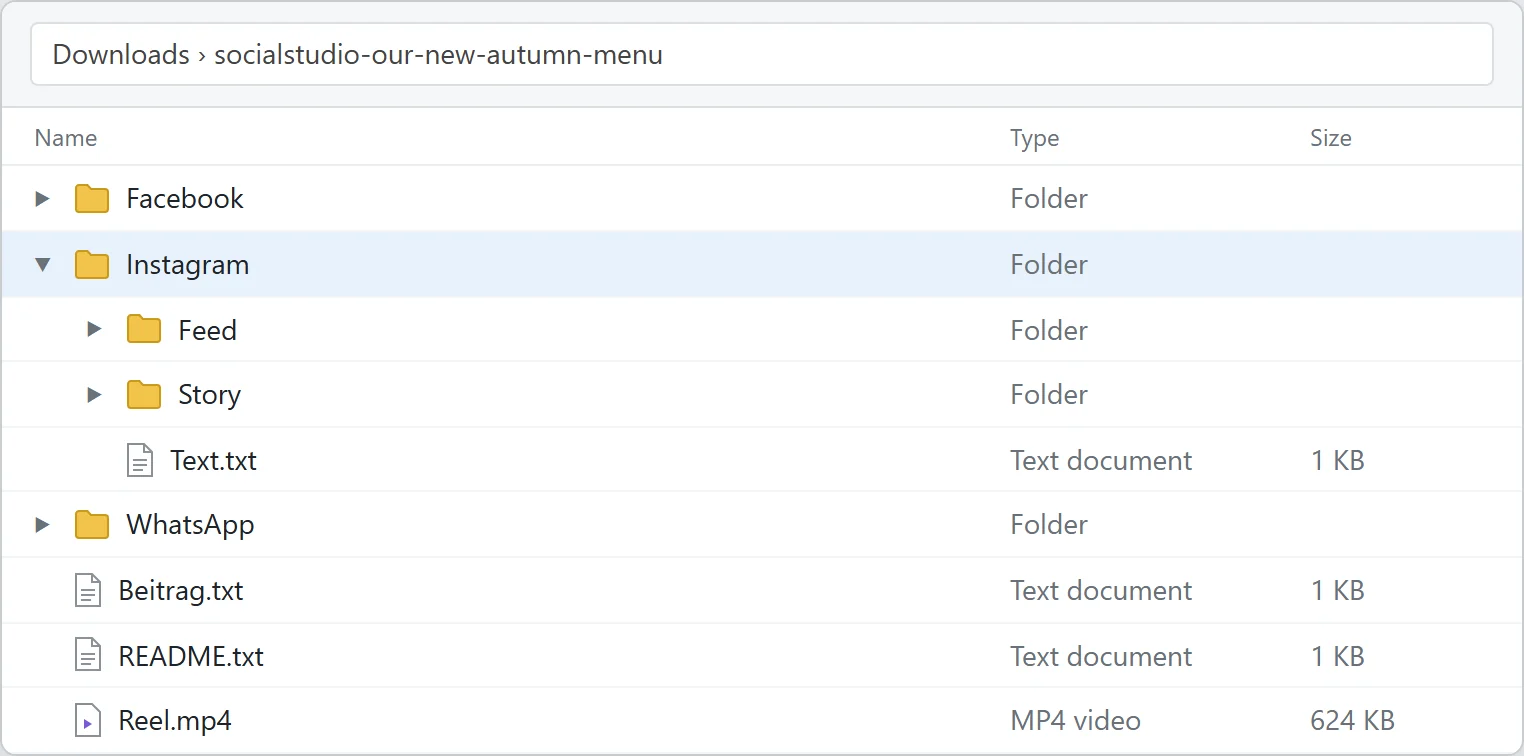
Each chosen network gets a folder with its name. Inside are Text.txt with the version to paste and the images as Bild-1.jpg, Bild-2.jpg and so on, in the network’s size.
If a network needs several sizes, they sit in subfolders: for Instagram “Feed” (portrait) and “Story”, for Facebook “Feed” (square), “Story” and “Link-Vorschau” (the link preview), for LinkedIn the square in the folder itself plus “Link-Vorschau”, for WhatsApp the square and “Status”. X gets the wide format, Threads portrait, TikTok the Story, Pinterest the pin, and Bluesky, Mastodon and Telegram the square. The YouTube folder only holds Text.txt with the title of your Short — the video is Reel.mp4.
X, Bluesky and Mastodon get at most four images, Pinterest one — always the first ones in your order. The pack also contains README.txt as a short guide and, if you chose them, Beitrag.txt with your original post and Reel.mp4.
The guide and image descriptions
README.txt explains what is in which folder and in which size, and repeats that nothing has been posted. If you use SocialStudio in German it is in German; in all other languages it is in English.
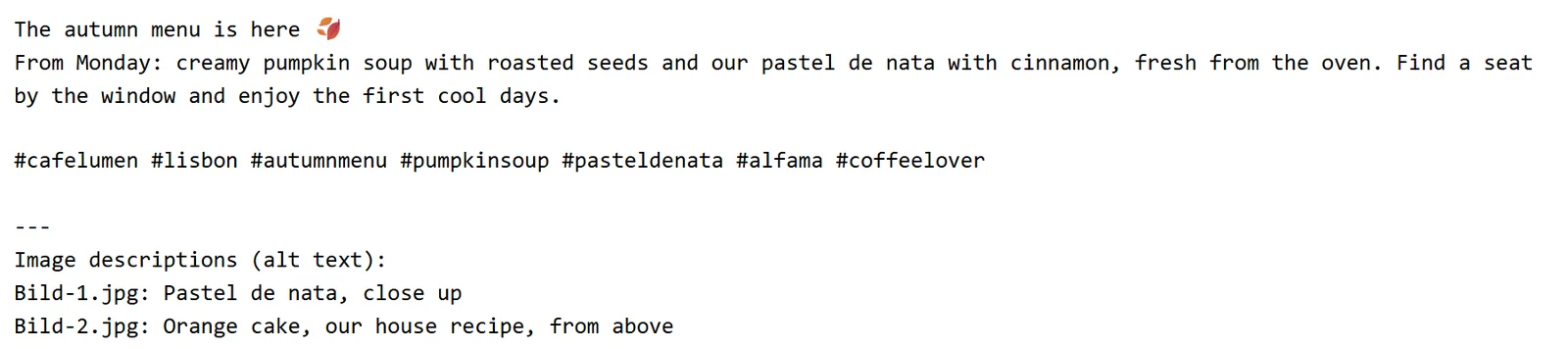
If your images have a description (alt text) in MediaStudio, it appears in Text.txt below the version, after a dividing line, image by image: “Bild-1.jpg: …”. Enter these descriptions when you upload to the network — that is the only way they get there. They make your images readable for people who use a screen reader.