
Creating a post
A post consists of a title, a text and up to ten images. Write the text the way you would tell it to a customer — in full sentences and in the language you want to post in. Tailoring it to the individual networks comes afterwards.
To be saved, the post only needs a title; the text may stay empty at first. The title can be up to 200 characters long. It appears in your post list and goes to Kenji as context when versions are written.
Below that you can give the post a date and a campaign if you like — more under Date and campaign.
- Click “New post” on the left, above the post list.
- Enter the heading under “Title”, for example “Our new autumn menu”.
- Write what it is about under “Text”.
- Click “Save”. “Saved.” appears at the top, and the post is in the list.
How many posts you can keep depends on your plan — see Managing posts.
Letting Kenji draft it
If you know what you want to write about but not how, Kenji writes a first draft: a title and a few paragraphs, the way a business would write them on its own blog.
Kenji doesn’t invent facts. Whatever your request doesn’t mention — prices, times, addresses — is phrased so that it isn’t needed. So put into your request whatever has to be right.
The draft replaces whatever is currently under “Title” and “Text”, and it is only saved when you save. Drafting uses AI credit; anything you change by hand afterwards doesn’t.
- In the “My post” area, click “Let Kenji draft it” at the top.
- Under “What should the post be about?”, write one sentence, for example “From Monday our autumn menu has pumpkin soup and pastel de nata with cinnamon”.
- Click “Draft”. Title and text fill in, and at the top it says “The draft is there — read it, change it, then save.”
- Read the draft, change whatever isn’t right, and click “Save”.
The draft lands in the editor — nothing is saved until you save.
Inserting emojis
Next to “Title” and “Text” there is a button with a smiley: “Insert emoji”. It opens a picker with tabs, a search (“Search — e.g. heart”, in English or German) and, at the top, the characters you used most recently.
The emoji goes where your cursor is — in the middle of the sentence, not at the end. The picker stays open so you can add several in a row; clicking elsewhere or pressing Escape closes it.
Later, each version gets its own “Insert emoji” button. A heart suits Instagram, perhaps not LinkedIn — so you decide per network.
Choosing images from MediaStudio
A post’s images come from your MediaStudio. “Choose an image from MediaStudio” opens your media library in a window; a click on an image attaches it to the post. If the image isn’t in the library yet, upload it in the same window with “Upload files” or look for one with “Find images”.
Up to ten images fit on a post — that is how many Instagram takes in a carousel; more wouldn’t arrive anywhere. Only images work, not documents.
The images aren’t copied; the post points to them. That is why an image can be neither deleted nor renamed in MediaStudio while a post uses it: there it says “In use”, and a click on that names the post. You also keep the image descriptions (alt texts) in MediaStudio — SocialStudio carries them into the preview and the posting pack.
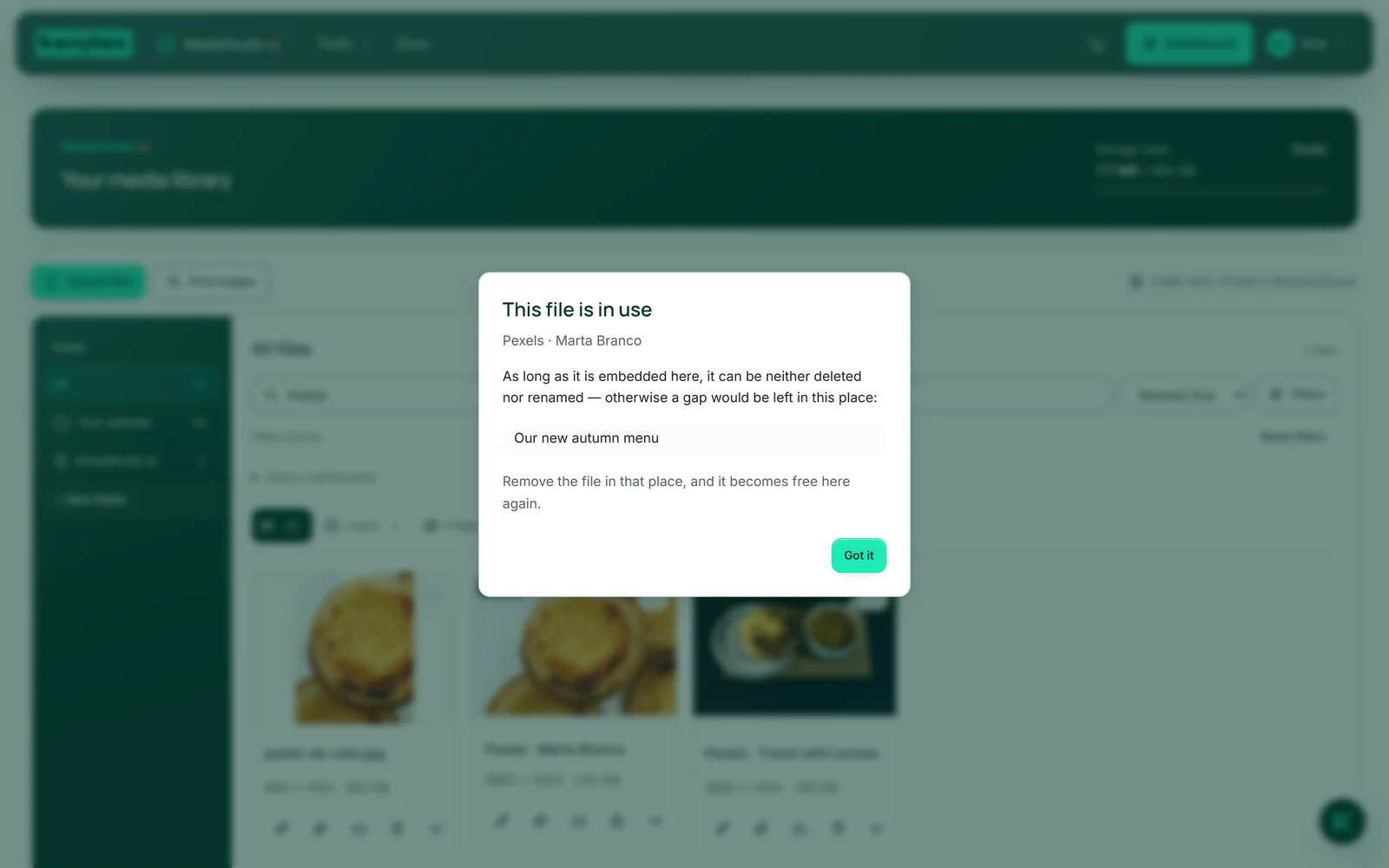
- In the “Images” area, click “Choose an image from MediaStudio” — from the second image on, the button is called “Add another image”.
- Click the image you want in the window. The window closes, and the image is in the post.
- Repeat for more images; the line “… of 10 images” keeps count.
- Click “Save”.
Cover image and order
The first image is the cover image and carries that label. Order is content here, not taste: the cover image is at the front of the preview, it is the one image Pinterest gets, and on Instagram the first image of a carousel sets the crop for all the others. X, Bluesky and Mastodon get the first four images.
Under each image there are three buttons: “←” (Move image earlier), “✕” (Remove image) and “→” (Move image later). Removing only takes the image out of the post; it stays in MediaStudio.
Changes to images and their order apply once you save. If you remove an image and save, the network formats made from it go too.
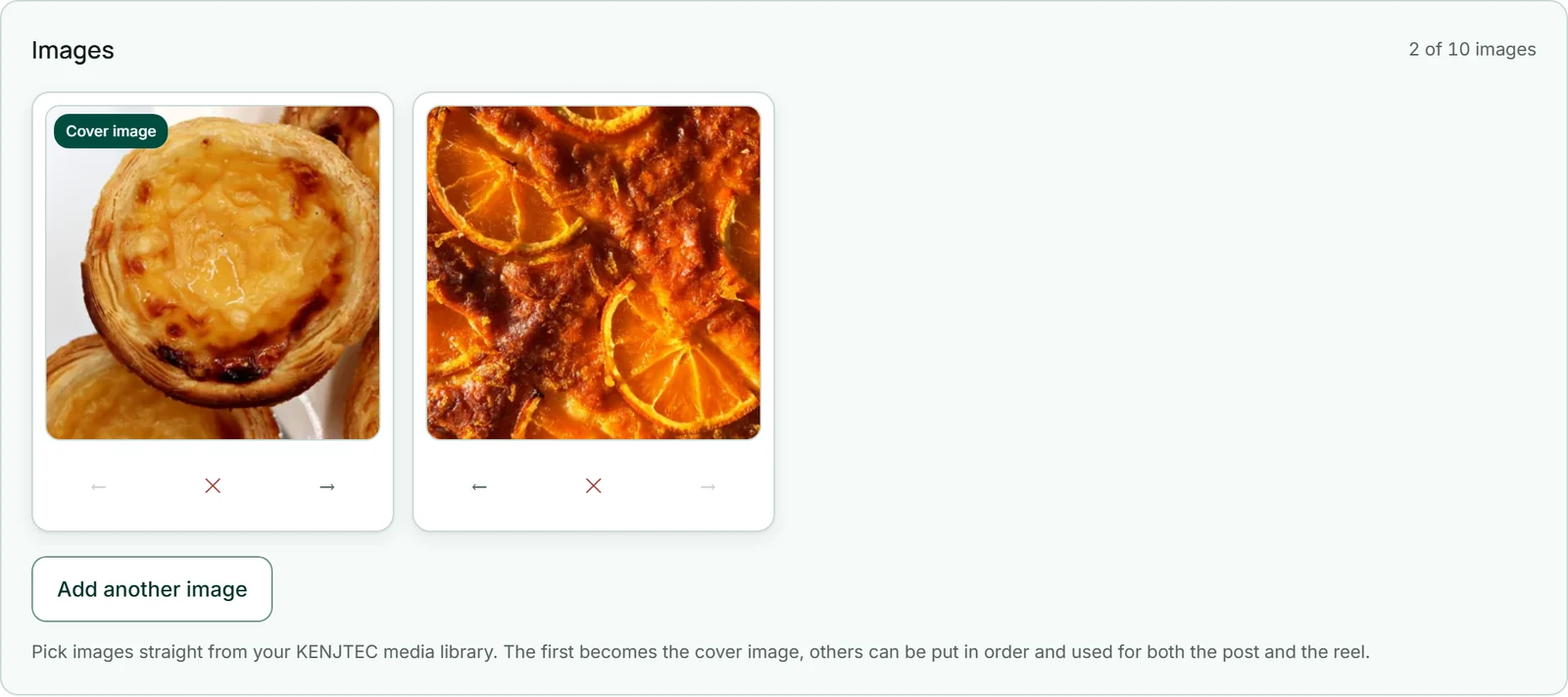
- Click “←” or “→” under an image until it is in the right place.
- Click “Save”.
Which brand?
If your account has several brands — for example because you write for clients as an agency — you decide for each post whom it speaks for. The “Date and campaign” box then contains the choice “Which brand?”; at first it says “No brand chosen yet”.
Once a brand is chosen, the preview, the versions and the approval link show its name, logo and handles instead of “Your account”. Without a chosen brand, your client sees no brand name on the approval page.
The versions only name the new sender after the next “Tailor for all networks”; until then their cards point out that the post was changed afterwards. If your account has exactly one brand, there is no choice — every post speaks for it. You create brands in BrandStudio.
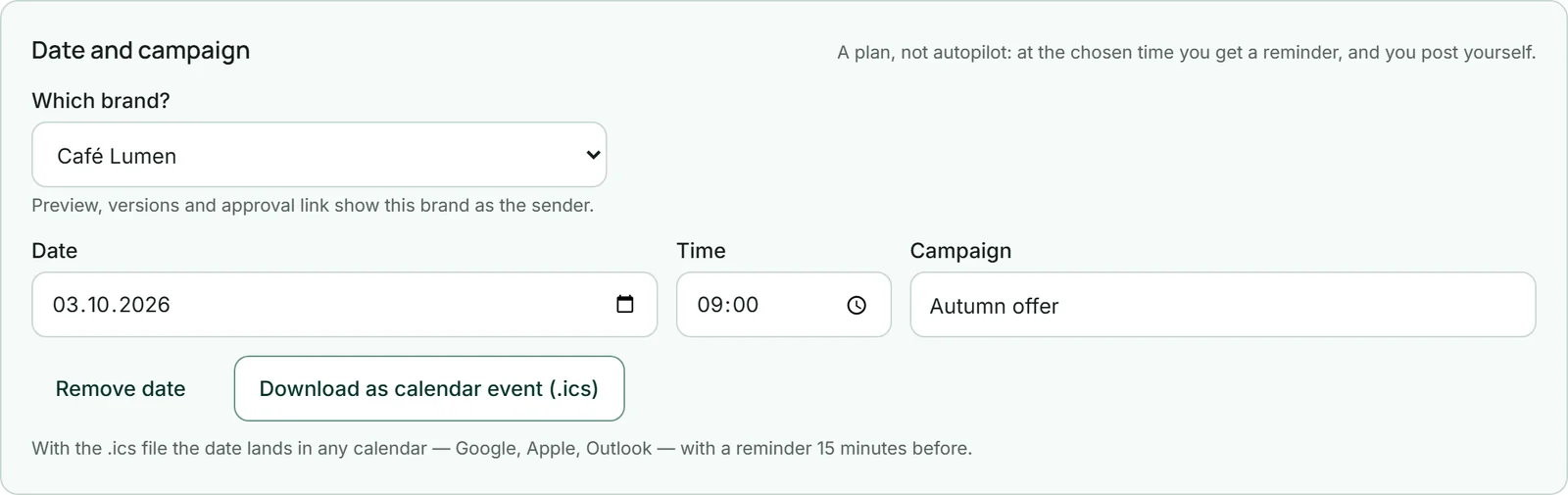
- Open the post in the “My post” area.
- In the “Date and campaign” box, choose the brand under “Which brand?”.
- Click “Save”.
Choose the brand before you tailor and before you send an approval link — then the sender is right from the start.
Saving — and what gets saved first
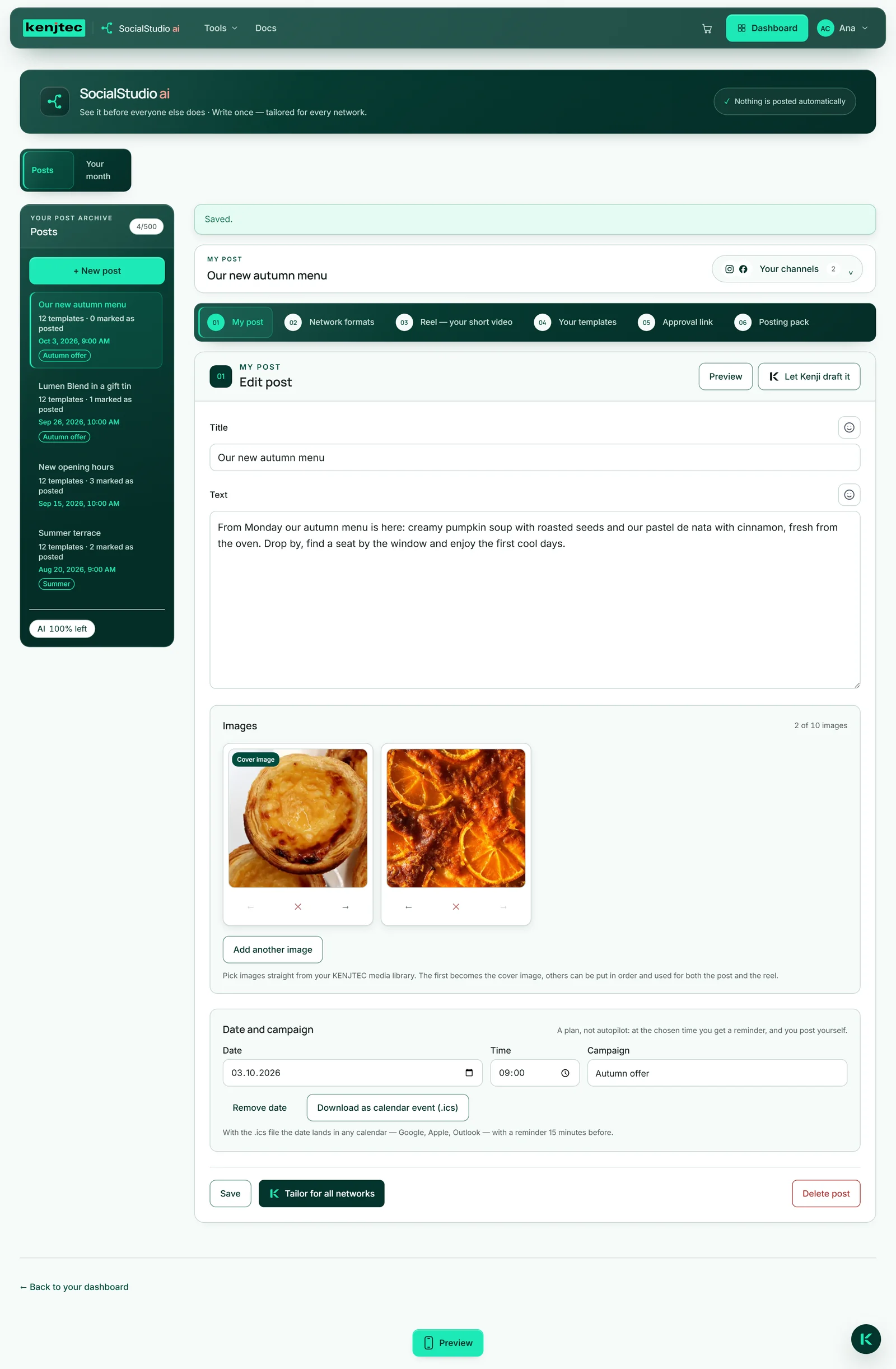
“Save” stores title, text and images, along with date, campaign and brand. Until then, your changes only exist on the screen: if you open another post on the left or click “New post”, they are gone without a question.
The tools that work with your post save it themselves first: “Tailor for all networks”, “Create formats”, “Create reel”, “Download ZIP” and “Put in BusinessCloud”. That way they always work with what you have in front of you — including an image you attached a moment ago.
Let a tool finish before you open another post on the left — while it runs, its button shows what it is doing.
“Lines from Kenji” and refining a version work with the last saved state. Save a change first.