
Opening “Your month”
At the top of SocialStudio you switch between “Posts” and “Your month”. “Posts” is where you write; “Your month” shows your posts by their date. Switching keeps your writing space as it was — even text you haven’t saved yet.
At the top you choose between three views. “Month” shows a calendar; the week starts on Monday. Each day lists up to three posts with their time, title and the icons of the networks that have a version; networks you have marked as posted are faded, and a tick shows that all of them are posted. If a day has more, a link such as “2 more” takes you to the list. “List” shows the same month day by day — on a phone, “Your month” starts with it. “Feed” shows your Instagram profile as a grid.
Use “‹” and “›” to move through the months; “Today” brings you back. Clicking a post opens it in your writing space. “+” on a day opens a new post whose date is already set to that day, at 09:00 — it is created as soon as you save. If you have assigned campaigns, pick one at the top and only its posts remain; “All campaigns” shows everything again. With several brands you filter by brand the same way; “All brands” shows all of them.
Posts without a date are listed below the calendar under “No date yet”; “Set a date” opens the post. “Your month” is not a second calendar but a view of your posts — the dates themselves live in your BusinessCloud calendar.
- Click “Your month” at the top of SocialStudio.
- Choose “Month”, “List” or “Feed”.
- Click a post to open it — or “+” on a day to create a new one there.
“+” and a click on a post replace whatever is in your writing space — just like “New post”. Save what you are working on first.
The feed grid: your Instagram profile
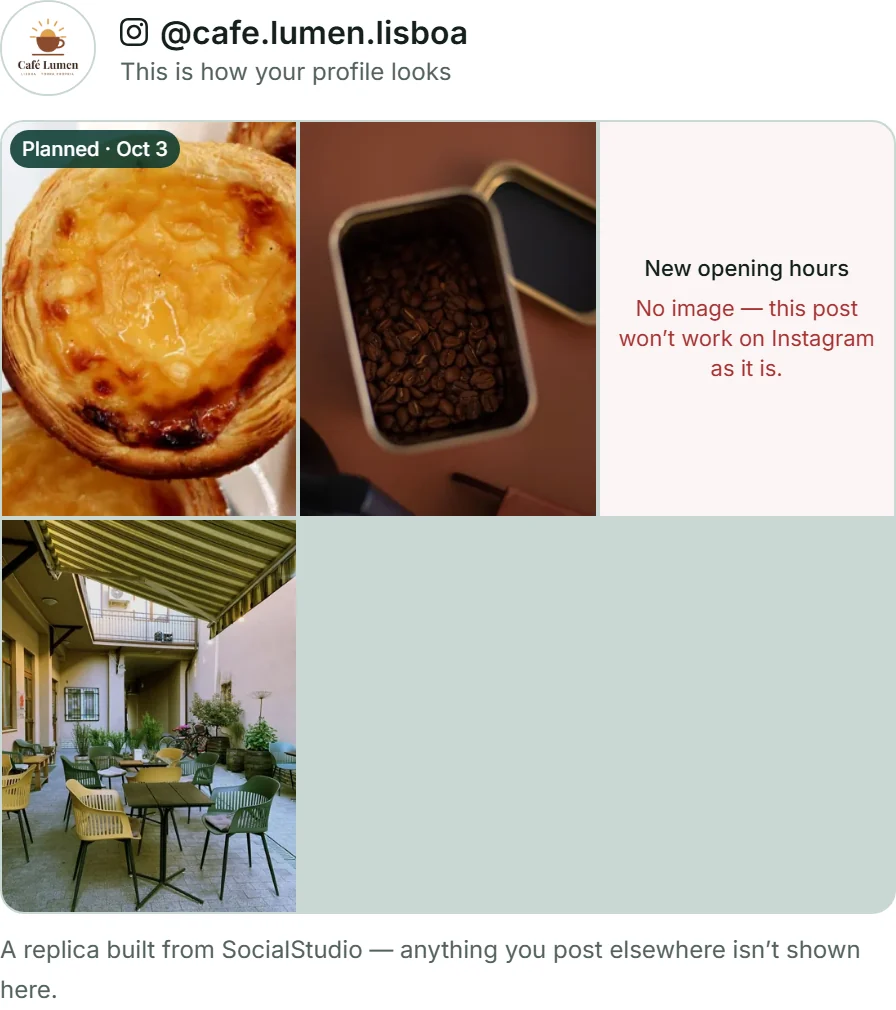
The “Feed” view shows how your Instagram profile looks with your posts: three columns, each tile in 3:4 portrait, the newest at the top left, up to 18 tiles. At the top are your logo and your Instagram handle from your channels. With several brands the grid shows the profile of the brand you choose at the top — each brand has its own; without a choice it says “Each brand has its own profile — choose a brand above.”
A post appears in the grid if it has an Instagram version and either has a date or its Instagram version is marked as posted. Planned posts carry “Planned” and their date. If a post has no image, its tile says “No image — this post won’t work on Instagram as it is.” Clicking a tile opens the post; the campaign filter applies here too.
The grid is a replica built from what SocialStudio knows — each tile shows the cover image of your post. Anything you post without SocialStudio isn’t in it, and the line below says so: “A replica built from SocialStudio — anything you post elsewhere isn’t shown here.”
Date and campaign
You enter the date in the “My post” area, in the “Date and campaign” box: “Date” and “Time” in your local time — the time stays at 09:00 until you change it. A date is your plan, not autopilot; the box puts it like this: “A plan, not autopilot: at the chosen time you get a reminder, and you post yourself.”
Under “Campaign” you give the post a label, such as “Autumn offer”, with up to 60 characters. The field suggests campaigns you have already used — so one campaign doesn’t end up in three spellings. In “Your month” you filter by it, and in your list of posts the date and the campaign appear below the title.
Date and campaign don’t change the content of your post: your versions don’t count as outdated afterwards, and the post doesn’t move up the list. “Remove date” clears the date; with the next save, the date is gone. A date can be at most one year in the past and at most three years ahead.
- Open the post in the “My post” area.
- In the “Date and campaign” box, choose the date and time.
- Enter a label under “Campaign” or pick a suggested one.
- Click “Save”.
The reminder in your BusinessCloud calendar
Your dates live in your BusinessCloud calendar. If “Reminder in my BusinessCloud calendar” is ticked — it is by default — SocialStudio adds the date there when you save, to your “Personal” calendar or, if there isn’t one, to your first own calendar: as “SocialStudio · Our new autumn menu”, with a reminder 15 minutes before and, in the description, the link that opens exactly this post. The reminder appears as a notification in your BusinessCloud — it doesn’t send an email.
If you change the date, time, campaign or title and save, the entry follows. If you remove the date or untick the box, it disappears from the calendar. Below the fields you see what currently applies: “It’s in your BusinessCloud calendar — with a reminder 15 minutes before.” or “Not in the calendar yet.” with the “Add again” button.
The tick box appears as soon as your BusinessCloud is reachable; if you have never opened it, open it once. If the calendar doesn’t respond when you save, the date is still saved with your post, and at the top it says “Saved, but not in the calendar: …” with the reason. “Add again” catches up. How the calendar itself works is described under Calendar and contacts.
- Set the date and time in the “Date and campaign” box.
- Leave “Reminder in my BusinessCloud calendar” ticked.
- Click “Save”. At the top it says “Saved — the date is in your BusinessCloud calendar.”
A reminder is only a reminder: nothing is published at the chosen time. You post yourself, as described under Publishing a post yourself.
Changing dates in your BusinessCloud calendar
You manage dates in your BusinessCloud calendar or on the post — both show the same. If you move the entry in the calendar, your post gets the new time. If you drag it into another of your calendars, SocialStudio still finds it there.
SocialStudio checks when you open it and every time you switch to “Your month” — in the background, you don’t wait for it. If something has changed, the top says, for example, “One date taken over from your BusinessCloud calendar.” Your versions don’t count as outdated because of it.
If you delete the entry in the calendar, your post keeps its date; it then shows “Not in the calendar yet.”, and “Add again” creates it once more. If you make it an all-day event in the calendar, the post keeps its previous date — an all-day entry has no time.
In “Your month”, “Open in BusinessCloud calendar” opens the month shown in your BusinessCloud calendar, in a new tab. Below it says: “The dates live in your BusinessCloud calendar — move one there and the post follows here.”
- In “Your month”, click “Open in BusinessCloud calendar”.
- Drag the “SocialStudio · …” entry to another day or change its time.
- Reload SocialStudio or switch to “Your month” again — the post is on the new day.
What comes back is the day and the time. You change the title of your post in SocialStudio, not in the calendar.
Loading the date into another calendar
If you use another calendar, such as the one on your phone, you take the date as a file: once the post is saved with a date, “Download as calendar event (.ics)” downloads a calendar file, for example socialstudio-our-new-autumn-menu.ics. When you open it, your calendar takes over the date — with the same reminder 15 minutes before and the link to your post.
The file is a copy: if you change the date later, download it again — a date you have taken over doesn’t change by itself in your other calendar. If the BusinessCloud isn’t reachable or the box is unticked, below the fields it says: “With the .ics file the date lands in any calendar — Google, Apple, Outlook — with a reminder 15 minutes before.”
- Set the date and click “Save”.
- Click “Download as calendar event (.ics)”.
- Open the file — your calendar takes over the date.