
Your post archive
On the left in SocialStudio, under “Your post archive”, is the list of your posts, the most recently changed at the top. Under each title it says how many versions it has and how many of them are marked as posted — or “No templates yet”. On a phone, the list is a row above the post that you swipe through sideways.
A click opens the post with its versions, images, formats and reel; the view starts at “My post”. Posts stay until you delete them. Over time this becomes an archive of what you posted when and where.
If you have no post yet, it says “No post yet — write the first one, or let Kenji draft it.”
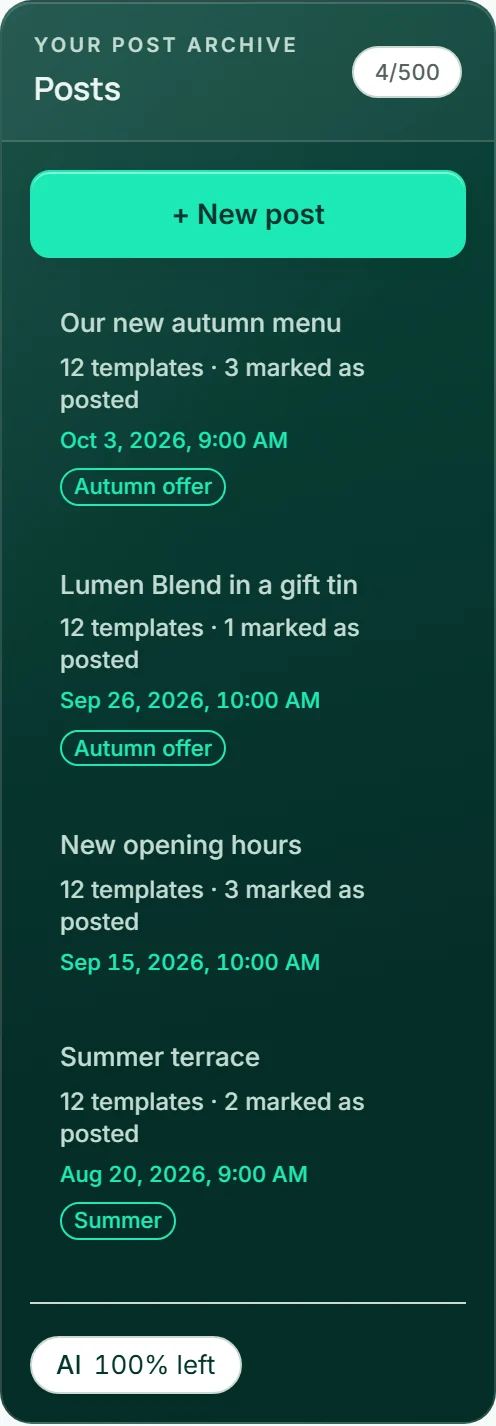
How many posts your plan allows
How many posts you can keep depends on your plan. At the top of the list it shows as a fraction: first the number of your posts, then your plan’s limit.
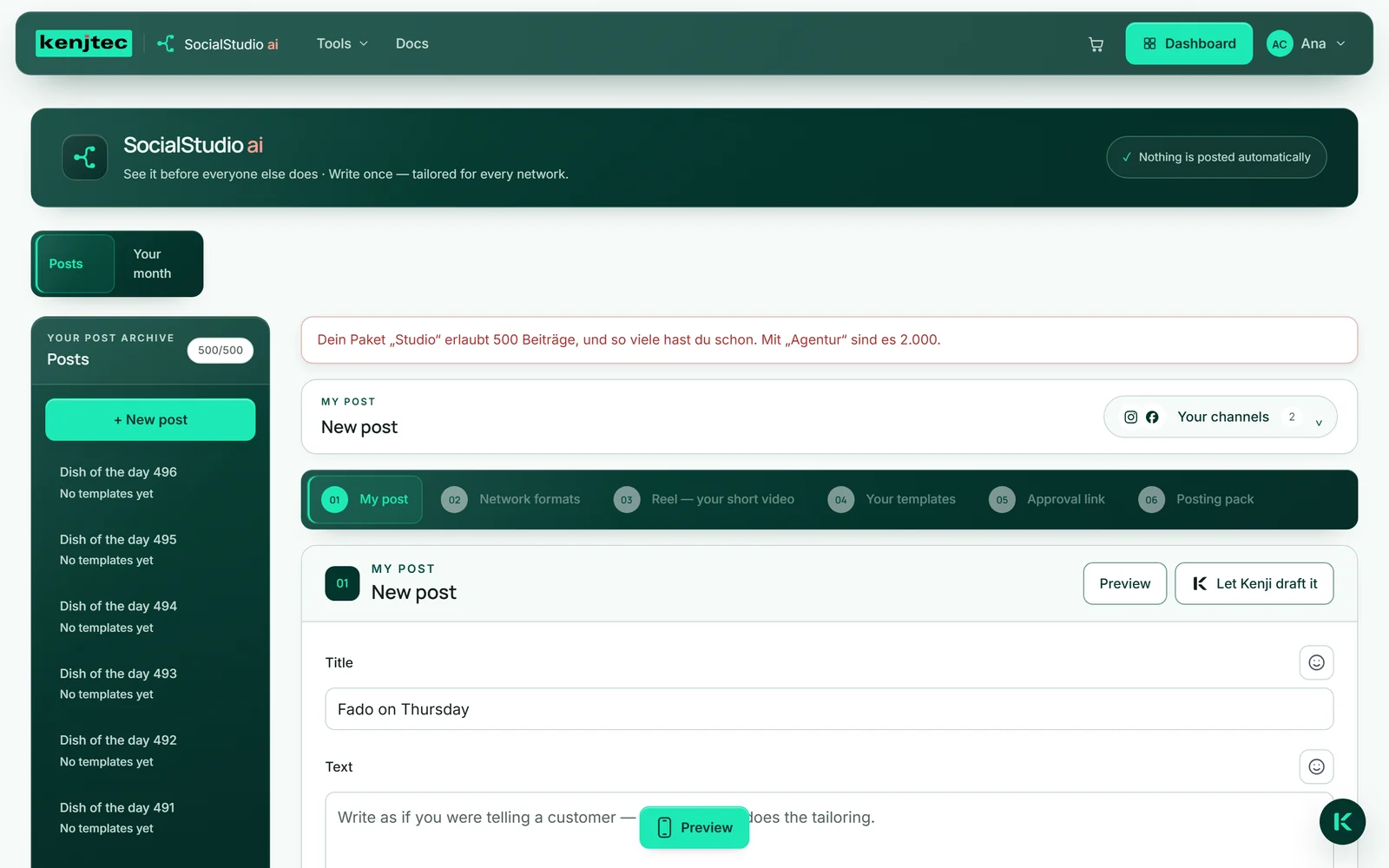
Once the limit is reached, no new post can be saved. The message names your plan and, if there is one, the next larger one. You then delete an old post or change your plan — in the dashboard under “Choose a plan”. The plans and their limits are on the pricing page, and more about booking is under Account & billing.
Your posts in the dashboard
In the dashboard, your posts appear under “Projects” alongside websites, forms and media. If you choose “Posts” in the “All types” list, you see only them: per row the title, the status and the last change.
The status is “Draft” until you mark at least one version as posted — then “Posted”. “Edit” opens SocialStudio. If you have no post yet, “Write a post” takes you there.
- Open your dashboard and choose “Projects”.
- In the “All types” list, choose “Posts”.
- Click “Edit” next to a post.
Deleting a post
“Delete post” at the bottom of the “My post” area removes the post for good after a confirmation. With it go all versions, the posted marks, the rendered network formats, its reel and its approval links; its date disappears from your BusinessCloud calendar if the BusinessCloud can be reached at that moment.
Your images stay in MediaStudio; they are no longer in use there and can be deleted or renamed. Whatever you have already published on your networks stays there — SocialStudio has no access to it.
- Open the post.
- Click “Delete post” at the bottom.
- Confirm the question “Delete this post and all its templates? This can't be undone.”
Deleted is deleted. If you want to keep the versions, download the posting pack first.