
The editor at a glance
At the top is the header: “← Your websites” takes you back to the overview, “Choose page” switches between the home page and subpages, “Desktop”, “Tablet” and “Phone” switch the preview, and ↶ and ↷ undo and redo. Next to them you see whether everything is saved, how much of your AI bar is left, “Take it with you”, the status of the page and, far right, “Publish”.
On the left are the workspaces in three groups: under “Design website” you find “Website”, “Sections”, “Pages & menu”, “Menu & footer”, “Colors & font” and “Edit with Kenji”; under “Connect tools” ShopBuilder, FormBuilder and DomainStudio; under “Manage” “Settings”, “Members”, “On Google” and “Company”. In the middle is your real page, on the right the tool for whatever you click.
“Settings” gathers the essentials of a website: “Website name” and “Website language” — the language applies to fixed words such as buttons, contact and error texts; your own texts are not translated — plus “Take it with you” and “Delete website”. For everything that already has its place, it only shows the way there: “On Google”, “Members” and “Address in DomainStudio”. If the website carries a brand, it is named there with “Assign in BrandStudio”.
On smaller screens, including many laptops, the editor shows one column at a time: at the bottom you switch between “Sections”, “Preview” and “Tool”, and the workspaces sit behind “Choose workspace”. On a phone, the AI indicator, “Take it with you”, the page status and “Take offline” sit behind “Show more”.
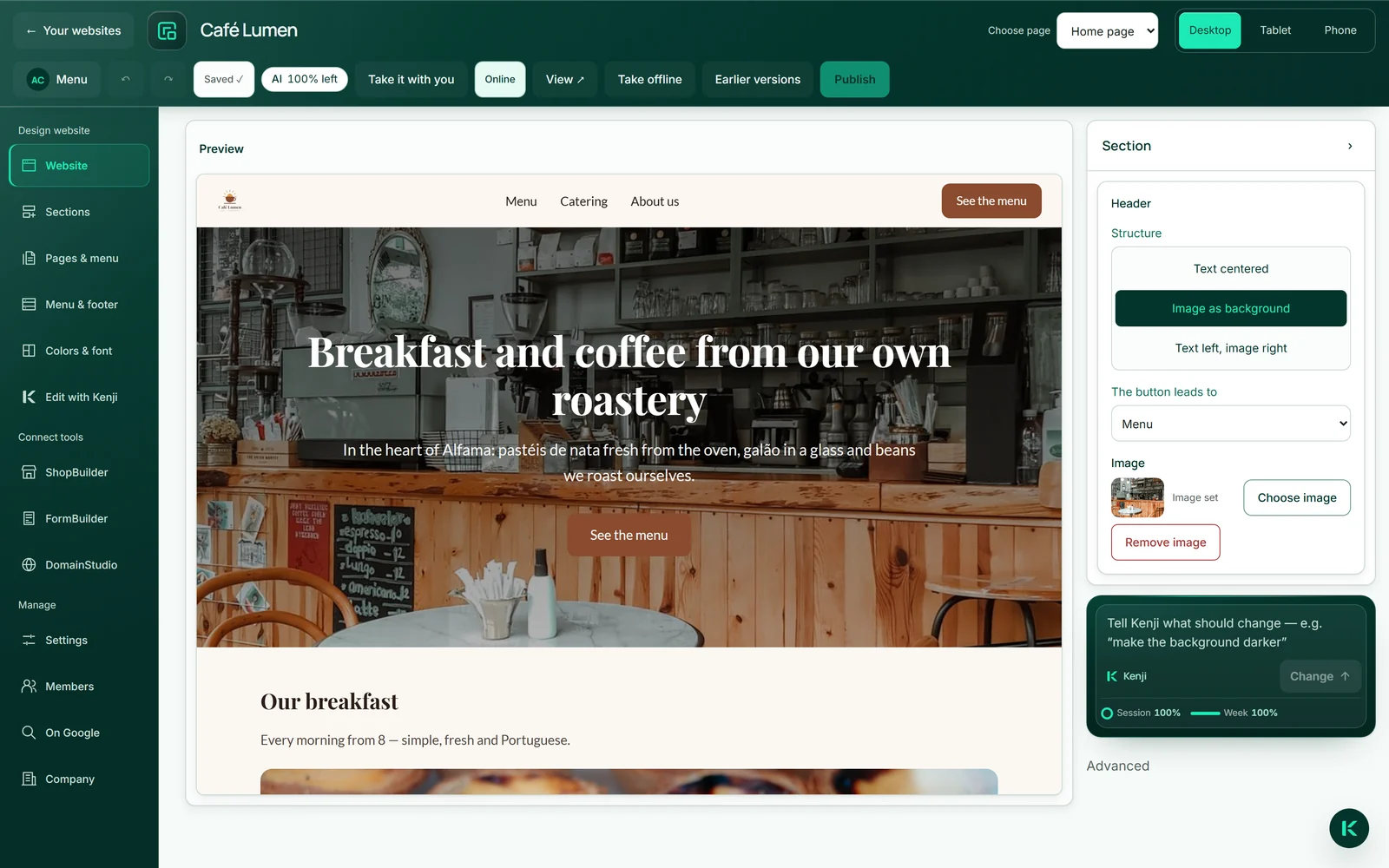
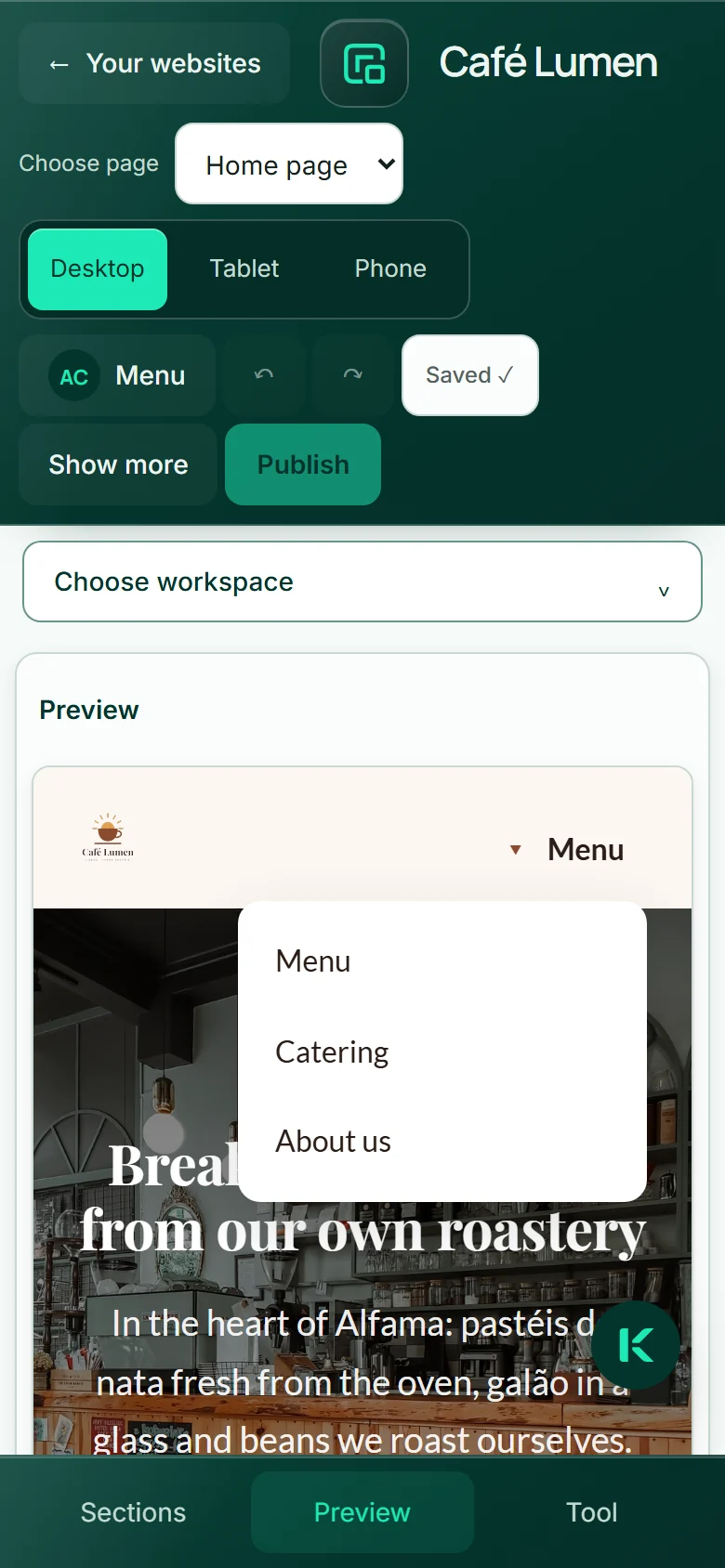
Saving happens by itself. If the header says “Not saved”, a red line gives the reason, with “Save again” next to it.
Typing directly on the page
You change headings, paragraphs, button labels and the points in lists right where they are: click into the text and type. The preview is your real page, not a replica next to it.
Enter applies, Escape restores the old text. A text is always one line — line breaks turn into spaces. Links go nowhere in the editor; a click only selects.
Saving happens shortly after you type, into the draft. Nothing changes on the web until you publish.
- In the preview, click the text you want to change.
- Type the new text.
- Press Enter or click elsewhere to apply it — Escape discards what you typed.
Typing uses no AI credit.
What goes into the footer
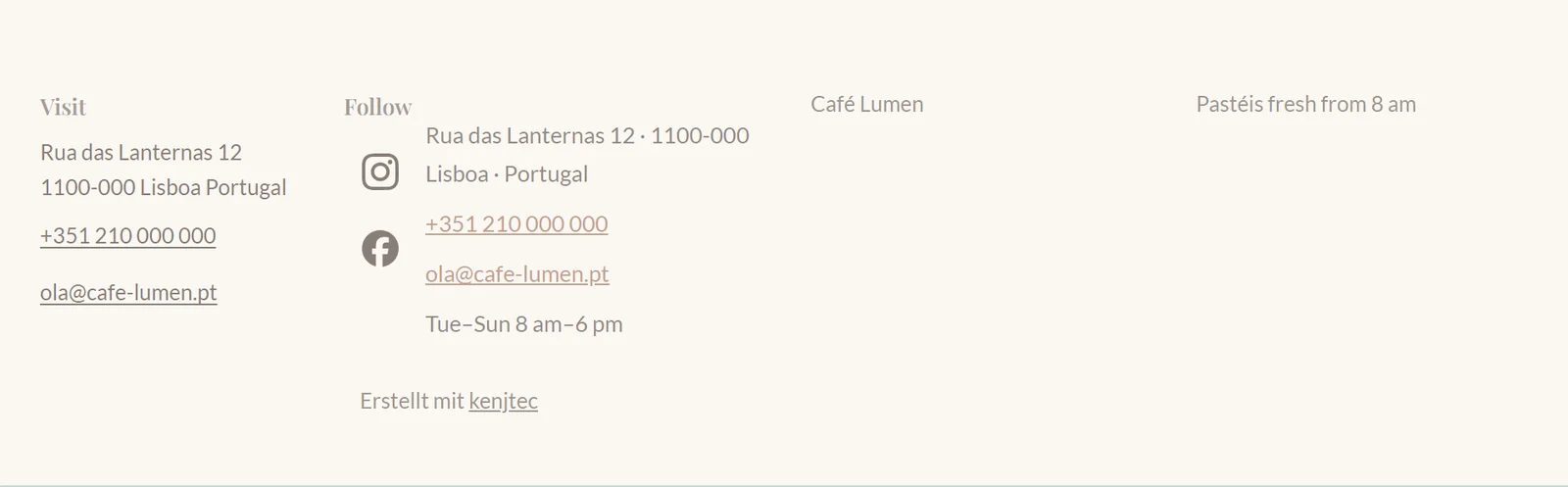
You fill the footer in the “Menu & footer” workspace under “Footer”. The contact lines come from your business details and are maintained there. Under “Link existing pages” you decide for each page whether it is “Not in the footer”, in the “Link list” or among the “Legal links” — regardless of whether it is in the menu at the top. Only public pages appear there, never a members-only page.
“Custom links” consist of a link label and a link destination: a page of your website, a section, or an address with https://, mailto: or tel:. A destination that is not safe is not accepted. Under “Social networks” you choose the “Profile source” — your business details or custom profiles for the footer, ten at most; well-known networks appear with their icon and their name for screen readers.
With “Custom columns” you arrange up to four columns with a heading, each with up to ten entries: pages, links, contact, social networks. “Finish with an action” puts a button at the end; without its own text it uses the button from the header. The “Footer note” is a free line at the end of the page. The footer links your brand’s legal notice by itself.
- Open “Menu & footer” and choose “Footer” at the top.
- Open an area such as “Custom links”, enter a link label and destination, and click “Add link”.
- Check “Your footer preview” and click “Save design”.
A link you have started or a half-entered profile must be added or cleared first, otherwise the design cannot be saved.
Putting your shop on the page
If you have a shop in ShopBuilder ai, you can bring it into your website in two ways: as a section on a page or as an item in the menu. Clicking “ShopBuilder” in the bar lists your shops next to the page, each with its active products and categories: “Insert” adds it as a new section after the section you have selected, “Add to menu” puts it in the menu. In the section you choose the “Appearance” on the right: “Catalogue” shows your range right on the page, “Button only” leads to the shop with a button. You can also add the section via “+ Add section” → “Shop” and pick the shop on the right.
What the section shows is set on the right under “What to show?”: “The whole catalogue”, “One category” or “Individual products” — at most 24, in the order you tick them, rearranged with ↑ and ↓. On top of that there are “Order”, “At most” (0 means: show all), the “Search field above the products” and “Show categories as filters”; the search field is offered from four products in the selection, the categories from two. The same shop may appear several times on a page, each section with its own selection; if you pick a different shop in a section, its selection starts afresh. If you rename a category in ShopBuilder, the section tells you, and you choose again.
The catalogue takes on this website’s colours and typeface so it does not look out of place; your saved shop design stays untouched. Buying always happens in the shop: every click on a product or into the basket leads to your shop’s address, where the checkout and payment are. There is no second checkout inside the website.
Only your own shops are offered. Below the choice you see how the shop is doing: “Shop accessible”, “This shop has no active products yet.” — then only the button appears — or “This shop is not publicly accessible yet.” Visitors do not see a shop that is still a draft; a short sentence stands in its place.
- Select the section on the page that the shop should follow, and click “ShopBuilder” under “Connect tools” on the left.
- Next to the page, click “Insert” on your shop — or “Add to menu”.
- On the right, set under “Appearance” and “What to show?” what the section shows.
- Publish the website; only then does the link appear.
“More options” below the list opens the wide workspace: there you choose shop, appearance and selection before inserting, and click “Add to this page” or “Add to menu”. You manage products, prices and orders in ShopBuilder ai — more in the ShopBuilder ai chapter.
Adding, ordering, duplicating and deleting sections
Every page is a sequence of sections. Via “Sections” you open the list on the left: the “Header” at the top, the sections below in page order. A click jumps there in the preview.
You add new sections with “+ Add section”; the “What kind of section?” catalogue shows each kind with a small drawing. The new section lands after the selected one. You reorder by dragging or with the ↑ and ↓ arrows — which also works without a mouse.
On the right of the selected section are “Duplicate section” — the copy comes without its image — and “Delete section” with a confirmation. A page holds up to 14 sections; every subpage has its own list.
- Click “Sections” on the left.
- Select a section, click “+ Add section” and then a kind.
- Drag sections into place or use ↑ and ↓.
- To delete: click the section, then “Delete section” on the right, then “Yes, delete”.
None of this uses AI credit, and “Undo” brings back a deleted section.
Ten kinds of section
“Text” for anything narrative, with an image if you like. “Services” for points side by side. “Contact” with address, phone, email, opening hours and a form that really sends. “Call to action” is a coloured band with a button. “Questions & answers” opens and closes. “Testimonials” shows quotes, “Pricing” shows offers as information cards without a checkout. “Image” is a large image with a caption, “Form” embeds a form from FormBuilder ai, “Shop” your shop.
Services, questions & answers, testimonials and pricing are made of “Points”. You maintain them on the right: two fields per point, “+ Add point” up to twelve, ↑ and ↓ to reorder, ✕ to remove. New sections come with neutral placeholders — no invented testimonials, no invented prices.
Questions and answers also go into the page in machine-readable form, so Google can recognise them. There are deliberately no more kinds: each one has to look good in every style and work on a phone.

- In the preview, click a section with points, for example “Pricing”.
- Change the fields on the right under “Points”; a change is applied as soon as you leave the field.
- Click “+ Add point” for another point.
The placeholders of new sections exist in German and English; on a website in another language you simply overwrite them.
The header
The header of every page has three structures: “Text centred” — an image, if there is one, sits below —, “Image as background” with a darkened image and light text, and “Text left, image right”. “Image as background” needs an image; without one, the page shows “Text centred”, and on the right it says “This needs an image — pick one below.” beforehand.
You type the heading, the sentence below and the button label directly on the page. Without a label, the published page has no button. Where it leads, you choose under “The button leads to” (see Buttons point to pages). The top bar shows the same button on the right if there is a contact section or the button has a destination.
- Click “Header” in the section list, or click into the top of the page in the preview.
- Choose one of the three forms under “Structure” on the right.
- Add an image with “Choose image” if you want one.
No image is not a makeshift: a calm header with a clear sentence is often a better start than a stock photo.
Background, image side, alignment
For every section you choose a “Background” on the right: “Same as the page”, “Light surface” or “Soft accent”. For “Text” you decide under “Image beside the text” whether an image sits “Left”, “Right” or not at all; “Alignment” sets the text “Left” or “Centred”.
These few switches set the rhythm of the page — alternating bands separate topics better than any line. The “Call to action” band always sits on the accent colour; its background cannot be changed.
- In the preview, click a section.
- On the right, choose the “Background”, for text sections “Image beside the text”, and the “Alignment”.
Device preview
With “Desktop”, “Tablet” and “Phone” in the header you see the page at full width, 768 and 390 pixels wide. It is not a replica but your page in a narrower frame — it wraps exactly as it does for visitors, including the menu that folds up on a phone.
Most visitors arrive on a phone. A look there before you publish is the cheapest test there is.
- Click “Phone” at the top.
- Scroll through the page and check the menu, images and buttons.
- “Desktop” takes you back to full width.
Undo and redo
↶ and ↷ in the header undo and redo steps — up to fifty, as long as the editor is open. This is meant for the page itself: typed texts, sections you added, moved, duplicated or deleted, the points of a section, the typeface and a change made by Kenji.
“Undo” does not take back what has its own way of saving: the facts under “Company”, “On Google”, “Pages & menu”, “Menu & footer” and “Members”. Once you close the editor, the history is gone; the published page is unaffected until you publish again.
- Click ↶ (Undo) to take back the last step.
- Click ↷ (Redo) to bring it back.
Undo uses no AI credit. If it takes back a change by Kenji, the AI credit used for it stays used.
Changing things with Kenji
Instead of looking for fields, you tell Kenji what should be different: “Make the headline shorter and add a section about our breakfast.” You talk to him in the Kenji window at the bottom right — the same window as everywhere else on KENJTEC. At the top it shows what you are working on: the tool, the name of your website, the open page and the section you have selected. Kenji rewrites the page that is currently in the preview, and the change lands in the draft. Kenji can rewrite texts, add, reorder or remove sections, and have a new image found for a spot.
Kenji answers in words: first he says in one sentence what he is doing, then the editor changes the page, and below it you read “Done — the change is in your draft. It only goes live when you click “Publish”.” If you only ask something, such as “What can I improve on this page?”, he answers instead of changing anything. If you have just typed something, the editor saves it first; if that fails, Kenji changes nothing and the window shows “Save first — your latest version isn't saved yet.”
Left untouched are your business details, pages & menu, the design of menu and footer, the settings on Google, your own colours, your brand’s settings and your code in developer mode. So colours you chose yourself or that come from the brand are not changed by a sentence to Kenji — that is what “Colors & font” is for.
If you do not like the result, “Undo” in the editor brings back the previous state.
- In the editor, click “Edit with Kenji” on the left — or the round button with the K at the bottom right.
- Type what you want into the field “Say what should change — or ask me something …” and press Enter.
- Wait until “Done” appears in the window and the preview shows the new state.
Every change in conversation uses AI credit, and if it fails, nothing is charged. If your AI bar is empty, it refills by itself, or you add an AI package — see Account & billing.
Text suggestions for one spot
If a single text does not sit right, you get suggestions for exactly that spot. Under “Company” → “Texts” you find the home page’s texts: “Heading in the header”, “Sentence below”, “Button label”, “Site tagline”, the heading and text of each section, and the “Line in the footer”.
You can change the text there by hand and set it with “Apply”. Or you use one of the four buttons: “Shorter”, “Longer”, “Different tone” or “Three suggestions”. Kenji delivers three versions, listed one below the other, and only your click puts one of them in. Until then, your text stays as it is.
- Click “Company” on the left and open “Texts”.
- Expand the spot you want to change.
- Click “Shorter”, “Longer”, “Different tone” or “Three suggestions”.
- Click the version you like — it is in the draft immediately.
The suggestions use AI credit; applying a version or changing the text by hand doesn’t.