What SocialStudio does
You write a post once, the way you would tell it to a customer. Kenji, KENJTEC’s AI, turns it into a version of its own for LinkedIn, X, Instagram, TikTok, YouTube, Facebook, Threads, Bluesky, Mastodon, WhatsApp, Telegram and Pinterest — each in the length and tone of its network. After that, you change any version however you like.
You also bring your images into the networks’ sizes, turn them into a short portrait video and see in a phone preview roughly how your post will look. In “Your month” you plan your posts with a date and a reminder, with an approval link you show them to your client first, and you take everything for posting away as a ZIP file or put it in your BusinessCloud.
The post itself stays internal: it gets no public address and appears on no website. It is the working piece the versions come from — and, over time, your archive of what you posted where.

You do the posting
SocialStudio publishes nothing. It connects to none of your accounts, asks for no password and needs no permission to post — so nothing can go out by mistake. At the top of SocialStudio it says so: “Nothing is posted automatically”.
You take the last step: you copy a version and paste it into the network, open the sharing route the network offers in the browser, hand an image or video to the app on your phone, or download the posting pack and upload the files to the network. That way you have seen every text before it appears, and you decide when and where. How that works on each network is explained under Publishing a post yourself.
A date doesn’t change that either: at the chosen time a reminder appears in your calendar, and you post yourself — see Your month.
SocialStudio only knows whether something is published because you tell it: you tick “Posted” yourself.

On most networks a post can’t be changed once it is published. So look at the version in the preview first.
The six work areas
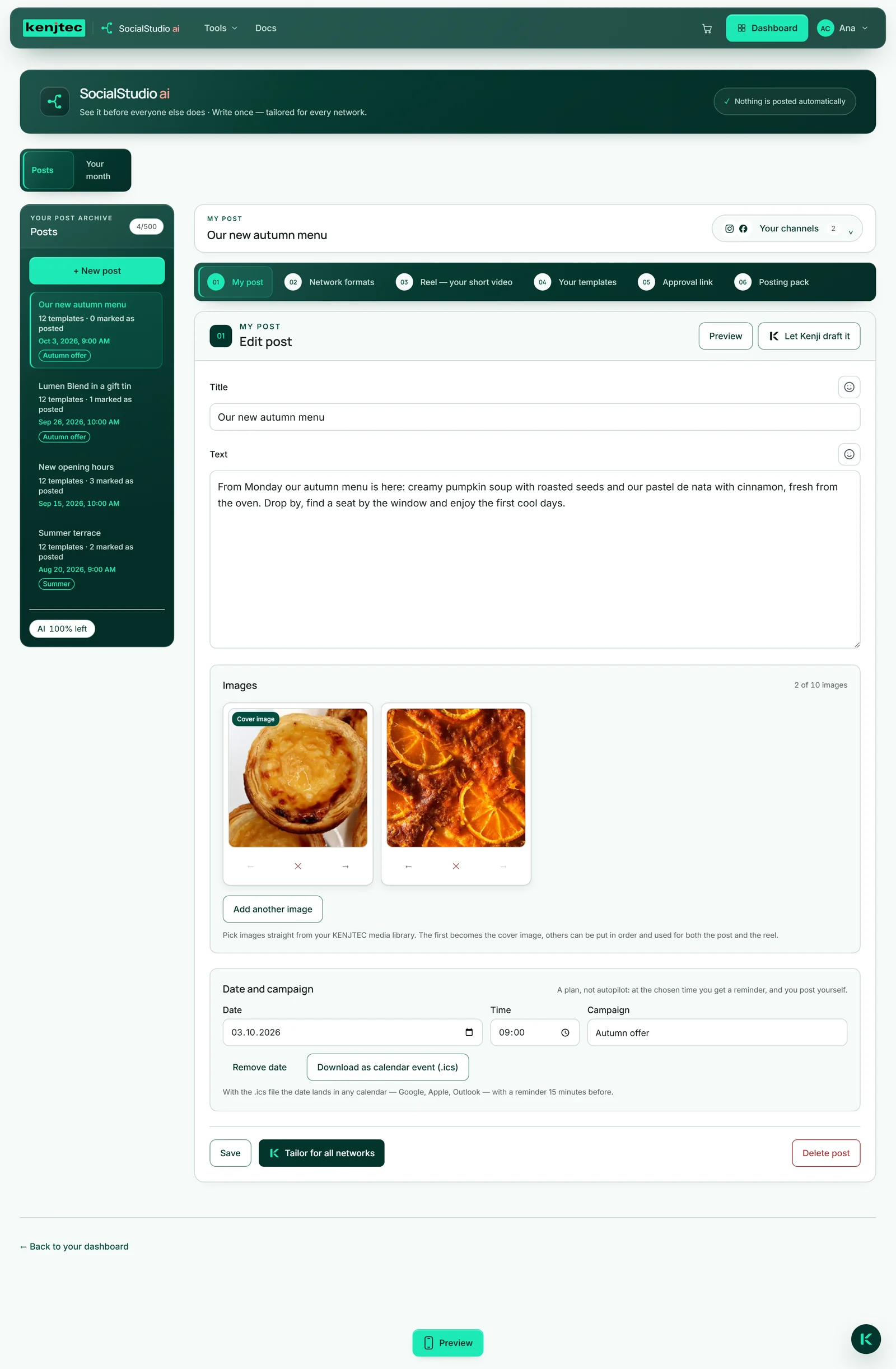
Above an open post there are six numbered tabs, in the order you usually work: “My post” (01), “Network formats” (02), “Reel — your short video” (03), “Your templates” (04), “Approval link” (05) and “Posting pack” (06).
A tab stays pale and can’t be selected while it lacks what it works on. “Network formats” and “Reel — your short video” open once the post has been saved and has at least one image. “Approval link” opens once the post has been saved. “Your templates” and “Posting pack” open once versions exist — that is, after your first “Tailor for all networks”.
When you open another post on the left, the view starts again at “My post”. The tabs can also be reached with the keyboard.

With Kenji or by hand
Four actions put Kenji to work and use AI credit: “Draft” under “Let Kenji draft it”, “Tailor for all networks”, the arrow when refining a version, and “Lines from Kenji” for the reel. Everything else costs no AI credit. Where a tool works without AI, it says “costs no credit — no AI at work here” next to it.
There is one limit: the versions for the networks only come from “Tailor for all networks”. Without that one run, “Your templates” and the posting pack stay closed. Writing, images, formats, a reel with your own lines, the preview of your source text, dates in “Your month” and the approval link all work without Kenji.
Below your post list, the AI bar shows how much is left right now. When it is empty, it refills on its own, or you add an AI pack — more under Account & billing. A double click doesn’t use credit twice. If Kenji fails or isn’t available at the moment, you get a message and nothing is used.