
Your account’s address
From day one your account has a real, encrypted address: your-name.kenjtec.ai, for Café Lumen cafe-lumen.kenjtec.ai. Everything you build lives under it: at the front the website you published first, by itself and without a setting; further websites under /site/<name> of the same address; forms and your shop under their path.
You can send the address around before you have bought anything. You change the name in DomainStudio ai as long as nothing below it is published; after that it stays fixed. A link you have once shared keeps reaching its destination — even if you later put a domain of your own in front.
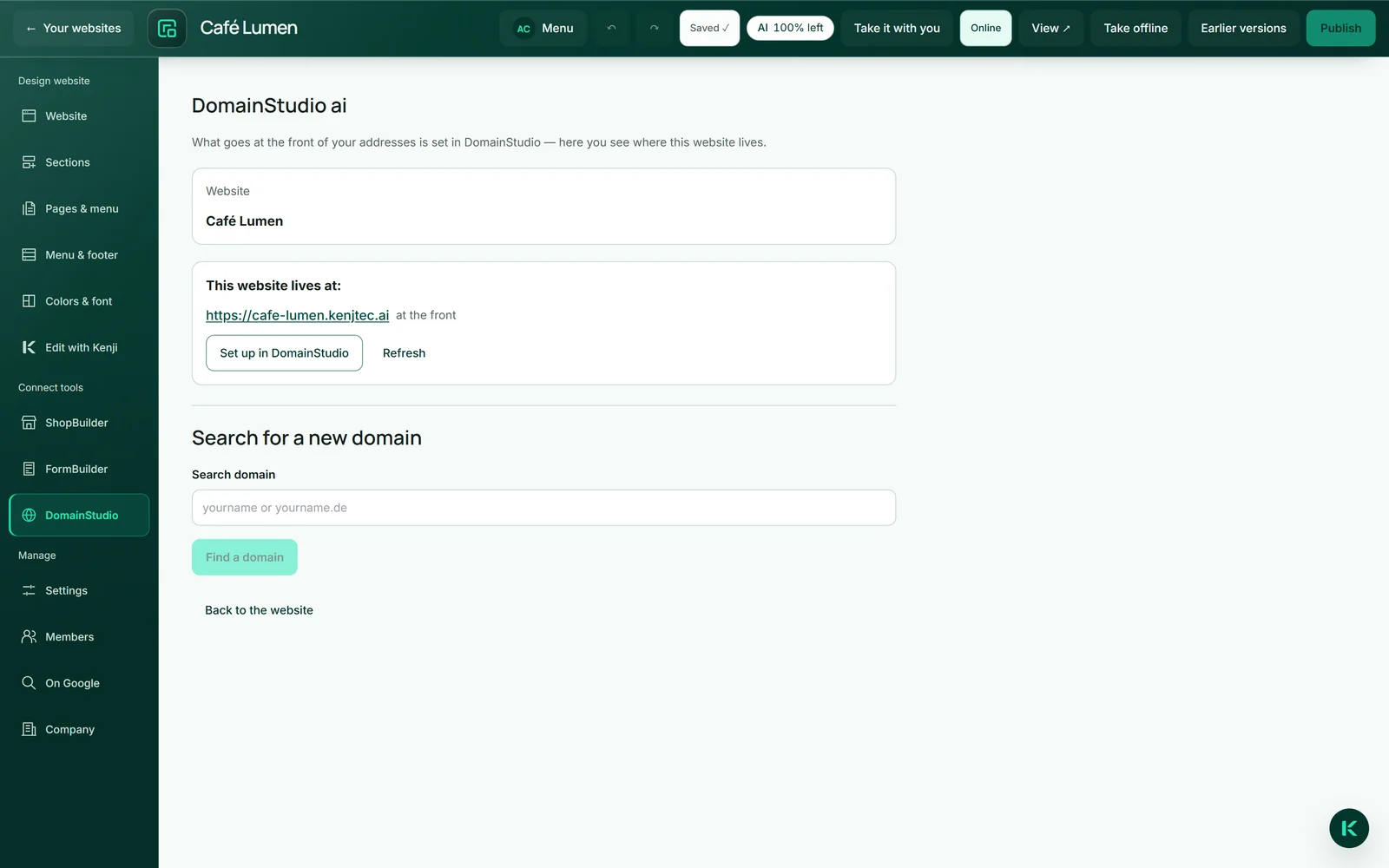
- In the editor, click “DomainStudio” under “Connect tools” on the left.
- Read the website’s addresses under “This website lives at:” — marked “at the front” or “under /site/…”.
Putting your own domain in front
Whether a domain carries your website at the front is decided in one place: the address plan in DomainStudio ai. Under “DomainStudio” in the editor you see which addresses the website lives at, and “Set up in DomainStudio” takes you straight to it in the plan. The certificate is created by itself; until it exists, “Certificate on its way” is shown.
You can buy a new domain right in the editor: under “Search for a new domain” you type a name you would like, “Find a domain” shows what is available and what it costs, and “Buy now” opens the checkout here, without leaving the editor. Afterwards the next step is shown, with the link “Decide in DomainStudio what goes at the front”.
Your website can sit at the front of a domain you bought from us or brought along — brought along means taken into management (Bringing a domain along). If the domain should stay with its provider, you only connect it (Connecting a domain from elsewhere). How to decide what goes at the front is described under What goes at the front.
- In the editor, click “DomainStudio” under “Connect tools” on the left.
- Type a name you would like under “Search for a new domain” and click “Find a domain”.
- Click “Buy now” on an available domain and complete the checkout.
- Then click “Decide in DomainStudio what goes at the front” and choose this website there.
Which address search engines should name as the one is also chosen in the address plan. More on buying under Buying a domain.
The contact form on the page
The “Contact” section shows your contact details as links — the phone to call, the email to write — and a form with name, email and message that really sends. The message goes to the email address shown on the page, otherwise to your account’s address; with “Reply” in your mailbox you write straight back to the sender.
The message is delivered, not stored with us. The email to you arrives in your account’s language; the visitor reads the form and its replies in the page’s language. If a message cannot be delivered, the form says so honestly, keeps the text and, if there is one, names your email address for writing directly.
The form works without JavaScript too and needs no image puzzle: an invisible field keeps simple scripts out, too many messages in a short time are slowed down, and it does not accept a sender address whose domain does not exist. In the editor it can only be seen, not used.
- Add a “Contact” section to the page if there is none yet.
- Under “Company”, enter the email address messages should go to.
- Publish the website and send yourself a test message.
The form uses no AI credit. It is missing from the “Take it with you” archive because it can only send through us; the contact lines stay.
Placing a form from FormBuilder
For anything beyond name, email and message — booking a table, a registration, a survey — you build the form in FormBuilder ai and place it as a section of its own on the page. Clicking “FormBuilder” in the bar lists your forms next to the page, each marked “Open for responses” or “Closed” — visitors cannot respond to a closed one. In the section on the right, you swap the form under “Which form?”.
Responses land where they belong: in FormBuilder, with analysis and export. There is no second list of responses in the builder. In the editor a placeholder stands in for the form; you see the real form on the published page.
- In the editor, click “FormBuilder” under “Connect tools” on the left.
- Next to the page, click “Insert” on your form — it goes to the end of the page you are editing. If it is already there, that section is selected.
- Check on the right under “Which form?” that the right one is chosen.
- Publish the website.
You can also add a form section via “+ Add section” → “Form” and pick the form on the right; “More options” below the list leads to the wide workspace with “Add to this page”. More in the FormBuilder ai chapter.