
Draft and published version
Your website exists twice: as the draft you work on and as the published version visitors see. Nobody sees what you do in the editor until you click “Publish”. A freshly generated website is therefore a draft and not on the web yet.
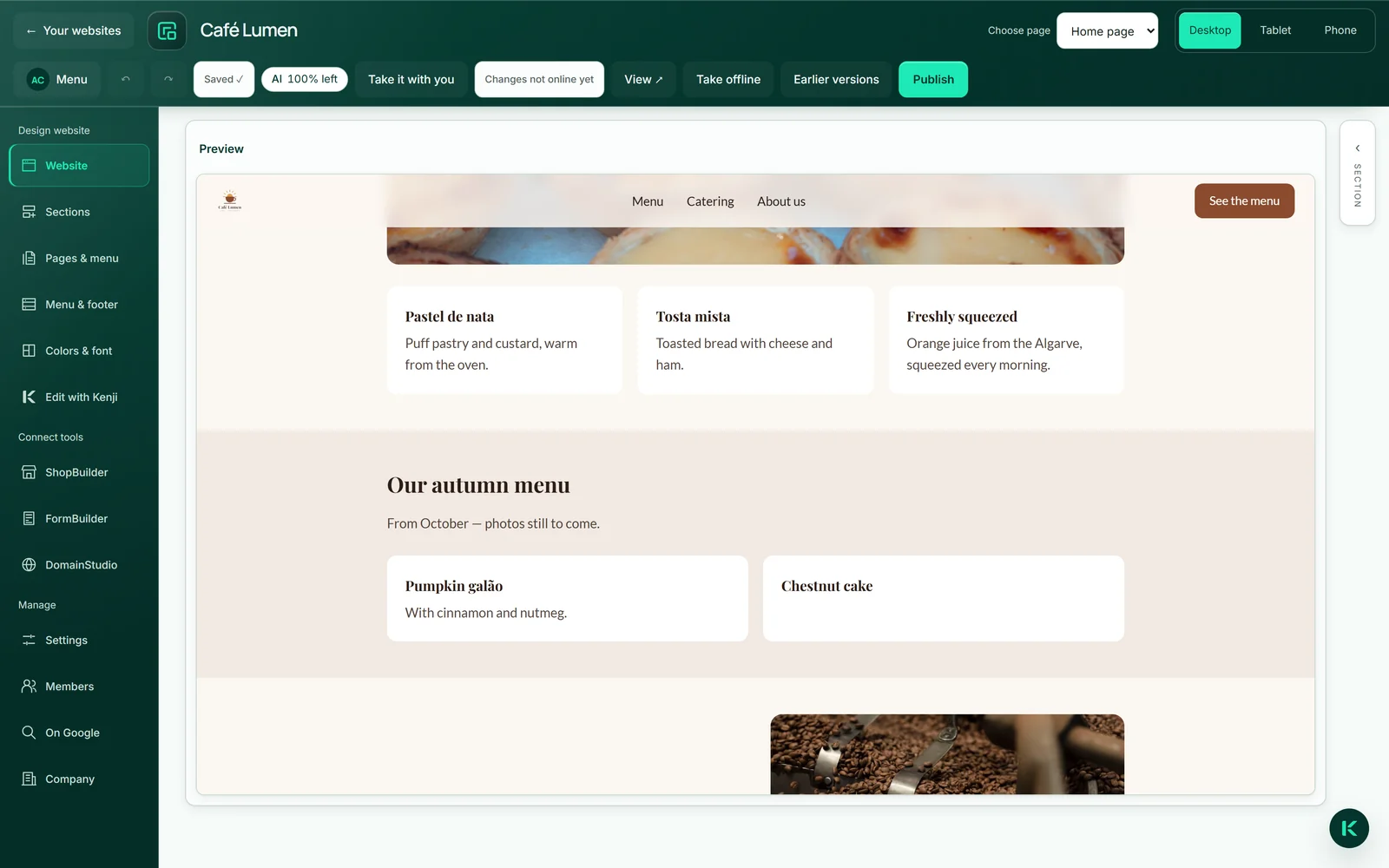
The header tells you where you stand: “Not published yet”, “Online”, “Offline” or “Changes not online yet” — then your draft differs from the live page. “Your websites” shows the same states; there, “Offline” is called “Switched off”.
A few things take effect immediately, without publishing: visibility for search engines, the access rule and guest list of your login area, the address you choose in DomainStudio as the one to be named, and changes to your brand as far as the website follows it. Custom code in developer mode has its own release.

Publishing
One click on “Publish” turns the draft into the live page — all pages, the menu and the design of menu and footer at once. Beforehand, the editor saves what you typed last. If there is nothing new, the button is greyed out (“There is nothing new to publish.”); pending settings have to be saved first.
Before a website goes online, it has to be clear who is behind it: company or operator, address, and email or phone. If something is missing, the editor says exactly what, with the “Go to BrandStudio” link — see Publishing needs your brand.
The first website you publish sits at the front of your account address. If the page may be found, search engines learn after publishing that something has changed; “View ↗” opens the live page.
- Check the page in the preview, ideally on “Phone” as well.
- Click “Publish” at the top right.
- Wait until the status shows “Online” and open the page with “View ↗”.
Publishing, taking offline, putting back online and deleting cost no AI credit.
Taking offline and putting back online
“Take offline” removes the page from the web without losing anything. If it was at the front of your account address, your next published website moves up there; if there is none, the address shows a plain business card. “Put back online” restores exactly the last published version — not your current draft — and returns the website to its old place. Both buttons only appear once the website has been published.
This is the way for a break, or for when something wrong is out there and you want to think first. Putting it back online also requires complete details of who is behind it.
- Click “Take offline” in the header — on a phone the button is behind “Show more”.
- To bring it back, click “Put back online”.
Search engines cannot be recalled: they notice on their next visit that the page is missing — when that is, they decide.
The previous version stays until you publish
While you work on the draft, visitors keep seeing the last published version — however much you rebuild. That is your safety net: finish big rebuilds in the draft and only publish when everything fits.
Each publication replaces the version on the web completely. Your last twenty publications are kept; how to bring one of them back is explained in Bringing back an earlier version. Custom code in developer mode has its own history (see Release and versions for code).
Bringing back an earlier version
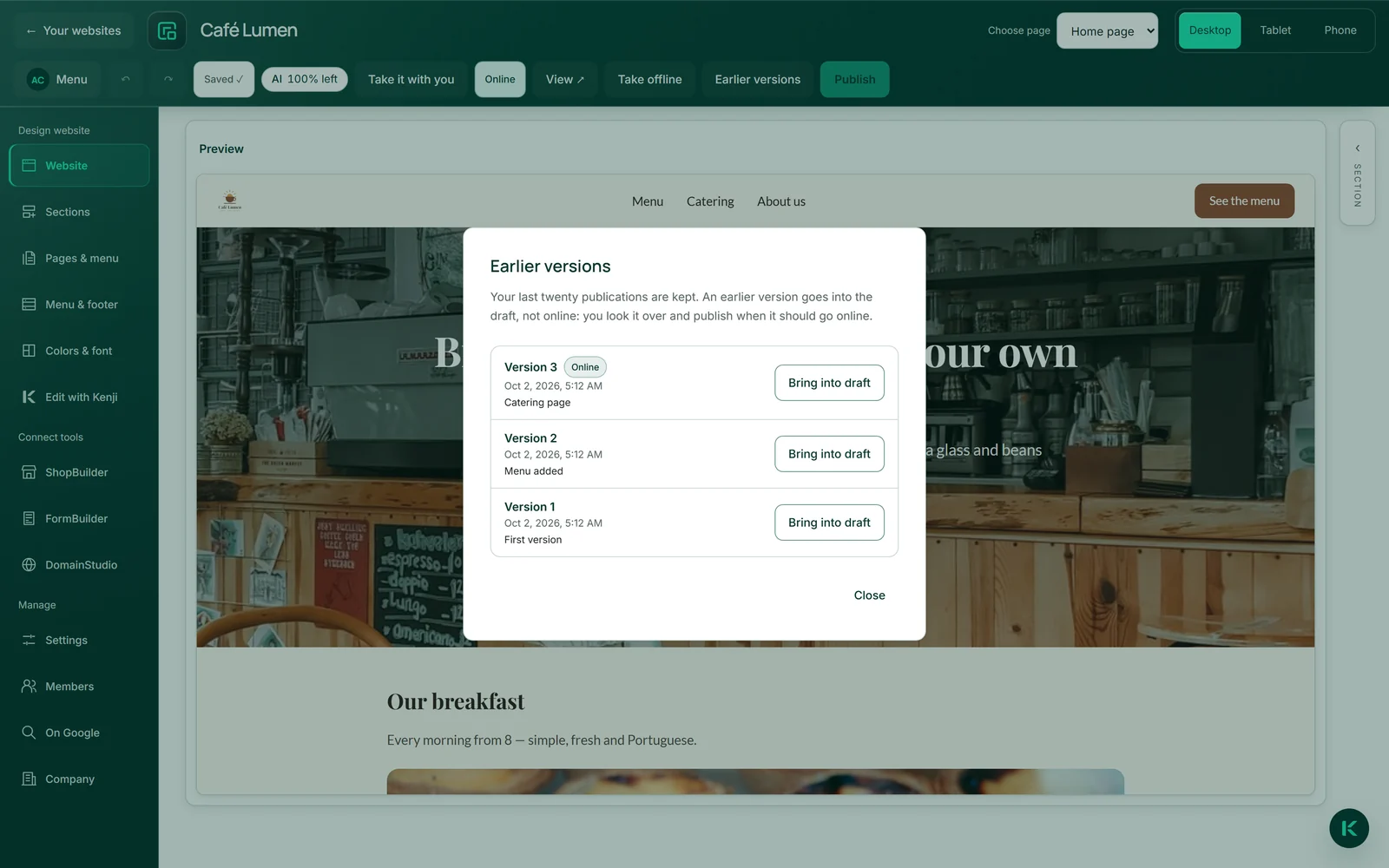
“Earlier versions” in the header shows your last twenty publications, newest first — with date, time and “Online” next to the version that is on the web right now. “Bring into draft” puts a version back into the draft, not online: you look it over in the editor and publish when it should go online. This uses no AI credit.
Your current draft is replaced in the process. Whatever you changed since the last publication can then only be brought back with “Undo”, while the editor is open. To be completely safe, download an archive with “Take it with you” first: it contains your visible pages with their images, and in inhalt.json all texts and facts as raw data.
The history starts with a publication. If “Earlier versions” is still empty, every version is kept from your next publication on.
- Click “Earlier versions” in the header — on a phone behind “Show more”.
- Next to the version you want, click “Bring into draft” and confirm with “Yes, bring into draft”.
- Look over the page and click “Publish” when it should go online like this.
Nothing changes online until you publish.
Deleting a website
Deleting happens in “Your websites”, not in the editor. You type the website’s name or its technical name — upper or lower case does not matter — and click “Delete permanently”. After that the website is gone: content, versions, custom code and the guest list of its login area.
There is no recycle bin and no grace period. If you want to keep the page, download it first with “Take it with you”; if you only want a break, take it offline — that uses no AI credit and can be reversed. The slot is available again afterwards.
- In the editor, go to the overview via “← Your websites”.
- Click “Delete” on the website.
- Type the name and click “Delete permanently”.