
Searching for a name
You can search in two places with the same result: on the DomainStudio ai page and, once you are signed in, in the workspace under “Search for a new domain”. Type the name you want, with or without an ending — “cafe-lumen” is enough; we add the common endings. If you type an ending yourself, it comes first, provided we offer it. Coming from BrandStudio, your brand name is already in the field.
Each row says “available” or “not available”. An available domain shows the price for one year — fetched from the registry at the moment you search, not from a list someone maintains — and “Buy now”. If you have chosen another currency under “Language and currency”, the amount is also shown converted with ≈; billing is in euros. “Price on request” means the registry currently gives no price for this ending, and it cannot be bought right now.
If a domain is taken, you see the question of whether it is yours instead of a price: “It's mine — manage it” in the workspace, “Is it yours?” with the button “Bring your domain” on the DomainStudio ai page (Transferring a domain).
- Open DomainStudio ai and choose “Search for a new domain”.
- Type the name you want, for example “cafe-lumen”, and click “Find a domain”.
- Click “Buy now” next to an available domain — it goes into the cart and checkout opens.
At checkout
Checkout has three steps. Under “Your account” you sign in or create an account. Under “Domain owner” you enter what the registry requires: “Individual” or “Company”, first and last name — a company needs them too —, address with postcode (where your country has one), country, “Owner's email” and “Phone”; in the USA, Canada, Australia, India, Brazil and Mexico also “State / province”. Every country in the world is available except Kosovo: the registry requires an ISO country code, and Kosovo only has a provisional one. The registry accepts a .eu domain only from owners in the EU, Iceland, Liechtenstein or Norway — checkout tells you before you pay. The details must be correct: the confirmation of the domain goes to that email address, and if it never arrives, the registry can suspend the domain. Next time you buy, they are already filled in.
Under “Your order” you tick the box allowing us to register immediately — this ends your right of withdrawal, because the service is performed at once. After “Continue to payment” the card field appears on the same page; “Pay now” charges the amount for one year, and right after that we register the domain in your name. If the registry declines, for instance because the name has been taken in the meantime, you get the amount back automatically, and the invoice gets a credit note. With several domains in the cart, we buy one after the other.
For many endings, such as .com, .net and .org, we also hide your contact details in the public directory of domains; for others, such as .de and .eu, this extra does not exist.
- Sign in or create an account under “Your account”.
- Fill in every field under “Domain owner”.
- Under “Your order”, tick “Yes, register the domain right away …” and click “Continue to payment”.
- Enter your card and click “Pay now”.
Some country endings, for example .fr, .es or .us, require additional details at the registry — checkout declines them before anything is charged.
Is a domain included in your plan?
Today none of the plans includes a domain — the price shown applies for one year and is charged at checkout. What each plan includes is on the pricing page.
After the purchase
At the end it says “It's yours”, and “To DomainStudio” takes you on. The domain appears under “Your domains” with the origin “Registered through KENJTEC”. We switch its nameservers to us ourselves — you don’t need to enter anything anywhere. “Check now” in its settings shows when the network knows about the switch; after that you decide in the address plan what it shows (What sits at the front).
Some registries review an order first. Then it says “Ordered” at the end: payment is done, and the registry is still checking.
Every domain you pay for comes with an invoice. “View invoice” takes you there: it’s in the dashboard under “Payment” → “Invoices”, with its number, the domain and a PDF.
If you paid but closed the page before “It's yours” appeared, simply buy the domain again: checkout recognises the payment, charges nothing a second time and registers the domain.
If a domain you bought ever shows up under “Reserved” instead of “Your domains”, its management could not be set up straight away. It is still yours: take it into management under “Bring your domain” — we switch the nameservers ourselves as we do so.
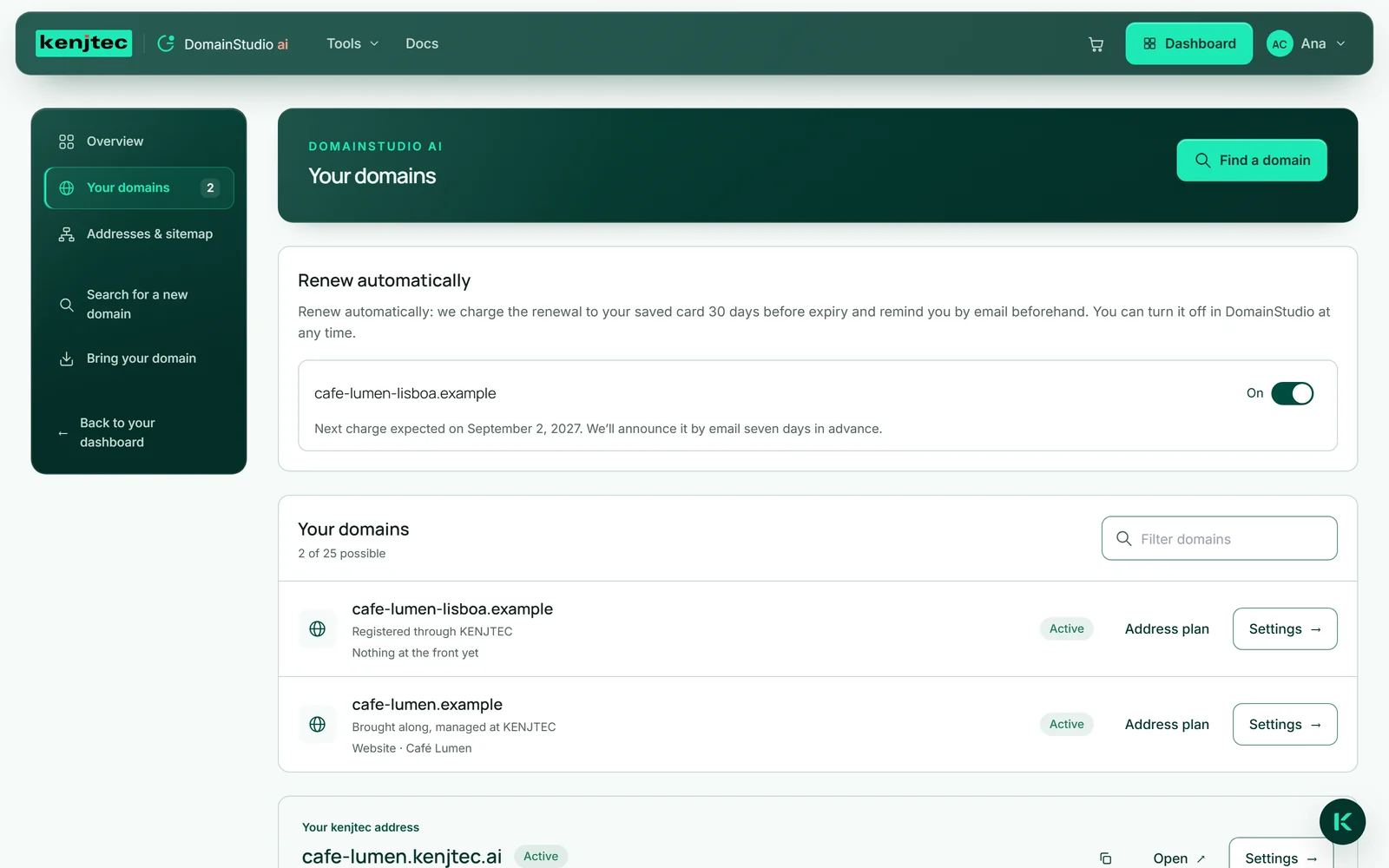
Checkout always buys one year. When the domain expires is shown in its settings, provided the registry publishes the date.
Renewing a domain you bought
A domain you bought from KENJTEC runs for one year. How it is renewed you choose at checkout with “Renew automatically” (preselected) and change later at the domain in DomainStudio under “Renew automatically” with “On” or “Off”. The renewal price is what the extension costs at that point; it can differ from the first year.
On: about 38 days before expiry we announce the charge by email — with the amount, the card and the earliest day. No earlier than seven days later we charge your saved card and renew the domain. If the charge fails, nothing is charged: you get an email and pay by click in the “Renewal” section.
Off: about 30 days before expiry you get an invoice for the next year, the “Renewal” section shows “Renewal due”, and an email in your account’s language reminds you 7 days and 1 day before expiry. “Renew now” opens the card field; only after payment does the registry renew the domain. Without payment by the expiry date the domain expires and the invoice is cancelled. If the registry says no, you get your money back, and until expiry “Request a new invoice” gets you a new one.
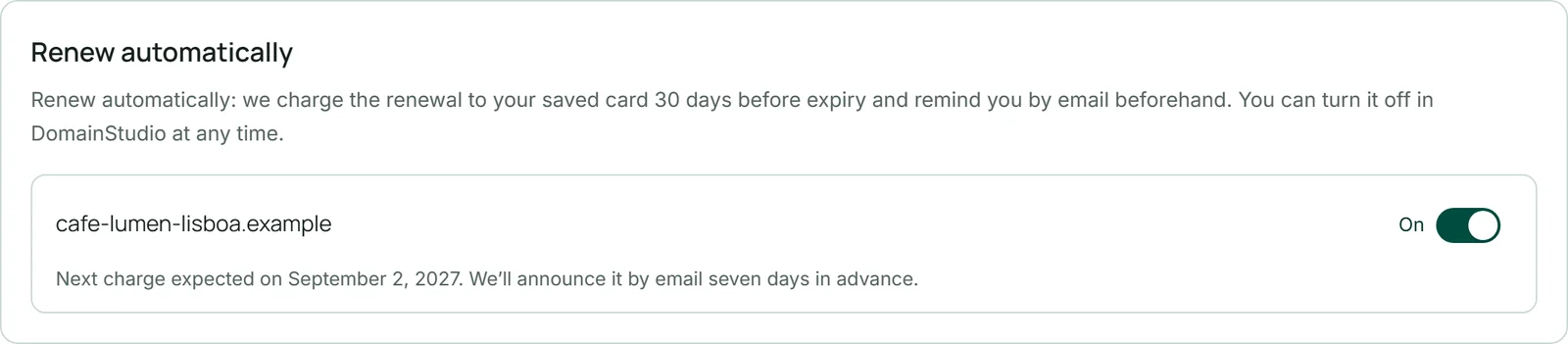
- Open the domain in DomainStudio.
- Under “Renew automatically”, choose “On” or “Off”.
- When renewal is due, click “Renew now” in the “Renewal” section and pay in the card field — afterwards it says “Renewed”.
A domain you bought before 26.09.2026 is renewed by click until you switch on “Renew automatically”. You keep renewing a domain you brought along with your provider (What happens to the term).
While sharing a form
Anyone sharing a form often needs an address of their own first. That is why sharing in FormBuilder ai has the section “Your own domain for this?”: type a name, “Check” — up to three available domains appear with their yearly price, and “Book” puts one of them in the cart and opens checkout. If nothing is available, the sentence points to DomainStudio ai, where there are more endings.
Below it, “Add your own domain or subdomain” takes you into the address plan with this form already chosen as the target (Adding an address).