
Title and description for Google
Under “On Google”, choose “Home page & website defaults” at the top. The “Google preview” shows how your page might look in search results, and below it are “Site title” and “Description”, each with a counter of roughly how many characters Google shows.
If you leave the fields empty, we use the company name and tagline — there are never empty entries. Title and description are content: they go online with your next publication.
- In the editor, click “On Google” on the left.
- Choose “Home page & website defaults” and fill in “Site title” and “Description”.
- Click “Apply” at the bottom and publish the website.
Saving uses no AI credit.
Suggestions from Kenji
Below the fields, “3 suggestions from Kenji” gives you three pairs of title and description that match what is on your page. The titles say what you do and — if given — where; the descriptions say in full sentences what visitors get from you. Kenji is instructed not to invent anything in them.
One click puts a pair into the fields; it is only saved with “Apply”. It is a suggestion, not a requirement: people who know their business often phrase it better.
- Open “On Google” → “Home page & website defaults”.
- Click “3 suggestions from Kenji”.
- Click a pair and then “Apply” at the bottom.
The suggestions use AI credit; applying one doesn’t.
Title and description for every subpage
Every subpage has its own entry. Under “On Google” you pick the page under “Choose page” and fill in “Title in search results” and “Description in search results”; an example of the search listing appears below. Empty fields use the default: the menu name and company name as title, the tagline as description.
With “Allow search engines to show this page” you take a single page out of the search index, the thank-you page after a form for instance. This tick takes effect as soon as you save, for the published page too; title and description go online with your next publication. Pages shown only via their address, not yet or only to members stay out anyway, and if the whole website is switched off for search engines, that takes precedence over the page setting.
- Open “On Google” and choose a subpage under “Choose page”.
- Enter title and description, and set or clear “Allow search engines to show this page”.
- Click “Save SEO”.
Uses no AI credit. Existing search results do not vanish at once; search engines follow at their own pace.
Checklist
The “Checklist” under “On Google” asks your home page six questions, each answered yes or no: is there a header image, so shared links show an image? Do all images have a description? Does the title fit Google’s listing? Is the description a good length? Is there a contact section, so the contact button has a destination? Is an address given, so Google can show you as a local business?
Everything is calculated from your own details — no score, no traffic light with a percentage, no estimated rankings. Six questions that can be answered.

- Open “On Google” → “Home page & website defaults” and expand “Checklist”.
- Work through the points marked • ; completed ones carry ✓.
Visibility for search engines
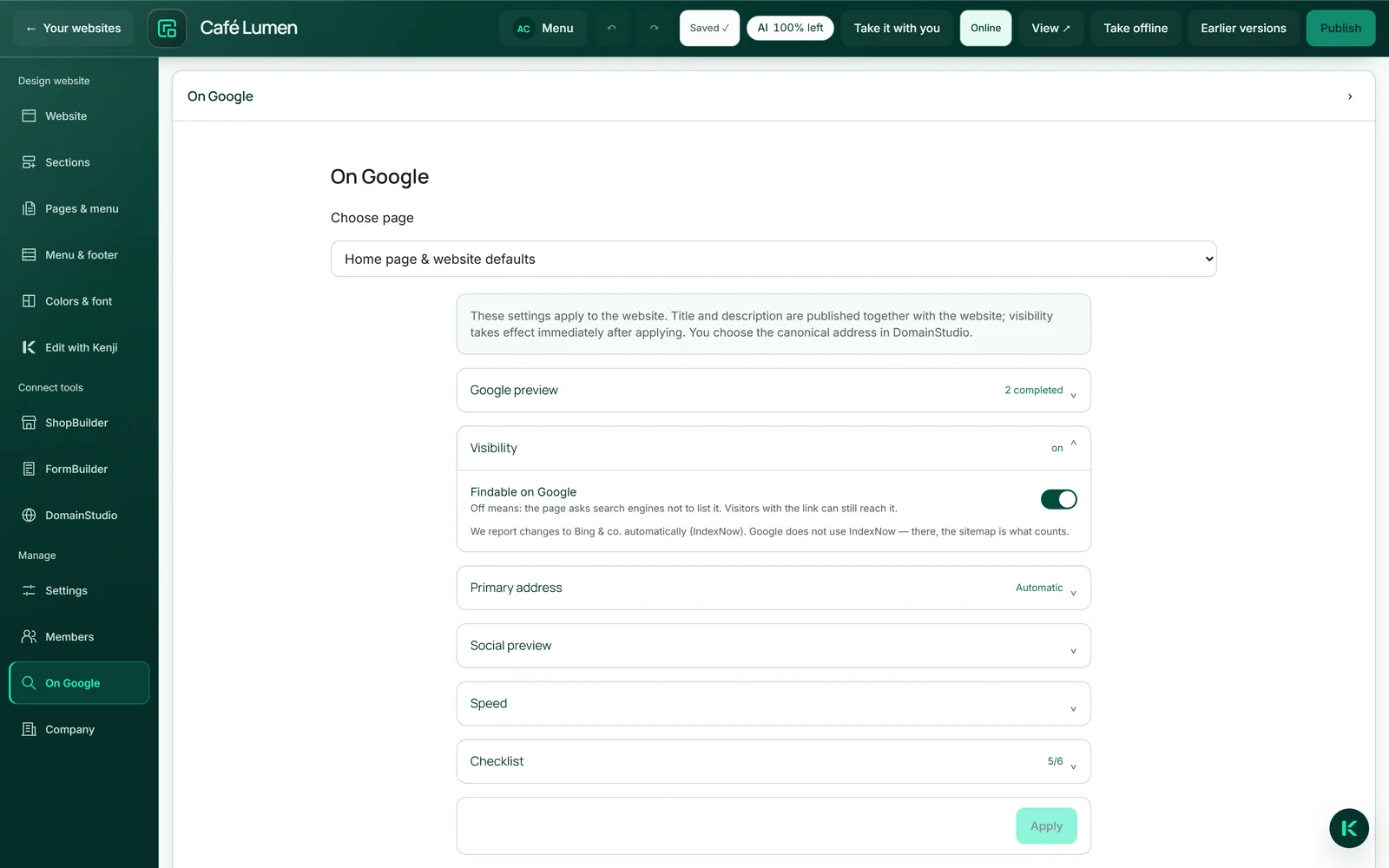
Sometimes a page should be online but not yet found — during a rebuild or before an opening. Then switch off “Findable on Google” under “Visibility”: reachable for anyone with the link, closed to search engines. The sitemap is then delivered empty.
This setting takes effect on the published page as soon as you click “Apply”, without a new release. It is a request to search engines, not a password; Google usually follows it within days. The only way to truly close a page is “Members only”.
- Open “On Google” → “Home page & website defaults” → “Visibility”.
- Switch “Findable on Google” off or on.
- Click “Apply”.
What comes about by itself
Without you doing anything, your website gets a sitemap for each of its addresses, a canonical address, a preview for shared links and machine-readable markup of your business: name, address, phone, email, opening hours as you wrote them, and your profiles. Questions and answers go along too.
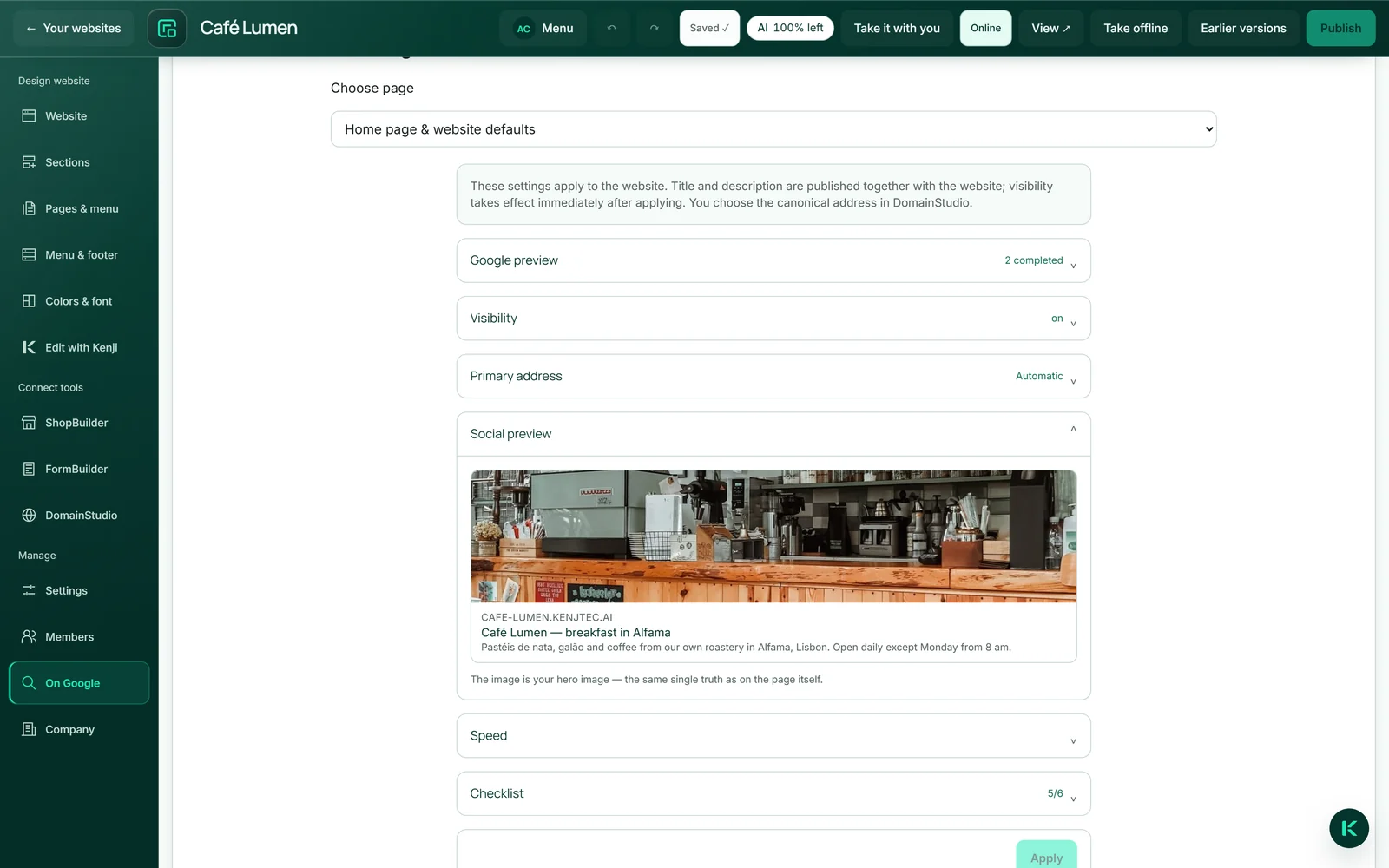
That is why the business details matter so much: address and opening hours become the markup with which Google can show both in search results — that could never be extracted from running text. The “Social preview” under “On Google” shows what a shared link looks like with your header image. If the page has no header image, it uses your brand’s preview image when shared, if there is one.
If the website runs under several addresses, you choose in DomainStudio which of them search engines should name; you see it under “Primary address”. More under What search engines see.
Letting search engines know
After publishing and when putting the site back online, a message goes to search engines such as Bing via the IndexNow protocol: something has changed here. The same happens when you save settings under “On Google” that take effect on the web immediately. This does not replace waiting, but shortens it.
Notices are only sent while the website is online and may be found. Google does not use this protocol; there, the sitemap counts. A draft is never announced — a notice without a change on the web would simply be untrue.
Measuring speed
Under “On Google” → “Speed” you start Google’s own measurement of your loading time, calculated for mobile devices. It measures the published page and takes about half a minute.
You get a score out of 100 and three values: “First content visible”, “Largest element loaded” and “Layout stability”. Below them it says whether real user data is behind them or only the lab measurement — Google only collects real data once there are more visitors. It is Google’s figure, not ours.
- Open “On Google” → “Home page & website defaults” → “Speed”.
- Click “Measure with Google now” and wait for the result.
The measurement uses no AI credit; no AI is involved.