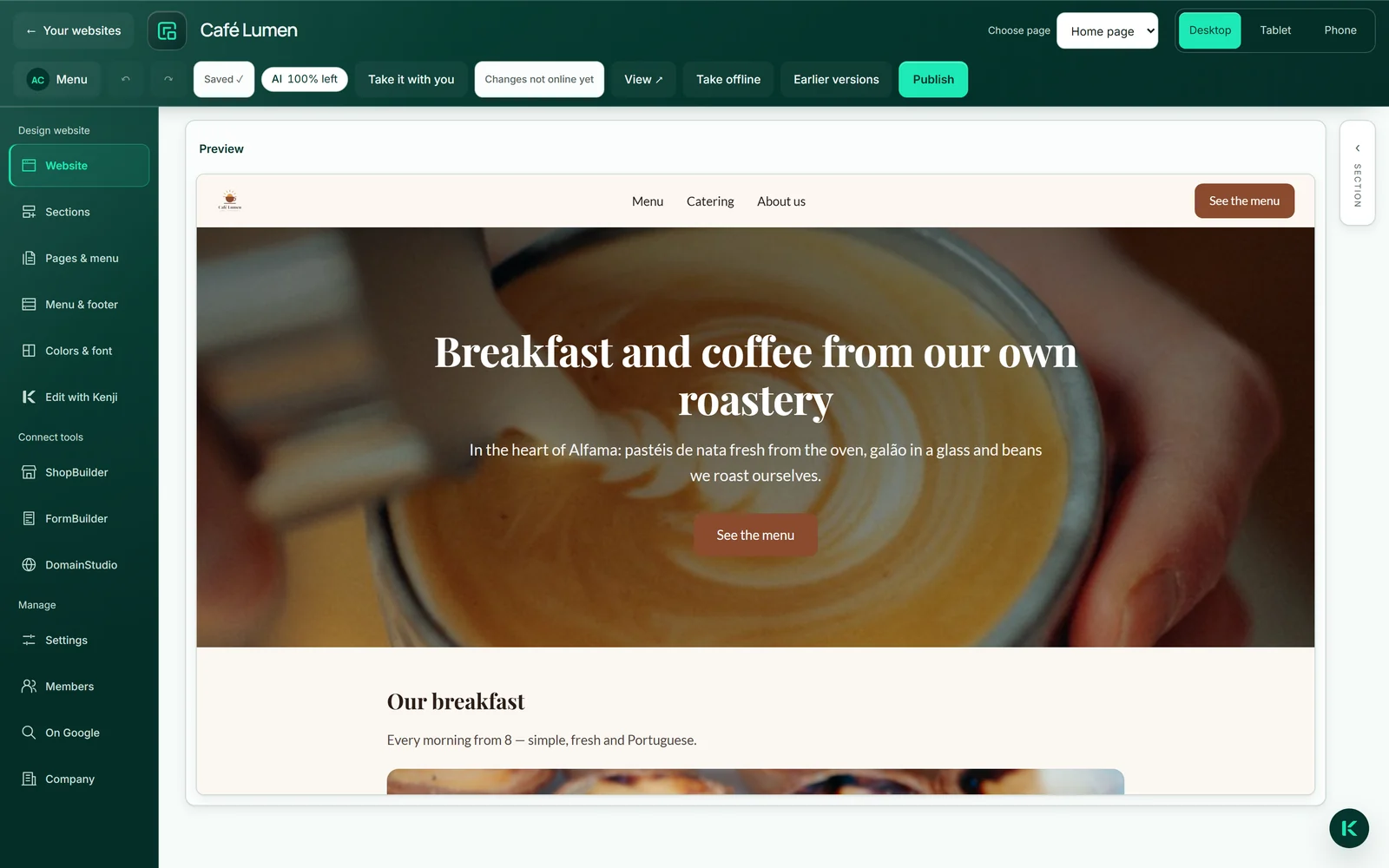
Finding and placing an image
Images can go into the header and into the “Text”, “Image” and “Services” sections. If you click an image in the preview, the section opens on the right with its image area; “Choose image” opens the picker. In the “Search” tab you get results from two large free image sources, four at a time; “Four others” moves on without a new search.
One click places the image. It is copied to us in the process and delivered from your address — your visitors do not load it from the outside source, and your page does not depend on the image staying there. Next to the small preview you see who it comes from.
The same image picker is also available for the home page under “Company” → “Images”.
- Click the image in the preview, or “Choose image” in the section on the right.
- Type a term in the “Search” tab and click “Search”.
- Click an image — it appears in the preview immediately.
Choosing an image uses no AI credit.
Your own images from MediaStudio
The “My images” tab shows your MediaStudio ai with search, albums and tags. No second upload, no second library: whatever is there, you place with one click.
The image is copied into the website, not linked. If you later delete it in MediaStudio, it stays on your page. If it has a description there, the description comes along as the image’s description.
This is the way for everything real: your counter, your team, your work. A good photo of your own beats any stock image.
- Click “Choose image” and then “My images”.
- Search for the image or open an album.
- Click the image.
Uses no AI credit. You upload in MediaStudio ai.
Image description
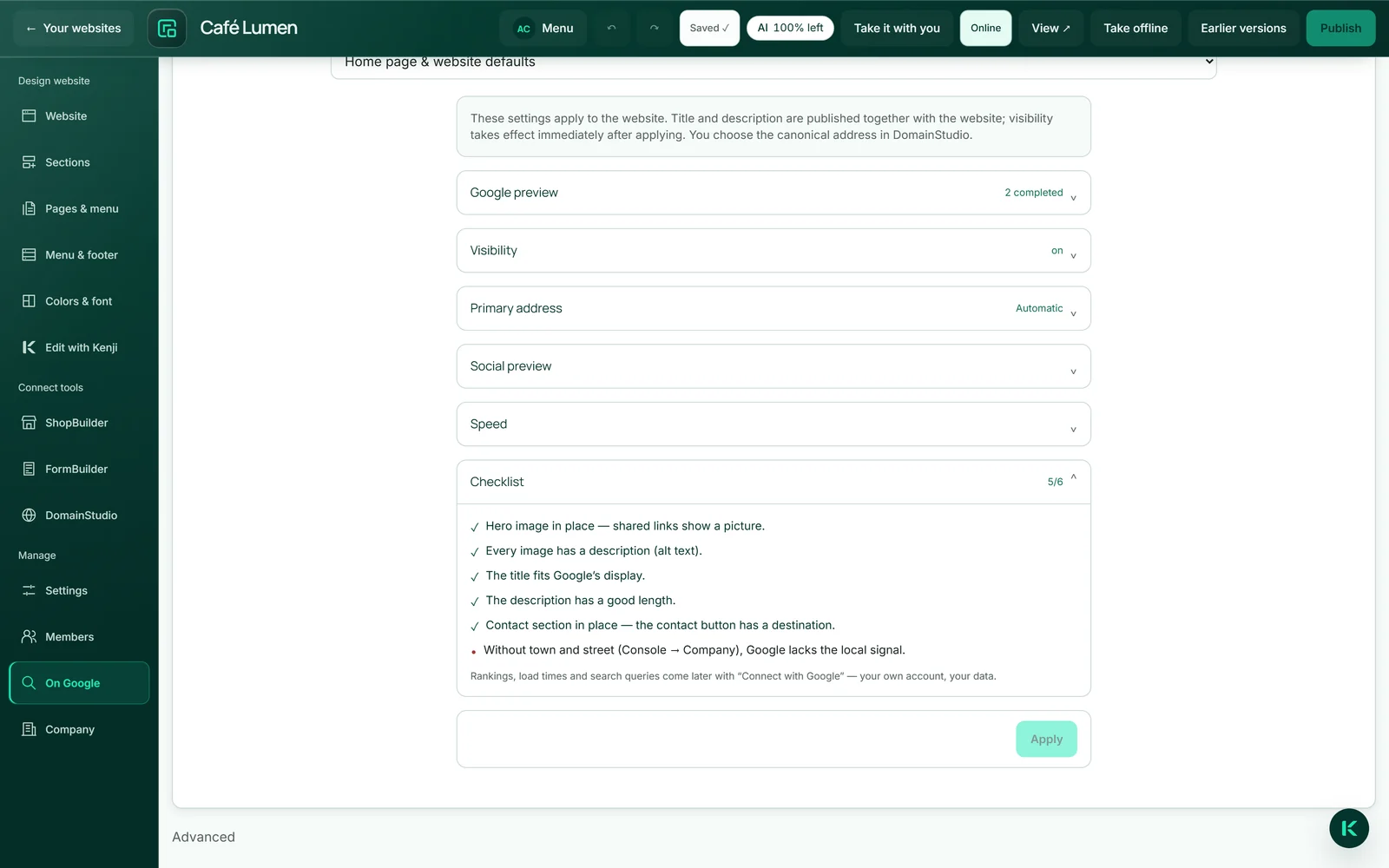
Every image carries a short description of what it shows. People using a screen reader hear it, and Google reads it too. It comes about by itself: from the search term you used to find the image, or from the description it carries in MediaStudio.
There is no separate field for it in the editor. If an image should get a better description, give it one in MediaStudio and place it again. The “Checklist” under “On Google” tells you how many images on the home page still have none.
Removing an image
“Remove image” is in the image area of the section on the right. The image disappears from the draft and the spot stays empty — even when Kenji changes texts later, no new image silently appears there.
The file itself stays as long as the published page still shows it. Without this rule, tidying up the draft would tear a hole in the page that is on the web right now.
- Click the section with the image.
- Click “Remove image” on the right.
Uses no AI credit.
New images do not touch the live page
If you swap an image in the draft, the new one is stored next to the old one instead of overwriting it. The published page keeps showing exactly the image you released.
It only changes with your next publication. That way you can work on the draft in peace without visitors watching.