
Creating a page
You create pages in the “Pages & menu” workspace, in a single list for pages and menu. You type a name under “New page”, for example “Food & drink”, and press Enter: the page exists, its address is /food-drink, it already has a heading, and with “Also create a menu entry” it is in the menu too.
New pages start as “Do not show yet”, so an empty page cannot slip onto the web by accident; you make it visible when it is ready. You build the content as on the home page: back in the editor, choose the page under “Choose page” at the top and add sections.
“Name in the menu” and “Heading on the page” are two fields: “About us” in the menu, “In Alfama since 2019” on the page. The address is created once and stays, even if you change the name. The home page is always there, at the website’s own address, and cannot be deleted.
- In the editor, click “Pages & menu” on the left.
- Type the name under “New page” and press Enter.
- Under “For visitors”, set whether and where the page appears.
- Click “Back to editor”, choose the page under “Choose page” and fill it with sections.
Pages use no AI credit. A website holds up to 40 subpages.
Who sees a page
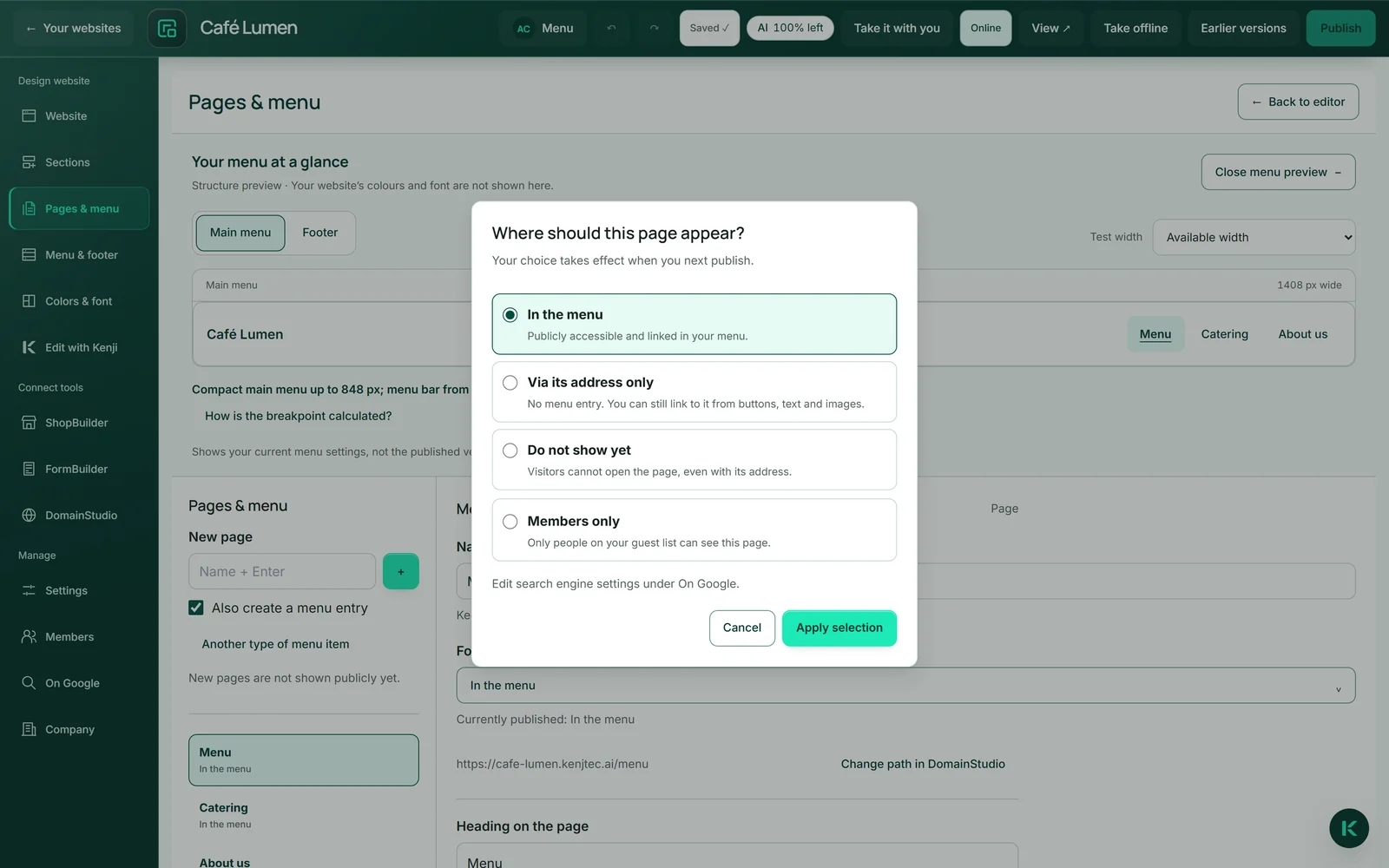
For each page you choose one of four states under “For visitors”. “In the menu”: public and linked in the menu. “Via its address only”: no menu entry, but reachable and linkable from buttons — not private, because anyone with the address gets in and can pass it on. “Do not show yet”: visitors cannot open the page even with its address; it waits in the draft.
The fourth, “Members only”, truly closes the page: only people on your guest list see it — see Members and login area.
Your choice takes effect with the next publication. All pages go online together, so a new menu item can never point into nothing. Whether search engines may show a public page is a second switch under “On Google”.
- Select the page in “Pages & menu”.
- Click the state under “For visitors”.
- In the “Where should this page appear?” window, choose an option and click “Apply selection”.
Section links, external links and menu items without a page
Not every menu item needs a page of its own. Under “Another type of menu item” you choose the type: a “Section link” leads to a section of the home page — “Contact” or another one you pick under “Choose section”. An “External link” leads outside, to a booking service for instance, and opens a new window.
You remove a menu item without a page with “Delete menu item”; its sub-items stay. For a page, “Remove menu entry” only takes the entry out of the menu — the page stays, reachable via its address, and “Add to menu” brings it back.
- In “Pages & menu”, open “Another type of menu item” and choose “Section link” or “External link” under “Menu item type”.
- Type the name under “New page” and press Enter.
- Choose the section on the right, or enter the address under “Link destination”.
Subpages on the web, in the sitemap, in the archive
Every visible subpage has its own title — the menu name and company name, or whatever you enter for it under “On Google” — and its own canonical address: Google sees eight pages, not the same page eight times. An address that does not exist gets an honest error page, never silently the home page.
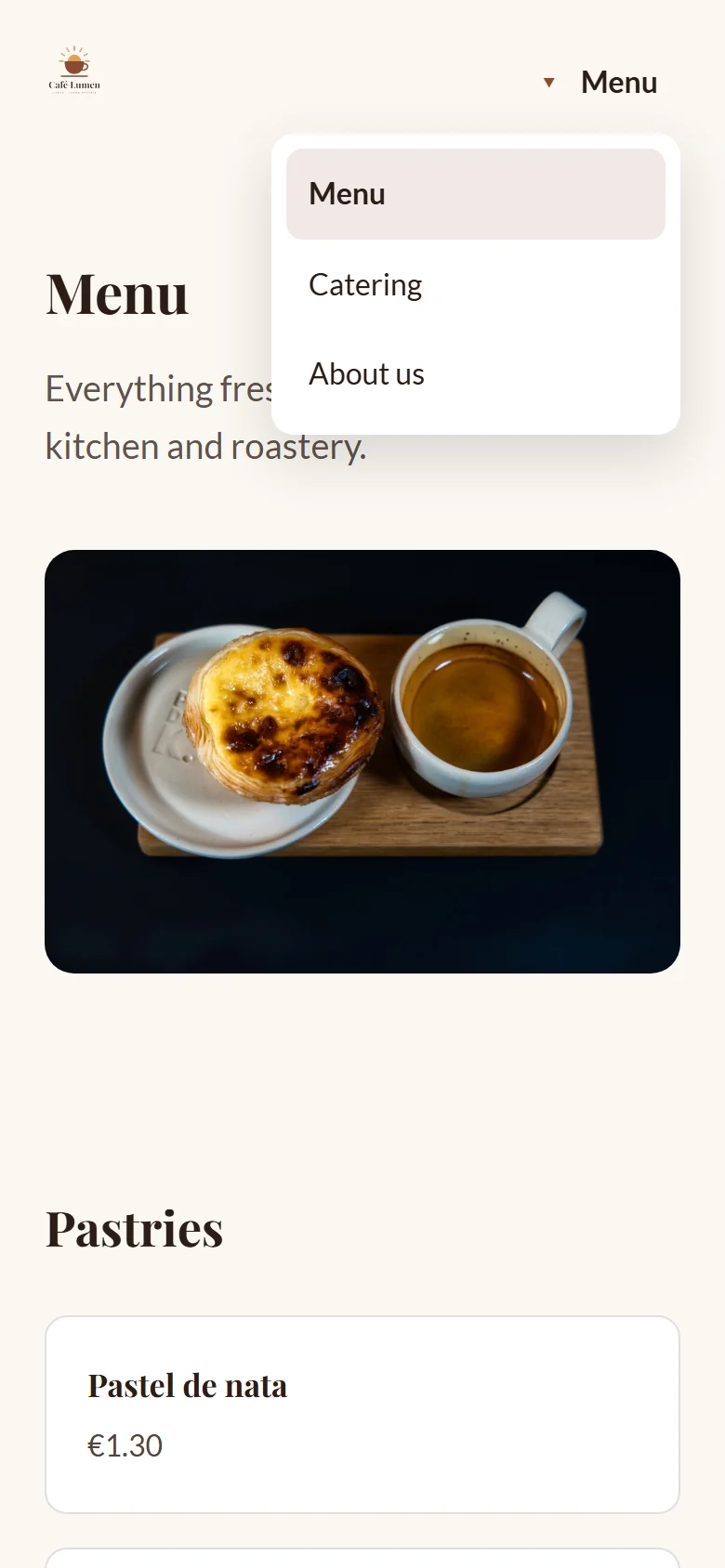
The menu adapts: on a phone it folds out without a byte of script and can be used with the keyboard, and the menu colours are calculated against your colours so they stay legible.
When you take the site with you, every visible subpage is in its own folder in the archive, and the links between the pages work without a server too.
Changing an address, deleting a page
A page’s address is shown next to it in “Pages & menu”; you change it on the page’s sheet in your address plan, and “Change path in DomainStudio” takes you straight there. The new path applies as soon as you publish the website; until then it is shown as a draft.
The old address does not stop working: anyone with the old link, on a flyer or in Google’s index, is permanently redirected to the new page. The last ten addresses of a page are kept this way.
Before deleting, the window tells you what points to the page — which button, which section, which menu item. None of it breaks: such links lead to the contact section afterwards. The address of a deleted page stays reserved, so old links never land silently on someone else’s content.
- Select the page in “Pages & menu” and click “Delete page”.
- Read in the window what points to the page.
- Click “Confirm deletion” — or “Cancel”.
The live page only changes with your next publication.
Members only — the login area
The fourth state truly closes a page. The other three are all public and only differ in how easily the page can be found; here there is a door.
Your guests sign in with their email address and get a link — no password, neither for you nor for them. Signing in and registering are the same step. Who may enter, you decide under “Members”, and the sign-in page carries your colours and typeface.
How to set up the area, add members and approve requests is described in the article Members and login area.
Members cost no AI credit. Members-only pages never appear in the footer, in the sitemap or on Google.
Kenji works on one page
“Make the headline shorter” applies to the page currently in the preview — chosen via “Choose page”. The other pages stay untouched, and Kenji never changes the page structure: no new pages, no deleted ones, no rebuilt menu. The top of the Kenji window also shows which page it is.
That is deliberate: with eight pages, a change would otherwise rewrite all eight, with eight chances of a mistake. Details that apply to the whole website, such as the tagline, can still be affected by a change.
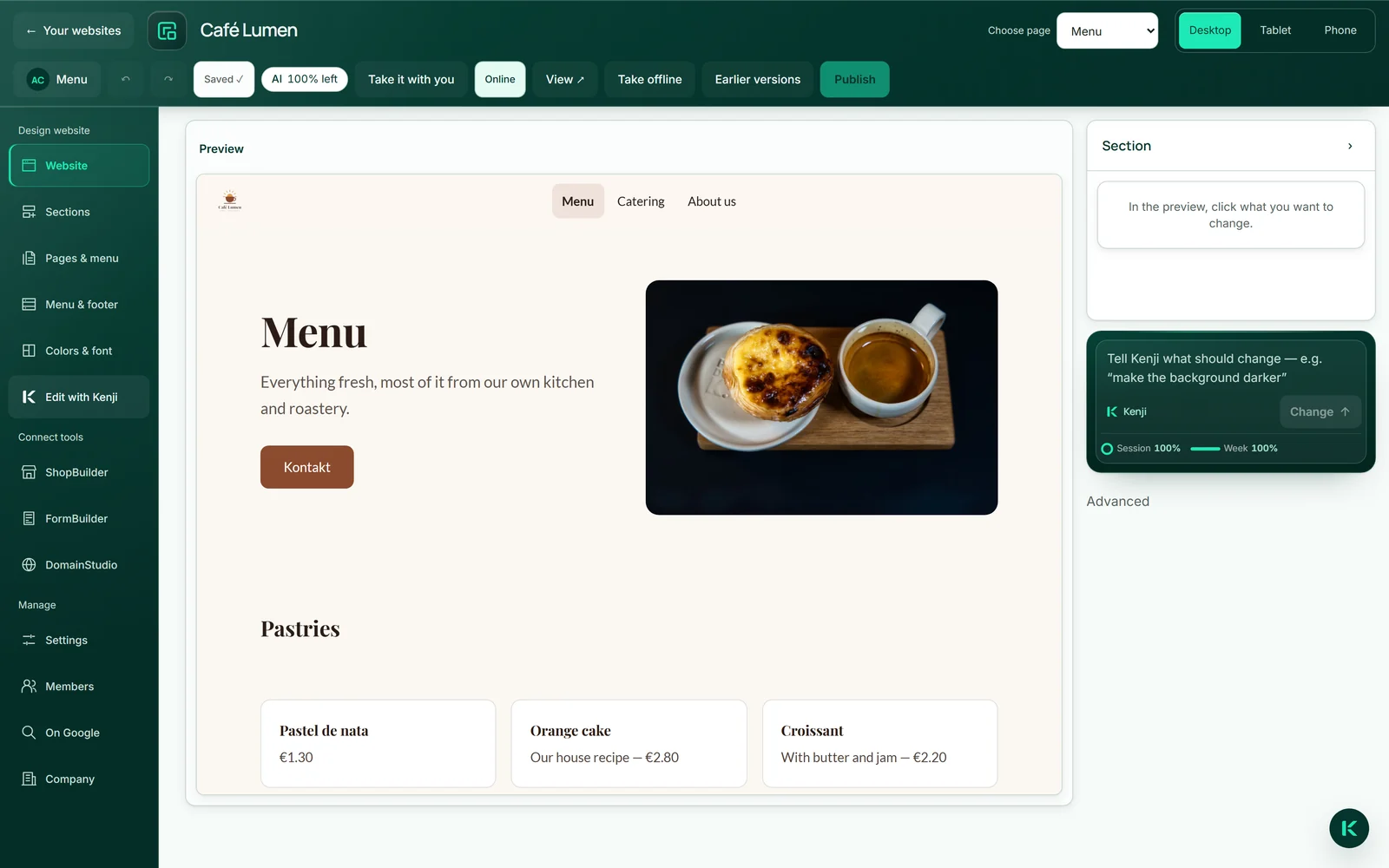
- Choose the page under “Choose page” at the top.
- Click “Edit with Kenji” and write your request to Kenji in the window.
Uses AI credit, like every change in conversation.