
Your websites and available slots
When you open WebSiteBuilder ai, you first see “Your websites”: each website as a tile or a row, with its status — “Not published yet”, “Online”, “Switched off” or “Changes not online yet”. Above them you see how many slots are taken; how many your package has depends on the package.
Available slots are shown as empty tiles. Once all are taken, you cannot create another website, and the existing ones stay untouched. The “All slots taken” card then names the next plan with more websites and its monthly price (excluding VAT), and “View packages” takes you to where you book it; if there is no plan with more websites, the card says exactly that. If you have no website at all yet, the input for your first one opens straight away instead of the overview.
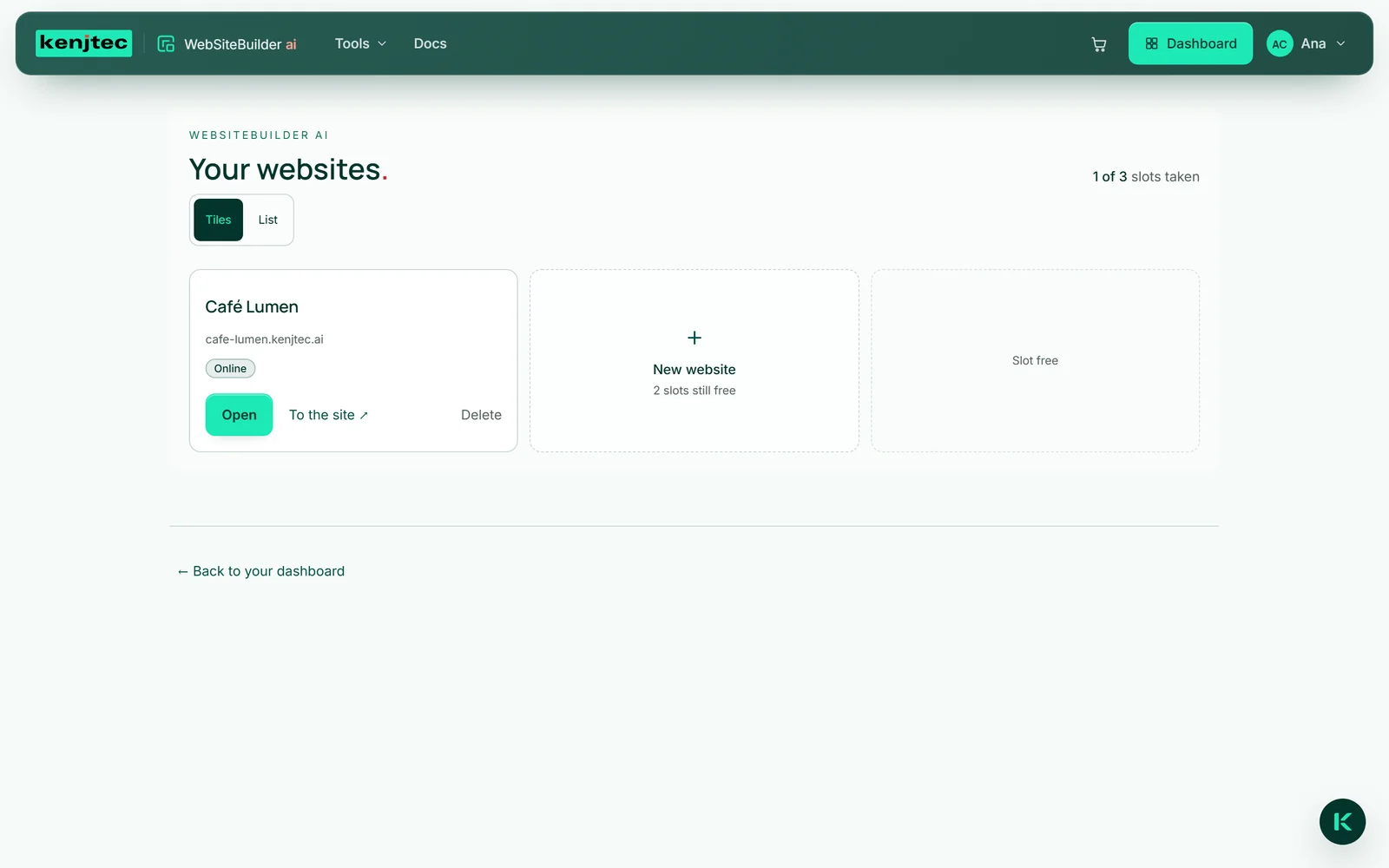
- Open WebSiteBuilder ai.
- Choose “Tiles” or “List” to set how the overview looks.
- Click “Open” on a website, or its name in the list — the editor opens with it.
- For a new website, click “+ New website”.
“To the site ↗” only appears for websites that are online right now; “Delete” is final (see Deleting a website).
A website from one sentence
You describe your business in one sentence, and Kenji, KENJTEC’s AI, builds the whole page from it: a structure with several sections, headings and copy in the language of your sentence, colours, a typeface and fitting images from free image sources. Not an empty grid you first have to fill.
More detail does no harm, less is fine too — ten characters is the minimum. Kenji is instructed not to invent anything: no prices, testimonials or facts you did not mention. You then enter your address, phone number and opening hours in your business details. If you start from BrandStudio, your brand’s name is already in the field.
The new website is a draft: nobody sees it until you publish it. If your account has a brand in BrandStudio, the website takes on its colours, typeface and company details — see Your brand on the website.
- In “Your websites”, click “+ New website” — for your first website, the field is already there.
- Under “Describe your business”, write one sentence about your business.
- Click “Create website”. While “Kenji is building your website …” is showing, the page is being made.
- The editor opens with the draft — change whatever you like and publish when it fits.
Generating uses AI credit, more than a single change, because the whole page is created. If it fails, nothing is charged; if all slots are taken, the builder tells you beforehand and nothing is used.
Business details — the console
For the facts about your business there is an ordinary form. In the editor you open it on the left via “Company”; its heading reads “Business details”. It has seven areas: company, offer, texts, styling, images, language and features. You type your name, address, phone number, email and opening hours here instead of dictating them to Kenji.
This is where your facts are safe: Kenji reads them and writes with them, but never changes them. That is why your phone number survives every “make the headline shorter”. You write the address as a free block, the way you would on an envelope, up to eight lines — that works in every country. Address and opening hours also go into the page in machine-readable form, so Google can show them in search results.
If the company details follow your brand, name, address, phone and email come from BrandStudio and are maintained there — see Company details from the brand.
- In the editor, click “Company” on the left.
- Open an area, for example “Company”, and enter your details.
- Click “Apply” at the bottom.
Saving costs no AI credit; no AI runs here. What you apply is in the draft straight away and goes online with your next publication.
Ten style references
Ten ready-made looks, from calm and light to dark and elegant, from clean and technical to earthy for restaurants and cafés. Each tile is a small page in its colours and typeface, and below it you read which businesses it is meant for. You see the effect instead of imagining it.
One click sets background, surface, text colour, accent and typeface at once. Your texts stay as they are; to match the tone, use the buttons under “Company” → “Texts”.
A style reference is a design of your own: if the website followed your brand until then, it no longer follows it in colours and typeface afterwards. “Back to the brand” brings the brand’s values back.
- In the editor, click “Colors & font” on the left.
- Under “Style reference”, click a tile — the preview shows the page in the new look immediately.
- If you do not like it, click the next one.
Style references use no AI credit, not even on the tenth try.
A design from an image
If you like a website, take a screenshot of it and upload it. Kenji reads the look from it — colour mood and character of the type — and applies it to your page, with a text colour that stays legible on the background.
Only colours and typeface are taken over. Kenji does not rebuild the texts, images or layout of the page shown — that would be someone else’s work. If no design can be made out in the image, Kenji says so instead of guessing.
Like a style reference, the result is a design of your own: a website that followed your brand no longer follows it in colours and typeface afterwards.
- In the editor, click “Company” on the left and open the “Styling” area.
- Under “Or show Kenji a site you like”, choose a screenshot — JPEG, PNG, WebP or GIF, 5 MB at most.
- Wait until Kenji has read the look; the preview then shows your page in the new colours.
This uses AI credit, more than a text suggestion, because Kenji looks at an image — even when no design could be made out in it.
Choosing colours yourself
Under “Colors & font” you set four colours: “Background”, “Surface” for cards and bands, “Text colour” and “Accent” for buttons and highlights. You pick each colour in the colour field or type it as a hex value such as #A6551F.
Below them, the builder calculates the contrast, for “Text on background” and for “Accent on background”. Below 4.5 : 1 it says “Too little contrast — hard to read.” Nothing is forbidden; it is your page. On the page itself, the builder also checks body text and menu against their ground and uses black or white where your chosen colour would not be legible.
If the website follows your brand, the colours the brand sets are locked here. “Use my own design” unlocks them without anything shifting.
- In the editor, click “Colors & font” on the left.
- Under “Colours”, click the colour field next to “Background”, “Surface”, “Text colour” or “Accent” and pick a colour — or type the hex value next to it.
- Read the contrast lines below; the preview shows the colour immediately.
Colours use no AI credit, and Kenji does not change colours you have chosen here.
Typeface, salutation and tone of voice
You choose the typeface under “Colors & font” → “Typeface” from a library of openly licensed fonts: sans-serifs, serifs, strong display faces, handwriting, fixed-width fonts and dedicated fonts for Arabic, Hindi, Bengali and Japanese. Below it, your website’s name appears in the chosen typeface — you see it instead of having to know its name.
The fonts are not loaded from Google but through a service in the EU that does not count your visitors. If the website follows your brand, the typeface comes from BrandStudio and is locked here.
Salutation and tone of voice shape everything Kenji writes afterwards. You find them under “Company” → “Language”: “Salutation” with “Informal” or “Formal”, plus a choice of five tones of voice. What is already written stays until you have it rewritten.
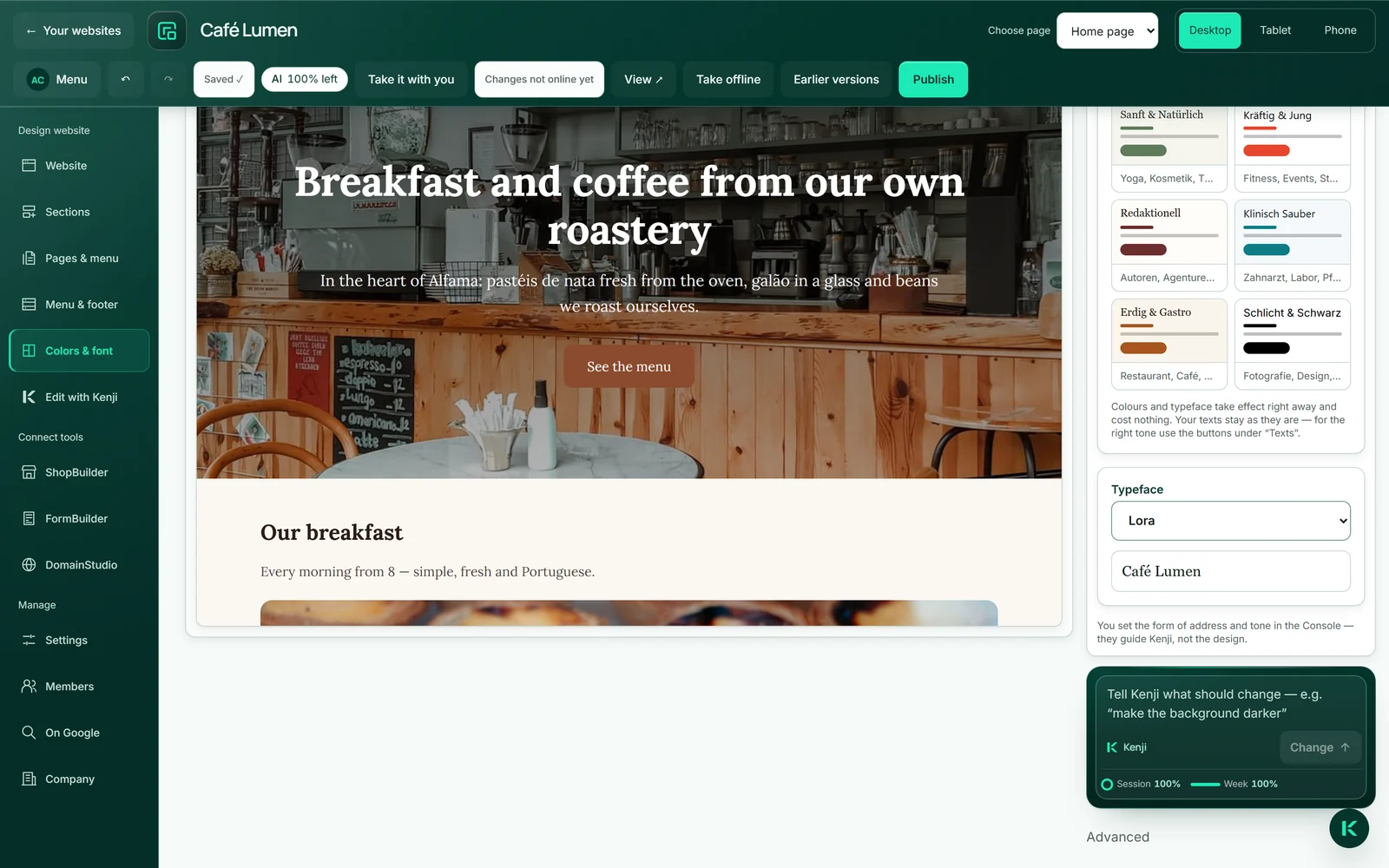
- Click “Colors & font” on the left and pick a typeface from the list under “Typeface”.
- For salutation and tone, open “Company” → “Language” and choose “Informal” or “Formal” and a “Tone of voice”.
- Click “Apply” at the bottom there.
Typeface, salutation and tone don’t use AI credit; only a new text from Kenji does.