
Choosing an address, opening a row
You open the address plan in DomainStudio ai under “Addresses & sitemap”. Under “Choose address” you set which address you are looking at: your kenjtec.ai address, a managed domain, a subdomain (indented with ↳) or a connected domain; with many addresses, “Filter addresses” helps. Below, you see what lives on that address — as a list and as a diagram.
Each row names path, type, name and status, for example “/ · Website · Café Lumen · Live”; “Open” opens the address. Clicking the row opens its sheet below, with everything that can be set there; another click or Escape closes it. On wide screens, clicking a box in the diagram takes you to the matching row.
The pills show the last remembered state — “Connected”, “Certificate on its way”, “Nameservers not switched yet”, “Not connected” or “Zone missing” — and “As of …” gives the time. “Check” in an address’s sheet measures the certificate and, for a domain, the nameservers afresh; “Reload” only re-reads the remembered state. A change takes effect on the address after 60 seconds at most, in the sitemap.xml after 5 minutes — this is also stated under “About these status details”.

Adding an address
“Add address” opens a form below the address picker with the question “Which way?”: “at the front of a domain I manage here” — domain and www together —, “as a subdomain of a domain I manage here”, such as shop.deine-firma.com, or “Domain is elsewhere, just connect it” (Connecting a domain from elsewhere).
Then you pick the project under “What should be at the front there?” and click “Create address”. Before you click, it already says how many subdomains the domain carries and — if something already sits at its front — where that moves to. Opened from a project’s sheet, the project is already chosen; opened from a domain’s sheet, the domain.
The first two ways need a domain whose nameservers already point at us; otherwise the form says so and leads to “Bring the whole domain here”. The new address appears in the plan with “Certificate on its way” — a new certificate takes minutes.
- Open “Addresses & sitemap” and click “Add address”.
- Choose the way and the domain, and for a subdomain also the name.
- Choose the project under “What should be at the front there?” and click “Create address”.
Pointing an address at a project is a publication: your brand in BrandStudio needs a company or operator, an address and an email or phone number for it — if something is missing, a sentence tells you what.
Connecting a domain from elsewhere
If your domain is with another provider and should stay there, you connect just one name: “Add address”, the way “Domain is elsewhere, just connect it”, enter for example bookings.deine-firma.com under “Domain or subdomain”, pick the project, “Create address”. Then, at your provider, you add a CNAME for this name pointing to customers.kenjtec.ai — the new address’s sheet says exactly that, with a button to copy it.
Before that, you show that the name is yours: as soon as you have typed it, a TXT record with name and value appears under “First, the proof of ownership”, both with a copy button. Add it at your provider; once it is visible, usually within a few minutes, “Create address” works. The value only applies to your account and this name, and the record may stay in place afterwards. Names under a domain you manage here whose nameservers already point to us don’t need it; a domain that another account manages here cannot be connected.
The address becomes active as soon as the CNAME is in place at your provider — that can take up to a day; the certificate then follows by itself, and “Check” in the sheet looks it up. How many domains you can connect this way is shown in the form (“… of … bindings”); addresses of your managed domains don’t count.
Subdomains, email and redirect of a connected domain you keep setting up at your provider. If you want to do all that here, bring the whole domain over with “Manage whole domain” in the sheet (Bringing a domain).
- In the address plan, click “Add address” and choose “Domain is elsewhere, just connect it”.
- Enter the domain or subdomain and add the TXT record shown under “First, the proof of ownership” at your provider.
- Pick the project and click “Create address” once the TXT record is visible.
- Create the CNAME to customers.kenjtec.ai at your provider and later click “Check” in the sheet.
What sits at the front, and where a project can be reached
The first row of an address is its start. Its sheet says under “At the front:” what is there. For a domain, subdomain or connected domain you choose it anew under “What does … show?” — website, form or shop — and click “Save”; subdomains and connected domains also offer “same as account address”. Your kenjtec.ai address always shows the website you published first; only a domain or subdomain of your own can carry a form or a shop at the front.
A project’s sheet lists under “Reachable at” every address where it can be found today, for example cafe-lumen.kenjtec.ai/tisch and deine-firma.com/tisch, each marked “at the front” or “as a path”. Where the project is not at the front, “Put it here” offers to put it there; the confirmation says where the current one moves to, and “Yes, put it here” carries it out.
“Detach address” removes an address again after asking: a domain then points at nothing but stays under your management; a subdomain is deleted; a connected domain disappears from the plan — you remove its CNAME at your provider yourself. Your kenjtec.ai address cannot be detached.
- In the address plan, open the row of the project, for example the form.
- Under “Reachable at”, click “Put it here” next to the address you want.
- Read the confirmation and click “Yes, put it here”.
Paths and aliases
Beneath your addresses, every project has a path. A shop starts out as /shop; instead of /f/…, a form can get a name of its own, such as /tisch. Both are the same on every one of your addresses: cafe-lumen.kenjtec.ai/tisch and deine-firma.com/tisch are the same form. Further websites live under /site/<name>; that name is fixed from the moment the website is created.
You change it in the project’s sheet with “Change path” — or on the page of your kenjtec.ai address under “Paths of your projects”. Lowercase letters, digits and hyphens inside are allowed; if a name is already taken, for example by a page of your website, a sentence says what is in the way. “Remove alias” makes a form reachable under /f/… again. A former alias redirects, and so does a former shop path if the shop is active or paused or already has orders.
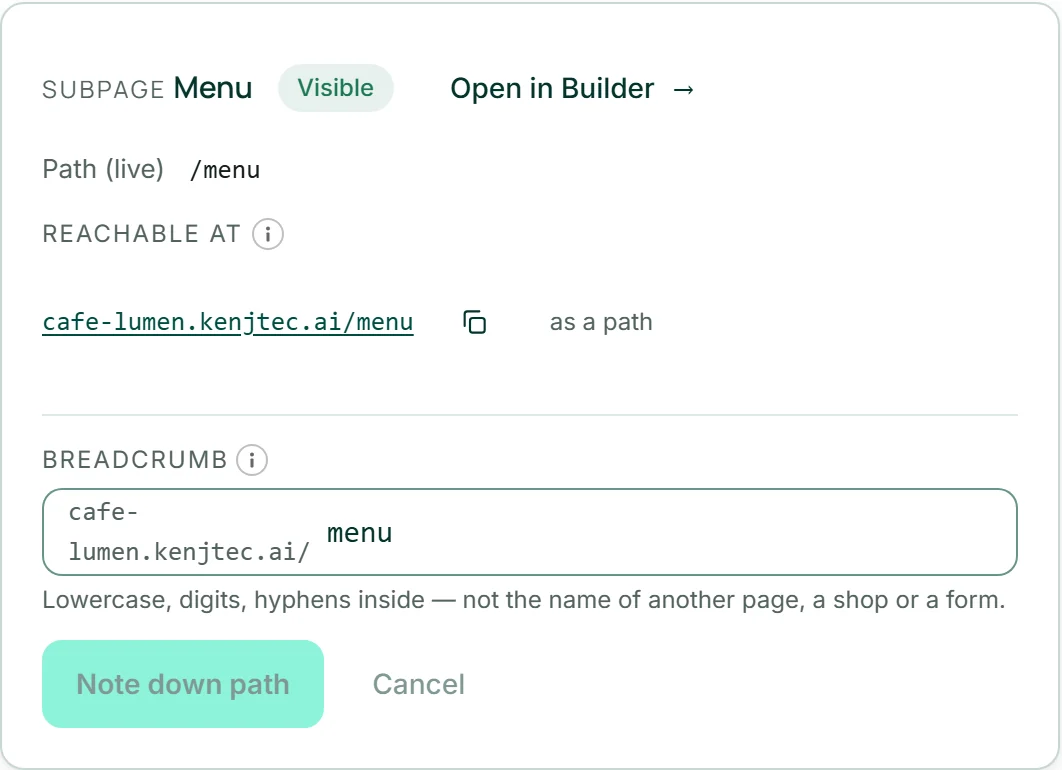
The path of a subpage is changed in its own row: the sheet shows “Path (live)”, the field with the start of the address in front of it, and “Note down path”. The new path applies as soon as you publish the website; if the page was already online, the old address then redirects. If the name is taken, the sheet says so beforehand — or names, after saving, the path we assigned instead.
- In the address plan, open the row of the form.
- Click “Change path” in the sheet and enter the new name, for example “tisch”.
- Click “Save”.
What search engines see
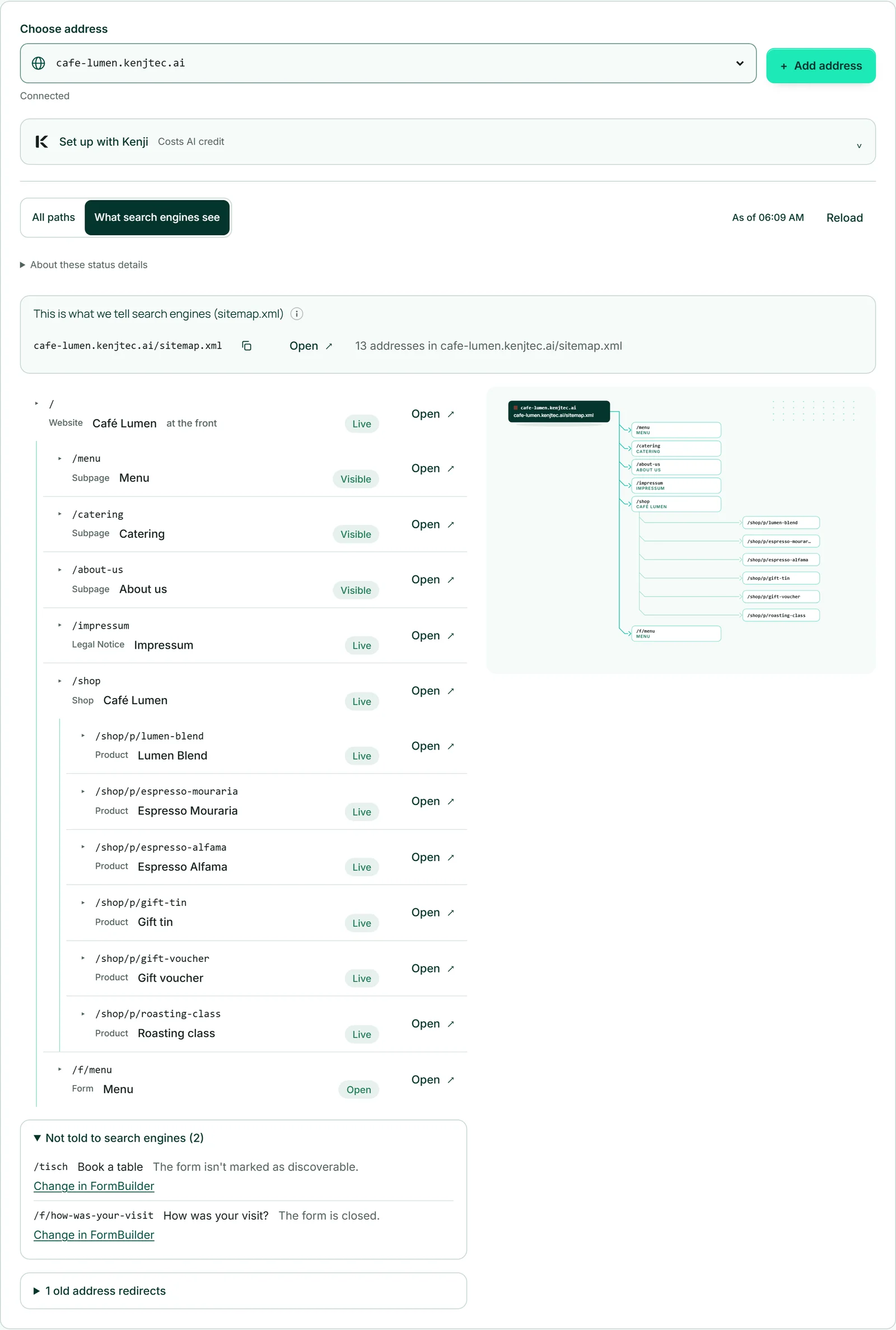
Above the list you switch between “All paths” and “What search engines see”. The second view shows exactly the rows that are in the sitemap.xml of this address, and above them the file itself with a counter, a button to copy it and “Open”. Every address has its own sitemap.xml and lists its own rows in it: deine-firma.com/sitemap.xml lists deine-firma.com/…
Expanded, “Not told to search engines” shows what is deliberately left out, each with a reason — such as “Still a draft — only after publishing.” or “The form isn't marked as discoverable.” — and a link to the place where you change it. If a form sits at the front, the address has no sitemap.xml; with a shop, only once it is active.
What Google takes from it is up to Google. If a website runs under several addresses, you choose in the website’s sheet under “Canonical address” which of them search engines are given as the main address; “Automatic” uses the address the page is currently being opened under. The sitemap.xml of each address stays unaffected (Getting found).
Setting up addresses with Kenji
In the address plan, the “Set up with Kenji” button sits above the list. It opens the Kenji window at the bottom right — the same window as everywhere at KENJTEC. Kenji sees the address you have chosen and the project whose sheet is open. There you tell him in one sentence what should change about your addresses — “The Book a table form should be reachable at /tisch” or “Create the subdomain shop with my shop on it”. Kenji looks through your address plan, checks paths against the same rules as the sheets and lays out a plan below his answer: every step as a sentence with before and after.
Nothing changes until you click “Run”; “Discard” leaves everything as it was. Deciding what sits at the front of a domain is a major step: it is marked, and you confirm it with a second click on “Yes, run it”. Each step then shows “Done” or “Failed”; if one fails, the plan stops, and whatever ran before stays done. Afterwards the address plan reloads and shows the new state.
Here Kenji can do what the sheets can: the alias of a form, the path of a shop, what sits at the front of a domain, and a new subdomain for a project. Paths of subpages and WordPress you set up by hand. Planning uses AI credit; “Run” and “Discard” cost none. How Kenji’s plans work in general is described under Kenji changes what you confirm.
- In the address plan, click “Set up with Kenji”.
- Write your sentence in the Kenji window and press Enter.
- Read the plan below Kenji’s answer and click “Run” — or “Discard”.
Placing a domain in front of WordPress
Every WordPress installation has its own address, such as cafe-lumen.wp.kenjtec.ai, and appears at the bottom of the address plan under “WordPress”. In its sheet you place a domain in front of it that you manage here, whose nameservers already point at us and that has nothing at its front yet: choose the domain, “Place in front”. We set the records for the domain and www directly to the WordPress server and fetch the certificate as soon as the network knows the records — usually within a few minutes, sometimes up to an hour.
“Check status” shows how far it has got: “DNS set”, “DNS not pointing here yet”, “Certificate on its way” or “Active”. From “Active” on, your domain answers with the installation; its own address, however, is still the wp.kenjtec.ai address, because WordPress knows exactly one. “Take over address” makes your domain that address — we make a backup first, and afterwards the old address redirects. “Take back address” goes the way back.
“Detach domain” takes the domain off again; if the site is currently called by it, it first gets its old address back. The domain stays under your management. While it sits in front of WordPress, start, redirect and its WordPress records are locked in the domain settings (WordPressBuilder ai).
- In the address plan, open the row of your installation under “WordPress”.
- Choose the domain and click “Place in front”.
- Later click “Check status”; once it says “Active”, click “Take over address” and confirm with “Yes, take over”.