
The design follows your brand
If your account has a brand in BrandStudio, a new website follows it: the colours the brand sets and its typeface apply on the page. Under “Colors & font” you then see “Follows the brand” with the brand’s name, and the colours it sets and the typeface are locked there.
Following is live: if you change a colour or the typeface in BrandStudio, it changes in the draft and on the published page at once, without you publishing. Whatever the brand does not set remains up to the website.
Websites that existed before you created a brand keep their own design; they do not jump. With “Back to the brand” you can connect them at any time.

- In the editor, click “Colors & font” on the left.
- Read at the top under “Colours” whether the website follows the brand or has its own design.
Your own design and back to the brand
If you want your own colours or typeface for a website, click “Use my own design”. The current state is taken as the starting point — nothing jumps — and the fields are unlocked. A style reference or a design from an image also gives the website its own design.
You then see the “own design” badge, the roles that differ, such as accent colour or typeface, and the “Back to the brand” button. It removes your own values; afterwards the website follows the brand again, even when you change the brand later. If you change your mind, “Undo: own design from …” brings your own design back once.
- Click “Colors & font” on the left.
- Click “Use my own design” and set colours and typeface.
- To go back, click “Back to the brand” at the top.
None of this uses AI credit.
Company details, logo and icon from the brand
A new website also takes name, address, phone and email from your brand — whatever is filled in there. These details appear in the top bar, in the contact section and in the machine-readable markup. You maintain them in BrandStudio; changed there, they are correct on every website that follows it. Under “Company” in the editor, these four details are then locked and show the brand’s values. If you want your own for a website, click “Use my own details” there: the brand’s details are copied over — nothing changes on the website — and the fields can be edited. “Use details from BrandStudio” goes back to the brand.
The logo in the top bar comes from the brand: the version uploaded for the top bar, otherwise the logo from BrandStudio. You choose a logo for one website only under “Menu & footer” (Designing the menu and footer). Your name stays with it for screen readers. The brand also supplies the small icon in the browser tab and the preview image for shared links when the page has no header image of its own.
Your social media channels appear in the footer if the website does not enter its own under “Company”. They are maintained in SocialStudio ai.
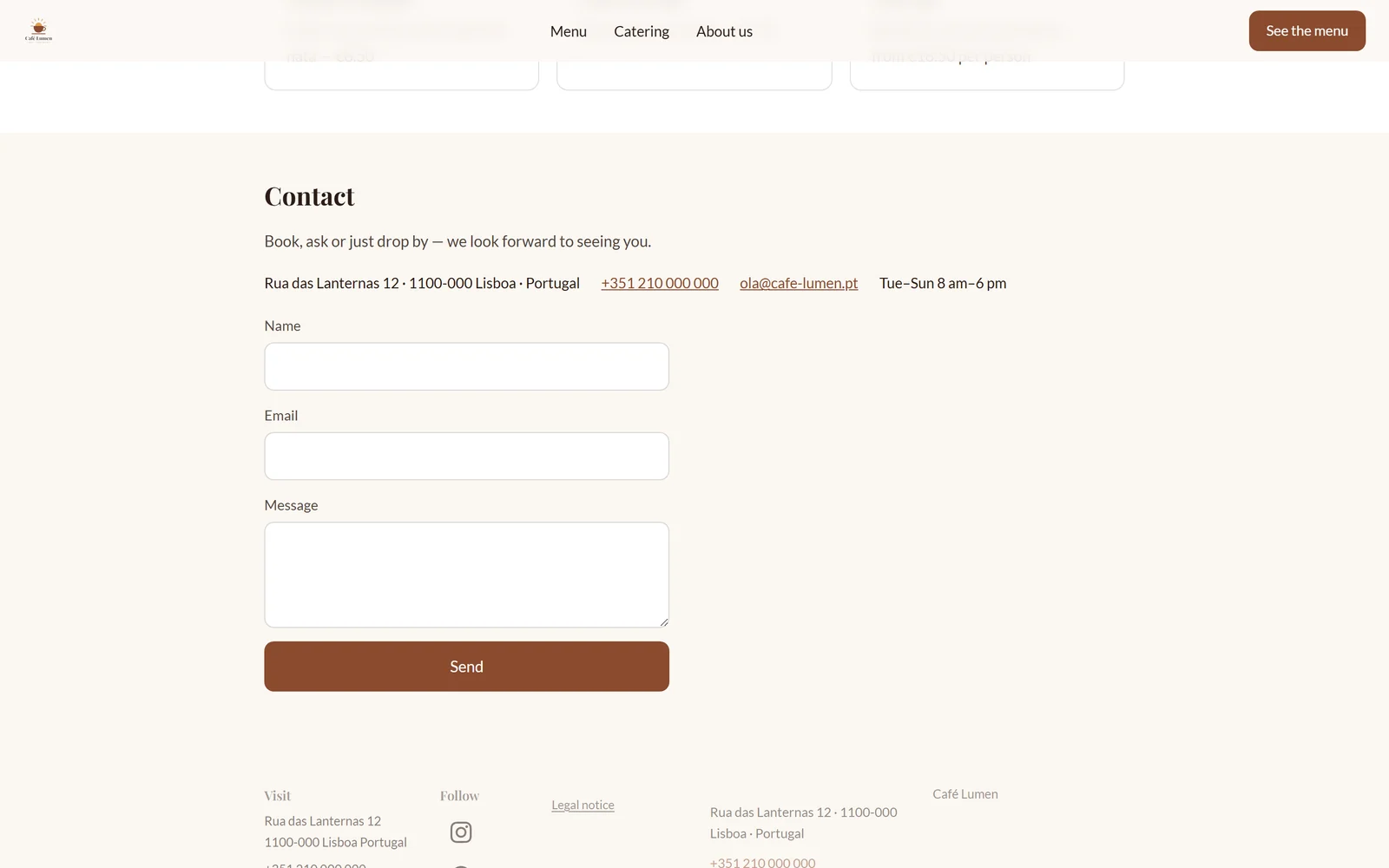
- Open BrandStudio and enter name, address, phone and email under “Company”.
- Upload your logo there.
- Open the website in the editor — the top bar and contact section show the brand’s details.
Websites that existed before your brand keep their own company details until you click “Use details from BrandStudio” under “Company”; they still carry the brand’s logo if they have none of their own.
Your brand’s legal notice
As soon as your brand has company details, your website gets a page of its own at /legal-notice: operator, address, contact, “Represented by” and your further details, each on its own line. The fixed words are in the website’s language — on an English site the title reads “Legal notice”. The footer links the page among the legal links, on every page; the link cannot be switched off.
The page shows what is in the fields, nothing more; no AI is involved. At the end it always says “Some countries require further details. We do not generate those.” Whatever your country also requires, a register number for instance, you enter in BrandStudio under “Further details”. If you have created a page with the address /legal-notice yourself, yours applies.
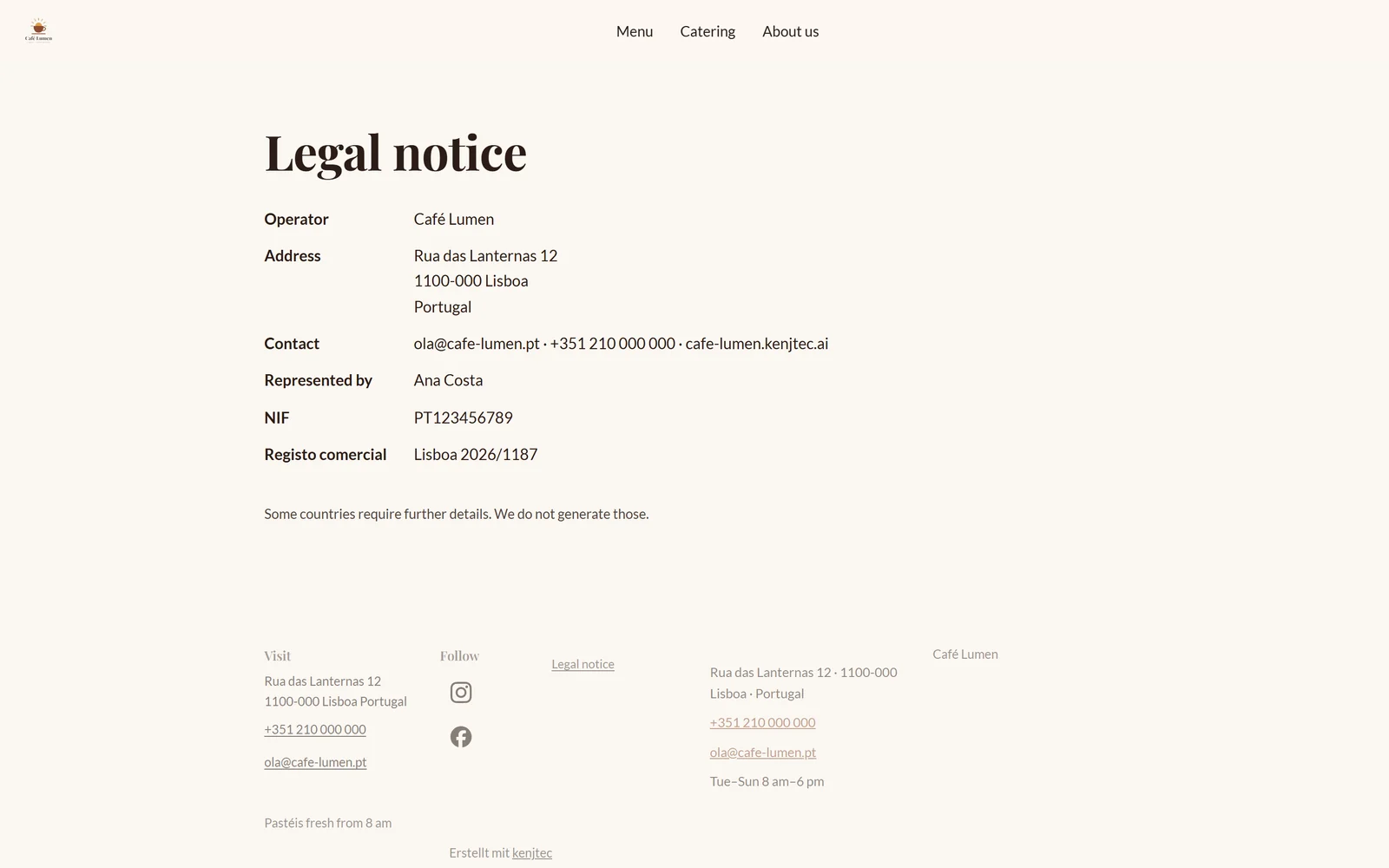
- In BrandStudio, enter your details under “Company”, and “Further details” if needed.
- Publish the website and open the legal notice link in the footer.
Publishing needs your brand
Before a website goes online, it has to be clear who is behind it. Three things are required: company or operator, address, and email or phone — no logo, no colours. They come from your brand or, as long as you have not set one up, from your sender details in Invoice.
If something is missing, “Publish” stops with a sentence naming what is missing, and “Go to BrandStudio” takes you where you enter it. Editing, the preview and “Take it with you” always work. What is already online stays online; the question comes with your next publication and when you put the site back online.
If you have several brands and the website doesn’t belong to one yet, the editor asks “Which brand?” when you publish — see Which brand each project uses.
- Click “Publish”; if the notice appears, click “Go to BrandStudio”.
- Enter the missing details.
- Return to the editor and click “Publish” again.