
Passing on the link
In the “Share” step, under “Your public link”, you find your form’s address. It sits under your account’s address, for example cafe-lumen.kenjtec.ai/f/tisch-reservieren. Anyone with the link can fill it in — no account, on any device. “Copy link” puts it on the clipboard, “View form” opens it.
The link stays valid as long as the form exists. If the form is closed, it shows the title and that no more responses are accepted. If access is set to an access code or an invitation, the “Share” step says so right above the link.
If your account’s address isn’t ready yet, you’ll see “Your address is being set up — check back in a few minutes.” instead of the link.
- Open the form and switch to “Share”.
- Click “Copy link”.
- Paste the link into your message, your website or your post.
A name of its own and your addresses
Instead of /f/… your form can carry a name of its own, such as cafe-lumen.kenjtec.ai/tisch. You set the name in DomainStudio: “Change address in DomainStudio” in “Share” leads straight to this form’s sheet in the address plan. If a name is already taken — by a shop, a page of your website or another form — DomainStudio tells you what is in the way. An earlier name redirects; shared links stay valid.
Under “Reachable at”, “Share” lists every address where the form currently lives — your account’s and every domain of your own you have connected; each line can be copied. Further down is “Your address”: your account’s address, under which all your forms live, with “Copy address”. It can only be changed while nothing under it has been published yet.
- In “Share”, click “Change address in DomainStudio”.
- In the form’s sheet, click “Change path”, enter the name, such as “tisch”, and click “Save”.
- Then copy the new link in “Share” — it works within a minute at most.
Sharing directly and the QR code
Under “Share directly” are WhatsApp, LinkedIn, X, Facebook and Email. Each button opens the service’s share page with your link in it; for WhatsApp, X and Email the form’s title comes along. Nothing is published until you send it there — FormBuilder never posts anything by itself.
Below that is the “QR code” for the same link — for a poster, the counter, a table or the menu. “Download as PNG” saves it as an image for printing. It is created without any outside service. If you give the form a name of its own later, a code already printed still leads to the form. PrintStudio builds a finished poster with title and QR code if you take your form over there.
To print the whole form — as a menu or as a sheet to fill in — use “Print” further down: “Print in PrintStudio” opens it there directly, see Printing forms.
- Open the form in the “Share” step.
- Under “QR code”, click “Download as PNG”.
- Put the image on your poster, the table stand or the menu.
Embedding it in your website
If the form should sit on your own website rather than on a page of its own, fetch a code under “Embed it in your website”. “Script (recommended)” places the frame itself and lets it grow with the form — across several pages too, without scrolling inside the frame. “Fixed frame” is for site builders that don’t allow scripts.
With the script, “Take on your website’s styling” decides whether the form adopts the colours, the rounding and — as far as it can be read — the typeface of the page it sits on. Colours only come across if text and surface are clearly readable together; otherwise your design stays. Switched off, the form looks the way it does in the “Design” step.
The frame points to your account’s address. Below it is a preview of how the form sits on someone else’s page: without border or background.
- In “Share”, choose “Script (recommended)” or “Fixed frame”.
- Click “Copy code”.
- Paste the code into your website where the form should appear — usually into an HTML block.
In your website and in WordPress
In a website from WebSiteBuilder ai you need no code: there is a “Form” section into which you place one of your forms. It uses the same embedding and blends into your website’s design. How that works is in the WebSiteBuilder chapter.
In a site from WordPressBuilder ai you add a form as a block or as a shortcode — described in the WordPressBuilder chapter. If it isn’t specified there which form is meant, nothing appears on the page instead of an error message.
In every case the responses land in your FormBuilder under “Results”.
A domain of your own
Under “Your own domain for this?” you search for a domain right from the form. “Check” shows up to three available results with a yearly price; “Book” puts one in the basket and takes you to checkout. If nothing is free, the sentence points you to DomainStudio with more extensions.
“Your own domain in front” connects a domain to the form — one you manage in DomainStudio, a subdomain of it such as signup.your-company.com, or a domain from elsewhere. “Add your own domain or subdomain” opens the address plan with this form already set as the target; DomainStudio explains the rest. On a domain of your own, a form may also stand at the front, without a path.
- In “Share”, click “Add your own domain or subdomain”.
- Choose the route in the address plan — managed domain, subdomain or domain from elsewhere.
- Follow the steps there; the form is already entered as the target.
Findable on Google
Most forms are not meant to be found through a search engine — you share a sign-up on purpose. That is why the switch “Findable on Google” in the “Form” area of the console starts off. Switch it on and the form appears in your address’s sitemap, the list that search engines read; within a few minutes it is in there.
For a menu that can make sense, for forms with an access code or an invitation hardly: anyone arriving from a search would face a locked door. The switch does not guarantee a place in the search results — whether and when a search engine picks up a page is its own decision.
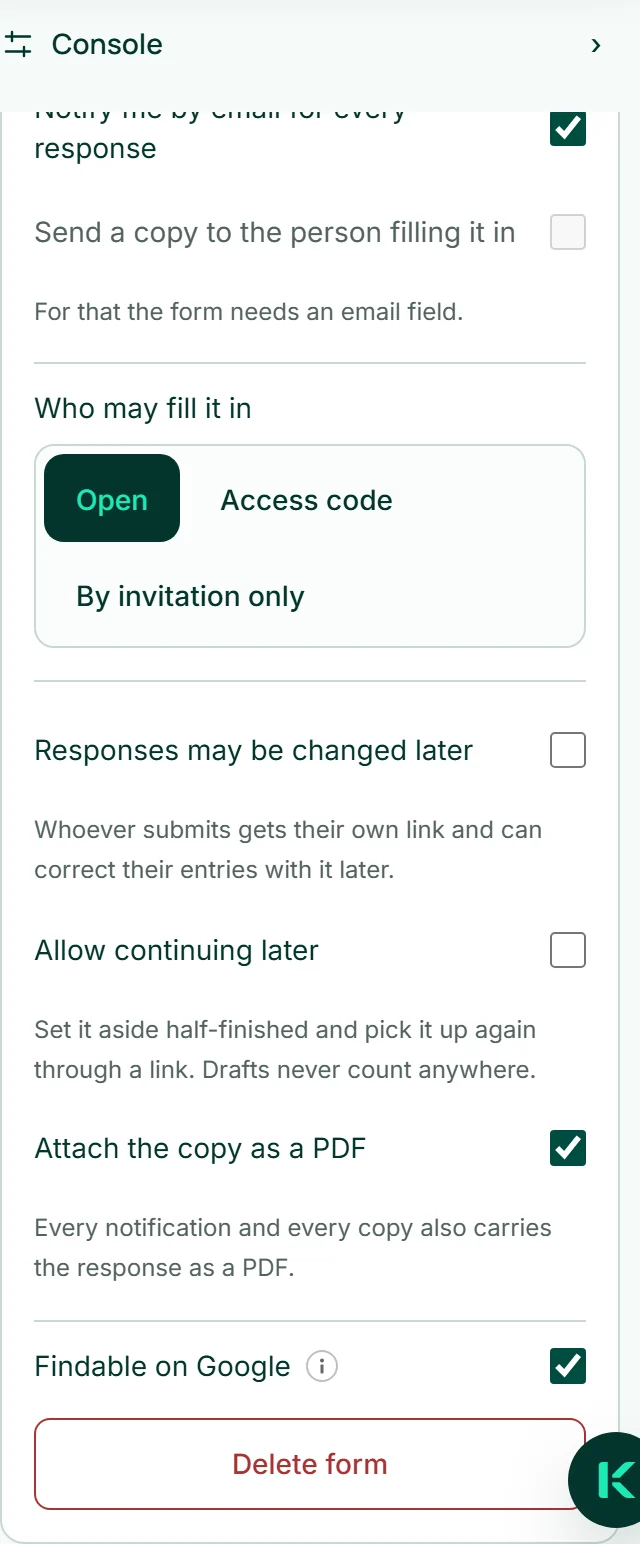
- In the “Build” step, open the “Form” area on the right.
- Switch on “Findable on Google”.
- Click “Save”.