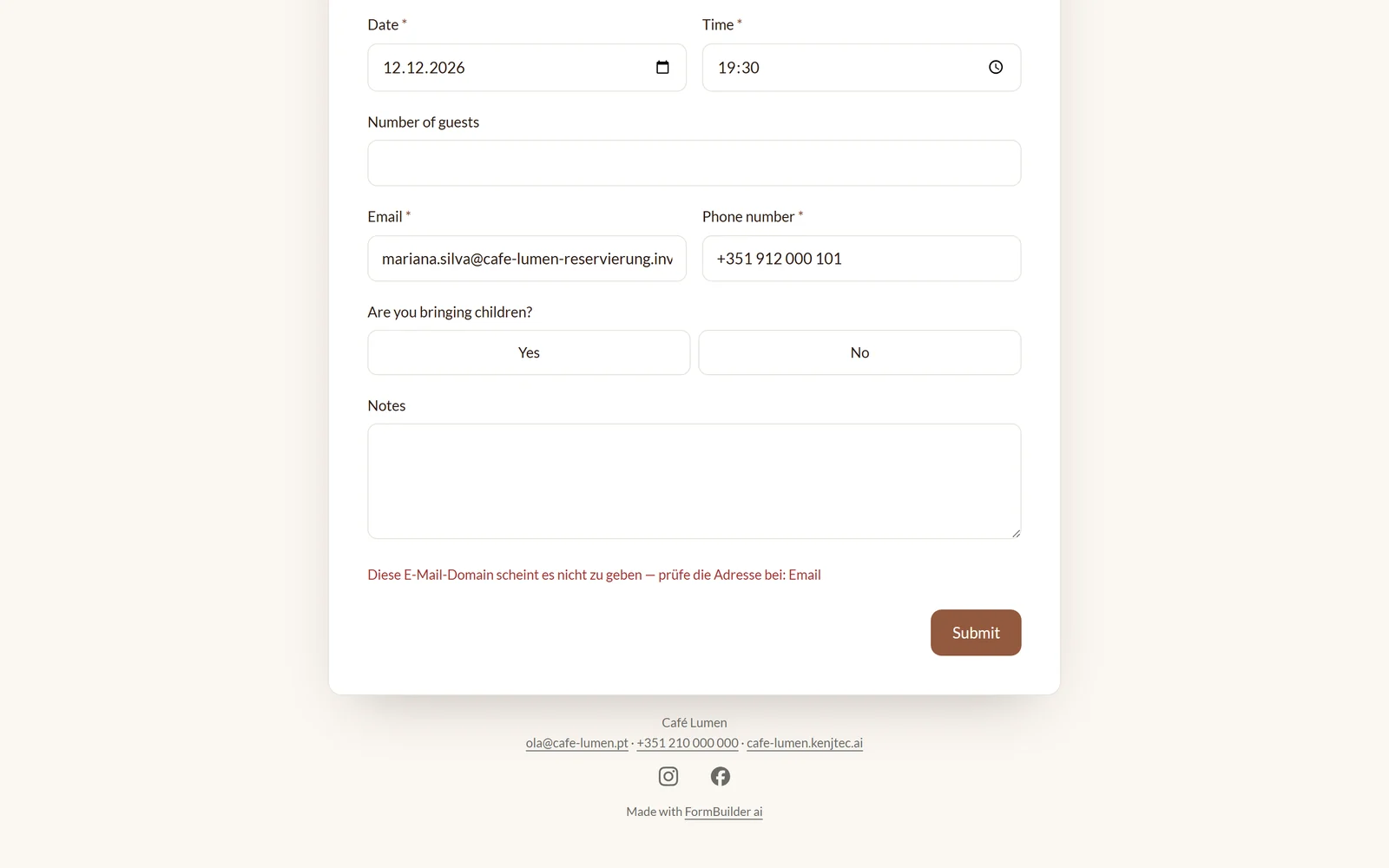
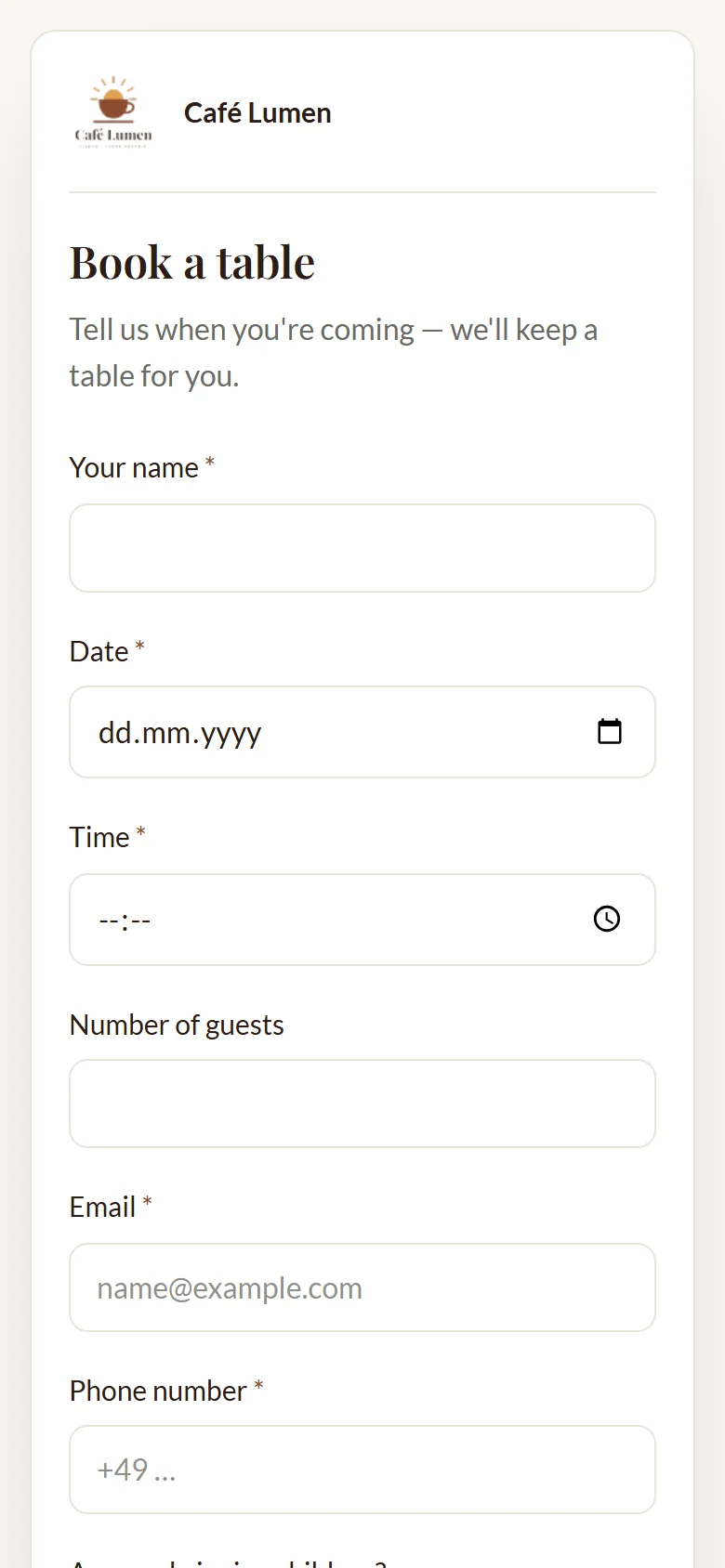
The form page
Anyone who opens your link sees your form as a page of its own — without KENJTEC’s menu, with your brand at the top and bottom if you show it. The page’s buttons and hints appear in the visitor’s language, in one of KENJTEC’s twelve languages; your questions appear exactly as you wrote them. At the very bottom, quietly, it says “Made with FormBuilder ai”.
Required fields carry an asterisk. If something is missing, the field says “Please fill in this field.” before the guest can go on. The page can be used with a keyboard and a screen reader: every field is labelled, errors are announced, and on a phone every field spans the full width.
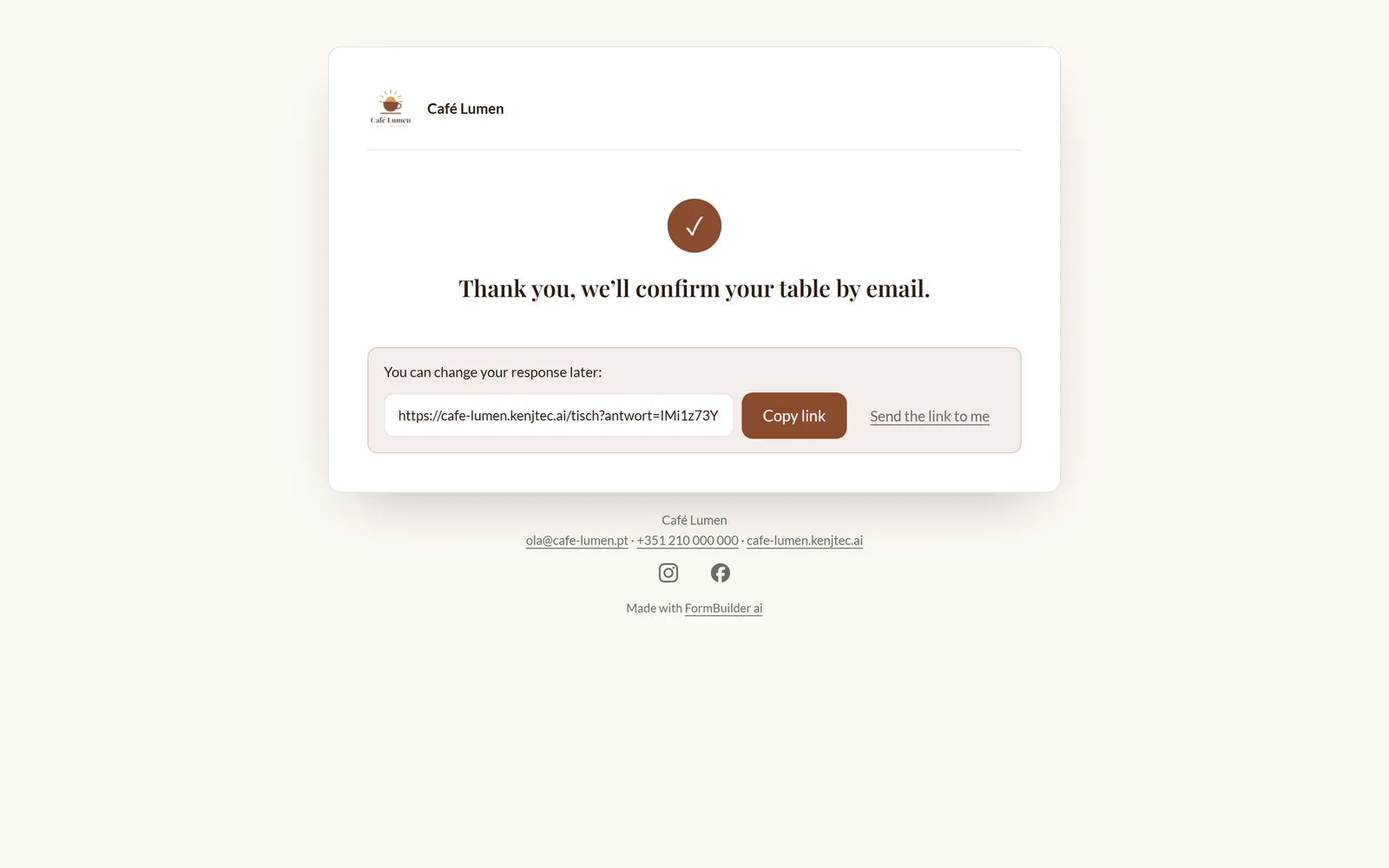
After submitting
After submitting, your guest sees a tick and your “Thank-you text”. You write it in the “Form” area of the console; if you leave the field empty, a neutral thank-you sentence appears. A booking calls for something different from a survey, such as “Thank you, we’ll confirm your table by email.”
If responses may be changed later, the guest’s personal link appears below the thanks with “Copy link” and “Send the link to me”. More under Changing responses later.
- In the “Build” step, open the “Form” area.
- Write your sentence into the field “Thank-you text”.
- Click “Save”.
Open or closed
Whether a form accepts responses is decided by the switch “Accepting responses” in the “Form” area. If you close it, the link stays valid: it shows the title and “This form is no longer accepting responses.” — so everyone knows what has ended. You can reopen it at any time.
Opening a form means publishing it. So it must be clear beforehand who is behind it: your brand in BrandStudio needs a company or operator, an address, and an email address or phone number; if you have entered a sender in Invoice, that counts. If anything is missing, a new form starts closed, and when you save with “Accepting responses” the studio names what is missing. Entered once, it applies to everything you publish.
A form with limited places closes by itself once they are all taken.
If you have several brands and the form doesn’t belong to one yet, the studio asks “Which brand?” when you save with “Accepting responses” switched on — see Which brand each project uses.
- In the “Build” step, open the “Form” area.
- Switch “Accepting responses” on or off.
- Click “Save”.
With an access code
Under “Who may fill it in” you choose “Open”, “Access code” or “By invitation only”. With “Access code” you set a word that you pass on yourself — on the notice in the staff room, in the group chat. No account and no password for your guests.
The code needs at least four characters and is stored only as a checksum; after saving, not even the studio shows it again — write it down. As long as no code is stored, the form stays open. A new code replaces the previous one as soon as you save: anyone who only knows the old code can no longer use it to get in. “Remove the code” lifts the code protection; an access code is no longer needed afterwards.
Your guests first see only the title, “This form is protected with an access code.” and a field for the code. The right code opens the questions for this visit. Anyone guessing wrong several times has to wait a few minutes.
- In the “Build” step, open the “Form” area.
- Under “Who may fill it in”, choose “Access code”.
- Type the code and click “Save”.
- Pass on the link and the code separately.
By invitation only
With “By invitation only” only the people you invite personally get in. You enter the addresses under “One email address per line” — commas or semicolons work too, up to 100 at a time — and click “Send invitations”. Each address receives an email with its own link, written in your account language; if someone replies to that email, it reaches you.
Each invitation is good for one response and 30 days. The list below shows when you invited someone, who has already “answered” and which invitation has “expired”. “Remove” withdraws an invitation — its link opens nothing afterwards. You withdraw an expired one and invite the same address again. Whatever could not be sent, the studio names with the reason: faulty address, already invited, list full, or enough sent for today.
Anyone arriving without an invitation reads “This form can only be opened with a personal invitation.” Under “Results”, each response shows which invitation it came through.
- Under “Who may fill it in”, choose “By invitation only” and click “Save”.
- Enter the email addresses.
- Click “Send invitations”.
- Follow in the list who has already responded.
Changing responses later
If you switch on “Responses may be changed later”, everyone who submits gets a link of their own — on the thank-you page and, if you send copies, in their copy. The link opens the form with their answers and the sentence “You are changing your response from …”. “Save change” replaces the old response; no second one is created.
If notifications are on, you receive one with the subject “Updated response: …”; under “Results” it says “changed on …”. Uploaded files and drawn signatures stay unless someone chooses new ones.
The link is the only key — there is no account and no reset. If you switch changing off later, it opens an empty form with a note. With invitations: one invitation, one response; corrections go through the personal link.
- In the “Build” step, open the “Form” area.
- Switch on “Responses may be changed later”.
- Click “Save”.
Continue later
For long forms, “Allow continuing later” helps. Your guests then see the button “Continue later” next to “Next” or “Submit”. It saves their progress without checking required fields and shows a personal link with “Copy link” and “Send the link to me”. Through it they carry on with all their answers; only “Submit” turns it into a response.
A draft never counts anywhere — not in the number of responses, not in analysis and export, not against limited places and not in the kitchen view. You get no message about it. You can see drafts under “Results” with “Show drafts”.
- In the “Build” step, open the “Form” area.
- Switch on “Allow continuing later”.
- Click “Save”.
Protection against junk
Forms are public, so programs that fill them with rubbish come by too. Without your guests having to solve anything, the form defends itself in three ways: an invisible field that only such programs fill in sends their submissions into the void — they see a thank-you, and nothing is stored. If very many submissions arrive from the same source in a short time, the form slows them down for a few minutes. And an email address whose domain does not exist is turned away with a note.
The email domain check only rejects what certainly does not exist; if the check itself gets stuck, the response goes through. Copies to guests are limited too: anyone submitting several times in quick succession does not get a copy every time.