
Choosing a form to print
The fifth tile in PrintStudio is “Forms” — “Menu or to fill in”. It prints your forms from FormBuilder in your brand: with logo, colours, fonts and company details. In the “Form” field you choose which one; it’s printed in the brand shown at the top under “Brand for this print piece”.
You can get here straight from FormBuilder: in the “Share” step, under “Print”, there’s the “Print in PrintStudio” button, and PrintStudio opens with exactly that form. If you don’t have a form yet, it says “No form to print yet” with the “Open FormBuilder” button.
You change content, prices and photos in FormBuilder; this is only where it’s typeset. “Open in FormBuilder” takes you back to the form. PrintStudio remembers your settings for each form.
- Open your form in FormBuilder and choose the “Share” step.
- Under “Print”, click “Print in PrintStudio”.
- Or choose the “Forms” tile in PrintStudio and pick your form in the “Form” field.
Menu or form to fill in
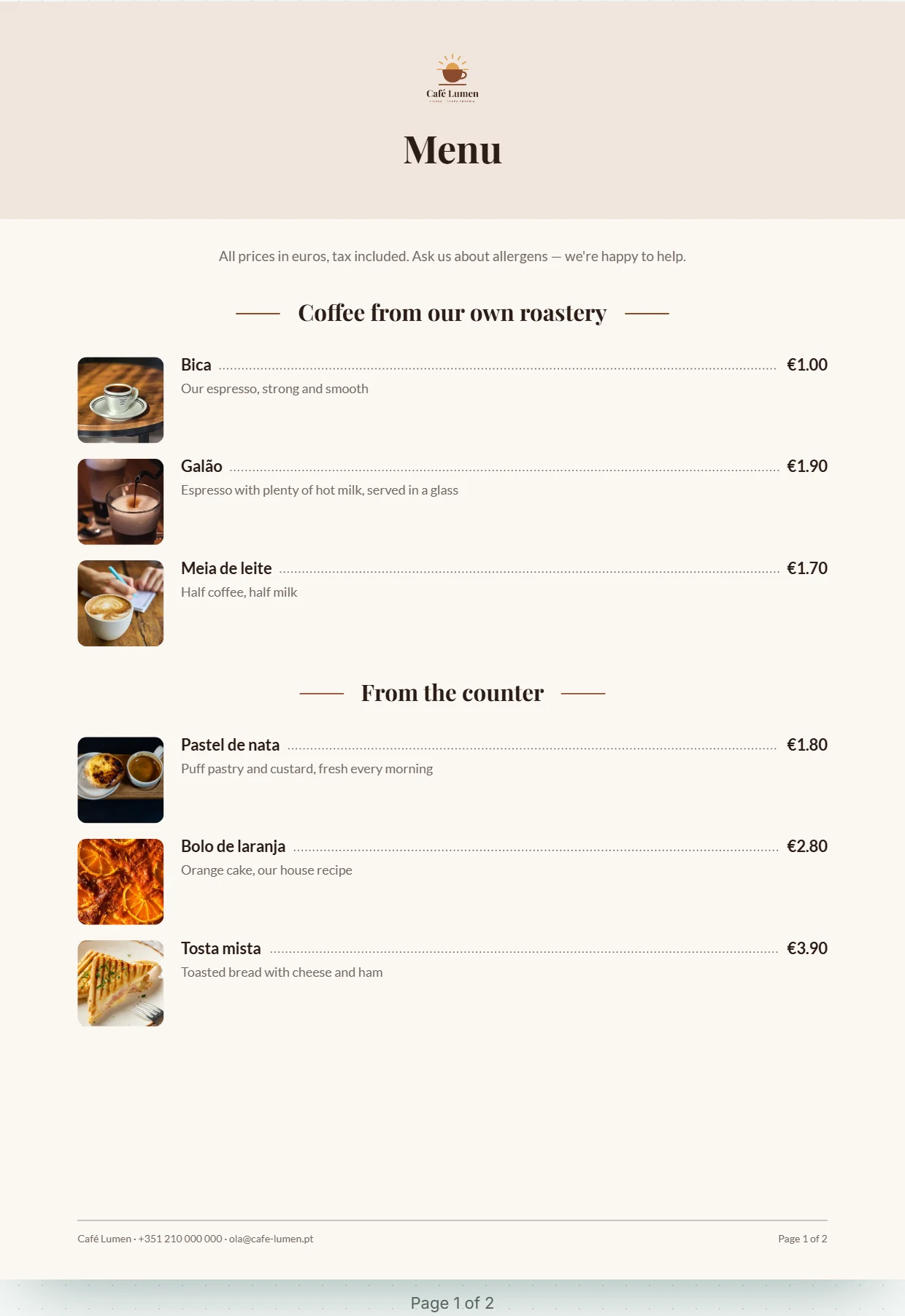
Under “Style” you choose what the form becomes. “Menu” sets a title band with logo and title, then the sections from your headings, and every “Item with price” as a line with name, dotted leader and price, the description below and the photo on the left. Questions are left out; a section made up only of questions doesn’t appear at all. Orderable items appear like any other item.
“Form to fill in” makes a sheet for pen and paper: logo, company and contact at the top, then title and description. Every question gets what you need on paper — one writing line, four for longer texts, boxes for choices (round when only one answer counts), numbered boxes for ratings, lines for place, date and signature. What sits side by side online sits side by side here too; required fields carry an asterisk.
“Automatic” picks the menu as soon as the form has at least as many items as questions, otherwise the form to fill in. Below it you see what currently applies, such as “Now: Menu”.

Format, colours and what’s shown
“Format” is A4 or A5; on A5 everything is set a little smaller. Under “Colours” you decide how much of your brand goes on the sheet: “Light”, “In your accent colour” or “Dark”. The paper always stays light — the scheme colours the title band, strokes and lines.
Under “Show” you switch “Photos of the items”, “Logo”, “QR code to the form” and “Description” on or off. Whatever isn’t possible right now is greyed out and says why: “This form has no photos yet.”, “This brand has no logo yet.” or “The QR code appears as soon as the form accepts responses.”
Every change is saved on its own; the top says “Saving …” and then “Saved”.
- Choose “A4” or “A5” under “Format”.
- Choose a scheme under “Colours”.
- Under “Show”, switch off whatever shouldn’t go on the sheet.
The QR code to the online version
If your form accepts responses, a QR code to its address sits at the end, with the address in short form below. On the menu it’s headed “This menu online” — or “Order online” if the menu has orderable items. On the form to fill in, it says “Prefer to fill it in online? Just scan.” next to it.
If the form is closed, there’s no code: it would lead to a page that no longer accepts anything. The code is always dark on its own white plate so that any camera can read it. When a form is open is explained under FormBuilder ai.

Pages, page numbers and language
Next to the settings — above them on a phone — you see every page as it comes out of the printer, with style, format and number of pages above. A long menu flows onto the next page by itself, and a heading never stands alone at the bottom of a page: it takes the start of its section along.
Every page has a footer with company and contact, and with several pages also “Page 1 of 2”. These few words — including “Yes” and “No”, “Place, date”, “Signature” and the sentences by the QR code — are set by PrintStudio in the language you use KENJTEC in. This also applies to Japanese, Arabic and Hindi. What’s in your form stays as you wrote it.

Downloading the PDF
“Form as PDF” at the top right downloads all pages in one file, named after your brand and the form. The button waits until everything is saved; downloading costs nothing.
Under “For the print shop” there’s “With 3 mm bleed”. Leave it off for the office printer and tick it for the print shop — then the title band runs to the edge and the printer trims off the 3 mm. The tick applies to the next download; it isn’t saved.
- Check every page in the preview.
- For the print shop, tick “With 3 mm bleed”.
- Click “Form as PDF”.