
From one sentence
In the studio you describe what your form should ask in the dark field under “Say what you want to ask — the form builds itself.” One sentence is enough: “Table booking for Café Lumen with name, date, time, number of guests and phone number.” Kenji turns that into fields, their order, required answers and, where it helps, several pages — in the language of your sentence. The new form then opens in the studio, and you carry on refining by hand or in conversation.
What you don’t say, Kenji doesn’t invent: anything unclear becomes an open text field rather than a made-up choice. The one exception is menus and orders: if your sentence names no dishes, Kenji puts in a few typical example items without prices, for you to replace with your own. The look follows your brand from BrandStudio. The explainer video shows the whole thing.
For an order, Kenji creates every item as an “Orderable item”; for a menu to read, as an “Item with price”. KENJTEC then looks for matching photos for these items straight away — at no extra AI credit; if none turns up, the item simply stays without a photo.
- Open the studio. If you already have forms, click “Build form” at the top.
- Write what you want to ask into the dark field — at least five characters.
- Click “Build form” next to the field and wait until the new form opens.
- Check the questions and required fields before you pass the link on.
Uses AI credit. If Kenji can’t produce a usable form, or it would need more than 40 fields, nothing is created and your AI credit stays as it was. Split a very long menu into two forms in that case.
From a photo
If your form already exists on paper — a sign-up sheet, a menu, a price list — take a photo of it. Kenji carries over questions, tick boxes, subheadings and signature lines in the language and order of the sheet. What can’t be deciphered, Kenji leaves out rather than inventing it, and when in doubt a field is not made required.
On a phone the camera opens directly. Photos in JPEG, PNG, WebP or GIF up to 5 MB are accepted. The result is an ordinary form in the studio — look through it before you share it.
- Open the studio and, if needed, the way in with “Build form”.
- Click “Photograph a form”.
- Take a photo or choose an image file.
- Check the new form field by field and add whatever is missing.
Uses AI credit. If no form can be recognised in the photo, nothing is created and your AI credit stays as it was.
Starting from scratch
“Create an empty form” sets up a form with one first question, without any AI — it uses no AI credit. From there you build it yourself: drag or click fields from the left column and set them up on the right. How that works is described under Placing and arranging fields.
However a form comes about, it has its own address from the first moment. It accepts responses with an active subscription when your brand in BrandStudio says who is behind it. Without an active subscription, or if a name, an address or a contact is still missing there, a new form stays closed — more under Open or closed.
- Open the studio and, if needed, the way in with “Build form”.
- Click “Create an empty form”.
- Give the form a title at the top and add the first fields.
From a comprehensive template
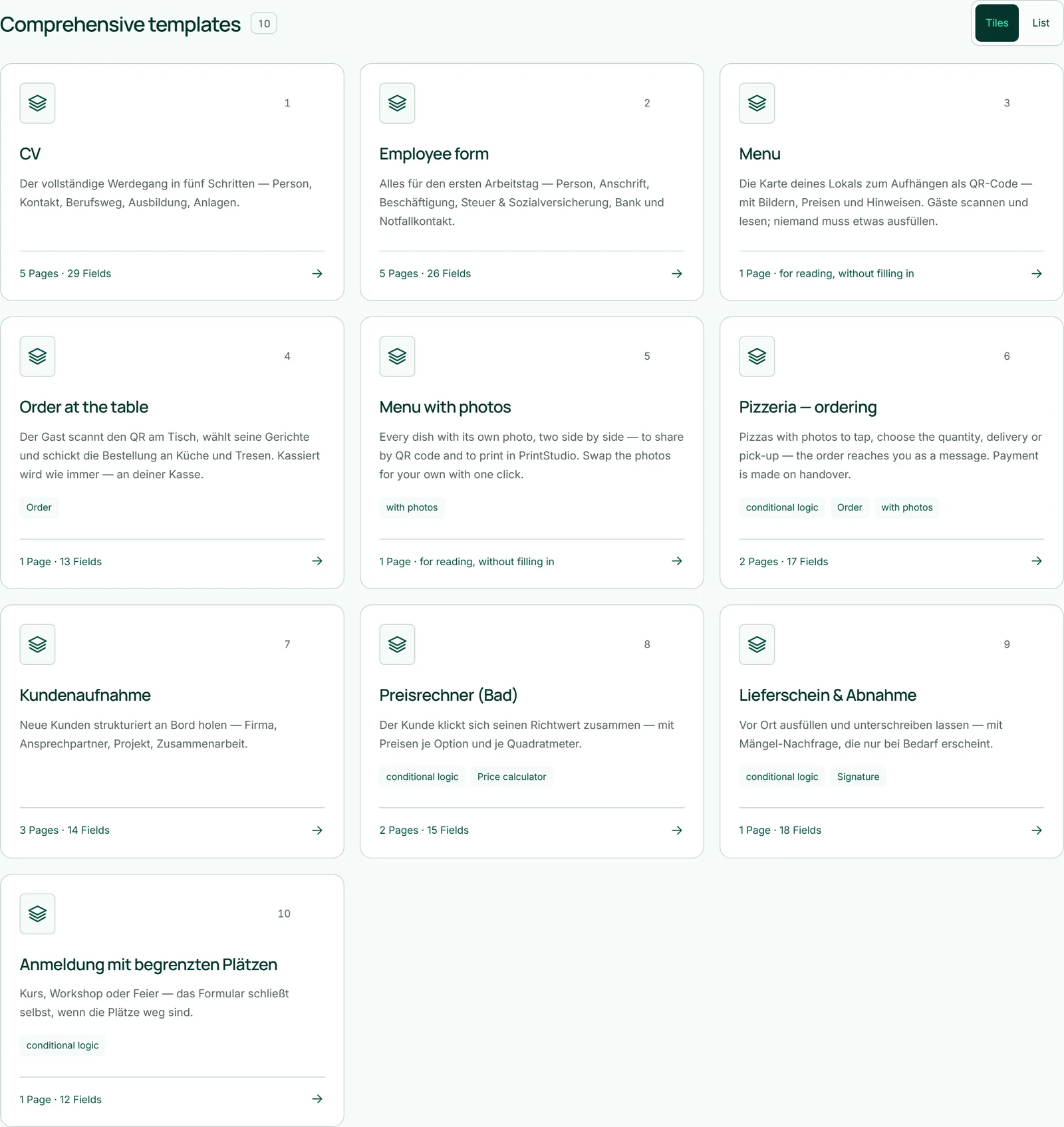
For forms that always have the same shape, the studio offers ten “Comprehensive templates”: a CV, an employee form, a menu, ordering at the table, a menu with photos, ordering from a pizzeria, customer onboarding, a price calculator for bathrooms, a delivery note with sign-off, and a sign-up with limited places. In the “Tiles” view each card shows pages and fields and what the template brings along — such as “conditional logic”, a “Price calculator”, a “Signature”, an “Order” or “with photos”. Both menus are marked “for reading, without filling in”.
One click creates a new form from the template. The templates bring their texts in German; you change title, questions and options in the studio afterwards. The new form does not take its look from the template — it follows your brand.
Templates marked “with photos” bring no finished images, but a search term for every dish. When the form is created, KENJTEC looks for matching photos and puts them into your new form; that takes a moment longer and uses no AI credit. If the search finds nothing, the form is created all the same, just without photos. Afterwards you can swap each photo for one of your own, see Photos on menu items.
- Scroll to “Comprehensive templates” in the studio.
- Click the template you need, such as “Order at the table”.
- Adapt titles, texts and prices in the “Build” step and click “Save”.
Your own templates
A form you need again and again can be saved as your own template: in the open form, with “Save as template” at the top. The studio asks for a name, saves your current state first and files the template under “Your templates” in the overview. One click there creates a new form from it.
The template is a copy: if you keep working on the original or delete it, the template stays as it was — images and the photos on menu items included. Access code and invitations do not come along; a form made from the template is open again, and its look follows your brand. A template has no address and takes no responses. Each account can keep up to 30 of its own templates; you delete them with the bin icon — forms made from them stay.
- Open the form that should become a template.
- Click “Save as template” at the top.
- Enter a name and confirm.
- Later, create a new form from it under “Your templates” in the overview.
Uses no AI credit — only what is already there is copied.