
Images in the form
The field type “Image” places an image between the fields, above the cakes section for instance. You choose the image in the field settings: with “Search for an image” among free photos, or with “Or choose from my images” from your MediaStudio. The image is copied into your form, scaled down to a handy size and served from your address; details such as where it was taken are removed. “Remove image” takes it out again.
In “Image description (for screen readers)” write a short sentence about what can be seen — people using a screen reader hear it. An image field without an image stays invisible on the form page. Before an image is set, the studio saves your open changes.
- Add “Image” from the Structure group and click it.
- Type a word under “Search for an image”, such as “cake”, and click “Search”.
- Click an image — it appears in the form straight away.
- Enter the image description and click “Save”.
Photos on menu items
Every “Item with price” and every “Orderable item” can carry a photo of its own. When you click the item in the “Build” step, the field settings show “Photo (optional)” with the same ways in as for the image field: “Search for an image” among free photos — leave the search field empty and it searches for the item itself — or “Or choose from my images” from your MediaStudio. One click on a photo sets it straight away; “Remove photo” takes it out again. Before a photo is set, the studio saves your open changes.
For a menu that is already there, it also works in one go: “Find photos for all items” looks for a matching image for every item without a photo and then reports, for instance, “12 photos found — you can swap each one individually.” If the search finds nothing, it says “No new photos found. Try your own search term.” Items that already have a photo stay as they are. One click searches for up to 30 items; for a longer menu, click again. Items for which the search found nothing are not searched again by another click as long as their name stays the same — give them a photo via “Search” with your own search term. If you search many times in quick succession, you are asked to wait a few minutes.
With a photo, the item becomes a card: name and description on the left, the photo on the right, the price below. Two or three such cards fit side by side in one row (see Rows and columns); when space gets tight, the photo moves above the text, and on a phone the cards stand underneath each other. An “Item with price” without a photo stays the familiar line with a dotted leader to the price.
Every photo is copied into your form, scaled down to a handy size and stored without details such as where it was taken, so the menu doesn’t get needlessly heavy on a phone. You don’t need an image description here: screen readers read out the name of the dish.
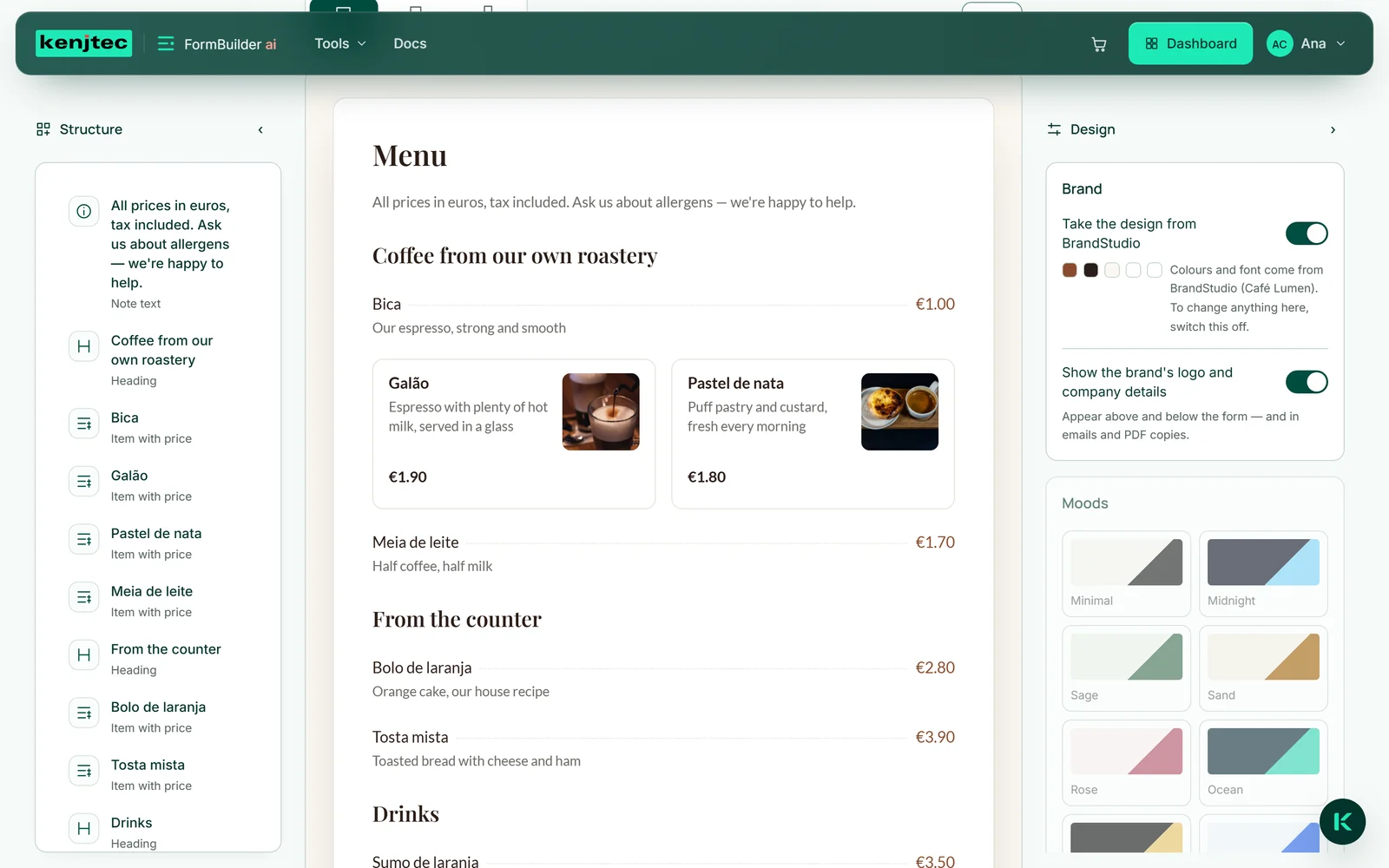
- In the “Build” step, click an item on your menu, such as “Pastel de nata”.
- Under “Photo (optional)”, click “Search” — or type your own search term first.
- Click a photo; it appears on the item straight away.
- For all the other items, click “Find photos for all items”.
The photo search uses no AI credit.
Ordering at the table
With “Orderable item” the menu becomes an order slip. Every item is a card to tap: one tap puts it into the order once, the card is highlighted, and a counter with − and + takes the place of the plus sign. Each further tap on the card adds one more, up to the “Maximum quantity per order” — 3, 5, 10 or 20. Counting back down to 0 takes the item out again.
As soon as something is chosen, the line “Your order: 3 items” with the total appears at the bottom. It stays at the lower edge while scrolling, so even on a long menu the guest can always see what is already in the order. Items without a fixed price, such as “price of the day” or “from €8”, are not guessed but counted separately as “without a fixed price”.
The template “Order at the table” brings everything with it: a required field for the table number, an optional name, items with quantities, and a field for a note to the kitchen. With a QR code on each table, the guest orders from their phone; every order is a response and lands in the kitchen view. For pick-up and delivery there is “Pizzeria — ordering”: pizzas, drinks and desserts with photos, and on the second page the choice between delivery and pick-up, name and phone number and — only for delivery — the address, plus a preferred time and a note.
FormBuilder takes no money and issues no receipt — payment happens as usual at your till or on handover. Both templates tell your guests so as well.
- Create a form from the template “Order at the table”.
- Enter your dishes and prices and set the maximum quantity.
- Save, and put the QR code from “Share” on the tables.
The kitchen view
For the tablet at the counter there is a separate dark page with large type. You open it under “Results” with “Open kitchen view” — the button only appears for forms with orderable items. The page belongs to your account; you sign in once on the tablet.
Each open order is a card: at the top, in large type, the first answer — with the template, the table number — next to it how long it has been waiting, below it the items with quantities and the other answers, such as the note to the kitchen. The oldest order comes first. “Done” takes the card off the list at once; the order is kept under “Results”.
The list checks for new orders every ten seconds while the page is visible. If the connection drops, the last list stays in place and “No connection — the list may be out of date” appears at the top. Deliberately without sound and without a printer. “Form” and “Dashboard” take you back.
- Open the order form and switch to “Results”.
- Under “Items ordered”, click “Open kitchen view”.
- Tap “Done” for every finished order.