
Adding fields
In the “Build” step the left column “Fields” opens on the tab “Add”. The field types are sorted into four groups: Text, Choice, Advanced and Structure. Drag a field type to the place in the form where it belongs, or click it — then it lands at the bottom and is selected straight away. The box “Search fields” finds a type by its name.
The second tab, “Structure”, lists every field of your form in order, marked if it is required or has a condition; one click jumps to its field settings — on a phone the quickest way to a field. While the form is still empty, the middle offers three quick starts: “Short text”, “Email” and “One option”.
Reordering works with the keyboard too: pick up the “Move field” handle on any field with the space bar, move it with the arrow keys and drop it with the space bar. Building by hand uses no AI credit.
- Open the form in the “Build” step.
- On the left under “Add”, choose a field type such as “Date”.
- Drag it to the place you want — or click it, and it goes to the bottom.
- Set up the question in the console on the right and click “Save”.
The field types
Text: “Short text” for one line, “Long text” for several, plus “Email”, “Phone”, “Link” and “Number” — on a phone they bring up the matching keyboard. Choice: “One option” and “Several options” with answers you define, “Yes / No”, “Scale” up to 5 or 10, and “Stars” up to 5. If “One option” has more than six options, it appears as a drop-down list when filling in.
Advanced: “Date”, “Time”, “File upload”, “Consent” — a box whose text is the sentence being agreed to, marked as required from the start — and “Signature”. Structure: “Heading”, “Note text”, “Divider”, “New page”, “Image”, “Item with price” and “Orderable item”.
Nothing under Structure asks a question — except the orderable item, where the guest picks a quantity. A form made only of such fields is a card for reading and gets no submit button (see Menu). “Image”, “Item with price” and “Orderable item” can carry a photo — how is described under Photos on menu items.

Field settings
When you click a field in the form, the right-hand column “Console” shows its “Field settings”: the text of the question, for choice fields the “Options” with “+ Add option”, for “Scale” and “Stars” the highest value under “up to”. With “Required” the field must be filled in before anyone can go on; when filling in, it carries an asterisk.
A new field starts with placeholder text such as “Deine Frage” or “Option A” — overwrite it. At the bottom are “Duplicate” and “Delete”; the same actions sit above the form as the icons “Duplicate field” and “Delete field”. A choice needs at least two options, and a form without a single field cannot be saved.
When no field is selected, the console shows the “Form” area with everything that applies to the whole form — from “Accepting responses” to “Delete form”.
- Click the field you want to change in the form.
- On the right under “Field settings”, change the question, the options or “Required”.
- Click “Save”.
Rows and columns
Up to three fields can sit side by side, such as date and time. The quickest way is to drag a field onto the left or right edge of another — the two then form a row; dropped in the middle, it is only reordered. Or click the area “Drag fields here — or click for a row with columns.” below the form: an empty row with two places appears, “+ 3rd column” makes it three, and you drag fields into it.
On the selected field, the buttons 1, 2 and 3 under “Columns” set how many columns its row has; 1 breaks it up. In the field settings, “Remove from row” takes a single field out. Only headings, note texts, dividers and page breaks always stand alone — images and items may go into a row, so two dishes with photos can sit side by side.
On a phone — and wherever the form gets narrow — the fields of a row move underneath each other by themselves.
- Drag the field “Time” onto the right edge of the field “Date”.
- Drop it in the outer third — now the two stand side by side.
- Check in the “Design” step with “Phone” how it looks when narrow.
Several pages
Long forms can be split into pages. The field type “New page” from the Structure group is a page break: everything below it is on the next page, and the text you give the page break becomes that page’s title. In the studio it shows as a dashed line.
When filling in, a bar shows how far along someone is, with “Next →” and “← Back”. Required fields are checked page by page before moving on. A page whose fields are all hidden by conditions is skipped.
- Drag “New page” to the place where the second page should begin.
- Give it a title in the field settings, such as “Your wishes” — or leave it empty.
- Click “Save”.
Changing it in conversation with Kenji
In the studio you talk to Kenji in the Kenji window at the bottom right: the round button with the K opens it, and at the top it shows FormBuilder and the name of the form you are working on — and, if you have selected a field, that field too. You write what should be different — “Make the phone number optional and ask about allergies” — and Kenji changes the form. Kenji knows every field type, pages, rows and conditions, and keeps the language of your form.
Once the change is made, Kenji’s answer is followed by “Kenji changed your form — check it and save.” If the studio is saving at that moment, it says “One moment — your form is being saved.” instead — then just tell Kenji again.
The result is a proposal: it appears in the studio straight away, but not yet online. Only “Save” makes it count; until then “Undo” takes it back. Kenji changes what you ask for and leaves the other fields as they are, so responses you already have stay readable — check the proposal all the same. Photos on menu items stay where they were; if new items are added, fetch their photos afterwards with “Find photos for all items”.
If your form follows your brand, Kenji does not change the look, even if you ask. If you have switched off the takeover in the “Design” step, Kenji may suggest a mood as well.
- Click the round button with the K at the bottom right.
- Write in the window what should change and press Enter.
- Look at the result and click “Save” — or “Undo”.
Every change uses AI credit, even if you discard it afterwards.
Check, save, undo
Above the form you can see where your changes stand: “Saved”, “Unsaved changes” or “Saving …”. “Save” at the top right stores the current state, also with Ctrl+S or Cmd+S. If you try to leave the page with unsaved changes, it asks first.
“Undo” and “Redo” step back and forth through changes to title, description, thank-you text and fields — including changes made by Kenji. This also works with Ctrl+Z, Ctrl+Shift+Z or Ctrl+Y (Cmd on a Mac) as long as the page is open; after a reload the history starts afresh. Look and settings are not undone this way.
“Check form” shows with a number which places still need a look: a missing title, a question without text, a choice without two distinct options, a condition without a valid field above it. Clicking an entry jumps to the field. In the “Share” step the check opens by itself.
Important: an open form always shows the last saved state. Whatever you save, your guests see at once.
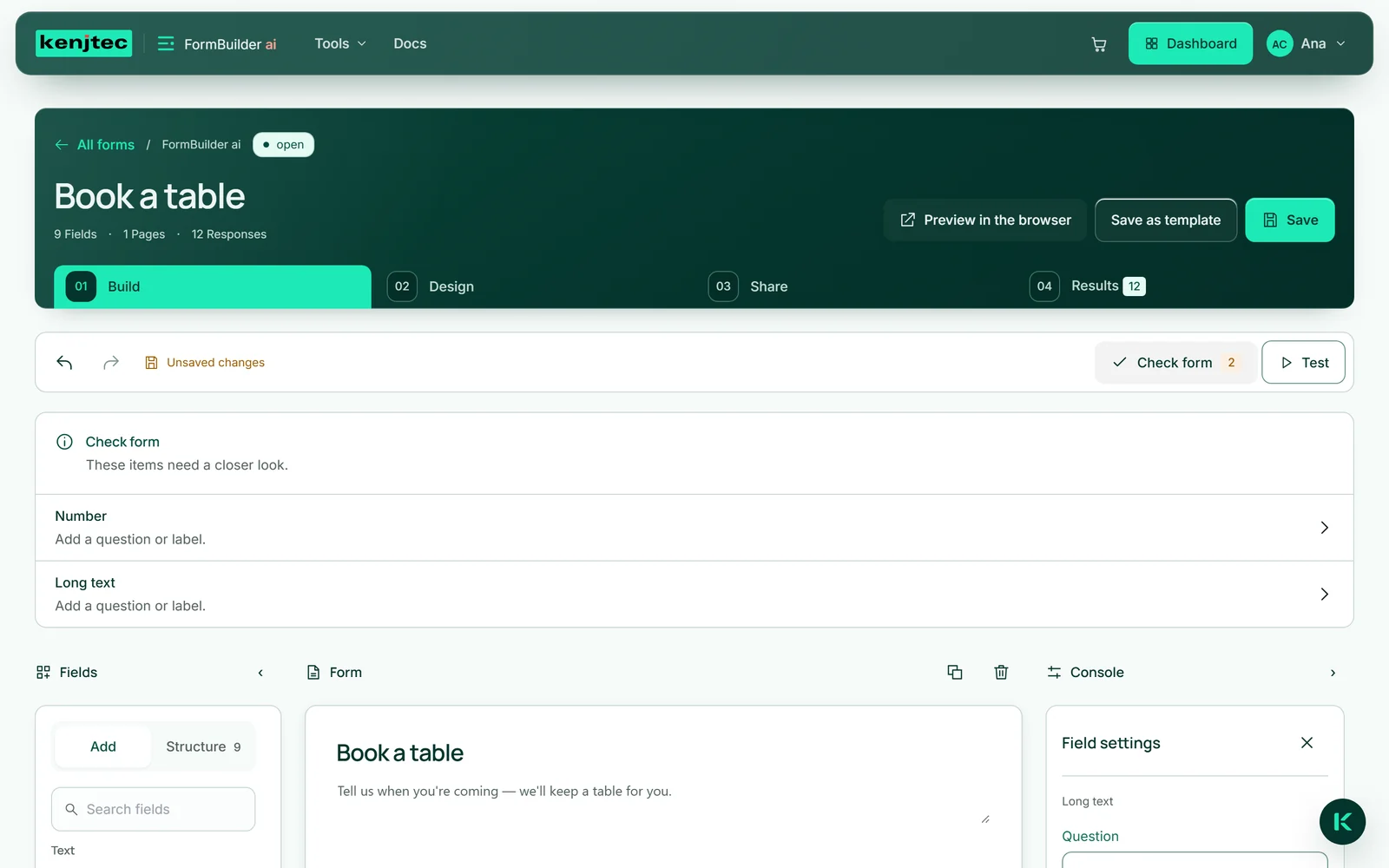
- Click “Check form” and go through the entries.
- Click “Save” or press Ctrl+S.
- If something has slipped in, take it back with “Undo” and save again.