
At a glance
In the “Results” step the number of responses is at the top; it is also shown on the tab. Below it, each question gets a card with the number of answers it received. For “One option”, “Several options” and “Yes / No”, bars show how often each option was chosen; for “Scale” and “Stars” the average as well, for “Number” the average alone.
Free texts are listed below, the latest 50 first. Uploaded files appear with their name — one click downloads them —, drawn signatures as images, typed ones in italics. Only submitted responses are counted; drafts stay out.

Kenji reads the responses
From three responses on, the card “What the responses say” appears at the top. “Have it analysed” gives Kenji the responses of this one form to read. Back come a short summary, the themes with how often they occur and verbatim quotes as evidence, and “Individual items worth a look”.
With a great many responses, Kenji reads the latest 300; below it says how many that was. The studio does not pass on files or signatures, only questions and answers. The summary stays until you leave the page — “Analyse again” reads once more. Check the quotes before you pass them on.
- Open “Results”.
- Click “Have it analysed”.
- Read the themes and evidence and check the quotes.
Every analysis uses AI credit, “Analyse again” included.
Guide prices and items ordered
If your form calculates, “Results” shows the card “Guide prices” with the “Total” and the “Average” of all calculated responses, in the form’s currency. It remains what it is: non-binding, not an offer.
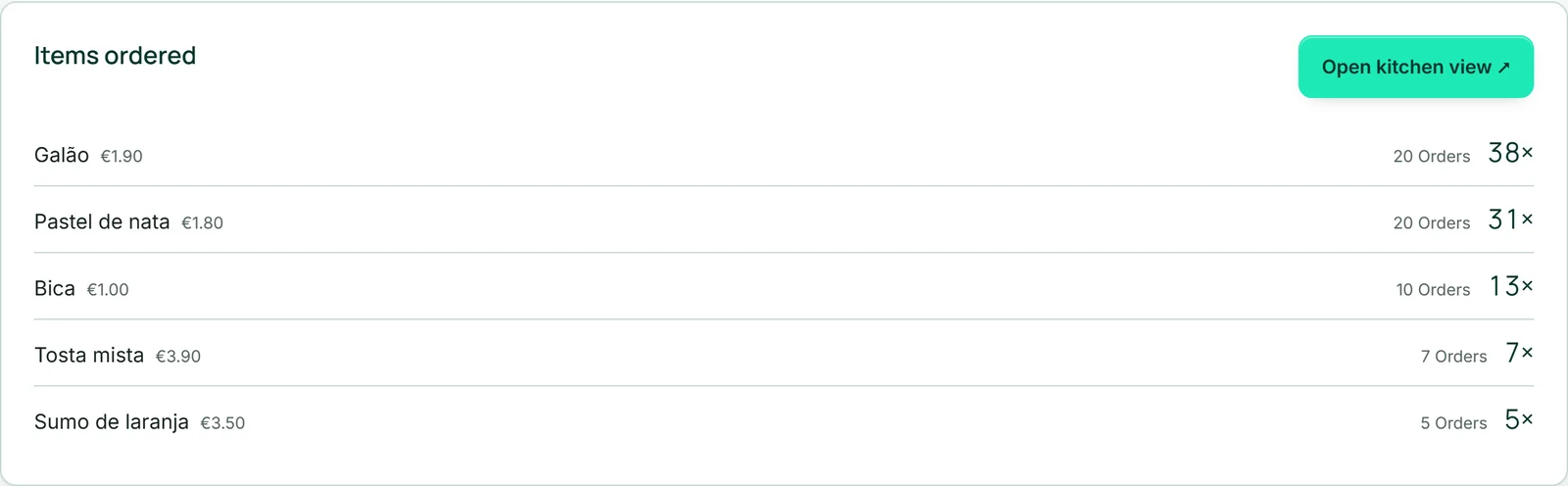
If your form has orderable items, “Items ordered” shows for each dish how often it was ordered in total and in how many orders — the most ordered first. From there you also open the kitchen view.
Every response on its own
Under “Individual responses” each response is listed with date and time, the newest first. If it came through an invitation, the address is shown; if it was changed later, “changed on …”. With “Show drafts” at the top, started but never submitted responses appear too, marked “Draft”.
The “PDF” button downloads the copy of a response — the same sheet that is attached to notification and copy, in the language the response was given in, and with your letterhead if you show the brand’s company details. That gives you a record to hand for a query or for your files.
- Open “Results” and scroll to “Individual responses”.
- Click “PDF” next to the response you want.
Downloading as Excel
“Download as Excel” downloads all submitted responses as an Excel file: one row per response, one column per question, with the time of arrival in front. Multiple choices sit comma-separated in one cell, files with their name, signatures with the typed name or the word “Unterschrift”. If the form calculates, a column with the guide price in its currency’s notation is added.
Responses are copies: for fields that did not yet exist when an old response came in, the cell stays empty. A deleted field no longer appears as a column — if you want to keep its answers, download first. The button is active as soon as there are responses.
- Open “Results”.
- Click “Download as Excel”.
- Open the file in your spreadsheet program.
Mail after every response
With “Notify me by email for every response” — switched on from the start — you get an email for each response at your account’s address, in your account language, with all the answers and the way to the results. If you reply to it, your mail goes to the address from the form’s first email field.
“Send a copy to the person filling it in” sends your guest their answers — in the language in which they saw the form. For that the form needs an email field; if there are several, you choose which one counts. Replies to the copy reach you. The same address receives at most one copy per hour for each form.
“Attach the copy as a PDF” — also on by default — attaches the response as a PDF to both emails. If you show your brand’s company details, they appear as a signature under the emails.

- In the “Build” step, open the “Form” area.
- Set the three switches the way you need them.
- Click “Save”.