
Showing a question only under a condition
Some questions only concern some of your guests. With “Show only under a condition” in the field settings, a field appears only when an earlier answer fits — for example “High chair needed?” only if “Yes” was chosen for “Are you bringing children?”.
You choose the field it depends on, the condition — “equals”, “is not”, “is filled in”, “is empty”, “is greater than” or “is less than” — and the value. For choice fields the options are offered; otherwise you type a “Comparison value”. For “Several options” it is enough if the option is among those ticked. Only question fields further up can serve as the source; that way no condition can run in a circle.
A field with a condition carries the mark “Condition” in the studio. Hidden fields are neither validated nor stored — not even if someone submits the form around the page. You can try it out with “Test”.
- Click the field that should only appear sometimes.
- Switch on “Show only under a condition”.
- Choose field, condition and value.
- Click “Test” and try both answers.
Price calculator and guide price
A form can calculate a guide price while it is being filled in — for catering, a booking, an enquiry. For “One option”, “Several options”, “Yes / No” and “Consent” you switch on “Affects the price” and enter an amount per option; for “Number” an “Amount per unit”, which is multiplied by the number entered. Negative amounts are allowed, for a discount for instance.
As soon as a field calculates, the “Currency of the guide prices” appears in the “Form” area. When filling in, the “Guide price” appears above the submit button with the note “Non-binding — not an offer.” — calculated only from visible fields.
The guide price is stored with the response. If you change a price later, the value your guest saw stays. Under “Results” you’ll find the total and the average, and the Excel export has a column of its own. You write a binding price afterwards in Invoice.
- Click the field, for example “Package” with the options “Small” and “Large”.
- Switch on “Affects the price” and enter an amount per option.
- Choose the currency in the “Form” area and click “Save”.
- Check the guide price with “Preview in the browser”.
Signature
The field “Signature” lets guests sign with a finger or the mouse — for a delivery note, a sign-off or a consent. Anyone who can’t or won’t draw chooses “Type the name instead” and writes their name; that is equally valid and the accessible form. “Once more” clears the field.
Beneath the field it says what this is: a simple electronic signature. It records that something was signed here, not who did it. If you need a qualified signature, a trust service is the right route.
In the results a drawn signature appears as an image and a typed one in italics; the Excel export shows the typed name or “Unterschrift”.
- Add “Signature” from the Advanced group.
- Write in the question what is being signed for, such as “Goods received in full”.
- Switch on “Required” if needed and click “Save”.
Letting people send files
With “File upload” your guests attach a file to their response — without an account. Accepted are PDF, DOC, DOCX, ODT, RTF and TXT, XLS, XLSX, ODS and CSV, PPT and PPTX, images as PNG, JPG, WebP, GIF, HEIC or SVG, and ZIP archives, each up to 10 MB. A form does not accept executable files. One field holds one file; if you need several, add several fields.
The files are stored privately, and only you can download them: under “Results”, with one click on the file name. The Excel export shows the file name.
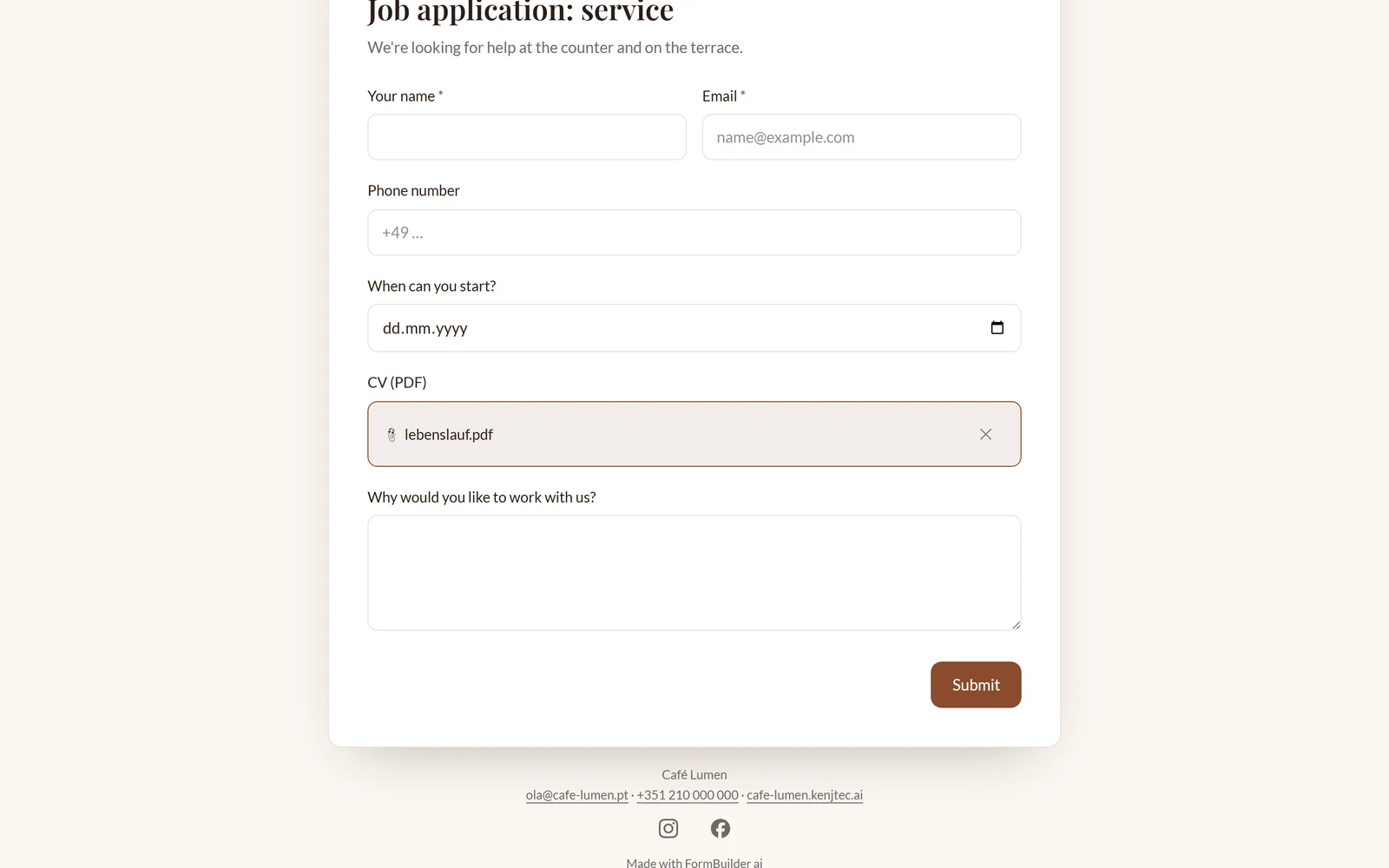
- Add “File upload” from the Advanced group.
- Write in the question what should be uploaded.
- Click “Save” — from now on the form accepts files.
Limiting places
For a course, a tour or an evening with a fixed number of places, switch on “Limit the number of places” in the “Form” area and enter the “Maximum number of responses”. Below it you see how many places are already taken.
When ten or fewer are left, the form page shows something like “3 places left”. Once the number is reached, the form closes by itself and shows its title with “Fully booked — every place is taken.” Even two sign-ups for the last place at the same moment never lead to overbooking. Raise the number and it is open again.
Drafts from guests who chose “Continue later” don’t take up a place.
- In the “Build” step, open the “Form” area on the right.
- Switch on “Limit the number of places”.
- Enter the maximum, such as 24, and click “Save”.