
The overview
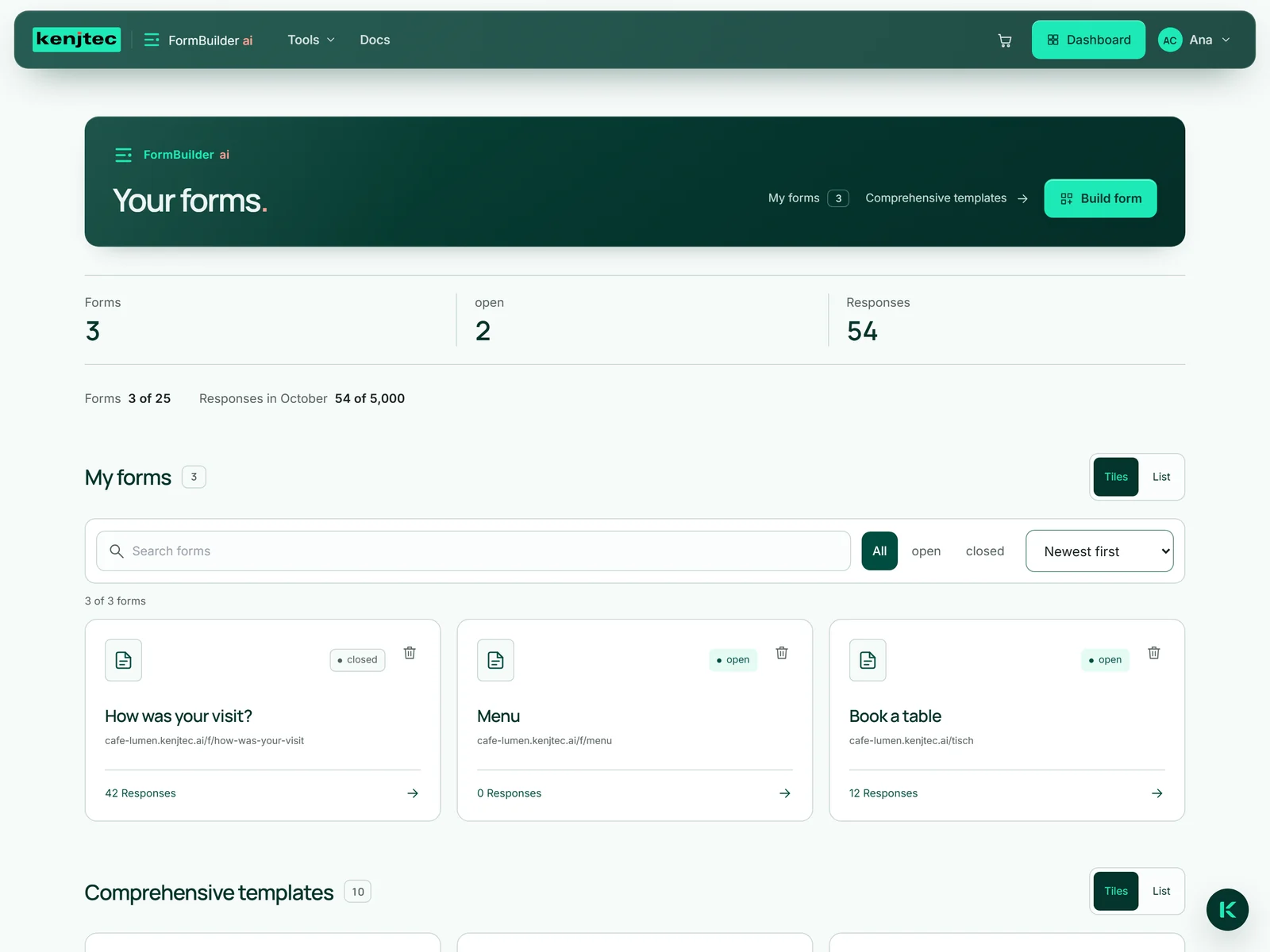
All the forms in your account live in the studio under the heading “Your forms”. At the top is the way in for a new form: a sentence to Kenji, KENJTEC’s AI, a photo, or an empty form. Once you have forms, this area is folded away — the “Build form” button opens and closes it.
Below it are three figures: how many forms you have, how many of them are open, and how many responses have come in altogether. Then comes the list “My forms”. Each entry shows the title, the public address, whether the form is “open” or “closed”, and the number of responses; one click opens it. Above the list you choose between “Tiles” and “List”, and the choice is remembered for your next visit. Further down follow “Your templates” and “Comprehensive templates”.
You can look at the page without signing in. As soon as you create something, the studio asks for your account.
Search, filter and sort forms
Above the list “My forms” sits the search box “Search forms”. It searches titles, descriptions and addresses; if you type several words, all of them must appear. Next to it you filter by “All”, “open” or “closed” and sort by “Newest first”, “Title A–Z” or “Most responses”.
Below the tools you see how many forms are currently shown, for example “2 of 14 forms”. If nothing matches, “No matches” appears with a “Reset filters” button.
- Open the studio and scroll to “My forms”.
- Type a word into the search box, such as “table”.
- Choose “open” or “closed” and a sort order if you need them.
- Click the title to open the form.
A form in four steps
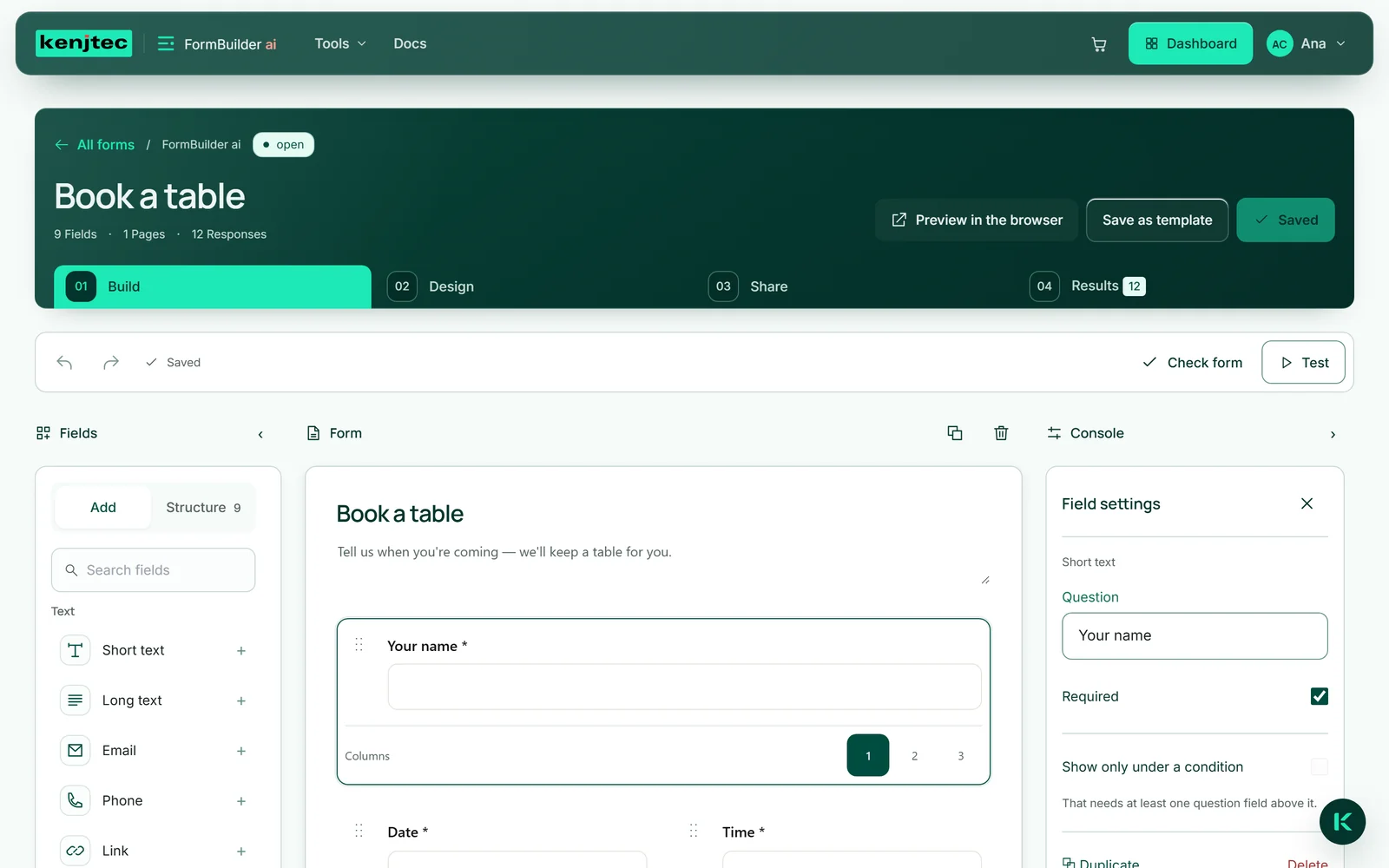
An open form shows its title at the top — you change it right where it stands — and below it four steps: “Build” for fields and settings, “Design” for the look, “Share” for link, QR code and embedding, “Results” for the responses. You switch steps with a click or with the arrow keys. At the top right are “Preview in the browser”, “Save as template” and “Save”; they work from every step.
“Build” and “Design” have three columns: the tools on the left, the form in the middle, the settings on the right — in “Build” this column is called “Console”. On large screens the arrows ‹ and › fold the side columns away so the form gets more room. On narrow screens one column is shown at a time, and the bar along the bottom switches between them.
“All forms” at the top left takes you back to the overview.
Your forms in the dashboard
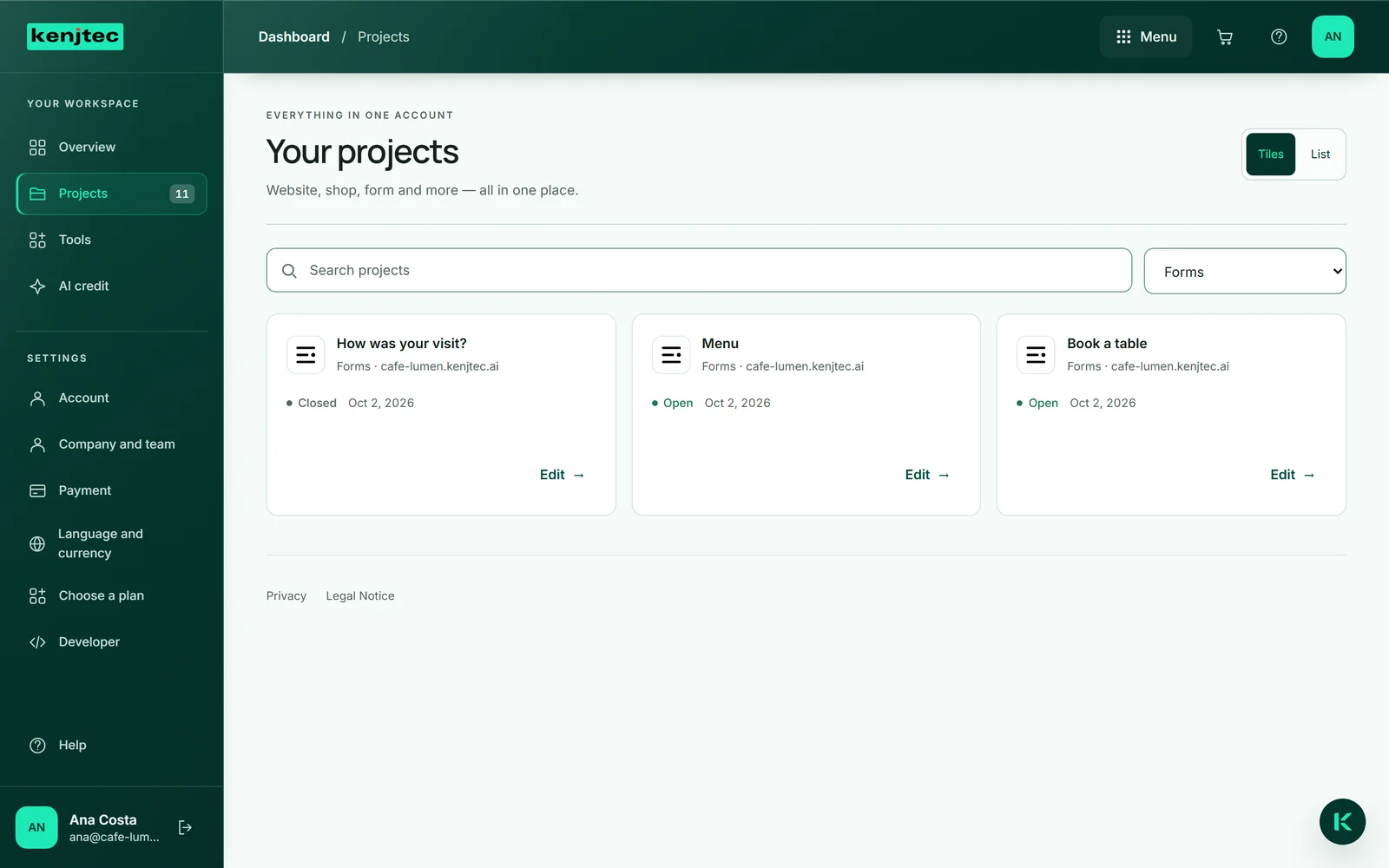
In the dashboard your forms appear alongside everything else your account holds: under “Your projects”, with the filter “Forms”. Each row names the form, “Open” or “Closed”, and the address where it can be reached. “Edit” takes you straight into the studio.
If you have no form yet, the filter is still there and offers “Create form”.
Deleting a form
You can delete in two places: in the overview with the bin icon on the entry, and in an open form with “Delete form” at the very bottom of the “Form” area in the console. Both ask before they act.
The form and all its responses are deleted for good. A form is not a record like an invoice — there is no retention duty, and the data belong to you. If you still need the responses, download them as Excel under “Results” first. Your own templates saved from the form are kept.
The files that came with the responses go with the form. If one of them can’t be removed from storage right now, the form and its responses stay in place, and a note above the list or at the top of the form says why; files already removed by then are gone, though. Try again in a minute.
- Open the form in the “Build” step.
- Scroll down the console on the right to the “Form” area and open it if it is folded.
- Click “Delete form” and confirm the question.
Where the limits are
How many forms you can create depends on your plan; the numbers are on the pricing page. At the top of the studio you see where you stand: “Forms” and the responses for the current month, each shown against the size of your plan. The limit applies to every way a form comes about — a template, your own template, a sentence or a photo. Once you reach it, the studio tells you when you create a form which plan includes more; with a sentence or a photo, no AI credit is used for that. What you already have always stays — if you move to a smaller plan, nothing new is added.
Responses per month have a buffer. When your forms together reach the amount in your plan, you get an email, and they keep accepting responses up to twice that. Only then do people filling them in see a friendly notice instead of the fields until the end of the month — without a number or your plan's name — and you get a second email. On the first of the next month everything opens again by itself.
Some limits are the same for every form: at most 40 fields, at most 20 options per choice field, and at most 30 of your own templates per account. Each form also has a ceiling on responses that lies far above normal use; once it is reached, the form accepts nothing more.
