
Taking the design from BrandStudio
Every new form wears the colours and typeface of your brand from BrandStudio — including one made from a template or by Kenji. In the “Design” step, the card “Brand” at the top holds the switch “Take the design from BrandStudio”. While it is on, the controls below are locked; if you change something in BrandStudio, the form follows by itself.
Switch it off and the form keeps the look it has right now, and you style it yourself from there; the card shows “own design”. Switch it back on and it follows the brand again — your own design is set aside, and “Undo: own design from …” brings it back. If your brand has no colours yet, the plain theme applies until then, with the brand’s typeface.
The card “Brand” only appears if your account has a brand. The switch takes effect at once, without “Save”.
- Open the form in the “Design” step.
- Switch off “Take the design from BrandStudio” if you want to style it yourself.
- Set colours, typeface and fields and click “Save”.
Logo and company details
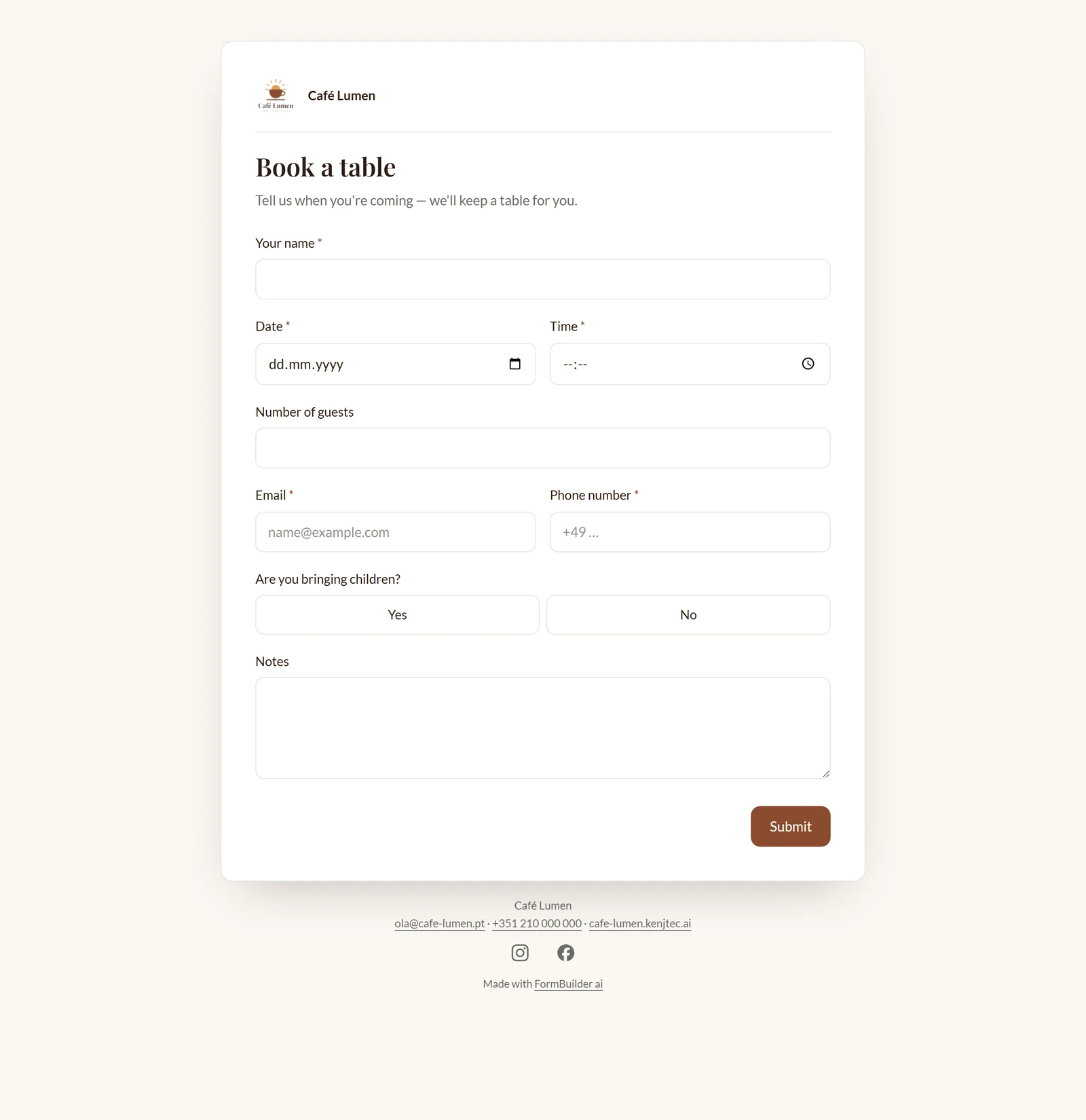
With “Show the brand’s logo and company details” in the same card, your brand’s logo and name appear above the form, and below it the company name, email, phone, website and the icons of the social media channels you have stored in SocialStudio. Notification, copy and PDF copy carry the same details, and the page title in the browser then reads something like “Book a table · Café Lumen”.
The switch is on by default and independent of the design: whoever styles their form themselves still shows their logo. If the brand lacks company details, the form uses the sender from Invoice. It applies after “Save”; “Preview in the browser” shows how it looks.
- Open the “Design” step.
- In the card “Brand”, switch “Show the brand’s logo and company details” on or off.
- Click “Save” and check it with “Preview in the browser”.
Moods and colours
If you style it yourself, one click under “Moods” sets everything at once: Minimal, Midnight, Sage, Sand, Rose, Ocean, Ink or Sky. Then you fine-tune under “Colours” one by one: “Background”, “Card” — the surface the fields stand on —, “Text colour” and “Buttons & accent”.
“Background” and “Card” also have an “Opacity” slider so that a background image can show through. Text and accent stay fully opaque: semi-transparent text would depend on what lies beneath it and could become unreadable without anyone noticing. Pick a text colour and a card colour that are clearly apart — together they carry the readability of your form.
- Switch off the takeover from BrandStudio in the “Design” step.
- Click a mood, such as “Sand”.
- Adjust individual colours and the opacity, then click “Save”.
Typeface
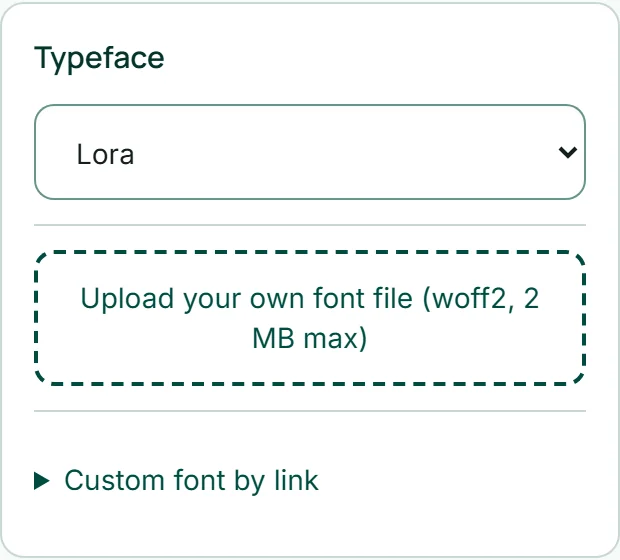
Under “Typeface” you choose one of eleven free typefaces — “System”, Inter, DM Sans, Poppins, Space Grotesk, Karla, Lora, Playfair Display, Fraunces, Manrope or IBM Plex Mono. The preview shows it at once.
You upload a typeface of your own as a file: “Upload your own font file (woff2, 2 MB max)”. The file name becomes its name, and “Remove” takes it away again. If your typeface is hosted by a font service, open “Custom font by link” and enter the link to the CSS file (https) and the font family name — the preview shows whether the two fit together. The typeface is then loaded from wherever the link points. An uploaded file takes precedence over the link and the list.
- Switch off the takeover from BrandStudio in the “Design” step.
- Choose a typeface under “Typeface” — or upload a woff2 file.
- Click “Save”.
Field style and corner radius
Under “Fields” you decide how the input fields look: “Border” with a fine outline, “Surface” with a lightly tinted background, or “Line” with only a baseline — the calmest of the three. The “Corner radius” slider makes card, fields and buttons more angular or more rounded.
Like every control in this step, this only works once you have switched off the takeover from BrandStudio, and it applies after “Save”.

Background image
An image can sit behind the card. Under “Background image” there are three sources: a file of your own (PNG, JPEG or WebP up to 3 MB), the search “Or search free images …”, and “Or choose from my images” from your MediaStudio. Either way, the image is copied into your form and served from your address — no outside service is involved.
The card with the fields stays readable on top; how much of the image shows through is set with the opacity of “Card”. “Remove image” takes it away again. A chosen image is saved immediately. Uploading, searching and your own library are locked while the form follows your brand.
- Switch off the takeover from BrandStudio in the “Design” step.
- Under “Background image”, type a word such as “café” and click “Search”.
- Click an image — it sits behind the form straight away.
Preview and test
In the middle of “Design” your form appears the way your guests see it — with the same colours, typefaces and rows as on the form page. “Desktop”, “Tablet” and “Phone” change the width; at phone width, rows move underneath each other, just as they do for the guest. On the left is the structure: clicking a field takes you to “Build” with that field already selected.
“Test” makes the preview fillable: conditions take effect, and nothing is saved. “Preview” switches back. “Preview in the browser” saves first and then opens the real form page in a new tab — there you also see logo and company details, the guide price and the order total. This works even while the form is still closed; a band at the top says “Preview”, and nothing is submitted from there.
In the “Build” step the form is deliberately shown in a neutral style; this step is where you see its look.
- Open the “Design” step and choose “Phone”.
- Click “Test” and fill the form in as a trial.
- Click “Preview in the browser” to see the real page.