
Opening the chat window
At the bottom right of the kenjtec.com pages, in the dashboard and in every tool — including the website editor and the shop — there is a round button with Kenji’s symbol, a K: “Talk to Kenji”. It opens the chat window — there is only this one, in the editors too. With a plan it opens at full height along the right edge, and smaller in an editor so the tools stay clear. “Enlarge window” and “Shrink window” at the top of the window let you switch between the two yourself, and your browser remembers your choice. Kenji greets you and offers three questions to tap.
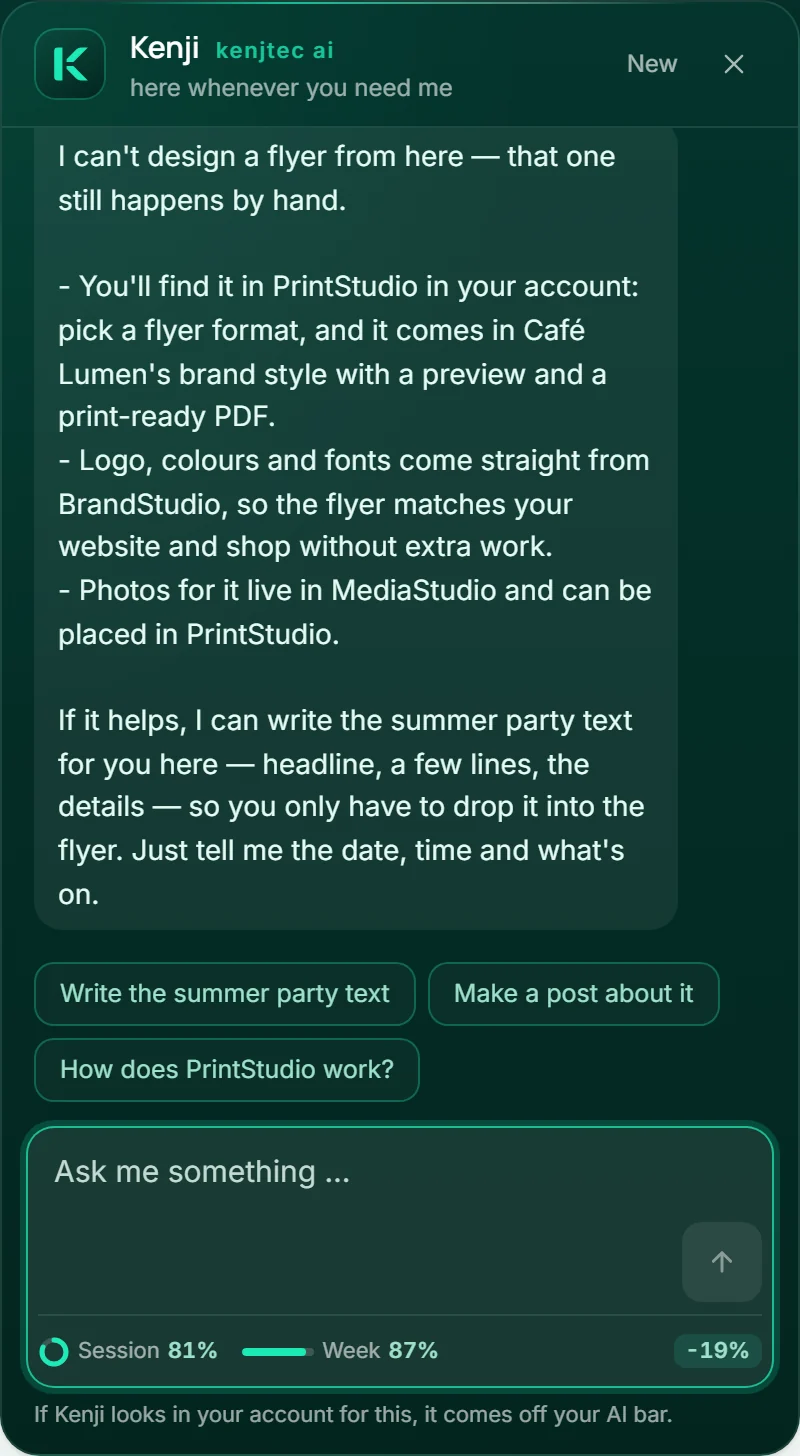
You type into the “Ask me something …” field and send with “Send” or the Enter key. Under each answer there are up to three follow-up questions you can tap. “New” starts a fresh conversation, and the cross closes the window.
- Click the round button with the K at the bottom right.
- Type your question into “Ask me something …” and press Enter.
- Tap one of the follow-up questions or keep writing.
What you can ask Kenji
Kenji knows KENJTEC: the tools, the plans, the AI bar, your address and where each setting lives. When you are signed in, he knows your name and email address and answers personally.
He answers in your language, briefly and in full sentences. Whatever he isn’t sure about, he says so — and tells you where to look or ask.
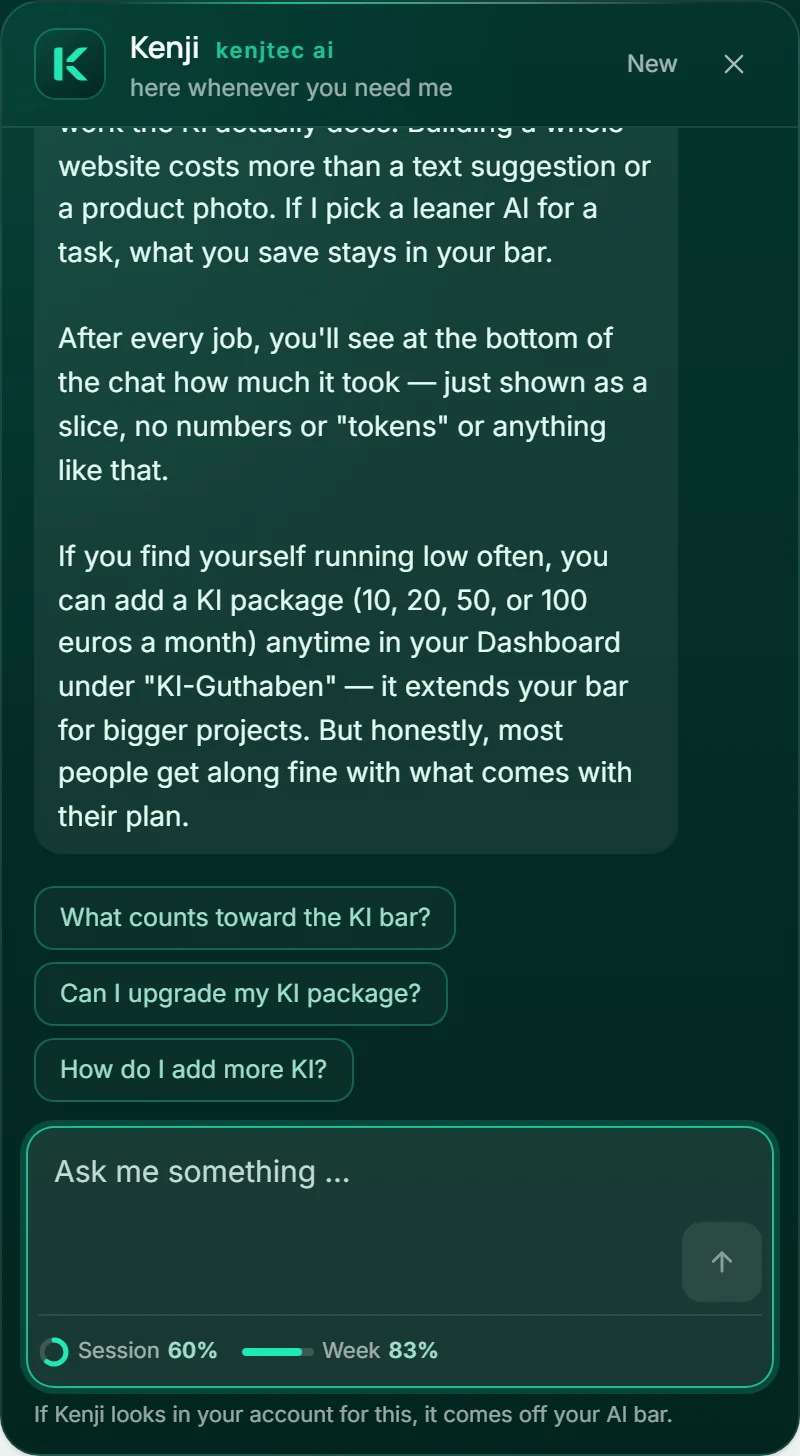
With a plan: Kenji looks in your account
If you have a plan, Kenji also answers questions that need a look into your account — such as “Which invoices are open?”, “Who owes me the most?” or “Where does my domain point?”. He looks himself: in Invoice at your invoices and quotes, in DomainStudio at your domains and their DNS records. While he works, the window says what he is doing, for example “Kenji is searching your invoices …”.
General questions about KENJTEC he answers right away, as always. If he has to look into your account, it comes off your AI bar — as much as the work really takes: a quick look takes little, a long search more. Below the input field you then see how much it was.
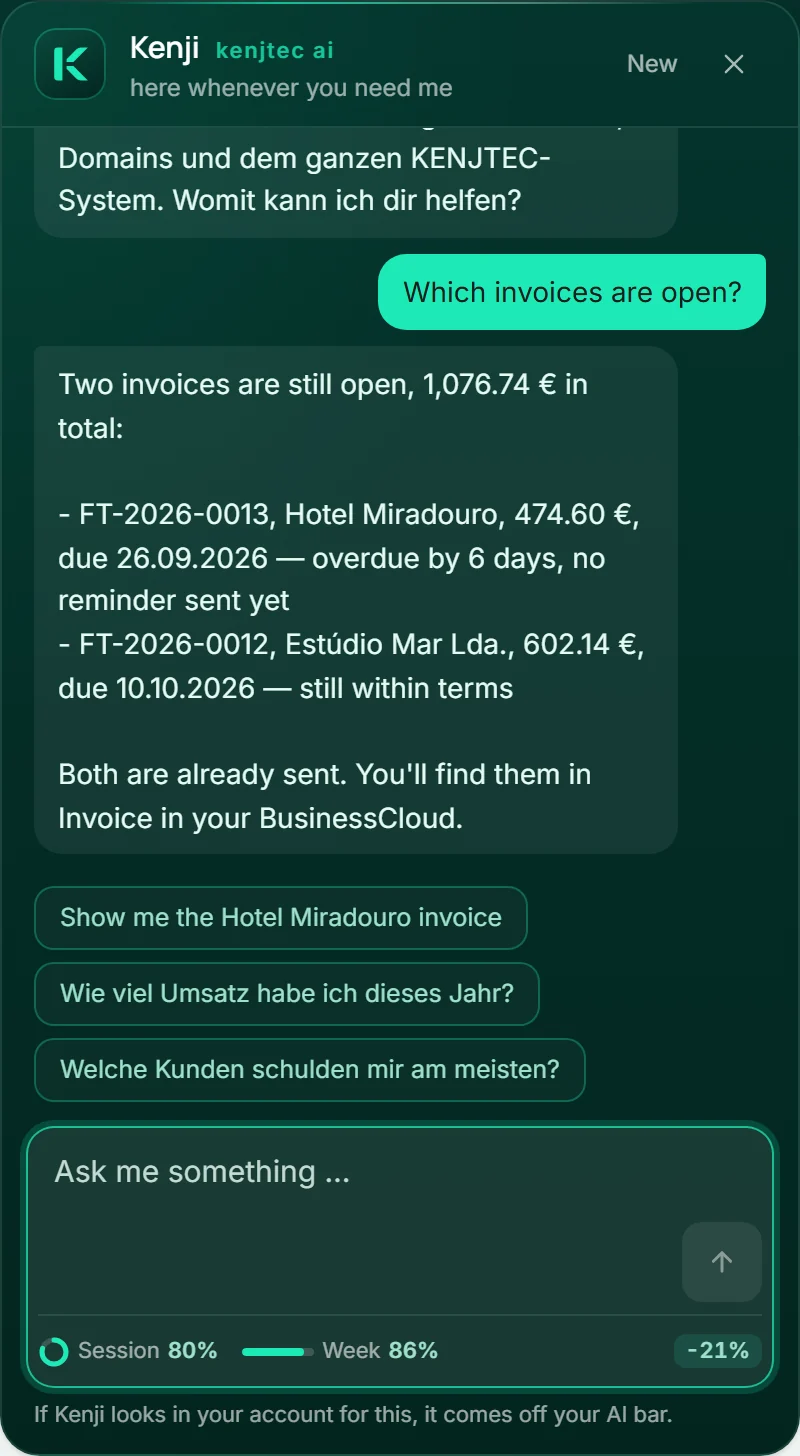
Below the field: your AI bar after every request
At the bottom of every field where you write to Kenji — in the chat window and at every AI spot in the tools — you see what is still left in your AI bar: the ring shows the session, which fills up again five hours after it started; the bar next to it shows the week.
After every request, the right side shows what it used, for example “−5%”. If the request leads to a plan you run, that counts too, until you tell Kenji something new. If a request took nothing from the bar — for example an answer for which Kenji didn’t need to look into your account — nothing is shown there.
A click on the line shows both shares in words, when they will be full again, and the way to the AI packs. When a bar runs low, it changes colour and the share stays next to it as a number. The line appears as soon as you have a plan.
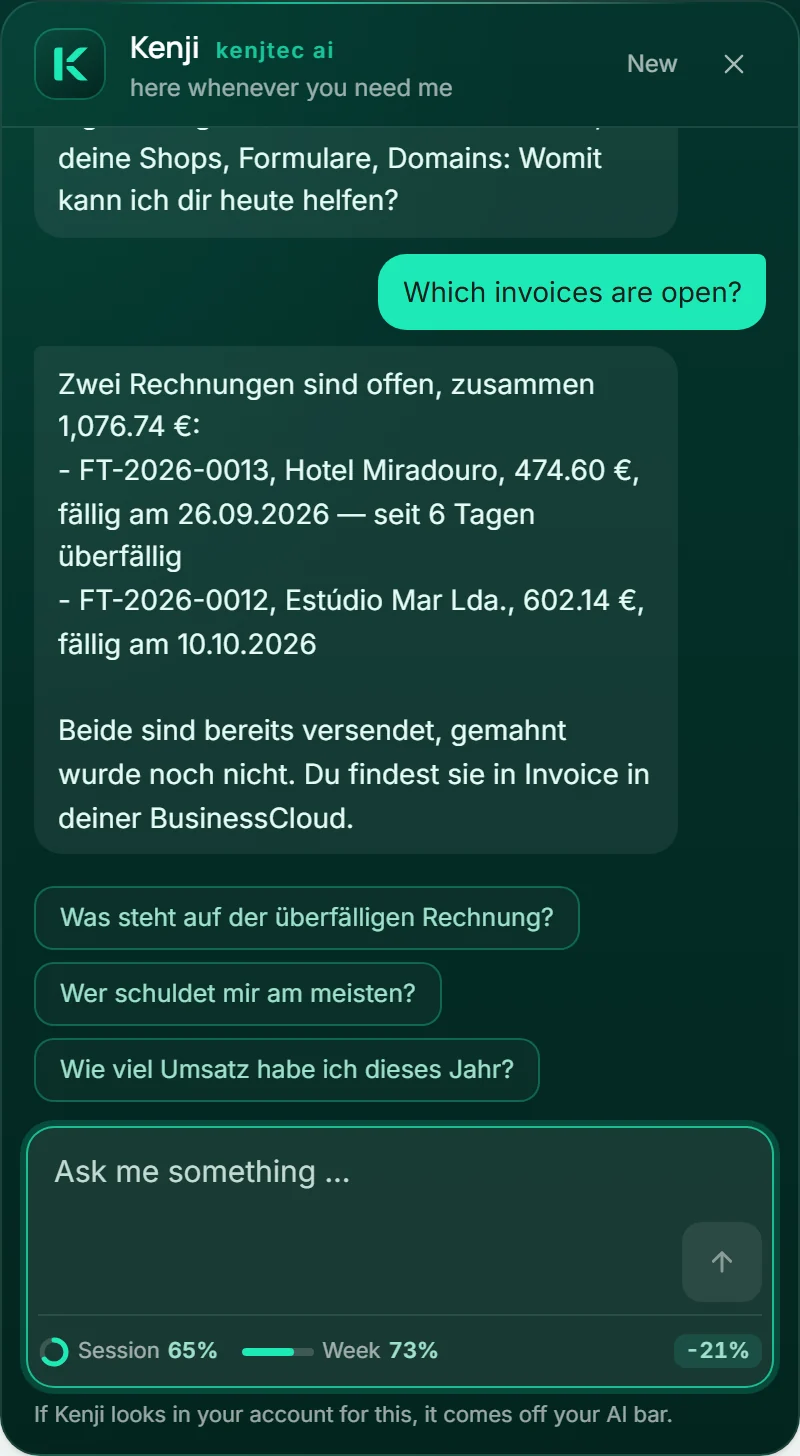
With a plan: Kenji changes what you confirm
You can also tell Kenji what should change: switch, add or delete a DNS record, set the path of a form or shop, decide what shows at the front of a domain, create a subdomain for a website, a form or a shop — or change something on your website. Kenji first reads what applies today and then notes the change.
For WordPress and running your shop, Kenji hands the job to the specialist that already exists for it: after you press “Run”, the WordPress operator plans or your shop’s Kenji assistant drafts a suggestion, and that plan or suggestion appears right below the finished step — you confirm it there, with every step in view. You also find the suggestion for your shop in the shop under “Kenji assistant”. A new form is created by the FormBuilder from Kenji’s description; if publishing is part of your plan and your brand is ready, it can be reached at its address right away, and below the finished step you find the way there.
Kenji writes invoices and quotes in three steps, each with its own yes. First he creates a draft in Invoice: in the plan you see the items, net, tax and gross, and whether a new customer will be created; what you don’t mention he sets like the Invoice form does — your country’s standard rate, today as the service date, your payment terms. Issuing (the document gets its number and can’t be changed afterwards) and sending (recipient, subject and text are in the plan, and exactly those go out) each get a plan of their own, never together with anything else. If you have BusinessCloud, everything lands where Invoice puts it too: a new customer in your address book, the issued PDF in your files under Accounting, Invoices and the year, the deadline in your calendar. If any of it doesn’t get there, the document is still valid — the step tells you what’s missing and why.
Kenji writes a post or reel as a draft in SocialStudio — you see the whole text in the plan, and for a reel one line per card. You choose the images in the studio and render the reel there; the lines are already in the field. Nothing gets posted.
Below his answer you see the plan: every step with before and after. Nothing happens until you press “Run”. Major steps — switching or deleting a DNS record, deciding what shows at the front of a domain, issuing or sending an invoice — are marked, and you confirm them with a second click on “Yes, run it”. “Discard” sets the plan aside without changing anything. If you tell Kenji something new, his new plan replaces the old one.
A change to your website lands in the draft; it is only published once you release it in the editor. It comes off your AI bar like a change in the editor — the step says so. If something has changed since the plan, such as a DNS record, Kenji does not run that step and tells you. If a plan stops, the steps before it stay done, and the card shows which ones they were. A plan you don’t confirm within an hour expires.
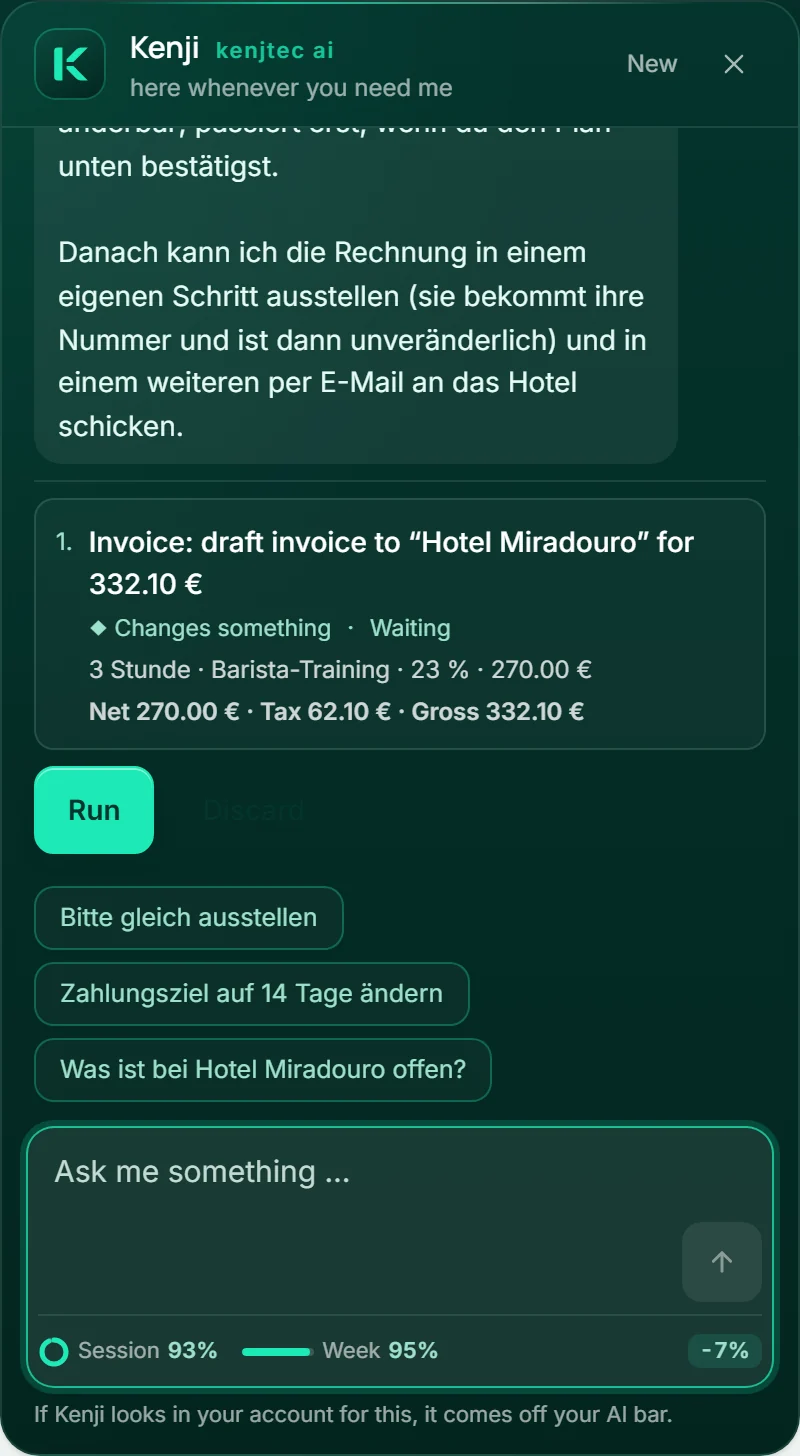
- Tell Kenji what should change, for example “Point my domain to 203.0.113.99”.
- Read the plan below his answer: what applies before and what after.
- Press “Run” — for a major step, then “Yes, run it”.
With a plan: Kenji in the editor
If you have a project open in WebSiteBuilder, FormBuilder or WordPressBuilder, your shop in ShopBuilder or the address plan in DomainStudio, Kenji can see it. The top of the window shows the tool, the name of the project and where you are, and he greets you with “I can see “Café Lumen” in WebSiteBuilder. Tell me what should change — or ask me anything about it.” The questions to tap suit the tool, such as “What can I improve on this page?”.
If you say what should change on a website, a form or a WordPress draft, Kenji changes it straight away, with no plan to confirm: he says in one sentence what he is doing, the editor makes the change, and below it you read what came of it. Nothing goes live by itself: in WebSiteBuilder the change lands in the draft, in FormBuilder you save it yourself, and in WordPressBuilder Kenji changes the draft. In WebSiteBuilder and FormBuilder, “Undo” takes a change back. On a running WordPress site and in your shop, by contrast, the specialist plans — the WordPress operator or the shop’s Kenji assistant — and the plan appears below Kenji’s answer; nothing changes until “Run”. In the address plan, Kenji lays out a plan of his own.
For everything outside the open project — domains, invoices, another project, a new form — the plan with “Run” applies, as above. A change in the editor comes off your AI bar; the sentence below the field says so too. How it looks in each tool is described under WebSiteBuilder, FormBuilder, WordPressBuilder with its Control Panel, ShopBuilder and the address plan.
What Kenji doesn’t do in the chat
Without your confirmation Kenji changes nothing in your account: he only runs what stands as a plan below his answer and what you have confirmed. The one exception is the project you have open in the editor — there he changes things when you ask, and none of it goes live by itself. He doesn’t book anything, buy a domain, publish a website or post anything.
Where he has no hand yet — designing a flyer or producing a finished video, for example — he tells you where to do it. Without a plan he answers questions about KENJTEC but doesn’t look into your account.
He doesn’t answer legal or tax questions.
What happens to your messages
For the greeting, Kenji reads what your browser tells every website anyway — language, time zone, screen size, light or dark mode — and says where he got it from. None of it is stored.
Your messages are processed only to answer them. Without a plan, the conversation lives only in this browser tab — close the tab and it is gone, and KENJTEC stores none of it. With a plan, the conversation follows you from tool to tool: for that, each question, Kenji’s intermediate steps, his noted changes and his answer stay with us, at most one hour after the answer; then all that remains is that he worked and with which tools — without content. “New” starts the conversation over in every tool.
Questions to Kenji in the chat window use no AI credit — unless he looks in your account for them or changes something. If you ask a great many questions in a short time, he asks for a short break.