How the dashboard is laid out
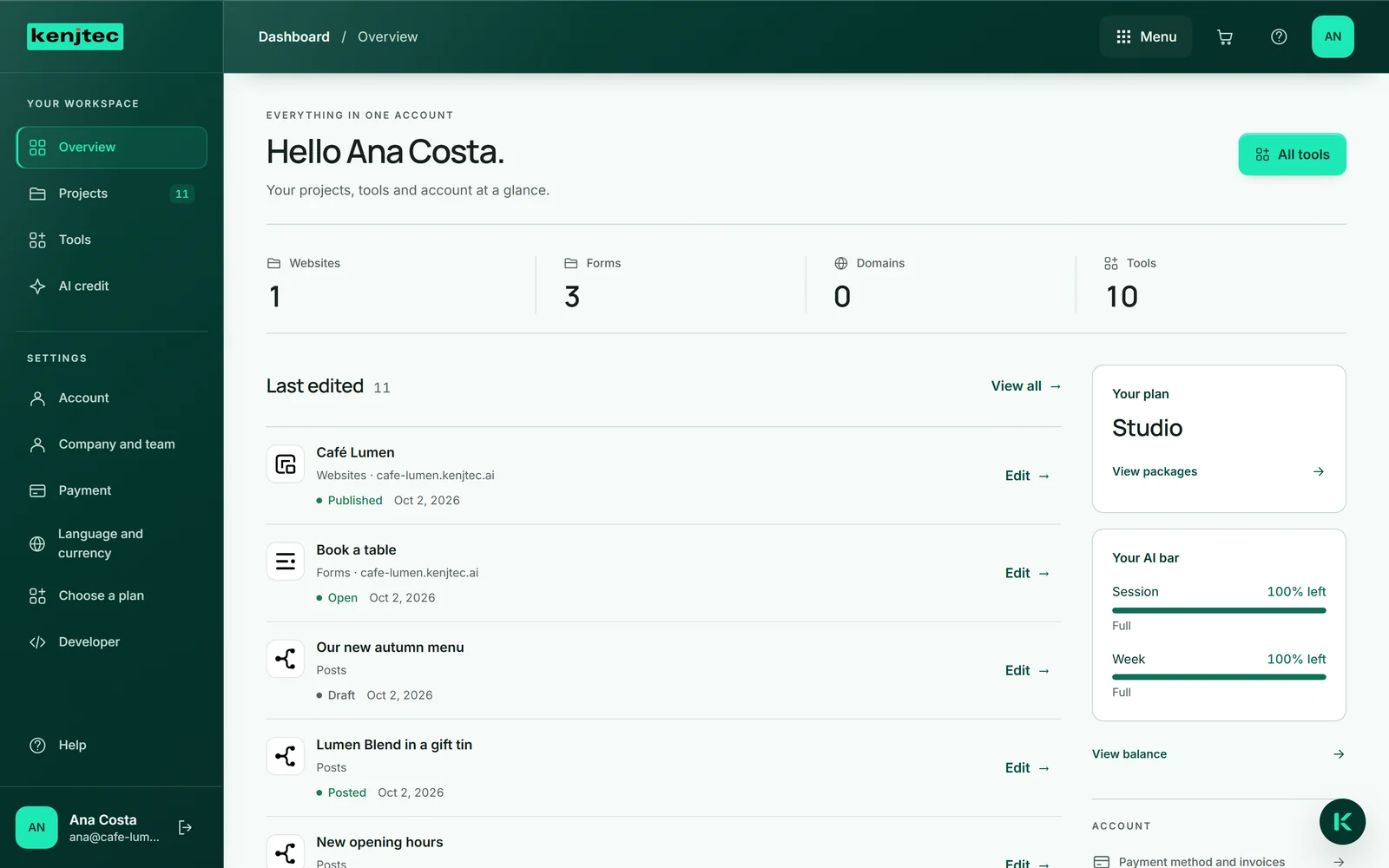
After signing in you land in the dashboard. On the left is the “Your workspace” sidebar with “Overview”, “Projects”, “Tools” and “AI credit”, and below it the “Settings”: “Account”, “Payment”, “Language and currency” and “Choose a plan”. At the very bottom are your name and email address, with the “Sign out” icon next to them.
At the top right, “Menu” takes you to all tools, the question mark to “Help” and the circle with your initials to your account.
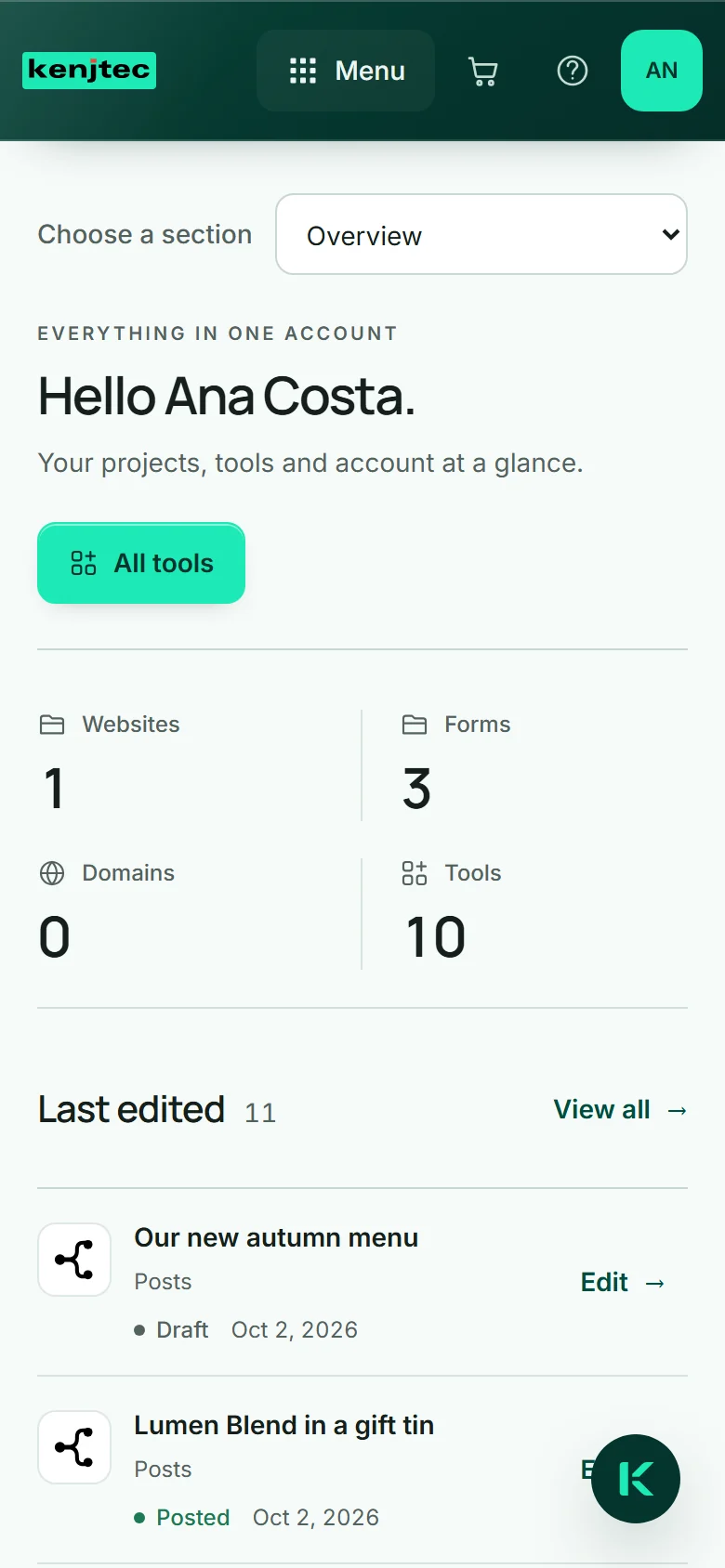
On a phone the sidebar is hidden: you pick the section in the “Choose a section” field at the top, and “Sign out” is at the very bottom of the page.
The overview
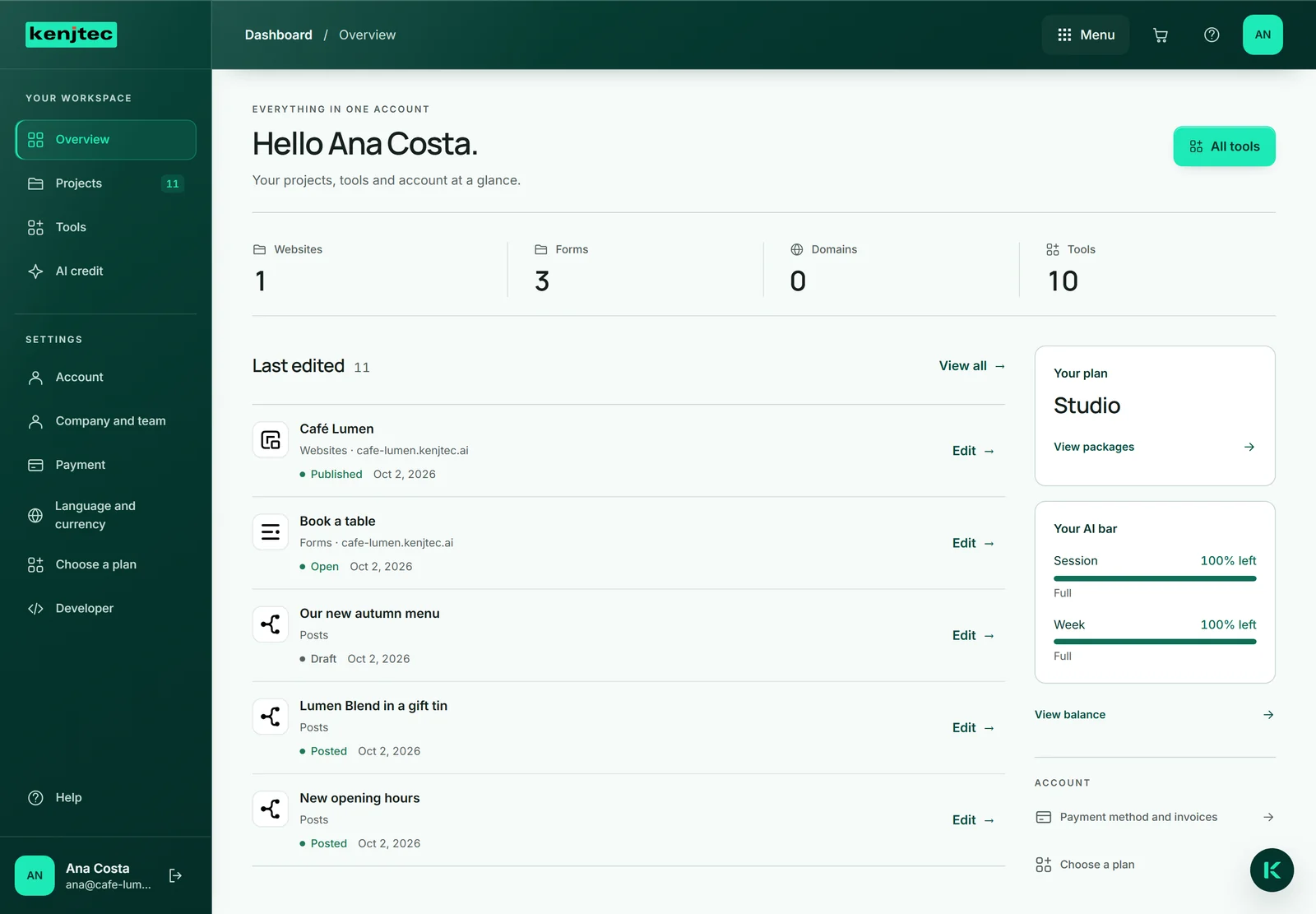
“Overview” greets you by name and counts what you have: websites, forms, domains and the tools you can open.
Below that is “Last edited” with your five most recent projects, each with its status, last change and the button that takes you straight in; “View all” opens the full list. Next to it on the right is your AI bar with “View AI credit”, and below it the links “Payment method and invoices” and “Choose a plan”.
Further down come your tools as shortcuts and the “Your address” block with everything that lives under your address.
Finding all your projects
“Projects” shows everything that belongs to your account: websites, shops, WordPress sites, forms, domains, media, posts and BusinessCloud. Each row names the type, the address, the status — such as “Published” or “Draft” — and the last change. The button on the right opens the project in its tool.
“Search projects” finds a project by name, address, type or status; the field next to it filters by type. At the top right you switch between “Tiles” and “List”, and your browser remembers the choice.
If you have nothing of a type yet, the empty filter offers the first step — for example “Create website”.
- Click “Projects” on the left.
- Type a name into “Search projects” or pick a type in the field next to it.
- Click the button on the right of the row, such as “Edit” or “Open”.
Opening and adding tools
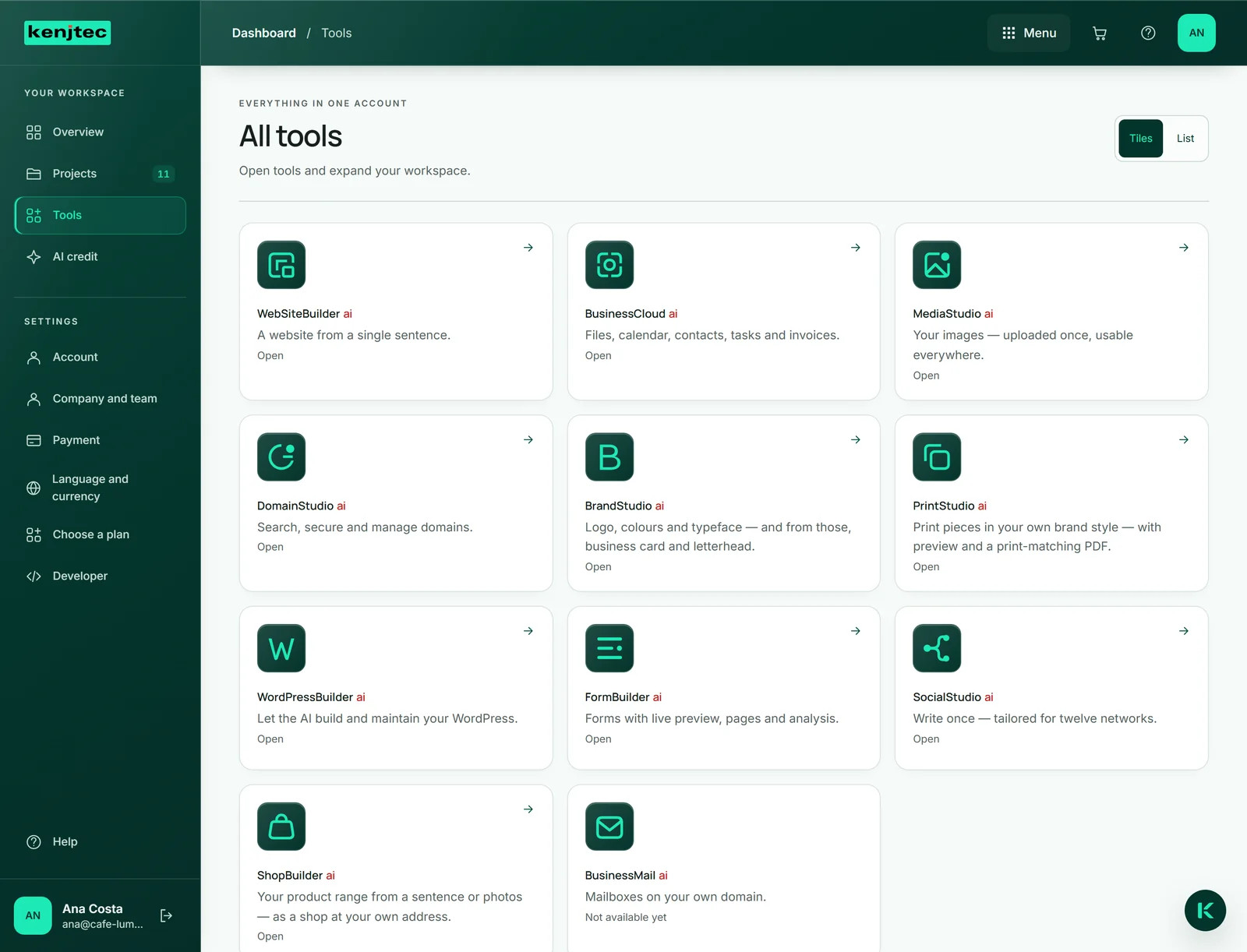
“Tools” shows every KENJTEC tool with a sentence on what it does, as “Tiles” or a “List”. Under each name it says what a click will do: “Open” if the tool is in your plan, “Add on” if it isn’t, and “Not available yet” if it can’t be opened for your account yet.
Adding a tool means booking a plan that includes it — here’s how.