The workspace
You open DomainStudio ai from the menu or directly at Open DomainStudio. On the left there are five areas: “Overview”, “Your domains”, “Addresses & sitemap”, “Search for a new domain” and “Bring your domain”; on a phone you choose them in the “Workspace” field. Each area has its own address in the browser — a bookmark takes you straight back to it, and the back button works as usual.
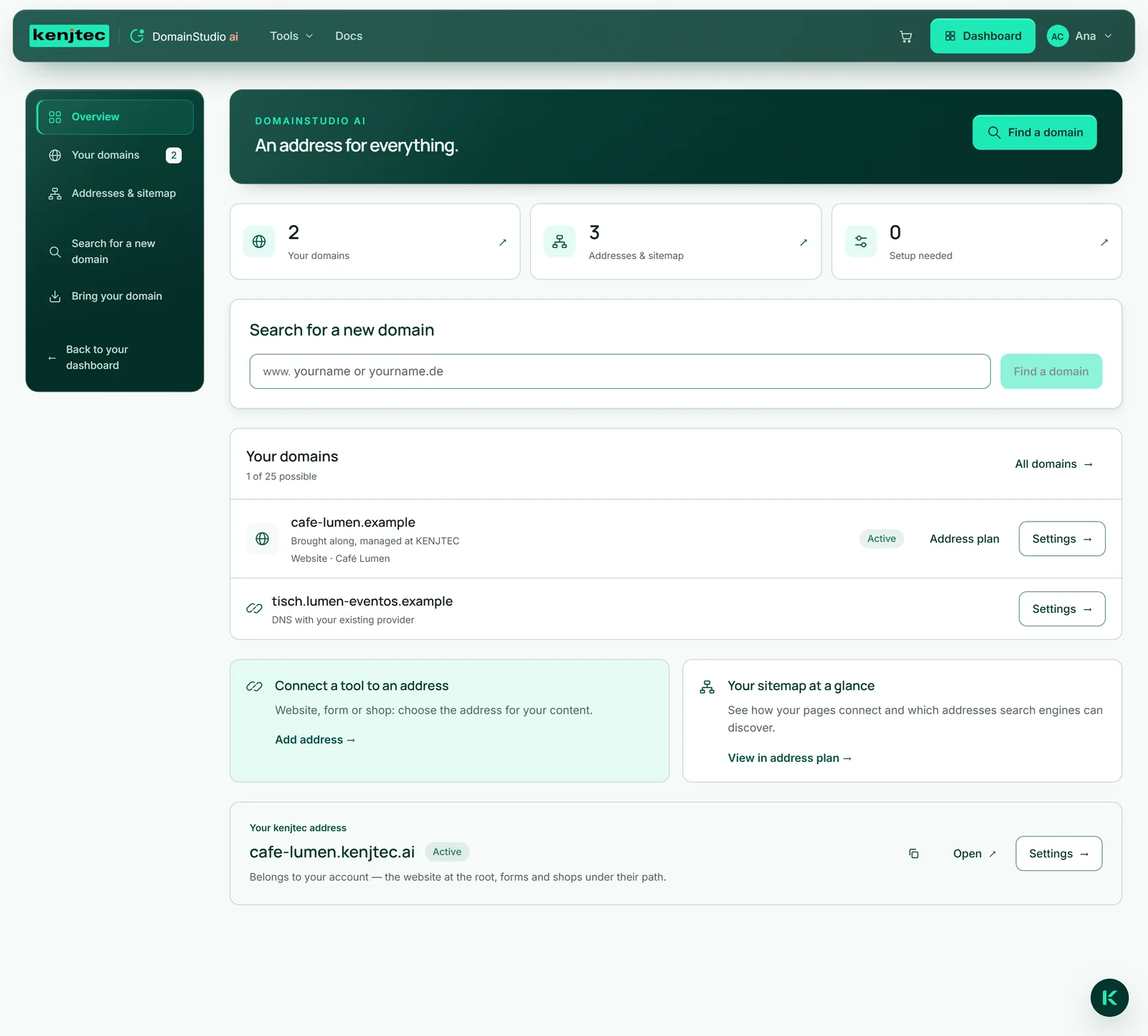
The “Overview” shows three figures at the top: “Your domains”, “Addresses & sitemap” and “Setup needed” — domains that are not active yet. Each figure takes you to its area. Below them are the search for a new domain, your first domains, two ways into the address plan (“Connect a tool to an address” and “Your sitemap at a glance”) and the card of your kenjtec.ai address.
Your domains
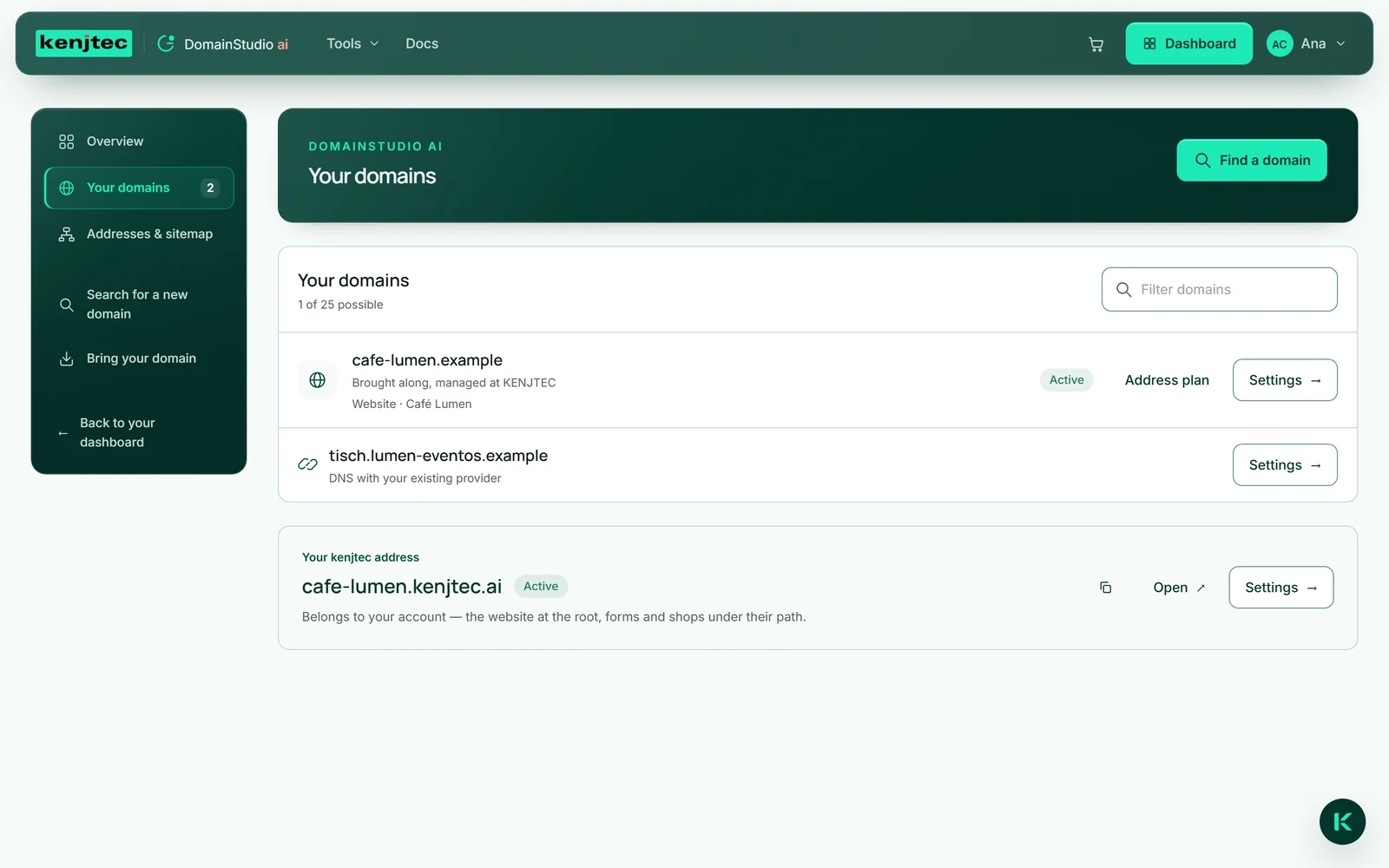
Under “Your domains” every domain of your account has a row. A domain you manage here shows its status — “Active”, “Switch nameservers” or “Error” —, its origin (“Registered through KENJTEC” or “Brought along, managed at KENJTEC”) and what sits at its front, for example “Website · Café Lumen” or “Nothing at the front yet”. “Address plan” and “Settings” take you further.
A domain you have only connected carries the line “DNS with your existing provider”; its “Settings” lead into the address plan. Above the list you see how many domains you can manage (“… of … possible”), and “Filter domains” finds a particular one quickly.
Earlier reservations appear below under “Reserved”. They have not been bought: to buy one, search for it under “Search for a new domain” and click “Buy now”. If a domain you have already paid for shows up there, see After the purchase.
Buy, bring or connect
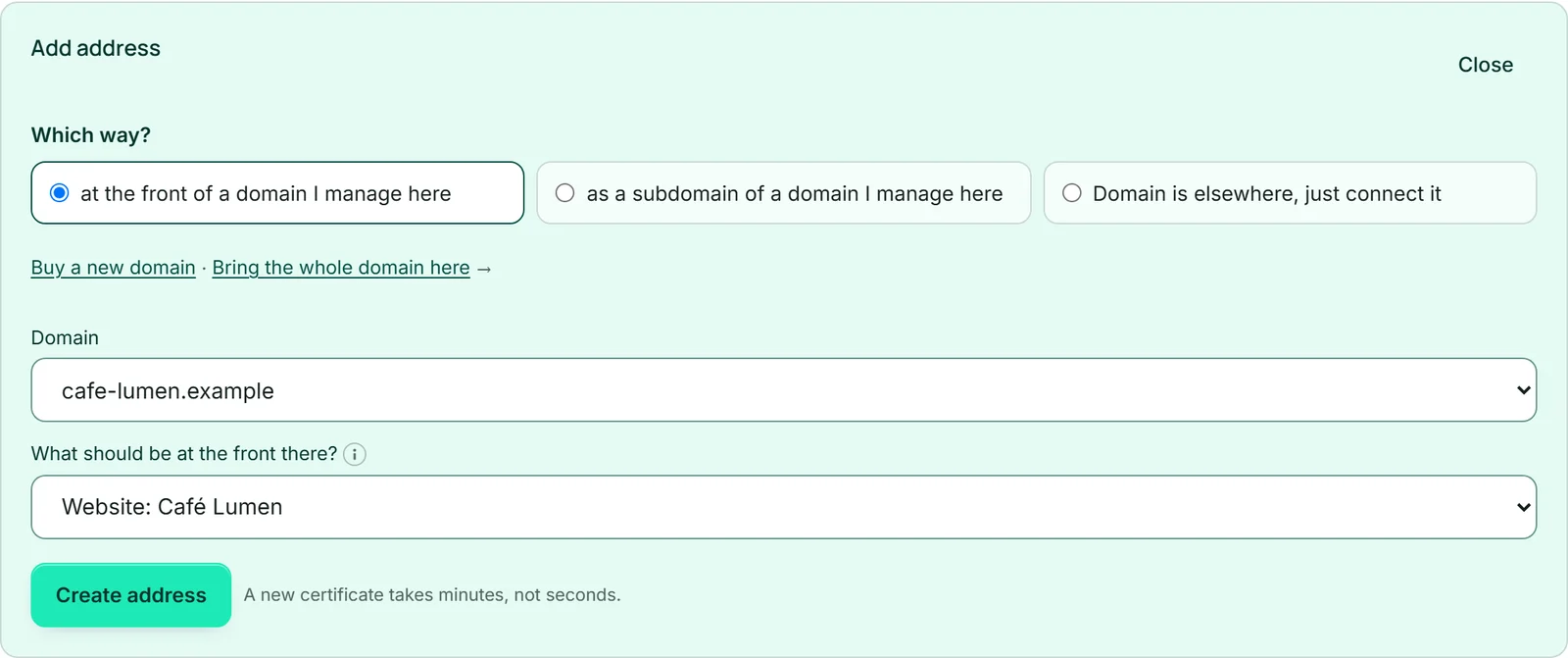
A domain comes to KENJTEC in one of three ways, and they differ in who manages what.
Buy: you search for a free name and buy it at checkout. The domain is registered in your name and is under your management straight away (Searching for and buying a domain).
Bring: the domain stays with your provider and is paid for and renewed there. You enter two of our nameservers there and then set up website, subdomains, email, redirect and DNS records here (Bringing a domain).
Connect: the domain and its DNS stay entirely with your provider. You only add one record there so that a name such as bookings.deine-firma.com shows one of your projects; everything else you keep setting up there (Connecting a domain from elsewhere).
Your kenjtec.ai address
Every account has its own address from day one — for Café Lumen, cafe-lumen.kenjtec.ai. It is created with the account from your name, and everything you build lives beneath it: at the front the website you published first, every form and every shop under its path, further websites under /site/<name>. There is no setting for this — that keeps every shared link stable. As long as no website is published, the address shows a simple business card with links to your active shops and to discoverable forms that have their own name.
You change the name via the “Your kenjtec address” card — three to 32 characters: lowercase letters, digits, hyphens inside. That works as long as nothing under the address is reachable. Once a published website, a form, an active shop, a domain in front of one of your projects or a WordPress installation is added, it says “Fixed”. An address of the form konto- plus a number always stays changeable. Names that look like KENJTEC or like well-known brands are not given out. The dashboard only shows the address.

- In the DomainStudio ai overview, click “Settings” on the “Your kenjtec address” card.
- In the “Name” section, enter the name you want under “New name”.
- Click “Rename”. If the name is taken or blocked, the reason is shown.
The settings of a domain
Clicking a managed domain opens its settings. At the top you see name, status and origin, the expiry date (“expires on …”) if the public registry publishes it, and “Check now” — plus “Open domain” once the domain is active and shows a project or redirects. If it is still waiting for the nameservers, “One more step · Switch nameservers” with “Step by step” leads to the instructions.
The tabs are grouped: “Overview”; under “Connections” “Website & tools”, “Subdomains”, “Redirect” and “Email”; under “Technical settings” “DNS records” and “Nameservers”; plus “Brand” — which opens BrandStudio ai for logo, colours, type and company details (BrandStudio ai). On a phone you pick the tabs from a list.
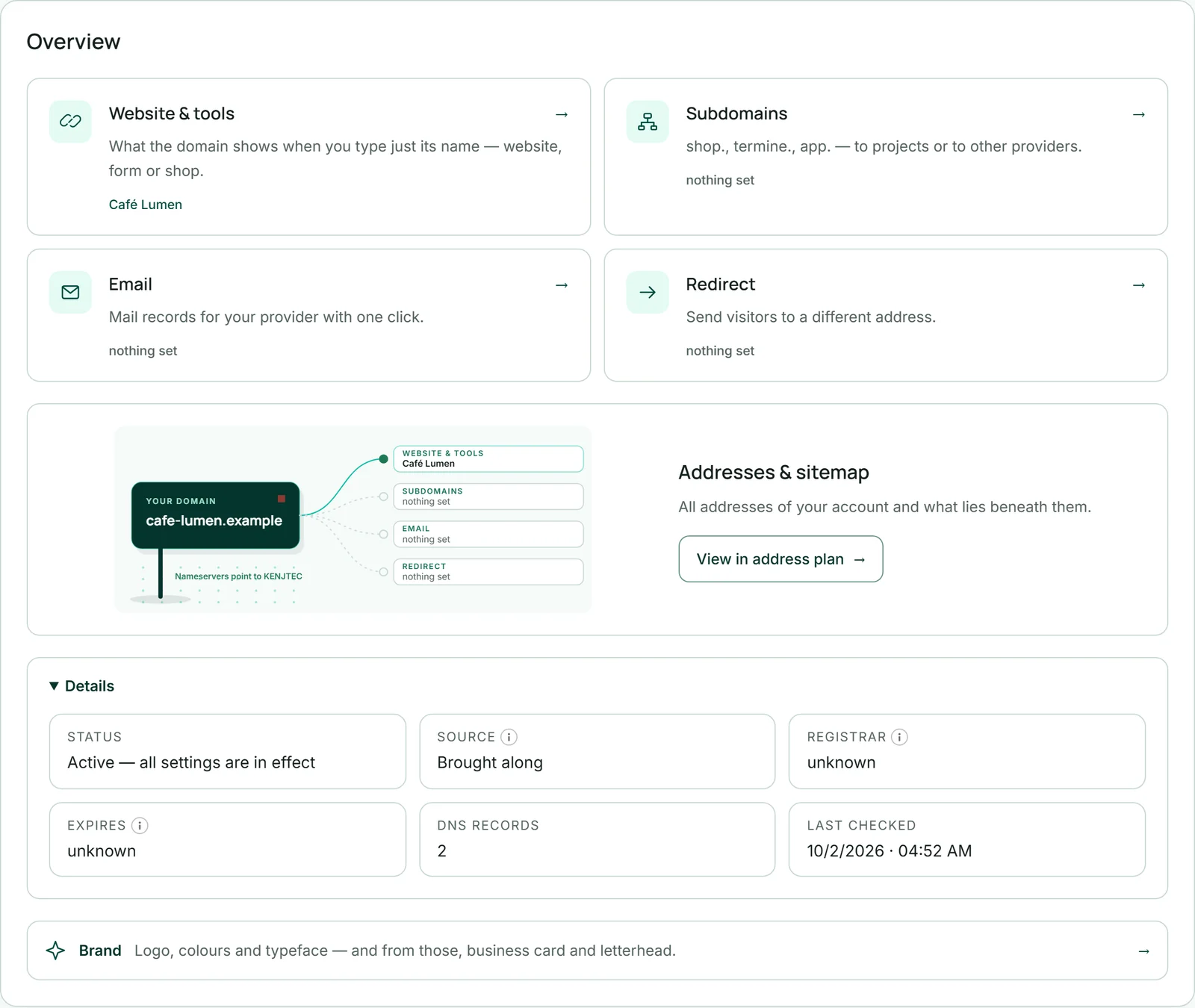
The “Overview” shows in four cards what is set up, and next to them a diagram of where the domain currently points — built from the measured records, not from a template; a screen reader gets the same details as a list. “Details” lists status, origin, registrar, expiry date, the number of DNS records and when they were last checked. Some endings such as .de publish no expiry date; then it says “unknown”. If a domain expires in less than 30 days, the date is highlighted in the overview.