
The preview is the PDF
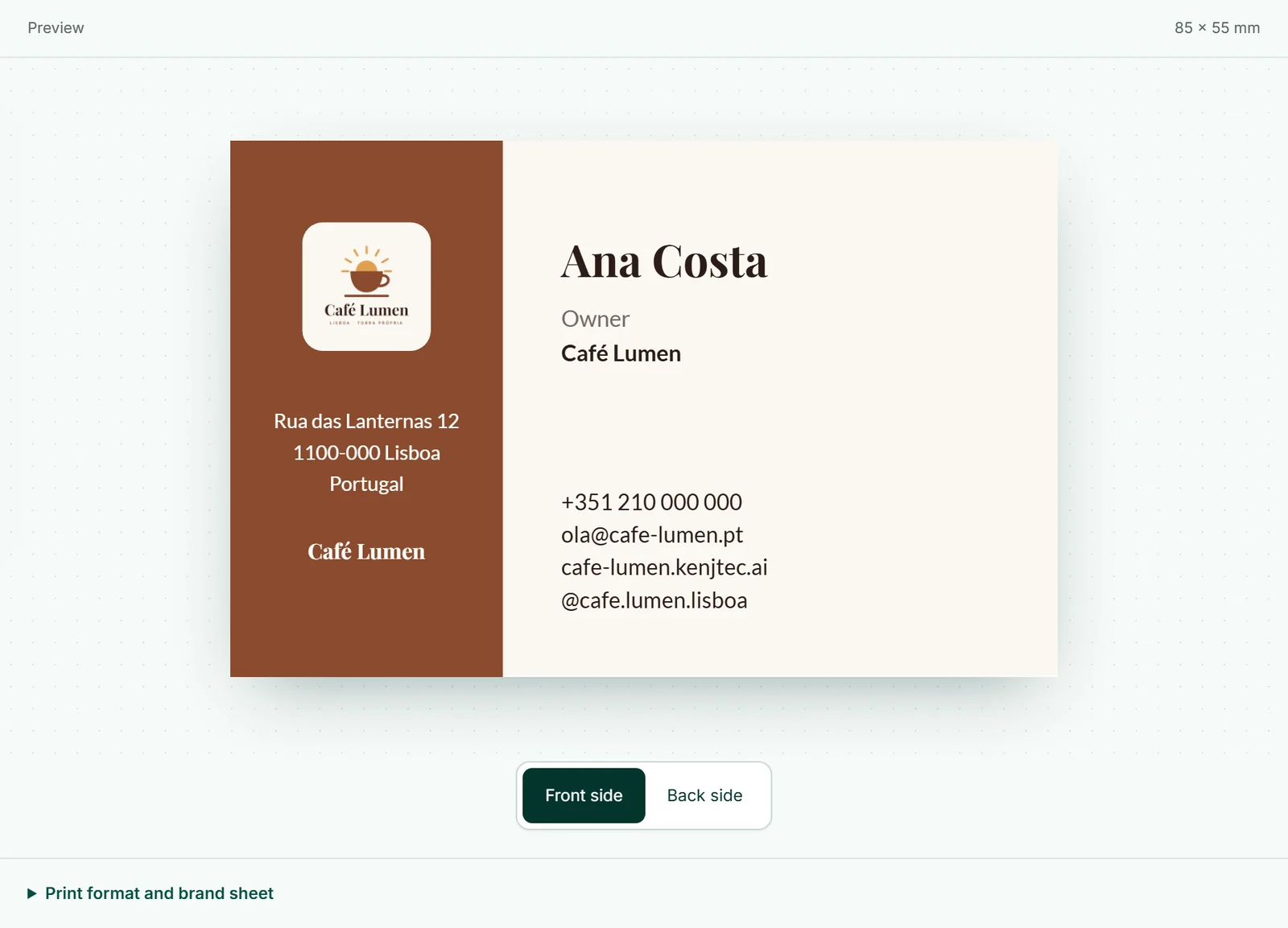
The preview next to the tools — above them on a phone — is set from the same layout as the PDF: position, line breaks, logo, QR code and fonts are identical. What you see there is what the printer gets.
When you type a text, it appears in the preview straight away; PrintStudio draws the fully set version, with line breaks and shortening, as soon as you pause for a moment.
Below the preview you switch between “Front side” and “Back side” for the business card, and between “Outside” and “Inside” for the folder. The format’s size is shown above the preview.
Downloading the PDF
The button for the file sits at the top right of the editor: “Business card as PDF”, “Letterhead as PDF”, “Flyer as PDF” or “Folder as PDF”. While the file is being made it says “Generating …”; afterwards it’s in your downloads, named after your brand and the print piece.
The button waits until all changes are saved. A business card with a back has two pages, and so does the folder — outside and inside. Downloading costs nothing; download as often as you like.
- Wait until “Saved” appears at the top.
- Click “Business card as PDF”.
- Send the file to your printer.
For the printer
Business card, flyer and folder come with 3 mm bleed on every side: colour areas that reach the edge run beyond it, and the printer trims there. The business card is 85 × 55 mm — the format every print shop knows —, the flyer portrait A5, the folder landscape A4 with fold marks.
The letterhead comes as an A4 page without bleed, because an office printer prints it. “Print format and brand sheet” below the preview sums this up in one sentence for each format.

Fonts and logo in the PDF
The PDF embeds your heading and text font as files, just as they’re chosen in BrandStudio. Fonts from the catalogue come along automatically; your own font only if you’ve added its .ttf — otherwise the PDF uses the closest base font. See Uploading your own font.
The logo comes in as an image if you’ve uploaded one, otherwise as a vector graphic from the drawn draft. QR codes are always dark on white.
The brand sheet
Below the preview, “Print format and brand sheet” also holds “Brand sheet as PDF”: one page with your colours including hex and RGB values, the font and the button shape — for everyone who works in your design outside KENJTEC, such as your printer.
It’s the same sheet as in BrandStudio’s overview: it costs nothing and always shows your brand as it stands at the moment you download it. More under The brand sheet.
- Below the preview, expand “Print format and brand sheet”.
- Click “Brand sheet as PDF”.