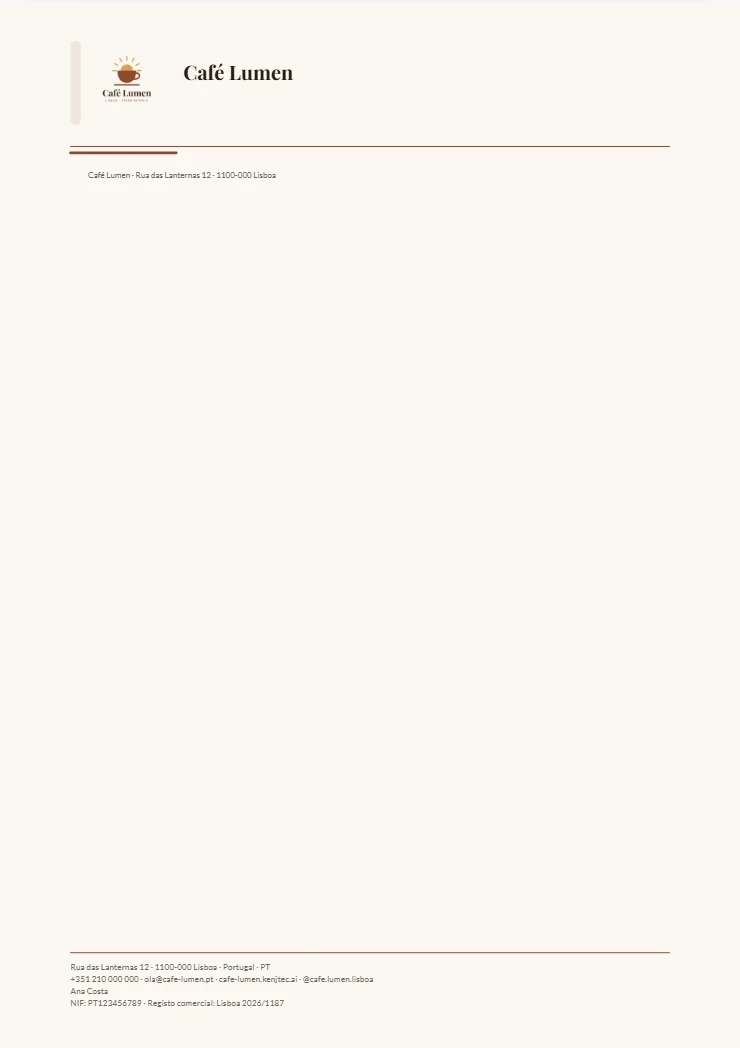
The text on card and letterhead
The “Text” tool holds the fields of the print piece: for the business card first “Person’s name” and “Job title”, then for both formats “Company”, “Tagline”, “Phone”, “Email”, “Website” and “Address”; for the letterhead also “Footer” for management, court of registration or bank.
Empty fields follow the brand: the grey placeholder shows what will be printed — from “Company” in BrandStudio, and as long as nothing is there, from your invoice sender. What you type applies to this print piece only. On the business card, with a name, the person appears large at the top with job title and company below; without a name, the company goes on top with the tagline below.
If you’ve entered channels in SocialStudio, the first one appears as a name with the contact details, such as @your.company; which one that is depends on the order there. If a text doesn’t fit its space, it’s first set smaller and then shortened with “…” — a look at the preview shows you.
- Choose the “Text” tool.
- Enter “Person’s name” and “Job title”, such as “Ana” and “Owner”.
- Leave the other fields empty if the details from the brand are right.
Showing and hiding lines
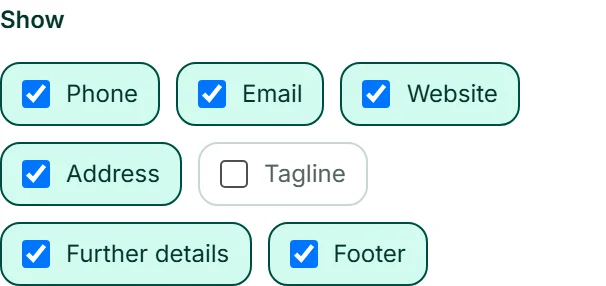
Under “Show” you switch individual lines off without losing their text: “Phone”, “Email”, “Website”, “Address” and “Tagline”, for the business card “Company” and “Job title”, for the letterhead “Footer”. “Further details” are the free lines from “Company”, such as your tax number; they appear in the letterhead’s footer.
A line you switch off disappears from the preview and the PDF. Switch it back on and its text is still there.
The logo
In the “Logo” tool, “Show logo” decides whether the logo goes on the print piece, and “Logo size” how large: “Small”, “Normal” or “Large”. On a coloured background the logo gets a light plate so it stays legible.
The logo comes from BrandStudio — an uploaded one takes precedence over a drawn one. If your brand doesn’t have one yet, it says “This brand has no logo yet.”, and “Upload or design a logo” takes you to BrandStudio.
- Choose the “Logo” tool.
- Leave “Show logo” on and choose “Large” under “Logo size”.
The back of the business card
For the business card, the “Back side” tool decides what goes on the back: “Logo” large in the middle (the company name if there’s no logo), “Company name” with the tagline below, “QR code” with your website below, “Colour only” or “No back side” — then the PDF has just one page.
For the QR code, the field “The QR code leads to” sets where it goes; left empty, it leads to your website from the brand. It’s always dark on its own white plate so that any camera can read it. Below the preview, “Front side” and “Back side” switch the view.
- For the business card, choose the “Back side” tool.
- Click “QR code”.
- Enter the address under “The QR code leads to”, such as the one of your “Book a table” form.
The letterhead
The letterhead is a blank A4 sheet with header and footer — to print or as a template for your letters. At the top are logo, company and tagline; at the bottom a footer with address, contact, your “Footer” line and the further details.
In the “Sheet” tool you switch the “Return address line above the address field” on or off: the small line with company and address that shows in the window of an envelope. The letterhead PDF comes without bleed, so that any office printer prints it correctly.