Drafting from one sentence with Kenji
For flyers and folders, Kenji asks at the top of the “Text” tool — and already in the template selection — what your print piece is for. Write it in one sentence, such as “Summer party on 12 July from 2 pm, with music and a barbecue”, and click “Draft”. Kenji writes the heading, description, call to action and details and picks a template and a colour scheme to go with them.
The suggestion appears in the preview straight away but is not saved yet: above it you see “Suggestion from Kenji — not saved yet” with “Apply” and “Discard”. Only “Apply” puts it into your draft; after that you change every text as usual. While a suggestion is open, the PDF button stays locked.
Kenji only uses what is in your sentence and in your brand details — name, website, phone, email, address. If the suggestion contains numbers you didn’t mention, a note tells you which ones; check them before you apply. A draft counts against your AI bar; applying it doesn’t.
- Open “Flyer” or “Folder”.
- Write in Kenji’s field what the print piece is for and click “Draft”.
- Look at the suggestion in the preview and click “Apply” or “Discard”.
Kenji drafts flyers and folders. Business cards and letterheads mostly carry your brand details — there, Kenji helps by fitting texts that are too long.
Importing content from your tools
Flyer and folder have the “From tool” tool. It lists your websites, forms and shops; “Apply” puts their content into the draft.
From a website come the headline and subline of its hero, the button label — otherwise “Open website” — and its address for the QR code. From a form come its title, description, “Open form”, its address and the first eight questions as a list; you print the whole form under Printing forms. From a shop come its name, short description, “Open shop”, its address and up to ten active products with their current prices as a price list.
What’s imported is a copy: if a price in the shop changes later, the print piece stays as it is — simply import again. You can change every text afterwards in the “Text” tool.
- Open “Flyer” or “Folder” and choose the “From tool” tool.
- Click “Apply” next to your website, form or shop.
- Adjust the texts in the “Text” tool.
Text on flyer and folder
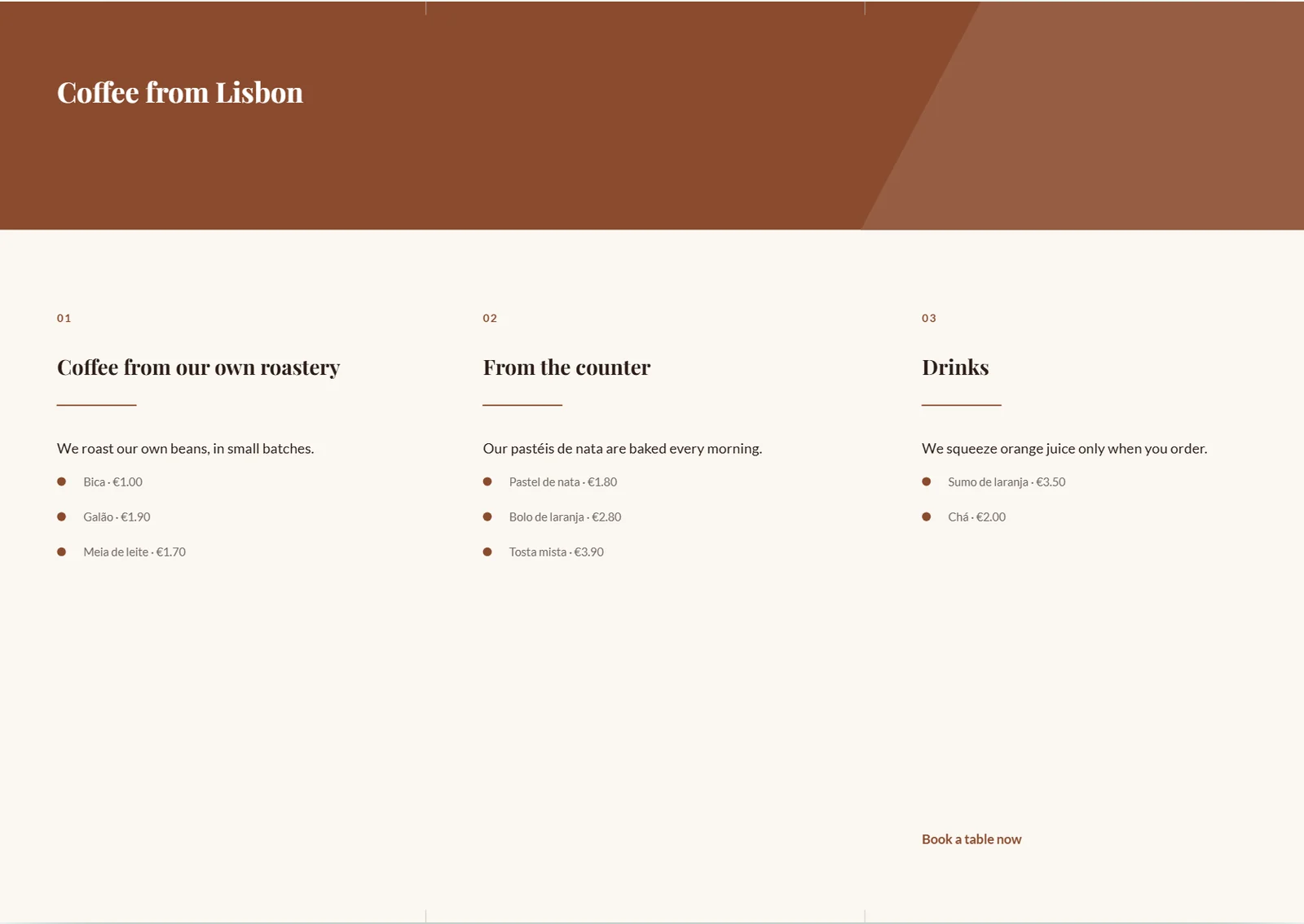
The “Text” tool holds “Heading”, “Description”, “Call to action” — such as “Book a table now” —, “Details or price list” with one line per entry, and “The QR code leads to”. Under “Show” you switch “Description”, “Call to action”, “Details” and “QR code” off individually.
Without an import from a tool and without Kenji, PrintStudio makes nothing up: the heading is then your company name, the call to action your website, and the details are phone, email and website from the brand. Long texts wrap; whatever no longer fits ends with “…” — the field then offers Fit with Kenji.
- In the flyer, choose the “Text” tool.
- Write your “Heading” and the “Call to action”.
- Enter one item per line under “Details or price list”.
Fitting long texts with Kenji
If a text doesn’t fit its template, the print cuts it short with “…”. In the “Text” tool the field then shows “Doesn’t quite fit — the text will be cut short in print.” and the button “Fit with Kenji”. This works for heading, description, call to action and details, and on business card and letterhead for job title, tagline and footer.
Kenji rewrites exactly this one field so that it fits the template’s space, keeping every number, date and name. PrintStudio sets the suggestion as a test and checks that it fits. It appears below the field as “Kenji’s suggestion”; “Apply” puts it in, “Discard” keeps your text. Kenji never shortens name, company, phone, email, website or address.
Fitting counts once against your AI bar. The button waits until everything is saved — so PrintStudio always measures your latest text.
- Choose the “Text” tool.
- Below the field with the note, click “Fit with Kenji”.
- Read “Kenji’s suggestion” and click “Apply”.
The QR code
For the flyer, the “QR code” tool switches the code on or off with “Show QR code”, and “The QR code leads to” sets where it goes — to your “Book a table” form, for example. Left empty, it leads to your website from the brand. For the folder, the same field is in the “Text” tool.
The code is always dark on its own white plate, even on a coloured background — so any camera can read it. It contains exactly the address in the field; check it before printing.
- In the flyer, choose the “QR code” tool.
- Leave “Show QR code” on.
- Paste the address under “The QR code leads to”.
Outside and inside of the folder
The folder is a six-panel roll fold in DL format on a landscape A4 sheet. It always has two print sides: outside with cover, back and flap; inside with three content panels. In the “Pages” tool — or below the preview — you switch between “Outside” and “Inside”.
Short fold marks at the top and bottom edges show the printer the three panels without running through your design. Address and contact on the folder come from the brand’s company details; the lines under “Details or price list” fill the inside.