Heading font and text font
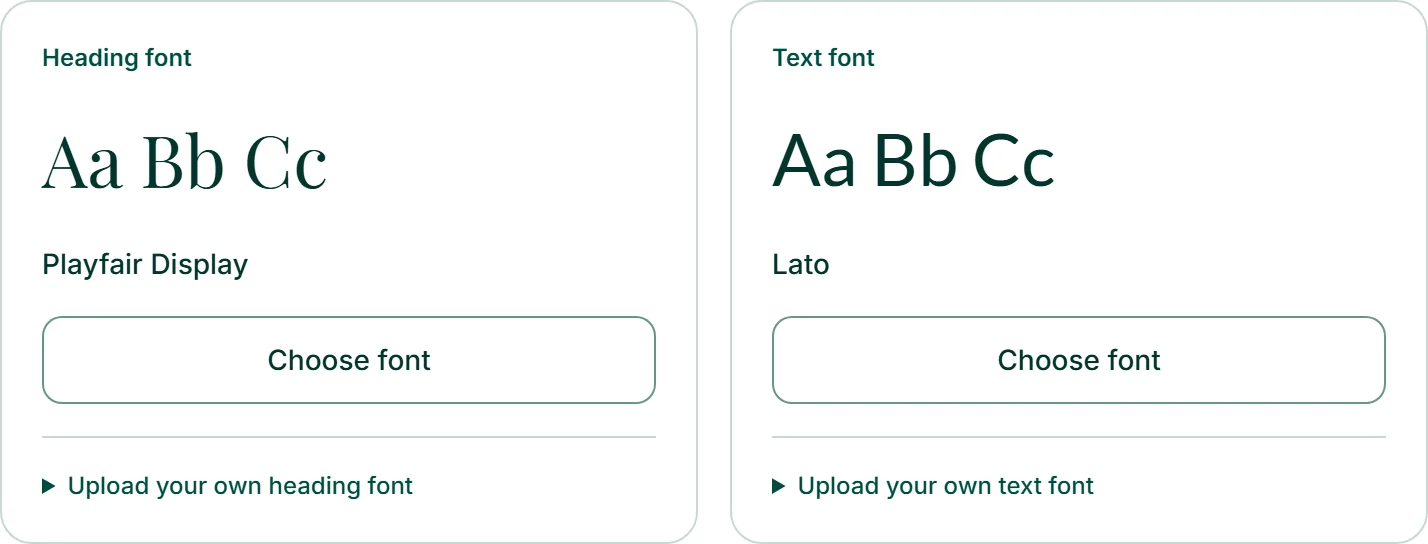
Your brand has two font roles. The “Heading font” is for headings — website, form, shop and WordPress apply it to H1 through H6. The “Text font” is for everything else: paragraphs, lists, buttons, fields.
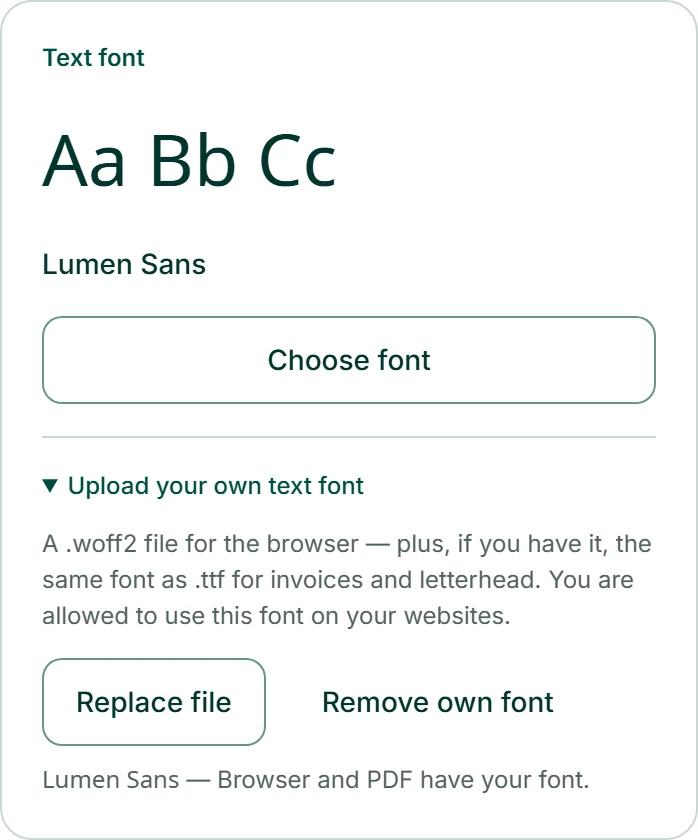
Under “Design” and “Fonts”, one card each shows the chosen font as “Aa Bb Cc” with its name. If no text font is chosen, it says “Template decides” — each tool then keeps its template’s font. Without a heading font of its own, headings use the text font.
Finding and choosing a font
“Choose font” below a card opens the list for that role. Without a search term, it shows the recommended fonts; ticking “All … fonts” shows the whole selection. The “Search” field searches the entire font catalogue by name, and the buttons below filter by type: “Sans-serif”, “Serif”, “Display”, “Handwriting”, “Monospace”. Every line is set in its own font.
Looking for a font for Arabic, Cyrillic or Japanese? Type the English name of the writing system into the search field: arabic, cyrillic, japanese. On the right of each line it says “Recommended” — or which writing systems a font supports besides Latin.
Clicking a font chooses it, and all tools follow. “Back to template” releases the text font, “Same as the text font” the heading font. With a great many hits, the bottom of the list says how many more there are; a more precise search term helps.
- Open “Design” and choose “Fonts”.
- Click “Choose font” under “Heading font”.
- Type a name into the “Search” field or choose a type.
- Click the font you want.
Uploading your own font
If your company has a house font, you upload it yourself: under the heading-font card via “Upload your own heading font”, under the text-font card via “Upload your own text font”. First comes a .woff2 file for KENJTEC’s browser view and, if you have it, the same font as .ttf for invoices, letterhead and print matter. Each file may be up to 2 MB. You give its name under “Font name”; otherwise we use the file name.
As long as your own font is attached to a role, it takes precedence over the catalogue; the list is then locked. “Add .ttf for PDF” adds the second file, “Replace file” swaps it, and “Remove own font” releases the role again.
Only upload fonts you’re allowed to use on websites. We don’t check the licence.
- Below the card, expand “Upload your own text font”.
- Enter a name under “Font name”.
- Click “Choose file” and select the .woff2 file.
- Click “Add .ttf for PDF” and select the .ttf file.
For KENJTEC’s browser view you need the .woff2 file. The .ttf adds the font for PDF output.
Fonts in PDFs
Print matter from PrintStudio, the brand sheet and your invoices embed your fonts as files — printed, they look the way they do on screen. Fonts from the catalogue come along automatically.
Your own font goes into the PDF as soon as its .ttf is there. Until then, the line below the font says: “The browser has your font; invoices and letterhead use the closest base font until a .ttf is added.” With the .ttf, it becomes “Browser and PDF have your font.”