
The image picker in the tools
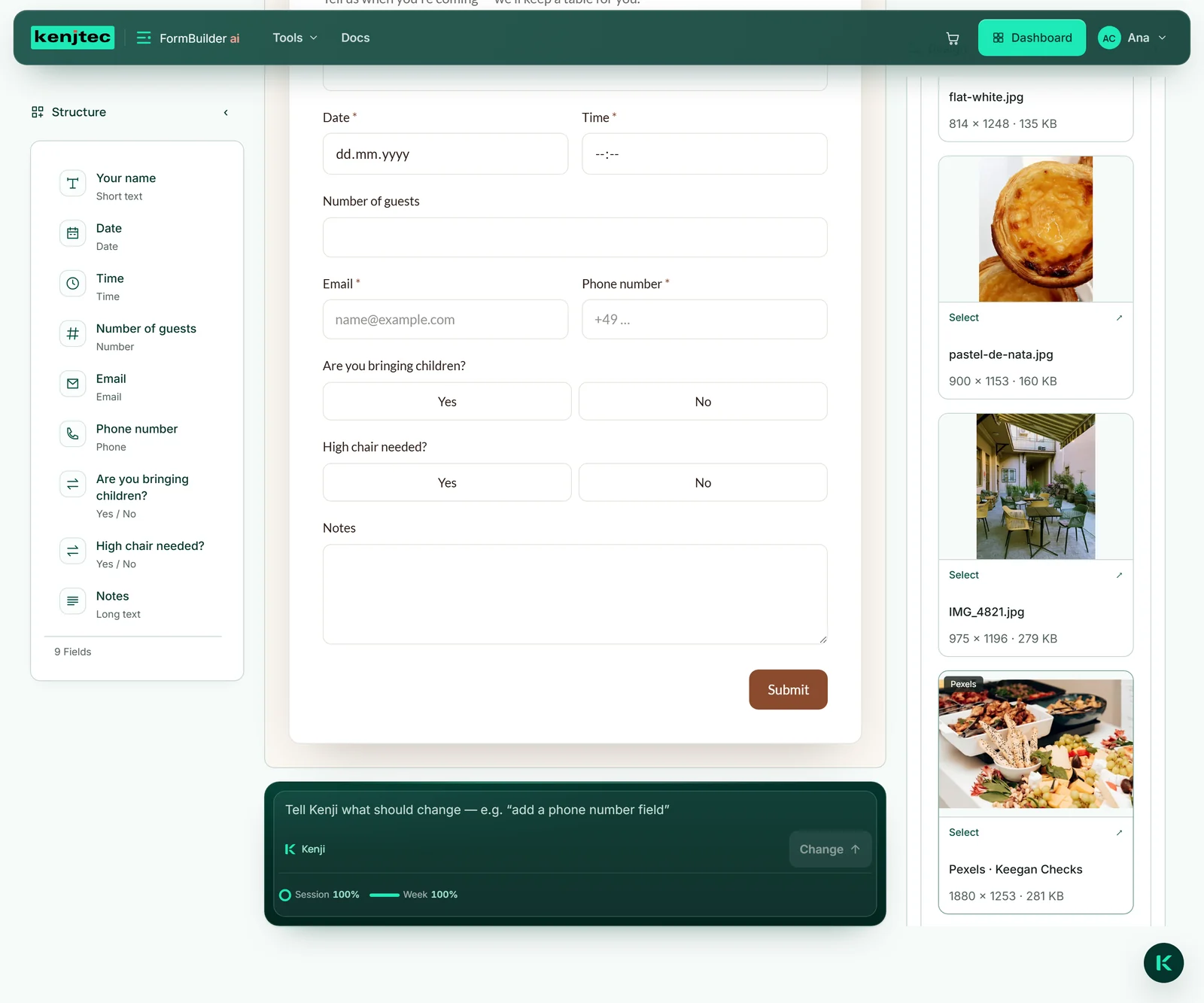
Wherever you place an image, you can reach your library: in WebSiteBuilder under “My images”, in FormBuilder via “Or choose from my images”, in SocialStudio via “Choose an image from MediaStudio”. There the library itself opens — with folders, search and filters, and with “Upload files” and “Find images” in case an image is still missing. ShopBuilder and WordPressBuilder show your images in a simpler picker of their own.
The image picker shows images and logos, no videos and no PDF documents. A click on a tile selects the image. Crops and edits are listed under “… versions” on their original and chosen with “Select”.
The tools differ in one respect: some copy the image, others link to it. That decides whether you can delete it in MediaStudio later.
Website and forms: a copy
WebSiteBuilder ai and FormBuilder ai copy an image when you place it — as a section image, a background or an image field. The copy belongs to your website or your form, and the image description goes with it.
That has a welcome consequence: if you later delete the image in MediaStudio, your page stays as it is. That is also why using an image on your website or in a form does not lock it in MediaStudio, and why it can appear in the “Not linked anywhere” view even though your website shows it.
If you want a different image on your website, you swap it there. How that works in the editor is explained under Images in WebSiteBuilder; for forms, see FormBuilder ai.
Shop and posts: a link
ShopBuilder ai and SocialStudio ai do not copy; they link to the file in MediaStudio: your products’ images and your shop’s logo, the images of a post. That saves space.
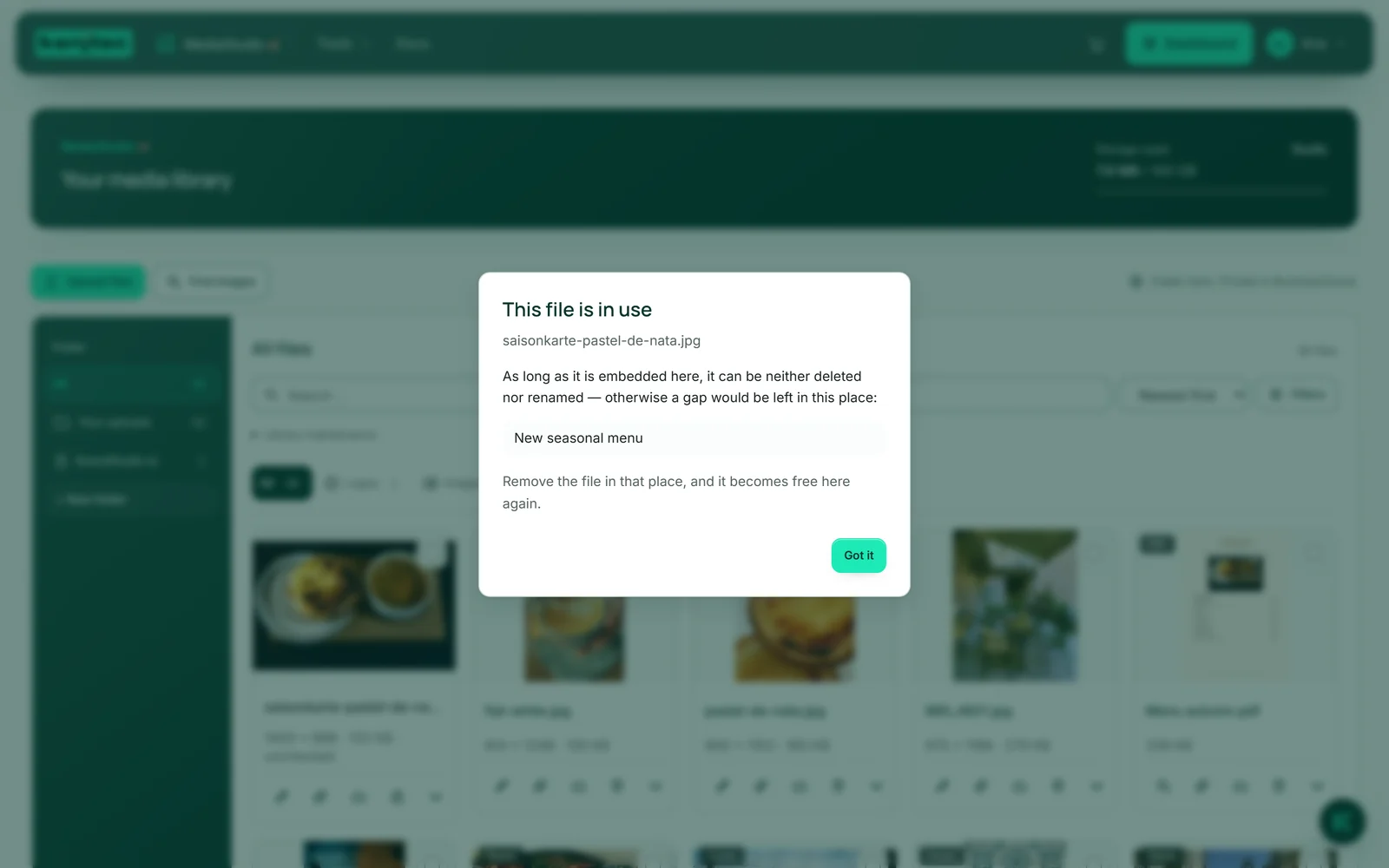
As long as a product, your shop or a post uses an image, it is locked in MediaStudio: instead of “Delete”, the tile shows the “In use” lock, and the name cannot be changed. That way a click in MediaStudio cannot tear a hole in your shop.
Take the image out of the product, the shop or the post — or delete the product or the post — and it is no longer in use. More on both tools: ShopBuilder ai and SocialStudio ai.
WordPress
There are two ways for WordPress. In your installation’s Control Panel, the “Media” area holds the tile “Your images from MediaStudio”. “Insert from MediaStudio” shows your newest images; “Insert” copies an image into your WordPress media library, and “As logo” also sets it as your site’s logo, provided your theme has a logo slot. Your site is then independent of MediaStudio.
The second way is inside WordPress itself: under “Media” → “MediaStudio” you see your images; “In Mediathek uebernehmen” creates an entry that links to the address in MediaStudio. It takes up no space in WordPress, and the image stays locked in MediaStudio as long as the entry exists. Delete the entry in WordPress and the image is no longer in use; it can only be edited in MediaStudio. The connection is set up when you open WordPress from the Control Panel.
More on your installation: WordPressBuilder ai.
- In WordPressBuilder, open your installation’s Control Panel and the “Media” area in it.
- Click “Insert from MediaStudio” under “Your images from MediaStudio”.
- Click “Insert” on the image you want — or “As logo”.
Your brand’s logo
When you upload a logo in BrandStudio, it stores the logo and its formats — for the header, the symbol in the browser tab and the share preview, for example — in MediaStudio: in the “BrandStudio ai” folder, under the “Logos” type, as a stack with the original on top. The details read “Logo from BrandStudio”.
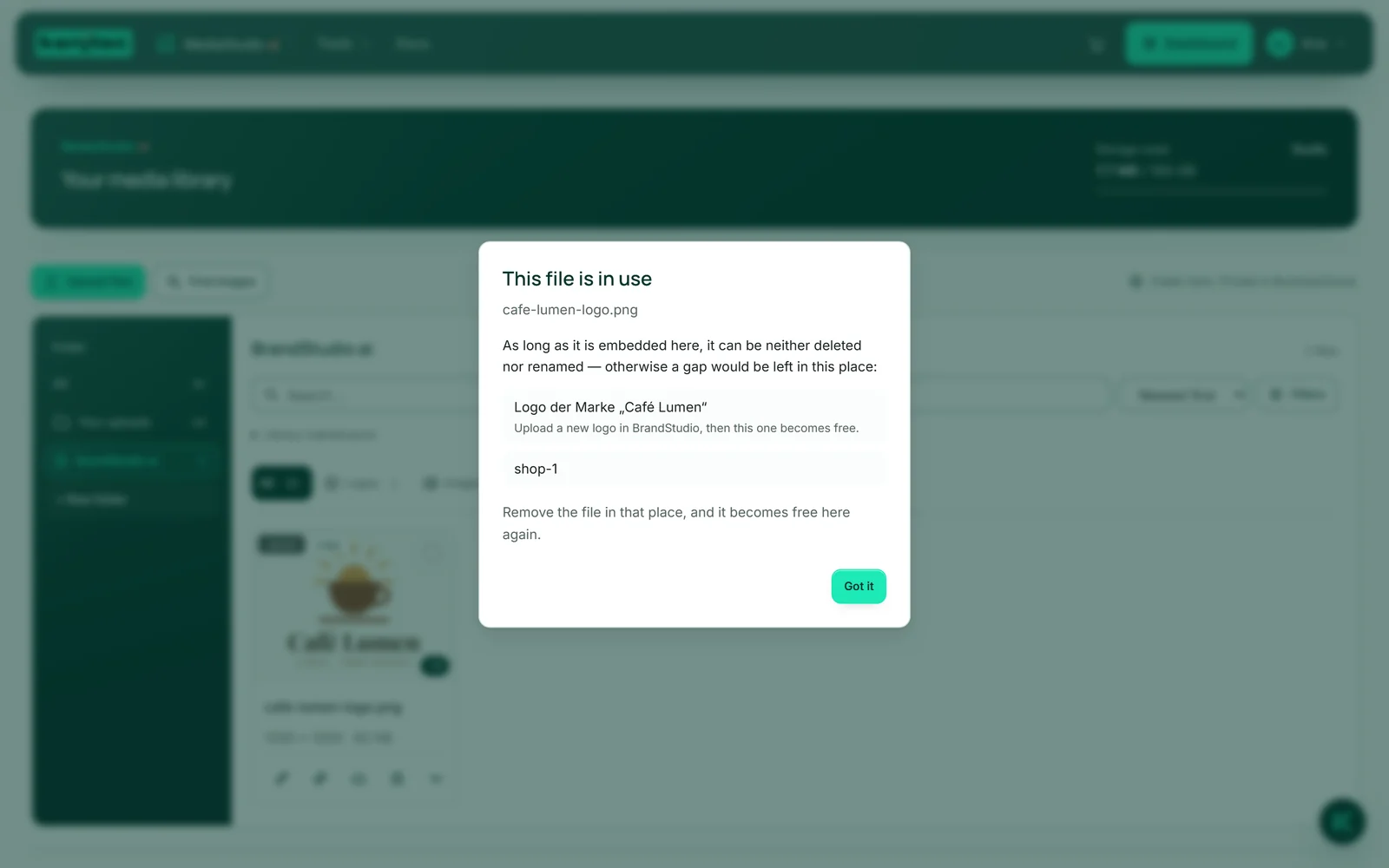
The logo your brand currently carries is locked — the original and every format your website currently reads: no deleting, no renaming, no moving to BusinessCloud. “In use” names the brand and the way out: upload a new logo in BrandStudio, and the old one is no longer in use.
Older logos your brand no longer carries are no longer in use; you can delete or keep them. More on BrandStudio: BrandStudio ai.
Why a file is locked
A file that is linked elsewhere can be neither deleted nor renamed in MediaStudio — otherwise a gap would be left there. This applies to images in a product or your shop’s logo, in a post in SocialStudio, in an entry you created in WordPress via “Media” → “MediaStudio”, and to your brand’s current logo. Images copied by your website and forms lock nothing.
You recognise it by the “In use” lock in place of the bin. A click on it opens “This file is in use” with the list of places. Remove the file there, and it is no longer in use here.
Moving a locked file to another folder, adding it to an album, changing its image description and copying its address all still work.
- Click the “In use” lock on the tile.
- Read where the file is used and remove it in that place.
- Then click the lock once more: if the file is no longer in use, the library reloads and the tile shows the bin again.