
Logos, images, videos, documents
Above the grid, a bar divides your library into four types: “Logos”, “Images”, “Videos” and “Documents”, each with the number of its files. One click shows only that type; “All” shows everything again.
The type is worked out automatically: videos and PDF documents by their file type, logos by coming from BrandStudio. A logo you uploaded yourself cannot be recognised by MediaStudio — so you tick “Treat as logo” in the tile’s details. The file stays where it is and appears under “Logos” from then on.
The numbers count originals. Crops and edits sit in their original’s stack and are not counted separately.
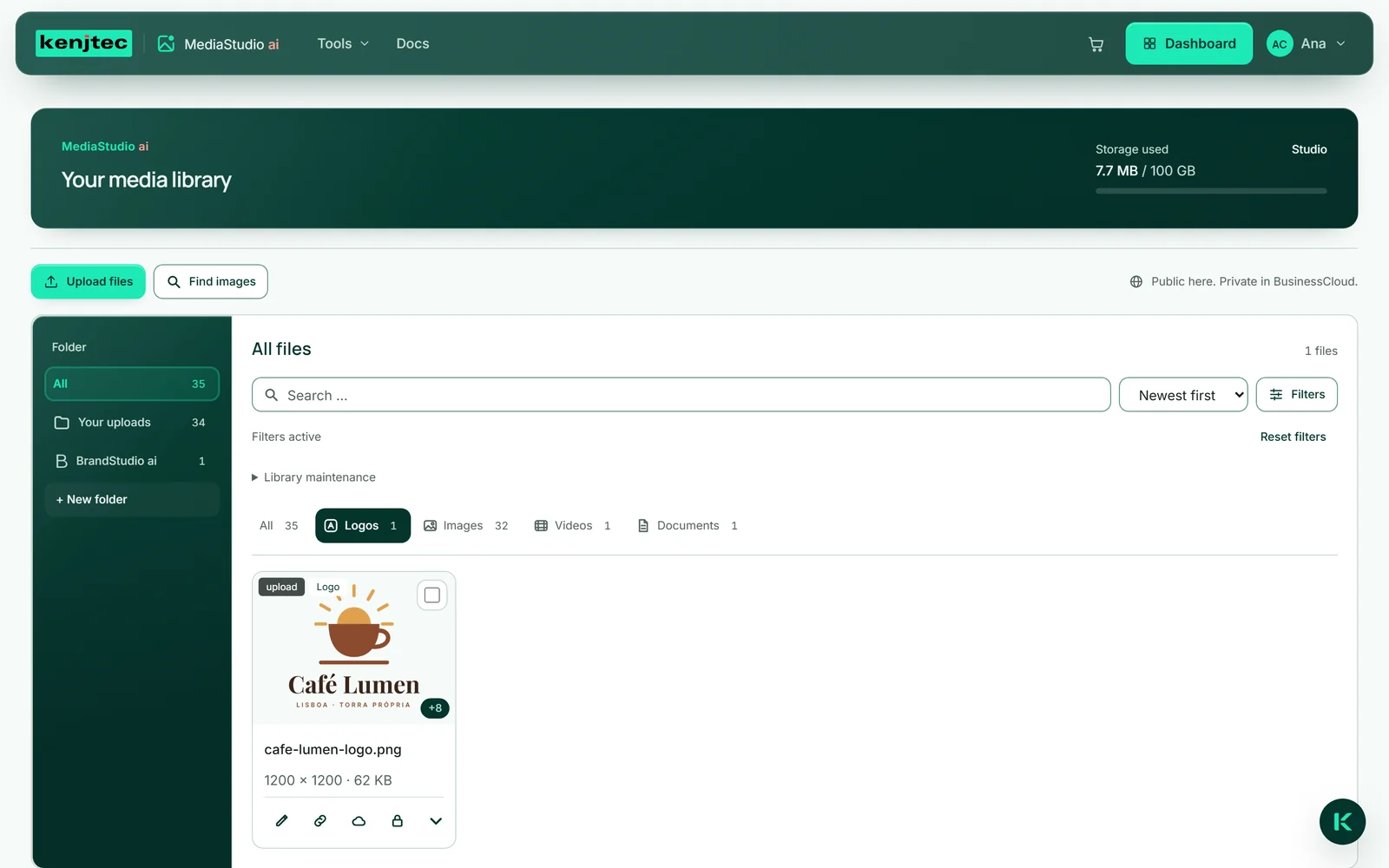
- Click the “Details” arrow on your logo’s tile.
- Tick “Treat as logo”.
- Click “Logos” in the bar — your logo is now listed there.
Folders
Every file lives in exactly one folder. “Your uploads” holds what you uploaded yourself. When a tool stores something in MediaStudio — BrandStudio your logo, for example — it lands in a folder named after that tool; the folder appears by itself the first time and carries the tool’s symbol. What Kenji creates for you sits in “AI generated”. “All” shows every file, wherever it lives.
You create folders of your own with “+ New folder”. When one of your own folders is open, the folder list shows “Rename folder” and “Delete folder”. Deleting a folder keeps its files; they then sit in “Your uploads”. The tools’ folders belong to their tool and can be neither renamed nor deleted.
Moving a file to another folder does not change its address. A page that shows the image keeps showing it.
- Click “+ New folder” in the folder list, type a name and press Enter. The view switches to the new folder.
- Switch to “All” and open the “Details” of the file that should go in.
- Choose the new folder in the “Folder” field. The notice “Moved to …” confirms it.
Albums
An album is a collection, not a place: a file can be in several albums and stays in its folder all the while. That way you keep together what belongs together — everything for the new seasonal menu, say, whether photo, logo or PDF.
You create albums under “Library maintenance” with “New album”. After that, every tile’s details show the “Add to album …” field. Which files are in an album is shown by “Filters” → “Album”.
With an album selected, “Library maintenance” also offers “Rename album” and “Delete album”, and every tile’s details offer “Remove from album”. Both only remove the grouping — the files stay in your library.
- Open “Library maintenance” and click “New album”.
- Enter a name and click “Create”. The view now shows the new, still empty album.
- Under “Filters”, set the “Album” field back to “All files”.
- Open a tile’s “Details” and choose your album in the “Add to album …” field.
Search, sort, filter
The search field finds files by name, image description and keywords — part of a word is enough, and upper or lower case does not matter. The list next to it sorts by “Newest first”, “Oldest first”, “By name” or “By size”.
“Filters” opens further switches: “Orientation” with “Landscape”, “Portrait” and “Square” (images only), “Source” — such as “My own”, “AI generated”, “Pexels”, “Pixabay” or “BusinessCloud” — and “Album”. The number on the button tells you how many of them are in effect. While anything is filtering, “Filters active” appears above; “Reset filters” clears everything at once.
Search and filters apply within the selected folder and type. The grid shows files page by page; “Load more” fetches the next ones.
- Type a word into the search field, such as “coffee”.
- Click “Filters” and choose, for example, “Portrait” under “Orientation”.
- Click “Reset filters” to see everything again.
Keywords
When you upload an image, MediaStudio recognises what can be seen in it and adds matching keywords. They appear in the tile’s details and help you search.
You add keywords of your own with “+ Keyword”. A click on a keyword removes it again — a recognised one that is wrong included.
Keywords are search aids. They never become the image description; you write that yourself or have one suggested (see The image description). Keywords exist for images, not for videos or PDF documents. Images from before recognition existed get theirs via “Add keywords to library” under “Library maintenance”.
- Open the tile’s “Details”.
- Click “+ Keyword”, type the word and press Enter.
- To remove a keyword, click it.
Stacks: an original and its versions
Crops, logo formats and edits are files of their own. In the grid, though, they do not appear as separate tiles; they sit in their original’s stack. The badge at the bottom right of the tile, such as “+9”, tells you how many versions lie beneath.
The “Details” show the list of versions: each with a small preview, its name suffix, dimensions and size, and actions of its own — “Edit”, “Copy address”, “Move to BusinessCloud” and “Delete” or “In use”. A click on the small image shows the version large. A long list scrolls within the card, by keyboard too.
If you edit a version further, the result lands in the same stack. When you delete an original, the dialogue asks whether its versions go too — see Deleting files.
